
To unsubscribe from emails, scroll to the bottom of the email and click the Unsubscribe link — required by law for legitimate marketing emails in the US (CAN-SPAM Act) and most other countries. Only do this for senders you recognize and trust, like a company you’ve actually bought from or signed up with. For an unknown or suspicious sender, clicking Unsubscribe can backfire — it confirms to a spammer that your address is real and actively read. In that case, use your email app’s Block feature instead.
The one distinction that decides everything: do you trust the sender?
This is genuinely the most important thing to get right, and it’s not about how the unsubscribe link looks — it’s about whether you recognize the company sending it.
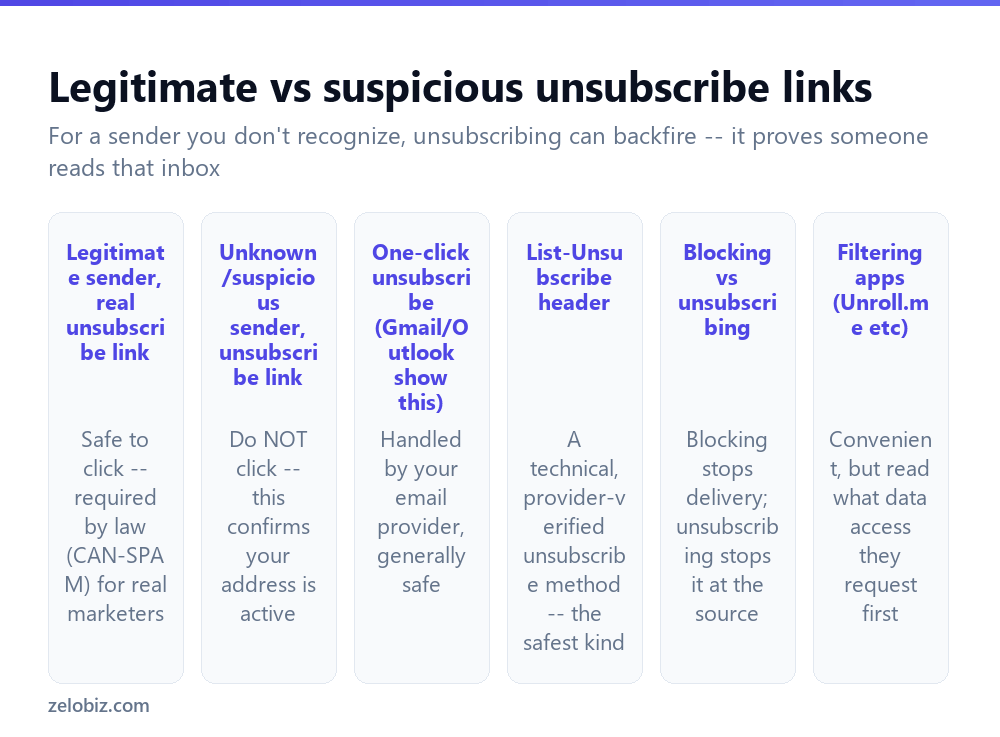
A legitimate business you’ve interacted with — a retailer you’ve ordered from, a newsletter you actually signed up for, a service you use — is legally required (in the US, under CAN-SPAM; similar rules exist in the EU and elsewhere) to honor an unsubscribe request. Clicking their link is safe and the correct way to stop the emails.
An unknown or suspicious sender — something that looks like spam, a company you’ve never heard of, an email that seems designed to get you to click something — is a different situation entirely. A spammer’s “unsubscribe” link exists specifically to confirm your email address is active and monitored, which makes you a more valuable target for further spam, not less. Clicking it can make the problem worse.
If you don’t recognize the sender or don’t remember signing up for anything from them, don’t click Unsubscribe. Block them instead — it accomplishes the same practical goal (no more emails) without confirming anything to whoever sent it.
Unsubscribing from a legitimate sender
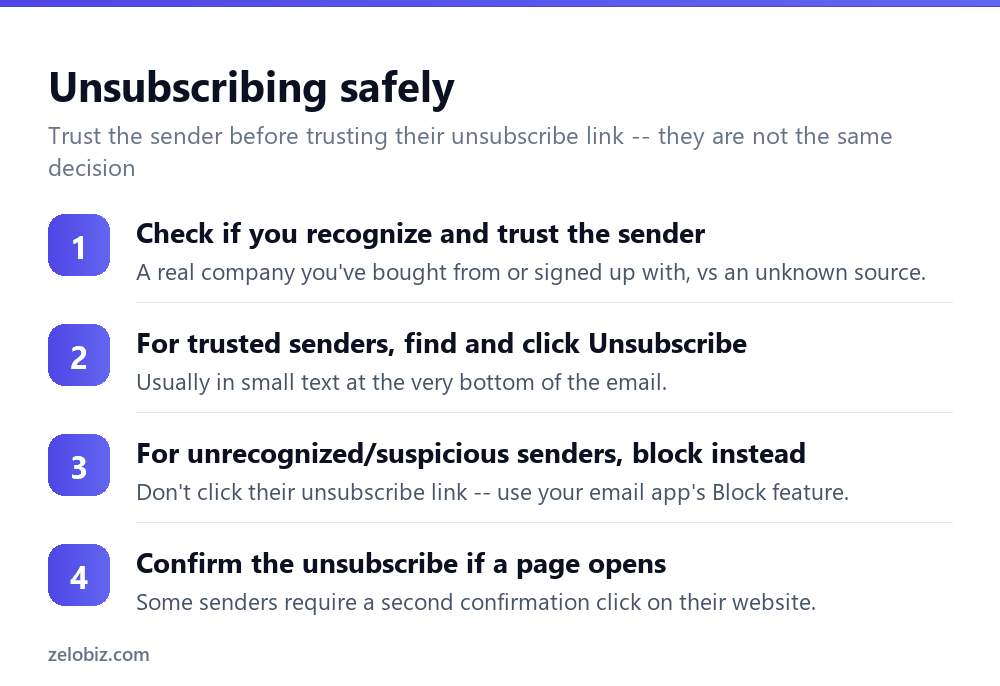
Scroll to the very bottom of the email — the unsubscribe link is almost always there, often in small grey text below the main content and any legal footer text.
Click it. Many senders process the request immediately; others open a webpage asking you to confirm, or offering to reduce email frequency instead of stopping entirely as an alternative option worth considering if you want occasional updates rather than none at all.
Some email providers (Gmail and Outlook both do this for recognized bulk senders) show a one-click Unsubscribe button directly next to the sender’s name in the inbox view itself, without needing to open the email or scroll to find a link — this uses a technical standard called the List-Unsubscribe header, and is generally the safest and most reliable unsubscribe method available, since your email provider itself is handling and verifying the request.
Blocking instead, for anything you don’t trust
Blocking a sender is available in essentially every email app — typically right-click the message or sender, or use a menu option like “Block sender” or “Report spam.” This prevents future emails from that address from reaching your inbox at all, without any interaction with the sender or confirmation that your address is active.
Reporting as spam, where available, does the blocking job and also helps your email provider’s spam filters recognize similar messages faster in the future — both for you and, in aggregate, for other users of the same email service.
Mass-unsubscribe tools and apps
Third-party services that scan your inbox and offer to unsubscribe from everything at once can be genuinely convenient for a badly cluttered inbox with dozens of active subscriptions. The tradeoff worth understanding: these tools need broad access to read your email to work, which is a meaningful permission to grant a third party.
Before using one, check specifically what access it’s requesting (read-only versus full account access, for instance) and its privacy policy regarding what it does with your email metadata. For most people with a manageable number of unwanted subscriptions, unsubscribing manually from the handful of worst offenders accomplishes most of the benefit without that tradeoff.
A worked example: cleaning up a cluttered inbox
Say your inbox has accumulated dozens of marketing emails over the years — some from stores you’ve actually shopped at, some from services you signed up for once and forgot about, and a handful that look like they were never opted into at all.
Work through it in two passes rather than trying to handle everything the same way. First pass: for every sender you clearly recognize and remember signing up with, click Unsubscribe at the bottom of one of their emails. This is the safe majority of the cleanup and can be done quickly without much second-guessing.
Second pass: for anything you don’t recognize, or genuinely can’t remember signing up for, don’t click their unsubscribe link at all — block or report those as spam instead. If you’re unsure which category a sender falls into, treat it as the second, more cautious category rather than assuming a familiar-sounding company name means it’s safe.
This two-pass approach takes slightly longer than clicking Unsubscribe on everything indiscriminately, but avoids the specific risk of confirming your address to a sender who shouldn’t have had it in the first place.
Preventing future clutter, not just cleaning up the current mess
Unsubscribing addresses the emails already arriving; it doesn’t prevent new unwanted subscriptions from starting. A habit worth building going forward: pay attention to pre-ticked checkboxes when creating an account or completing a purchase online, since “send me marketing emails” is frequently opted in by default and easy to miss during checkout.
For situations where you want to give out an email address without fully trusting how it’ll be used — a one-time download, a contest entry, a service you’re only trying briefly — a separate secondary email address, used specifically for lower-trust signups, keeps that kind of mail from ever mixing into your primary inbox in the first place, sidestepping the unsubscribe question for that category of email entirely and keeping your main, everyday address noticeably cleaner over the long run.
When unsubscribing doesn’t seem to work
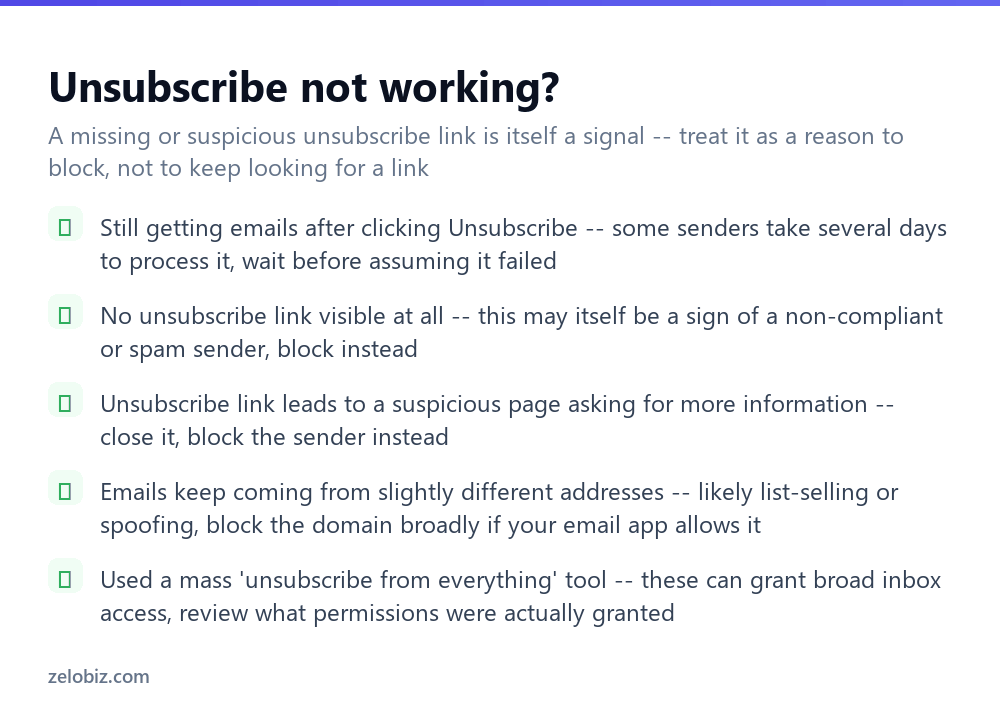
Still receiving emails days after unsubscribing — legitimate senders are typically required to process requests within about 10 business days, not instantly. Give it a reasonable window before concluding it failed.
No unsubscribe link at all — for any sender genuinely subject to anti-spam law, this is itself a red flag, since a compliant marketing email is required to include one. Treat the absence of a link as a reason to block the sender rather than searching harder for one that isn’t there.
The unsubscribe link leads to a page asking for more personal information beyond simply confirming the unsubscribe — close it without entering anything, and block the sender instead. A legitimate unsubscribe process doesn’t need your phone number or additional personal details to stop sending you email.
Emails keep arriving from slightly different addresses after unsubscribing or blocking one — this pattern suggests your address may have been sold to a list, or the sender is rotating addresses to get around blocks. Blocking the sender’s domain broadly, where your email app supports it, or marking messages as spam consistently, helps more than blocking individual addresses one at a time.
- ✓Verify you actually recognize the sender before clicking Unsubscribe
- ✓Block, rather than unsubscribe from, anything unfamiliar or suspicious
- ✓Use your email provider’s built-in one-click unsubscribe when it’s shown
- ✓Give a legitimate unsubscribe request about 10 business days to take effect
- ✓Check what access a mass-unsubscribe app requests before granting it
- ✕Clicking Unsubscribe on an email from a sender you don’t actually recognize
- ✕Assuming an unsubscribe link failed after only a day or two
- ✕Entering extra personal information on an unsubscribe confirmation page
- ✕Treating a missing unsubscribe link as something to search harder for, rather than a red flag
- ✕Granting a third-party unsubscribe tool full account access without checking what it needs it for
Frequently asked questions
Is it safe to click Unsubscribe on any email?
Only for senders you recognize and trust. For an unknown or suspicious sender, clicking Unsubscribe can confirm your address is active, making spam worse rather than stopping it.
What should I do instead of unsubscribing from a suspicious email?
Use your email app’s Block or Report Spam feature. It stops the emails without confirming anything to the sender.
How long does it take for an unsubscribe request to work?
Legitimate senders are typically required to process it within about 10 business days, not instantly. Wait before assuming it failed.
Why doesn’t an email have an unsubscribe link?
Legitimate marketing emails are legally required to include one in most countries. A missing link is itself a sign to block the sender rather than keep looking.
Are one-click unsubscribe buttons in Gmail or Outlook safe to use?
Yes. These use a technical standard (the List-Unsubscribe header) handled and verified by your email provider directly, making it one of the safer unsubscribe methods.
Should I use a third-party app to unsubscribe from everything at once?
It can help with a cluttered inbox, but these apps need broad access to read your email. Check exactly what permissions it requests before using one.
- →Stop the worst offenders outright: how to block spam emails
- →Automate sorting instead of unsubscribing: how to create a rule in Outlook
- →Clear out an already-cluttered inbox: how to archive emails in Outlook
- →Take back a message sent in error: how to recall an email in Outlook