
To compress a PDF, use Adobe Acrobat’s File › Save As Other › Reduced Size PDF, or on a Mac, Preview’s File › Export › Quartz Filter › Reduce File Size — both are built in and reduce file size mainly by compressing the images embedded in the PDF, which are almost always the real source of a large file. A PDF made up mostly of plain text is rarely worth compressing, since text takes up very little space to begin with.
What’s actually making the file large
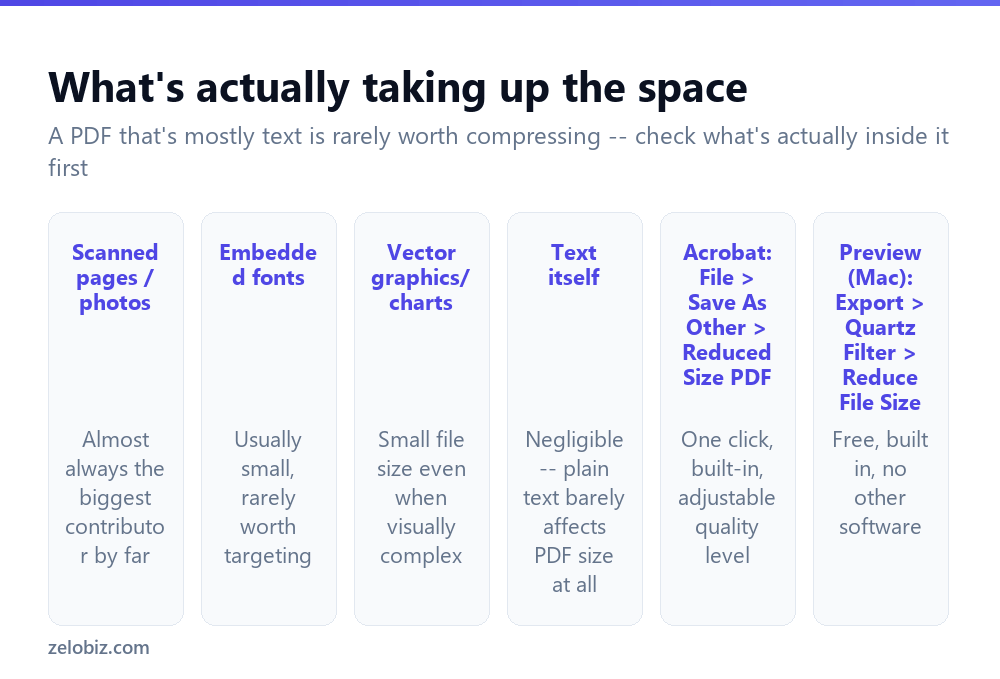
Before compressing anything, it’s worth understanding what’s actually taking up space, since it changes what’s worth doing.
Scanned pages and photos are by far the most common cause of a large PDF. A single high-resolution scanned page can be several megabytes on its own; a multi-page scanned document adds up fast.
Plain text, by contrast, is nearly weightless in PDF terms — a hundred-page text-only report is often smaller than a single scanned photo page. If a PDF is large and it’s mostly text, the size is more likely coming from a handful of embedded images or a decorative background than from the text itself.
Before compressing, check what’s actually inside the file. If it’s mostly scanned images, compression will help a lot. If it’s mostly text, there’s very little to gain.
Compressing with Adobe Acrobat
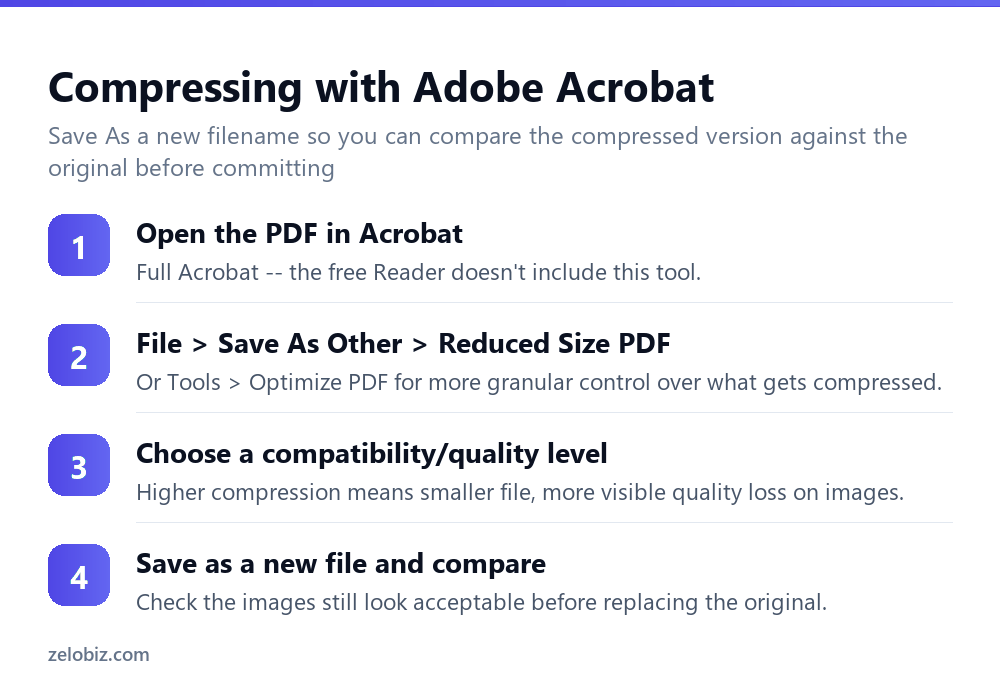
File › Save As Other › Reduced Size PDF is the quick one-click option, applying Acrobat’s standard compression settings automatically.
For more control, Tools › Optimize PDF lets you adjust image compression quality specifically, downsample image resolution to a target DPI, and remove unused elements like embedded fonts that aren’t actually used anywhere in the document.
Always Save As a new filename rather than overwriting the original, so you can compare the compressed version’s image quality against the source before deciding it’s good enough to keep and send.
Compressing on a Mac without other software
Preview includes a built-in compression option with no download needed: open the PDF, File › Export, and under Quartz Filter, select Reduce File Size.
This applies a fairly aggressive, fixed level of compression with no adjustable quality slider — it’s a genuine one-click option, but with less control than Acrobat over exactly how much quality is traded for size. For a PDF where image quality matters a lot, check the result carefully before sending it on.
Free online compressors
Free browser-based PDF compressors work similarly to online converters generally — upload, wait, download the smaller result. The same privacy caveat applies: the file passes through a third-party server. Reasonable for a non-sensitive document you’re compressing purely to fit an email attachment limit; not appropriate for anything confidential.
A more effective fix for scanned documents: rescan at a lower resolution
If the large file is a scan you control — something you scanned yourself rather than received from someone else — compressing after the fact is treating a symptom. Rescanning at a lower resolution (150-200 DPI is plenty for text documents meant to be read on screen, as opposed to the 300+ DPI often used by default) produces a smaller file from the start, with less quality loss than compressing an already-high-resolution scan down after the fact.
💡 Pro tip: 300 DPI or higher is really only necessary if the document might need to be printed at full quality later. For anything staying digital, 150-200 DPI looks fine on screen and produces a dramatically smaller file.
A worked example: shrinking a scanned application packet
Say you scanned ten pages of supporting documents for a loan application, and the resulting PDF is 45MB — well over most email attachment limits, which commonly sit around 20-25MB.
First, check the scan settings that produced it. If it was scanned at 300 or 600 DPI in colour, that’s almost certainly the source of the size — text documents rarely need colour scanning or resolution above 200 DPI to remain perfectly legible on screen. If rescanning is an option, redo it in black-and-white (or greyscale if any pages have photos or diagrams that need it) at 150-200 DPI, which alone often cuts file size by 70-80% with no visible loss in a document meant to be read digitally.
If rescanning isn’t practical — the documents are only available as the already-scanned PDF — run Acrobat’s Reduced Size PDF or Optimize PDF tool with a moderate compression setting, check a few pages at actual size afterward to confirm text and any signatures remain clearly legible, and only then replace the version you were going to send.
Compressing without Acrobat or Preview, using print settings
A lesser-known option: many print-to-PDF drivers let you set image quality and resolution as part of the print job itself. “Printing” an existing PDF through a virtual PDF printer with reduced quality settings selected effectively re-renders it, often shrinking file size meaningfully — though with less predictable results than a dedicated compression tool, since you’re relying on whatever settings that particular virtual printer driver exposes. Worth knowing as a fallback when neither Acrobat nor Preview is available, but not a first choice given the more granular, predictable control the dedicated tools offer.
Batch compressing multiple files at once
If you regularly need to compress many PDFs rather than a single occasional file, Acrobat’s Tools › Optimize PDF can process multiple selected files in one batch action, applying the same compression settings across all of them rather than requiring each to be opened and compressed individually. This is worth setting up once as a saved action if compression is a recurring task — for example, a monthly batch of scanned receipts or invoices that all need to shrink before archiving. Free online tools generally lack this batch capability, processing one upload at a time, which is the main practical argument for Acrobat once compression becomes a routine task rather than an occasional one-off job done a handful of times a year, rather than a weekly or monthly habit built into how a team handles incoming scanned paperwork.
When compression doesn’t help enough
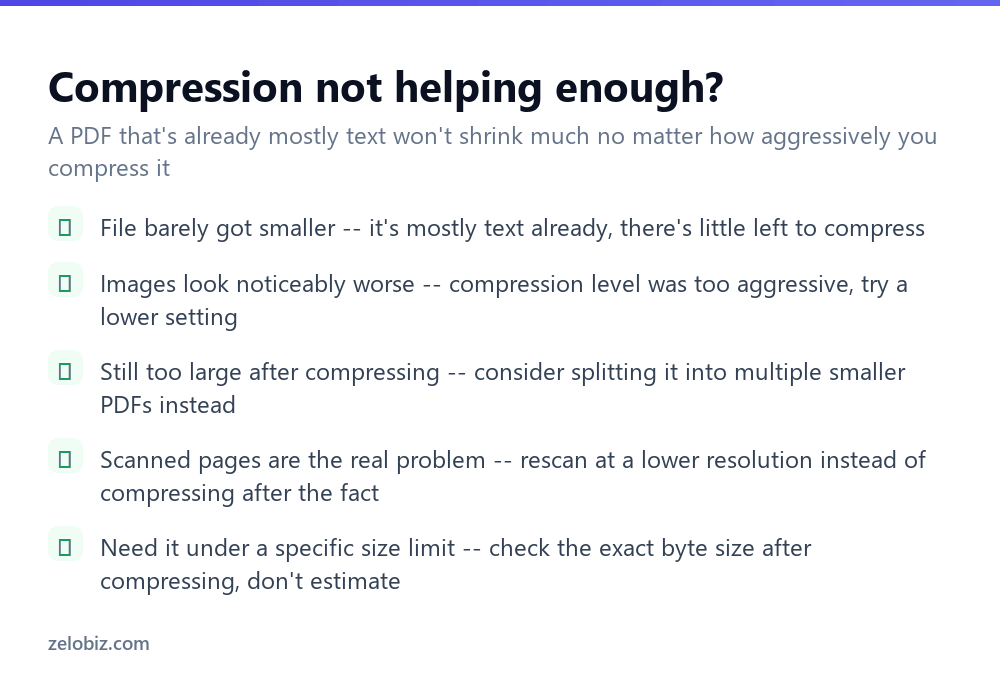
File barely got smaller — it’s likely mostly text already, with little room left to compress. Check what the file actually contains before expecting a dramatic size reduction.
Images look noticeably worse after compressing — the compression level was too aggressive for that content. Redo it at a lower compression setting (higher quality), accepting a larger file size as the tradeoff.
Still too large after compressing — for a genuinely long document made of many scanned pages, splitting it into two or three smaller PDFs (see the split-a-PDF guide linked below) may be more practical than pursuing more aggressive compression that starts to visibly hurt quality.
Need it under an exact size limit for an upload or email system — check the actual resulting file size in bytes after compressing rather than assuming a given compression level will hit a specific target. Different PDFs compress by very different amounts depending on their content, and there’s no reliable way to predict the exact result in advance without actually running the compression and checking it against the actual limit you’re working within, whatever that limit happens to be for your particular situation, email provider, or upload form.
A quick reference for common scenarios
Sending a scanned form by email with a 25MB limit: rescan at 150-200 DPI first if possible, or run Acrobat’s Reduced Size PDF on the existing scan. Uploading to a portal with a 10MB cap: use Optimize PDF with a lower target image resolution, then verify the actual byte size before uploading. Archiving old scanned records long-term where space matters more than pixel-perfect quality: compress more aggressively than you would for something being actively shared, since archived documents are rarely zoomed in on closely.
- ✓Check what’s inside the PDF before compressing — images or text
- ✓Save As a new file so you can compare quality before replacing the original
- ✓Rescan at 150-200 DPI instead of compressing an over-scanned document after the fact
- ✓Use Acrobat’s Optimize PDF for granular control over compression level
- ✓Split a very long scanned document into smaller files if compression alone isn’t enough
- ✕Expecting a mostly-text PDF to shrink significantly from compression
- ✕Overwriting the original before checking the compressed version’s quality
- ✕Scanning at 300+ DPI by default when the document will only ever be viewed on screen
- ✕Compressing an already-compressed PDF repeatedly, compounding quality loss
- ✕Uploading a confidential document to an unfamiliar online compressor
Frequently asked questions
How do I make a PDF file smaller?
Use Adobe Acrobat’s Save As Other, Reduced Size PDF, or Preview’s Export, Quartz Filter, Reduce File Size on a Mac — both mainly compress the images inside the PDF.
Why won’t my PDF compress much smaller?
It’s likely made up mostly of text rather than images. Text takes up very little space in a PDF, so there’s little left to compress.
Is it free to compress a PDF?
Yes. Preview on a Mac and various free online tools compress PDFs at no cost, though Acrobat gives more control over the quality-versus-size tradeoff.
What makes a PDF file large in the first place?
Almost always embedded images, especially scanned pages or high-resolution photos. Plain text contributes very little to file size by comparison.
Should I compress a scanned document or rescan it at a lower resolution?
If you have access to the original document, rescanning at 150-200 DPI produces a smaller, better-quality result than compressing an already-high-resolution scan afterward.
Is it safe to use a free online PDF compressor?
For non-sensitive documents, yes. For anything confidential, avoid it, since the file passes through a third-party server during processing.
- →Break a large file into smaller pieces instead: how to split a PDF
- →Combine several files, then compress the result: how to merge PDF files
- →Straighten a sideways scanned page: how to rotate a PDF
- →Get an editable version instead of compressing: how to convert PDF to Word