
To rotate a PDF permanently, open it in a PDF viewer that shows page thumbnails — Adobe Acrobat, or Preview on a Mac — right-click (or select) the sideways page, choose Rotate Clockwise or Rotate Counterclockwise, and then save the file. That last step is the one people miss: rotating the page changes how it looks, but only saving makes the rotation stick when the file is reopened or shared.
Temporary view rotation vs permanent rotation
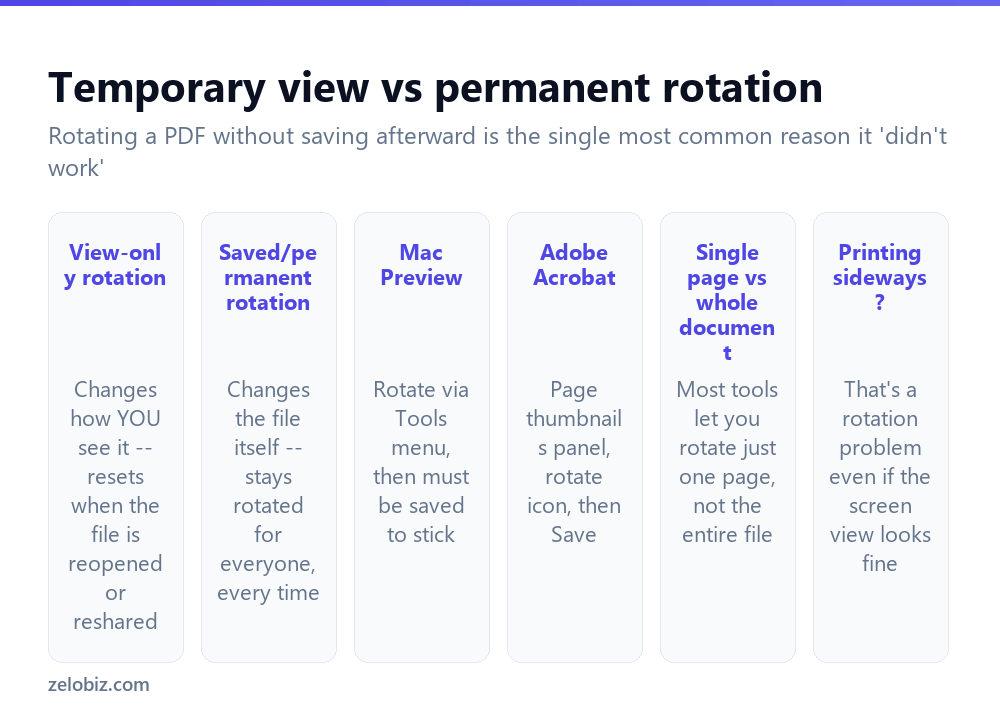
This distinction explains almost every “rotation didn’t work” complaint. Many PDF viewers offer a quick rotate button that only changes how you’re currently viewing the page — useful for reading a sideways page comfortably on screen right now, but it resets the moment you close and reopen the file, and anyone else who opens the same file still sees it in its original orientation.
A permanent rotation changes the actual page data stored in the file. Once saved, the page opens correctly rotated for anyone, on any device, indefinitely — not just in the current viewing session.
If a PDF looks correctly rotated on your screen but comes out sideways when printed, or looks sideways again for someone else you sent it to, that’s almost always a view-only rotation that was never actually saved.
Rotating and saving permanently in Adobe Acrobat
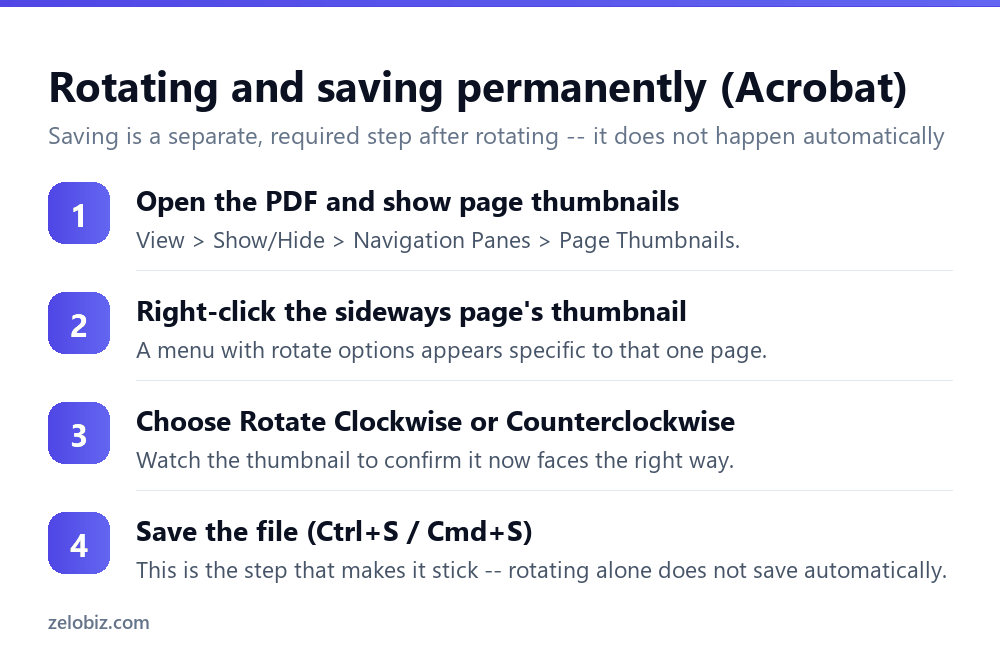
Open the PDF and enable the page thumbnails panel if it isn’t already visible — View › Show/Hide › Navigation Panes › Page Thumbnails.
Right-click the thumbnail of the specific page that’s sideways. A context menu offers Rotate Clockwise and Rotate Counterclockwise, applying only to that one page rather than the whole document.
Watch the thumbnail update to confirm it’s now facing the correct direction, then save the file — Ctrl+S on Windows, Cmd+S on a Mac. This is the step that converts a temporary view change into a permanent one.
Rotating on a Mac with Preview
Preview handles this with no other software needed. Open the PDF, select the sideways page in the thumbnail sidebar (turn it on via the View menu if it’s hidden), and use Tools › Rotate Left or Rotate Right.
As with Acrobat, this changes the page but doesn’t save automatically — File › Save (or Cmd+S) afterward is what makes the rotation permanent.
Rotating just one page vs the whole document
Most scanning mishaps affect a single page, not an entire document — someone fed one sheet into the scanner sideways while the rest went in correctly. Selecting just that one page’s thumbnail before rotating, rather than a Select All, keeps the fix scoped to the actual problem.
If genuinely every page in the document is sideways — common when an entire multi-page scan was fed in incorrectly — select all thumbnails (Ctrl+A / Cmd+A within the thumbnail panel) before applying the rotation, so it’s applied uniformly across every page in one action rather than page by page.
A worked example: a scanned contract with one sideways page
Say a nine-page signed contract was scanned, and page 6 — a landscape-oriented schedule of terms — came through rotated 90 degrees because it was fed into the scanner the same way as the surrounding portrait pages.
Open the PDF in Acrobat, show the thumbnail panel, and scroll to page 6 specifically — resist the temptation to select all nine pages, since only one is actually wrong. Right-click just that thumbnail, choose the rotation direction that will make the landscape content read correctly (test both directions on the thumbnail if you’re not sure which way it’s off), and confirm the schedule text now reads left to right normally rather than sideways or upside down.
Save the file, then reopen it fresh (closing and reopening, not just looking at the still-open window) to genuinely confirm the rotation persisted rather than trusting the in-session view. For a signed legal document like this, that extra confirmation step is worth the thirty seconds, since sending a still-broken version back out defeats the purpose of having fixed it at all.
Rotating a page that’s upside down, not just sideways
A fully upside-down page (180 degrees off, as opposed to 90 degrees sideways) needs two applications of the same rotate command in the same direction, or one rotation followed by checking whether the tool offers a direct 180-degree flip option — some viewers include this as a separate menu item, others require rotating twice. Either approach produces the same correct result; it’s worth glancing at the thumbnail after the first rotation to confirm whether a second one is actually needed, rather than assuming.
Free online rotation tools
Free browser-based PDF rotation tools work for a quick one-off fix — upload, rotate, download. The usual privacy caveat applies: avoid them for anything sensitive, since the file passes through a third-party server during processing. For routine, non-confidential documents, they’re a reasonable option if Acrobat or Preview aren’t available.
Rotating pages inside a mobile scanning app before it becomes a PDF
If the sideways page originated from a phone’s camera-based scanning app rather than a flatbed scanner, it’s often faster to fix the rotation inside that app, before it exports to PDF at all, rather than fixing it afterward in a separate PDF tool. Most scanning apps show each captured page as an editable thumbnail with its own rotate control right after capture, and catching a sideways page there means the exported PDF never has the problem in the first place.
This is worth building into habit for anyone who scans documents on a phone regularly — a quick glance at each page’s orientation immediately after capturing it, rather than discovering a sideways page only after the whole multi-page document has already been exported and shared.
Why some PDFs resist rotation entirely
Occasionally a PDF’s rotation setting appears to apply and save correctly, but the page still displays sideways when reopened in a different viewer, or by a different person. This usually points to a conflict between the page’s own stored rotation value and how a particular viewer interprets it — some older or less common PDF viewers handle the rotation metadata slightly differently than Acrobat or Preview do.
If this happens consistently for one specific file, re-saving it through a different tool — exporting from Acrobat as a fresh PDF rather than saving in place, for instance — sometimes resolves an inconsistency that a simple re-rotation doesn’t, since the export process rebuilds the file’s underlying structure rather than just adjusting a stored rotation flag.
When rotation doesn’t stick
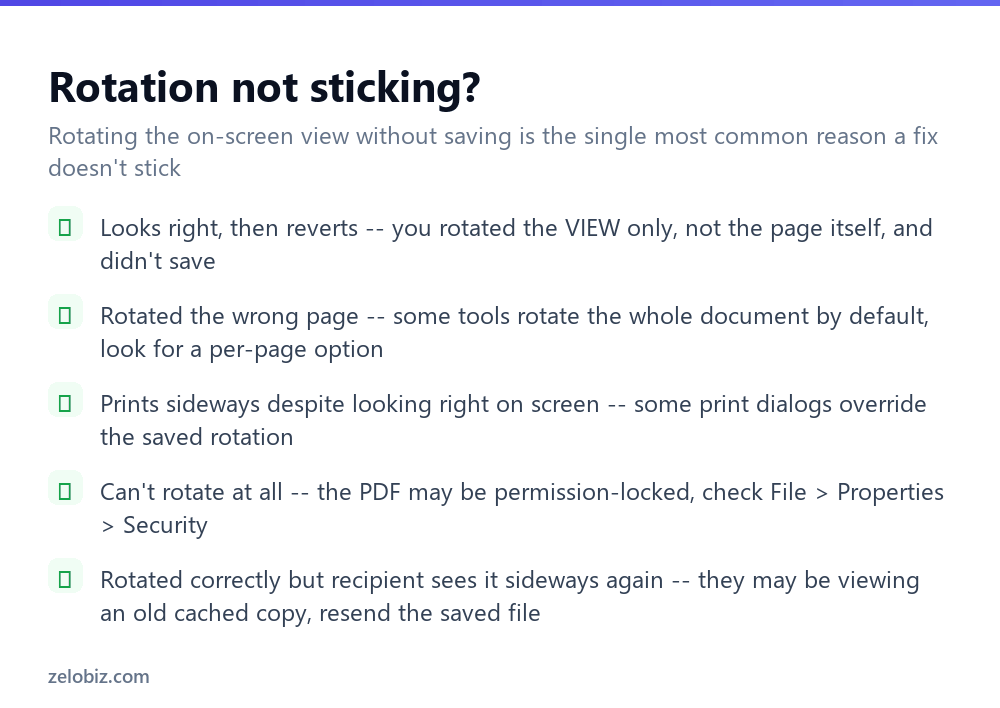
Looks right, then reverts — you rotated the on-screen view only and didn’t save the file afterward. Redo the rotation and explicitly save before closing the viewer.
Rotated the wrong page, or the whole document when you only meant one page — check whether the tool defaulted to Select All. Undo, select only the specific page’s thumbnail, and reapply the rotation to just that page.
Looks correct on screen but prints sideways — some print dialogs, particularly older drivers, have their own orientation setting that can override a PDF’s actual saved rotation. Check the print dialog’s own page orientation setting alongside confirming the file itself saved correctly.
Can’t rotate at all — the PDF may have editing restrictions. Check File › Properties › Security for permission settings that block modification, including rotation.
You saved it correctly, but the recipient still sees it sideways — confirm they’re opening the file you actually resent, rather than a cached or previously downloaded copy of the original unrotated version from an earlier email.
- ✓Always save the file after rotating — it’s a separate, required step
- ✓Select just the one sideways page rather than the whole document, unless every page needs it
- ✓Check the print dialog’s own orientation setting if it prints sideways despite looking correct
- ✓Check File > Properties > Security if rotation won’t apply at all
- ✓Resend the actual saved file if a recipient still sees the old orientation
- ✕Assuming a rotated-looking page is automatically saved that way
- ✕Rotating the entire document when only one page was actually sideways
- ✕Forgetting a print dialog can override a PDF’s saved rotation on some older drivers
- ✕Sending an old cached copy of the file instead of the freshly rotated version
- ✕Uploading a sensitive document to an unfamiliar online rotation tool
Frequently asked questions
How do I rotate a PDF permanently?
Open it in Adobe Acrobat or Preview, select the sideways page’s thumbnail, choose Rotate Clockwise or Counterclockwise, and then save the file — saving is what makes it permanent.
Why does my PDF rotation not stick after I close and reopen it?
You likely rotated the view only, not the actual page, and didn’t save the file afterward. Redo the rotation and save explicitly.
Can I rotate just one page instead of the whole PDF?
Yes. Select only that page’s thumbnail before rotating in Acrobat or Preview, rather than selecting all pages.
Why does my PDF print sideways even though it looks correct on screen?
Some print dialogs have their own orientation setting that can override the file’s saved rotation. Check the print dialog’s orientation option specifically.
How do I rotate a PDF on a Mac without other software?
Use Preview, which is built in: select the page in the thumbnail sidebar, use Tools, Rotate Left or Right, then save with Cmd+S.
Why can’t I rotate a PDF at all?
It may have permission restrictions. Check File, Properties, Security for settings that block modification, including rotation.
- →Extract just the rotated page: how to split a PDF
- →Combine it with other files after fixing: how to merge PDF files
- →Shrink the file once it looks right: how to compress a PDF
- →Make other edits at the same time: how to edit a PDF