

To double space in Word, select the text you want to change (Ctrl+A on Windows or Cmd+A on Mac to select the entire document), then either press Ctrl+2 (Windows) or Cmd+2 (Mac) for instant double spacing, or go to the Home tab, click the Line and Paragraph Spacing icon in the Paragraph group, and choose 2.0. To apply it going forward before you’ve typed anything, set the spacing first, then start typing — it applies to everything written afterward.
Three ways to set line spacing
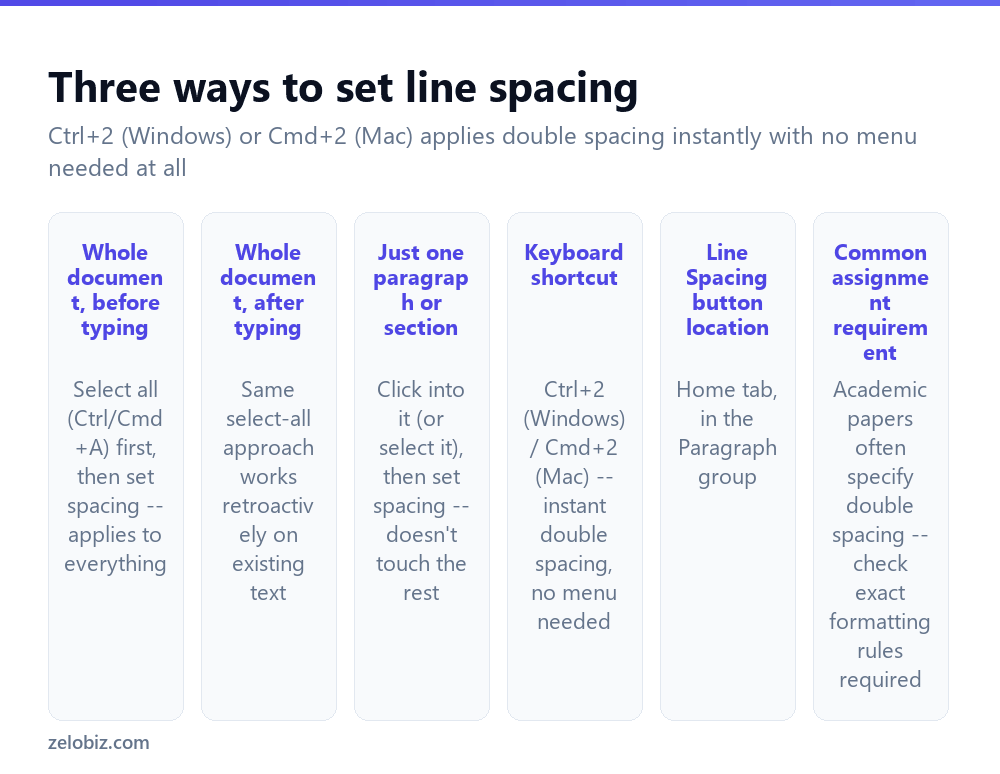
Whole document, before typing — select all existing text (Ctrl+A / Cmd+A) if any exists, set the spacing, and it applies retroactively; or set the spacing on a blank new document before typing anything, and everything typed afterward inherits that spacing automatically.
Just one paragraph or section — click anywhere inside a single paragraph (no selection needed for one paragraph), or select several paragraphs, then set spacing — it applies only to that specific selection, leaving the rest of the document unaffected.
Keyboard shortcut — Ctrl+2 (Windows) or Cmd+2 (Mac) applies double spacing instantly to whatever’s currently selected (or the whole document if selected first), with no need to navigate any menu at all.
The Line and Paragraph Spacing button lives in the Home tab’s Paragraph group — look for an icon showing lines with small up-and-down arrows next to them, distinct from the alignment and bullet-list icons nearby in the same group.
Double spacing the whole document
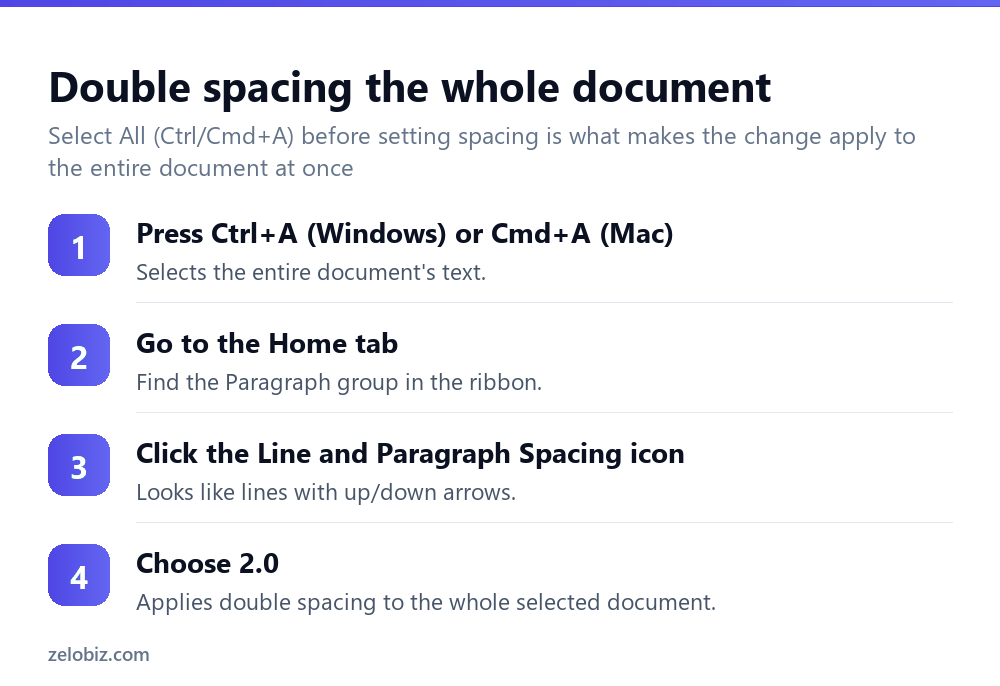
Press Ctrl+A (Windows) or Cmd+A (Mac) to select the entire document’s text.
Go to the Home tab in the ribbon, and find the Paragraph group.
Click the Line and Paragraph Spacing icon (lines with up/down arrows).
Choose 2.0 from the dropdown list that appears. The entire selected document updates to double spacing immediately.
Double spacing just part of a document
Click anywhere within a single paragraph to change just that paragraph’s spacing — no text selection is needed for a single paragraph, since paragraph-level formatting in Word applies based on cursor position alone.
For several paragraphs, select them first (click and drag, or Shift+click at the end of the range), then apply spacing the same way — it affects only the selected paragraphs, leaving text before and after the selection at whatever spacing it already had.
Line spacing vs space between paragraphs — a common point of confusion
These are genuinely two separate settings, and mixing them up is a common source of unexpected results. Line spacing (the 1.0, 1.5, 2.0 setting) controls the gap between individual lines within the same paragraph. Space Before/After Paragraph is a separate setting controlling extra gap between paragraphs, on top of whatever line spacing is set.
If a document looks like it has more space between paragraphs than expected even after setting 2.0 line spacing, check Line Spacing Options › Spacing for an added “Space After” value stacking on top of the double line spacing itself — setting that specifically to 0 if extra paragraph spacing isn’t wanted alongside double line spacing.
Meeting exact formatting requirements
For academic papers or other submissions with a specific required format (common styles like MLA or APA specify double spacing precisely), it’s worth verifying the actual applied setting through Line Spacing Options rather than trusting the quick “2.0” preset blindly — occasionally a document inherited unusual spacing from a template or pasted content that isn’t genuinely exactly 2.0 even though it looks approximately double-spaced at a glance.
A worked example: formatting a college essay
Say an essay assignment specifies double spacing throughout, 1-inch margins, and a specific font, and the paper is already mostly written in single spacing.
Select the whole document with Ctrl+A (or Cmd+A on Mac), then press Ctrl+2 (or Cmd+2) to apply double spacing in one step. Before considering the formatting done, check Line Spacing Options specifically — click the small arrow in the corner of the Paragraph group to open the full Paragraph dialog — and confirm both “Line spacing: Double” and “Space After: 0pt” are actually set as expected, since a document that started with some other spacing template can occasionally carry an unexpected Space After value that adds visible extra gaps between paragraphs even once line spacing itself reads Double correctly.
If any content was pasted in from another document or source (a quote copied from a website, for instance), select just that pasted section specifically and reapply Ctrl+2 to it directly, since pasted text is exactly the kind of content most likely to have arrived with different spacing baked in from its original source, even after the rest of the document was correctly set to double spacing.
Finally, scroll through the entire document once completed pages appear on screen, checking visually that spacing looks consistent throughout rather than relying solely on the setting shown in one dialog box — a quick visual pass catches an inconsistency far faster than trying to click through and check every individual paragraph’s settings one at a time.
Double spacing and other common spacing values
Beyond exactly 2.0, Word’s spacing dropdown also offers 1.0 (single, the default), 1.5 (a middle ground sometimes specified for business documents or reports), and 2.5 or 3.0 for even wider spacing, occasionally requested for documents intended to have room for handwritten notes or markup between the lines. Line Spacing Options also allows an entirely custom multiple beyond these presets, entered as a specific number, if a requirement calls for something the standard dropdown doesn’t offer directly.
Setting double spacing as the default for new documents
For anyone who regularly writes documents requiring double spacing — students working on assignment after assignment, for instance — it’s worth setting double spacing as the default for new blank documents rather than reapplying it every single time. This is done through the Design tab, Paragraph Spacing, choosing Double, then Set as Default, which saves the change to the underlying template new documents are built from going forward, rather than only affecting the current document you happen to be working on right now.
A quick reference
Formatting an existing single-spaced document: select all first, then apply double spacing, and separately check Space After Paragraph for any leftover extra gap. Starting a brand new document that will always need double spacing: set it as the document default once through the Design tab rather than reapplying it manually every single time a new file is created.
When spacing doesn’t look right
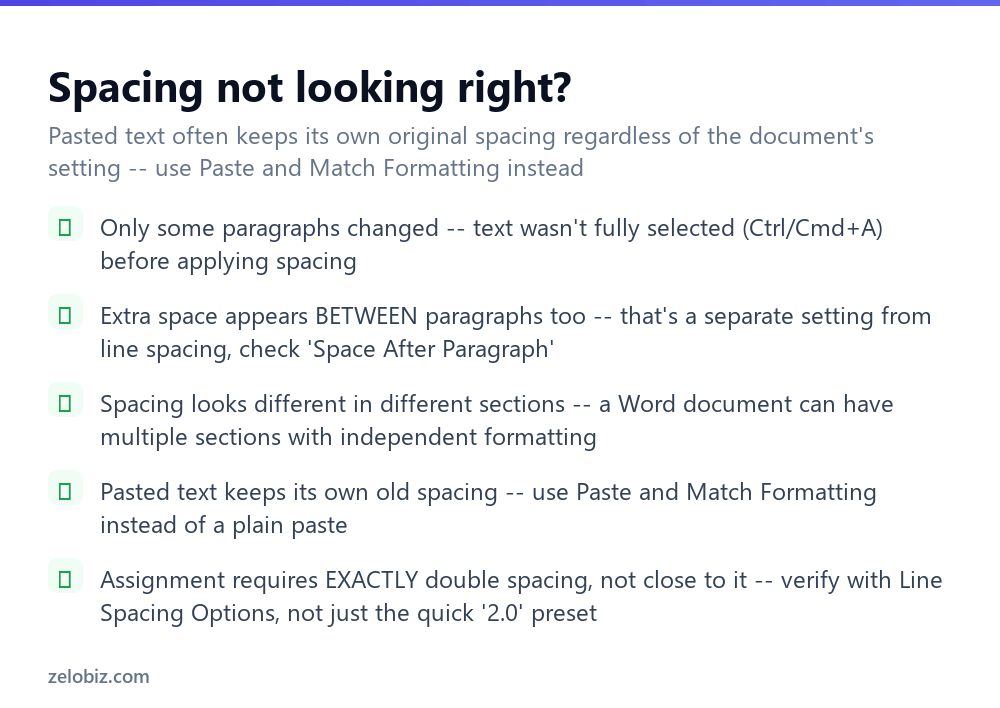
Only some paragraphs changed — the text wasn’t fully selected before applying spacing. Use Ctrl+A / Cmd+A to select everything if the whole document needs to change.
Extra space appears between paragraphs too, beyond just double line spacing — this is the separate “Space After Paragraph” setting; adjust it specifically if unwanted.
Spacing looks inconsistent across different parts of a document — a Word document can be divided into multiple sections, each capable of carrying independent formatting; check whether section breaks exist that might explain the inconsistency.
Pasted text keeps its own old spacing regardless of the document’s setting — use Paste and Match Formatting (often available as a paste option, or Ctrl+Shift+V) instead of a plain paste, which otherwise brings the source’s original formatting along with the text.
- ✓Select the whole document with Ctrl+A / Cmd+A before applying spacing document-wide
- ✓Use Ctrl+2 / Cmd+2 as a fast shortcut once you’re used to it
- ✓Check Space After Paragraph separately if extra gaps appear beyond line spacing
- ✓Use Paste and Match Formatting to keep pasted text consistent with document spacing
- ✓Verify exact spacing through Line Spacing Options for strict formatting requirements
- ✕Applying spacing to only part of a document when the whole thing needed it
- ✕Confusing line spacing with the separate Space Before/After Paragraph setting
- ✕Assuming pasted text automatically matches the document’s existing spacing
- ✕Trusting the quick ‘2.0’ preset blindly for a submission with strict formatting rules
- ✕Overlooking section breaks as a cause of inconsistent spacing across a document
Frequently asked questions
How do I double space a whole document in Word?
Select all text with Ctrl+A (Windows) or Cmd+A (Mac), then press Ctrl+2 or Cmd+2, or use the Line and Paragraph Spacing button on the Home tab and choose 2.0.
What’s the keyboard shortcut for double spacing in Word?
Ctrl+2 on Windows, Cmd+2 on Mac — applies instantly to selected text with no menu needed.
How do I double space only part of a document?
Select just the paragraphs that need it, then apply the spacing the same way — it won’t affect text outside that selection.
Why is there extra space between my paragraphs even after setting double spacing?
That’s a separate setting called Space After Paragraph, not line spacing itself. Adjust it specifically under Line Spacing Options if unwanted.
Why doesn’t pasted text match my document’s double spacing?
Plain pasting often carries over the source’s original formatting. Use Paste and Match Formatting instead to keep it consistent with the rest of the document.
How do I make sure my document is exactly double spaced for an assignment?
Check the actual value under Line Spacing Options rather than trusting the quick ‘2.0’ preset alone, since inherited formatting can sometimes differ from what it looks like.
- →Add page numbers to a double-spaced paper: how to add page numbers in Word
- →Share the finished document as a PDF: how to convert Word to PDF
- →Fix an unwanted page break: how to remove a page break in Word
- →Build a table of contents for a longer paper: how to make a table of contents in Word