
To print double sided, open the Print dialog (Ctrl+P or Cmd+P) and look for a “Print on Both Sides,” “Duplex,” or “Two-Sided” option — the exact wording varies by printer and operating system. If your printer has automatic duplex hardware, select the correct binding edge (long-edge for a typical portrait document) and print normally. If your printer lacks automatic duplex support, you’ll need to print odd pages first, then manually re-insert the stack correctly oriented to print the even pages on the reverse side.
Automatic duplex vs manual double-sided — know which you have
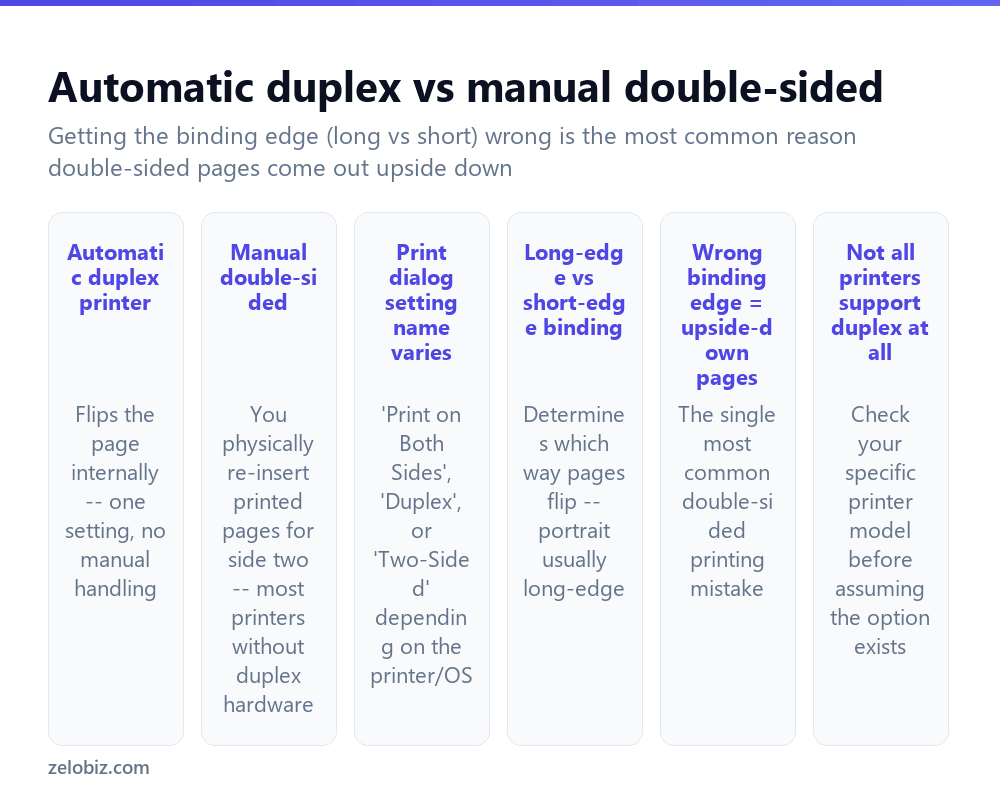
Automatic duplex printers have internal hardware that physically flips each page and feeds it back through to print the second side, entirely automatically once the right setting is selected — no manual intervention needed at all beyond starting the print job.
Printers without duplex hardware — many budget and older models — require manual double-sided printing: the print job outputs odd-numbered pages first, you physically remove that stack, flip and reinsert it correctly oriented into the paper tray, and then print the even-numbered pages onto the reverse side.
Check your specific printer’s specifications or manual if you’re unsure which category it falls into — not every printer supports automatic duplex, and assuming it does when it doesn’t leads to confusion when the expected option simply isn’t there.
The single most common double-sided printing mistake, on either automatic or manual systems, is selecting the wrong binding edge — long-edge versus short-edge — which determines which direction pages flip and can result in every other page printing upside down relative to the ones around it.
Printing double-sided with automatic duplex
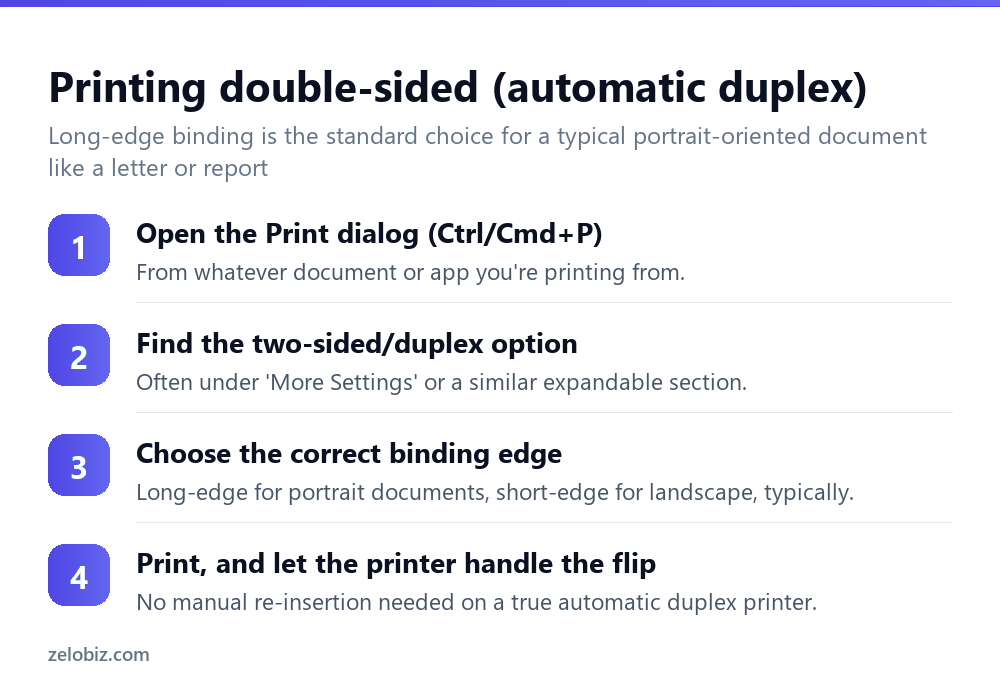
Open the Print dialog from whatever app or document you’re printing (Ctrl+P on Windows, Cmd+P on Mac).
Find the two-sided or duplex option — it’s sometimes visible directly in the main print dialog, and sometimes tucked under an expandable “More Settings” or “Printer Properties” section depending on the specific printer driver and operating system.
Choose the correct binding edge: long-edge binding is standard for a typical portrait-oriented document (like a letter or report), flipping pages the way a book or magazine does. Short-edge binding suits landscape-oriented content, or a document intended to flip like a notepad rather than a book.
Print normally — the printer handles flipping each page internally with no further action needed on your part.
Manual double-sided printing
For a printer without automatic duplex hardware, most print dialogs still offer a “Print odd pages only” and “Print even pages only” option (sometimes phrased as “Manual Duplex”), which handles the actual page-splitting logic for you even though the physical flip has to be done by hand.
Print the odd pages first. Once that batch finishes, take the printed stack, flip it correctly (the specific orientation — face down vs face up, which edge goes in first — varies by printer model, so check your printer’s manual for its exact convention if this is the first time doing it), reinsert it into the paper tray, and print the even pages.
💡 Pro tip: Print a short 4-page test document first when doing manual double-sided printing for the first time on a given printer, checking the resulting orientation before committing to a longer, more important document — it’s much less frustrating to discover the correct flip orientation on a throwaway test than partway through a 40-page report.
Understanding long-edge vs short-edge binding
Long-edge binding flips pages along their longer dimension — for a standard portrait letter-size page, that’s the left edge, exactly the way a typical book or bound report is read, turning pages left to right.
Short-edge binding flips along the shorter dimension — the top edge for a portrait page — producing a flip-up style more like a desk calendar or a notepad than a book.
Selecting the wrong one for the document’s actual orientation and intended use is exactly what produces pages that read correctly individually but appear upside down relative to the page before or after them when flipped through as a stack.
A worked example: printing a 20-page report for a meeting
Say a 20-page report needs printing double-sided for a meeting, on an office printer you’ve used before but never specifically for a duplex job.
Open the Print dialog, and before committing to all 20 pages, check the printer properties for the duplex option specifically — if it’s there, select “Print on Both Sides” or “Two-Sided” and choose long-edge binding, the standard for a typical portrait report. Print a quick 2-page test section first if this is a new printer or the first time using duplex on it, checking that the pages come out correctly oriented relative to each other before committing the full 20 pages and the associated paper and time to a job that might need redoing.
If the printer turns out to lack automatic duplex support entirely, use the manual odd/even-page print option instead — print pages 1, 3, 5… first, note which way the stack needs to be flipped for that specific printer (test this on a short 4-page sample if it’s genuinely the first time), then reinsert and print pages 2, 4, 6… on the reverse.
For a report specifically, also consider whether every page actually needs to be part of the same double-sided sequence — a cover page, for instance, is sometimes better printed single-sided so its back stays blank, which requires either a small manual adjustment to the page range settings or printing the cover separately from the rest of the double-sided body.
Setting double-sided as the default going forward
If double-sided printing is something you’ll want routinely rather than as a one-off, most printer driver settings (accessible via the operating system’s printer settings or preferences panel, separate from the per-document Print dialog) let you set duplex as the default for that printer going forward. This saves reselecting the option every single time a new document is printed, and is worth setting up once for a printer that’s used regularly for longer documents, rather than manually choosing double-sided on every individual print job indefinitely from now on into the future.
When double-sided printing isn’t working right

No duplex option appears in the print dialog at all — your specific printer model may genuinely not support automatic double-sided printing; check its specifications, or use the manual odd/even-page method instead if that’s available.
Pages printed upside down relative to each other — the wrong binding edge was selected. Try switching between long-edge and short-edge and reprinting a short test.
Manual double-sided came out in the wrong order or orientation — note the correct re-insertion orientation for your specific printer model (checking its manual if needed) before starting a longer, more important print job.
Only some pages printed double-sided — check whether the duplex setting was actually applied to the entire document or only to a specific page range that may have been selected in the print dialog.
The printer jammed during an automatic duplex job — some paper weights or finishes (heavier cardstock, glossy photo paper) may be too heavy or slick for a specific printer’s internal flip mechanism; check your printer’s supported paper specifications for duplex printing specifically, which are sometimes more restrictive than its specifications for single-sided printing.
- ✓Check whether your printer supports automatic duplex before assuming it does
- ✓Select the correct binding edge — long-edge for portrait, short-edge for landscape
- ✓Print a short test document the first time doing manual double-sided on a printer
- ✓Check your printer’s manual for its specific manual-flip orientation convention
- ✓Verify paper weight is supported for duplex specifically, not just single-sided printing
- ✕Assuming every printer has automatic duplex hardware built in
- ✕Guessing at the binding edge instead of testing on a short document first
- ✕Skipping a test print before committing to a long, important manual double-sided job
- ✕Using heavy or glossy paper in an automatic duplex printer without checking its specs first
- ✕Assuming a duplex setting applies to the whole document without checking the page range selected
Frequently asked questions
How do I print double-sided on my printer?
Open the Print dialog and look for ‘Print on Both Sides,’ ‘Duplex,’ or ‘Two-Sided.’ If your printer lacks automatic duplex hardware, print odd pages first, then manually flip and reinsert the stack for even pages.
Why do my double-sided pages print upside down?
The wrong binding edge was likely selected — long-edge for a typical portrait document, short-edge for landscape or a flip-style document.
Does every printer support automatic double-sided printing?
No. Many budget and older printers lack the internal hardware to flip pages automatically and require manual double-sided printing instead.
What’s the difference between long-edge and short-edge binding?
Long-edge flips pages along their longer side, like a typical book. Short-edge flips along the shorter side, like a notepad or calendar.
How do I manually print double-sided if my printer doesn’t support duplex?
Print the odd pages first, then flip and correctly reinsert that stack into the paper tray before printing the even pages on the reverse side.
Why did my printer jam while printing double-sided?
The paper weight or finish may be too heavy or slick for that printer’s automatic duplex mechanism. Check the printer’s supported paper specs for duplex printing specifically.
- →Turn a document into a shareable file first: how to convert JPG to PDF
- →Digitize a document instead of printing one: how to scan a document
- →Shrink images before printing them: how to resize an image
- →Archive printed materials digitally: how to zip a file