
The Excel COPILOT function is being retired. Microsoft’s documentation states that starting 14 September 2026 it will no longer be available, and the planned general release for Excel on the web has been cancelled outright.
If you have workbooks using it, this matters within days rather than months. Here is what the function did, what breaks when it goes, and what to move each use to.
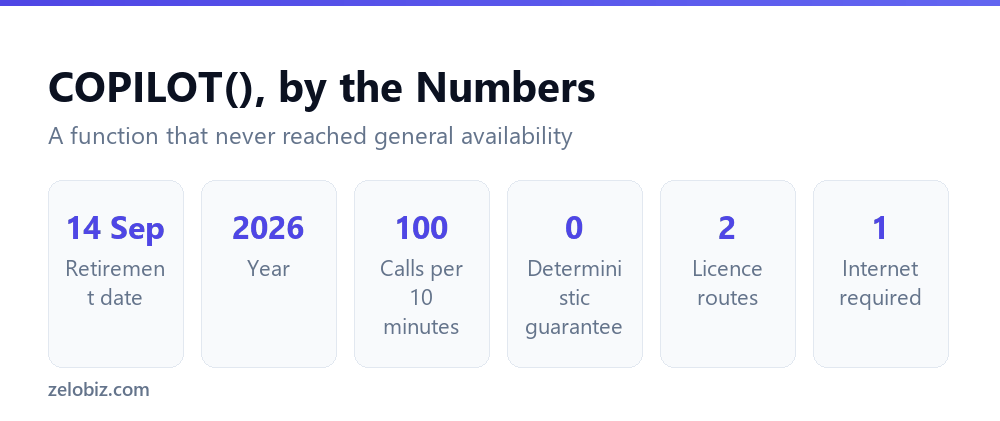
Short answer: The Excel COPILOT function stops being available on 14 September 2026. It never reached general availability, remaining in the Frontier and Microsoft 365 Insider programs. If you used it, move the work into the Copilot chat pane and paste results as values, use a helper column filled once rather than a live formula, or use Power Query for anything rule-based. Verified 30 August 2026.
What Microsoft Has Said
Two statements matter. Microsoft’s own function documentation carries the retirement notice with the date. Separately, the Microsoft 365 roadmap entry was updated to say the company has decided not to move forward with the feature.
The function was never generally available. It sat in the Frontier program and the Microsoft 365 Insider program, reaching Excel for Microsoft 365 on Windows and Mac, the Excel Web App and Excel for iPhone. The general-availability rollout for the web version was cancelled before it shipped.
⚠️ Watch out: If you built anything on this function, treat 14 September 2026 as a hard deadline. Formulas that depend on a retired function do not degrade gracefully, and a workbook someone else opens after that date will not behave the way yours does today.
What the Function Actually Did
Worth recording, both so you can identify usages in your own files and because the design explains why it was always going to be difficult.
The syntax was =COPILOT(prompt_part1, [context1], [prompt_part2], [context2], ...). The prompt part was required and described the task in plain text. The context arguments were optional and pointed at ranges in the grid supplying data.
It returned a dynamic array, so a single call could spill results across neighbouring cells. That made it genuinely useful for classifying or summarising down a column in one formula.
Why an AI Formula Was Always an Odd Fit
This is worth understanding beyond this one function, because it will come up again with whatever replaces it.
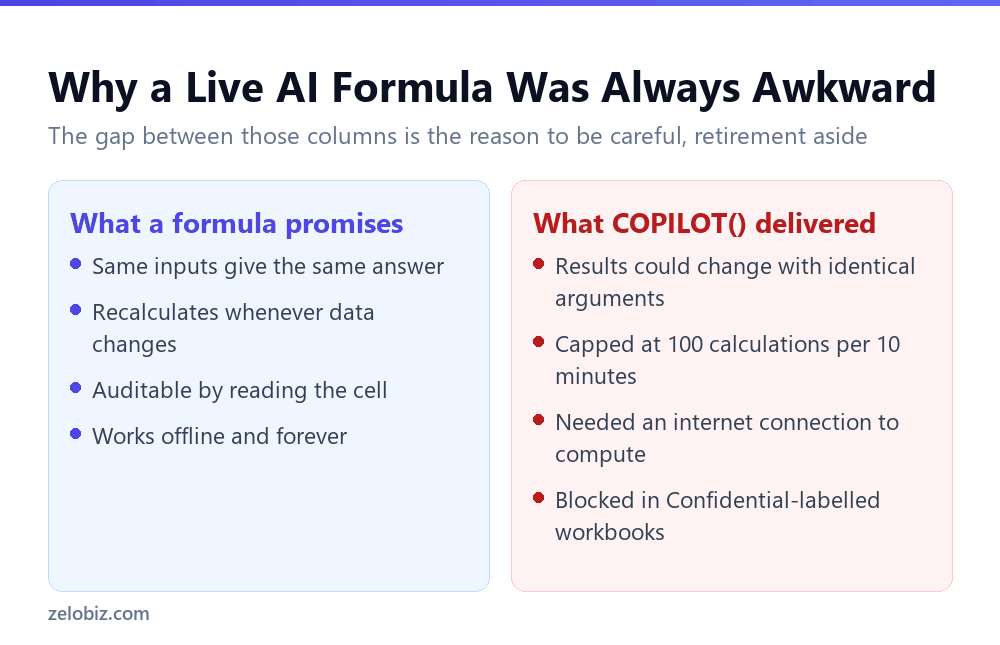
A spreadsheet formula carries an implicit promise. Give it the same inputs and it returns the same answer, every time, forever, offline. That predictability is the whole basis on which people trust a spreadsheet to calculate anything.
COPILOT broke that promise in Microsoft’s own documentation, which stated plainly that results may change over time even with the same arguments. A cell that quietly returns something different next quarter is a genuinely difficult thing to have in a financial model.
Microsoft’s guidance was explicit on that point. The function was not intended for numerical calculations, for legal or regulatory work, or for any scenario needing reliable repeatability.
What to Move Each Use To
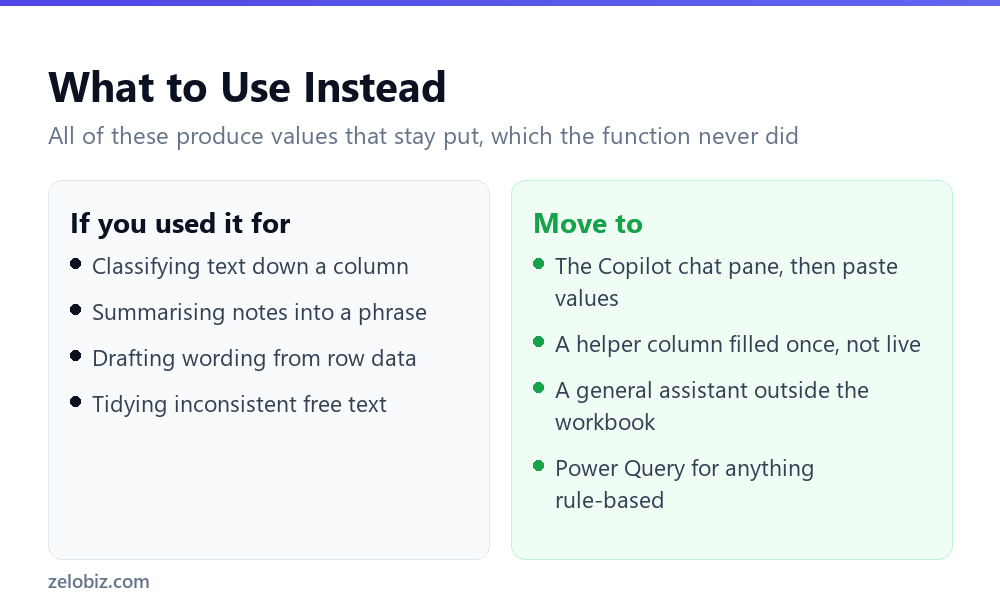
The replacement depends on what you were using it for, and in every case the answer involves producing values that stay put rather than a live formula.
Classifying or tagging a column
Use the Copilot chat pane against the range, then paste the results in as values. You lose live recalculation, which for classification is a feature rather than a loss. A category that silently changes next month is not something you want.
Summarising rows into a phrase
Same approach, filled once into a helper column. Keep the source column beside it so anyone can see what the summary was derived from.
Anything rule-based
If the logic can be expressed as rules, Power Query or ordinary formulas will do it faster, offline, deterministically and for free. A surprising share of what people reached for COPILOT to do was rule-based all along.
Genuinely open-ended text work
Take it out of the workbook. A general assistant handles open-ended drafting better than a cell ever did, and pasting the result back keeps the spreadsheet deterministic.
💡 Pro tip: Search your workbooks for COPILOT( before the deadline rather than after. Finding them by discovering broken cells in a live report is a much worse way to spend a Monday.
Finding and Fixing Usages Before the Deadline
If you or anyone on your team experimented with this, the workbooks are probably still in circulation. Four steps clear it.
Step 1: find every usage
Open each workbook and use Find, with the search set to Formulas rather than Values, looking for COPILOT(. Searching values will not find it, because the cell displays a result rather than the formula text.
Set the search scope to Workbook rather than Sheet. These experiments have a habit of living on a tab nobody opens.
Step 2: capture the current results
Before changing anything, copy the range and paste it back over itself as values. That freezes what the function last returned, so nothing disappears when the function does.
Do this while the function still works. After 14 September the opportunity has gone, and reconstructing what a non-deterministic function returned months ago is not realistic.
Step 3: decide whether it needs to be live at all
Most uses do not. A classification applied to last quarter’s records does not need to recalculate, and arguably should not. If the values were correct when generated, freezing them is the right outcome rather than a compromise.
Step 4: rebuild only what genuinely recurs
For work that runs every month on new data, rebuild it deliberately. Power Query if the logic is rule-based, or the Copilot chat pane as a manual monthly step with results pasted as values.
⚠️ Watch out: Step 2 is the one with a hard deadline attached. Everything else can be done calmly afterwards, but capturing the existing results has to happen while the function is still calculating.
If You Never Used It
Most people reading this never got access, since the function stayed inside preview programs and required either a Copilot add-on licence or Microsoft 365 Premium. There is still something worth taking from it.
The idea of AI inside a cell will return in some form, from Microsoft or from an add-in vendor. When it does, the questions this function raised are the ones worth asking immediately.
- Does it return the same answer twice? If the vendor will not commit to that, it does not belong in anything you report from.
- What happens offline? A formula that needs a network is a formula that fails on a train, and a workbook you cannot open and trust on a plane is a limitation worth knowing about.
- What is the rate limit? A cap measured per ten minutes is a real constraint on a column with thousands of rows.
- Is it generally available? This one never was, which is precisely why it could be cancelled without breaking any commitment.
What This Says About Building on Preview Features
There is a practical lesson here that outlives the function. This one never left preview programs, and it was cancelled before general availability.
Preview and Insider features are genuinely useful for evaluating what is coming. They are a poor foundation for anything a business depends on, because the vendor has made no commitment to ship them at all.
📊 Note: If you want to use a preview feature in real work, keep the dependency shallow and reversible. A helper column you could fill another way is fine. A model whose outputs depend on it is a risk you are taking on someone else’s roadmap.
Common Questions
When is the Excel COPILOT function being retired?
Microsoft’s documentation states that starting 14 September 2026, the COPILOT function will no longer be available. The planned general-availability rollout for Excel on the web was also cancelled.
Why is Microsoft removing the COPILOT function?
The Microsoft 365 roadmap entry was updated to say the company has decided not to move forward with the feature. The function never reached general availability, remaining in the Frontier and Microsoft 365 Insider programs throughout.
What was the syntax of the Excel COPILOT function?
It was =COPILOT(prompt_part1, [context1], [prompt_part2], [context2], …). The prompt part was required and described the task in plain text, while the optional context arguments pointed at ranges supplying data. It returned a dynamic array that could spill across the grid.
What should I use instead of the COPILOT function?
For classification or summarising, use the Copilot chat pane and paste results in as values. For anything rule-based, use Power Query or ordinary formulas, which are faster and deterministic. For open-ended text work, use a general assistant outside the workbook.
Will my existing formulas break on 14 September 2026?
Cells depending on a retired function will not continue calculating as they do now. Search your workbooks for COPILOT( before the date and convert those results to static values, rather than discovering the problem in a live report afterwards.
Was the COPILOT function reliable for calculations?
Microsoft’s own documentation advised against using it for numerical calculations, legal or regulatory tasks, or any scenario requiring deterministic accuracy, and stated that results may change over time even with the same arguments.
Does this mean Copilot in Excel is going away too?
No. The retirement applies to the COPILOT worksheet function specifically, not to Copilot in Excel as a feature. The chat pane, formula suggestions and data analysis capabilities are unaffected and remain part of the Copilot licence.
How do I find COPILOT formulas in my workbooks?
Use Find with Look in set to Formulas rather than Values, searching for COPILOT( with the scope set to Workbook rather than Sheet. A value search will not find them, because the cell displays a result rather than the formula text.
Did the COPILOT function have usage limits?
Yes. A maximum of 100 COPILOT calculations per 10 minutes, an active internet connection was required, and it would not run in workbooks labelled Confidential or Highly Confidential.
The Short Version
- →The Excel COPILOT function is retired from 14 September 2026.
- →The web general-availability rollout was cancelled before it shipped.
- →It never left the Frontier and Microsoft 365 Insider preview programs.
- →Search workbooks for COPILOT( now and convert those results to static values.
- →Use the chat pane and paste values, or Power Query for anything rule-based.
- →Microsoft’s own docs said results could change with identical arguments.
The retirement is inconvenient for the few who built on it, and arguably the right call. A cell that returns a different answer next quarter was never going to sit comfortably in a spreadsheet, which is a tool people trust precisely because it does the same thing twice.
Retirement date, syntax and limits taken from Microsoft’s own function documentation, checked 30 August 2026.