
You can write Excel formulas with AI in about ten seconds, and most guides stop there. The useful part is the next two minutes, because a formula that looks right and is subtly wrong will happily produce a wrong number for a year before anyone notices.
This covers how to ask so the answer is usable, the two ways AI formulas fail, and a four-step check that catches the dangerous kind.
Short answer: Describe the columns, the condition and what to exclude, rather than the outcome you want. Then test the formula on five rows where you already know the answer, including one awkward case, before filling it down. Errors that produce a plausible wrong number are far more common than errors that produce a visible error message.
Ask for the Rule, Not the Result
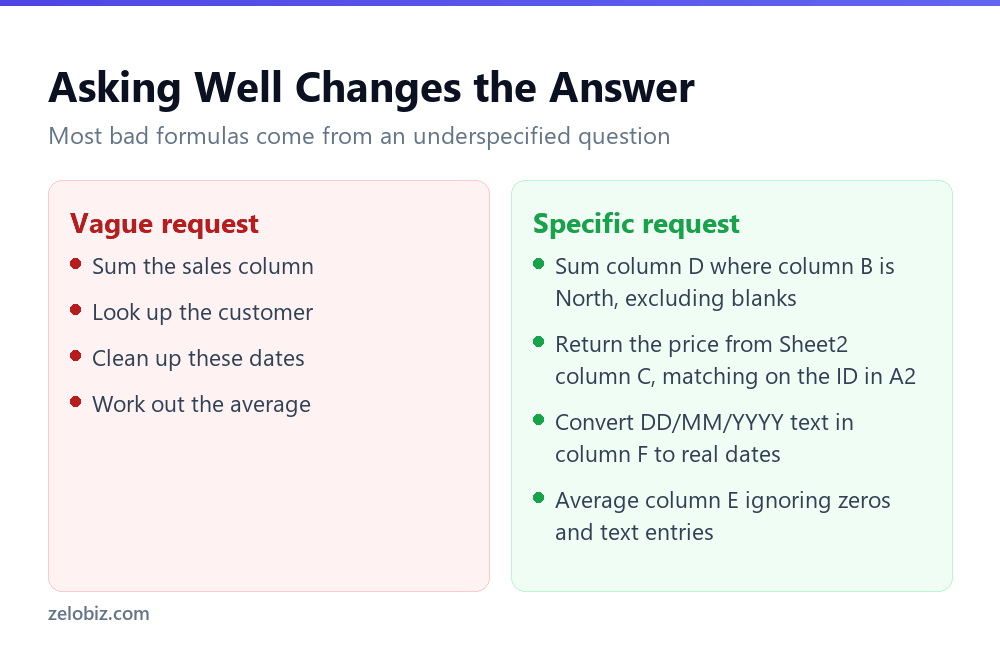
Most disappointing formulas come from an underspecified question rather than a weak model. Sum the sales column is not enough information to write a correct formula, because it says nothing about conditions, blanks, or what counts as sales.
A request that produces a usable formula names four things: which columns hold what, the condition to apply, what should be excluded, and what the answer should look like.
Also say which Excel you are using. The available functions differ, and a formula built around a newer function will not work for a colleague on an older version. If your workbook is shared, mention that.
💡 Pro tip: Paste five representative rows into the request rather than describing them. The model handles real, messy data far better than an idealised description of it, and your data is nearly always messier than you remember.
The Two Ways AI Formulas Fail
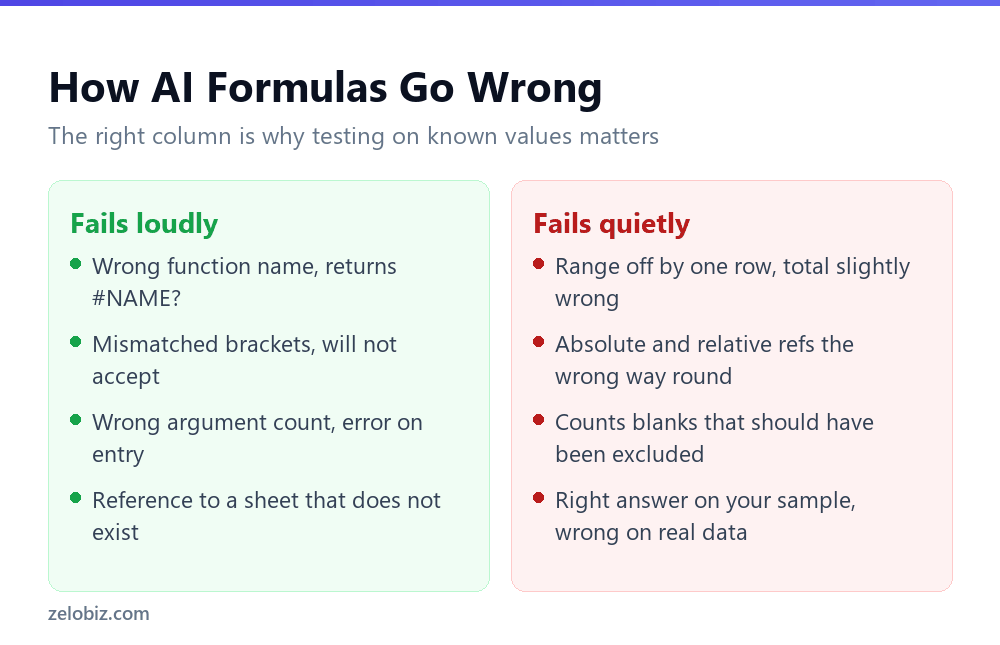
This distinction is the whole reason verification matters.
Loud failures, which look after themselves
A misspelled function name gives #NAME?. Wrong argument counts get rejected on entry. Mismatched brackets will not paste. These are annoying and completely harmless, because Excel tells you immediately.
Quiet failures, which are the real problem
A range that starts one row too low, so a total is slightly wrong. Absolute and relative references the wrong way round, so the formula breaks the moment it is copied. Blanks counted that should have been ignored, so an average is dragged down.
None of these produce an error. They produce a number, and the number looks reasonable, which is exactly what makes them dangerous. A wrong total that looks plausible gets reported and acted on.
The Four-Step Check
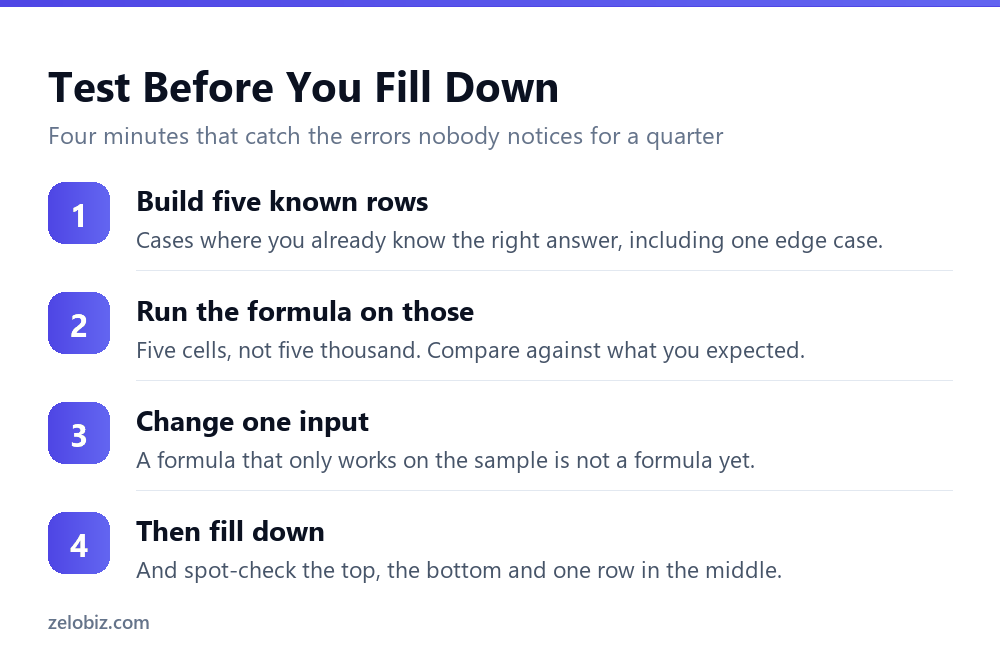
This takes about four minutes and is the difference between using AI for formulas safely and using it hopefully.
Step 1: build five rows where you know the answer
Put five test rows somewhere out of the way. Make four of them ordinary and one of them awkward: a blank, a zero, a text value in a number column, whatever your real data actually contains. Work out the right answers by hand.
Step 2: run the formula on those five
Five cells, not five thousand. Compare each result against what you calculated. If any disagree, the formula is wrong and you have found out for the price of five rows.
Step 3: change one input and watch
Alter a value in one test row and confirm the result changes the way it should. This catches the formula that happens to be right on your sample by coincidence, which is more common than it sounds with lookups.
Step 4: fill down, then spot-check three rows
Check the first row, the last row and one in the middle. The first and last catch reference problems where a range failed to extend. The middle one catches a copy that drifted.
⚠️ Watch out: Pay particular attention to absolute and relative references. This is the single most common quiet failure in AI-generated formulas, because the model cannot see where you intend to copy the formula to. A dollar sign in the wrong place produces correct results in row two and nonsense by row fifty.
Five Requests, Written Properly
Worked examples of the difference between a vague ask and one that produces something you can use. Each shows what to check afterwards, because that is the part that gets skipped.
A conditional total
Ask for: sum column D for rows where column B is North, excluding any row where column G says Cancelled. Data runs from row 2 to row 1000.
You should get something like =SUMIFS(D2:D1000, B2:B1000, "North", G2:G1000, "<>Cancelled").
Check that the ranges all end at the same row. A total that uses D2:D1000 against B2:B999 will not error, it will just quietly ignore your last row.
A lookup that will not break when columns move
Ask for: return the price from column C of Sheet2, matching the ID in A2 against column A of Sheet2, and show Not found rather than an error if there is no match.
You should get something like =IFERROR(INDEX(Sheet2!C:C, MATCH(A2, Sheet2!A:A, 0)), "Not found").
Check the third argument of MATCH is 0. If it is 1 or omitted, MATCH does an approximate match on unsorted data and returns confidently wrong results.
Converting text that looks like a date
Ask for: column F holds text in DD/MM/YYYY format, convert it to a real Excel date.
You should get something like =DATE(RIGHT(F2,4), MID(F2,4,2), LEFT(F2,2)).
Check a date where the day is 12 or lower, because that is where a day and month swap hides. 03/04/2026 will look plausible whichever way round it was read, and it is the single most common silent date error.
An average that ignores the zeros
Ask for: average column E from row 2 to 1000, ignoring zeros.
You should get something like =AVERAGEIF(E2:E1000, "<>0").
Check whether you meant to ignore blanks too, because they behave differently from zeros. Say which you want, or you will get whichever the model assumed.
Explaining something inherited
Paste the formula and ask what it does, which cells it depends on, and what would break it. This one is read-only, so there is nothing to verify beyond your own understanding, which makes it the safest use on this page.
When the Formula Is Right and the Answer Is Still Wrong
Sometimes the formula is genuinely correct and the number is still wrong, because the problem is in the data rather than the logic. AI will not catch this, because it is answering the question you asked about the data you described.
- Numbers stored as text. They look like numbers, align left instead of right, and get skipped by SUM entirely. A total that is suspiciously low is usually this.
- Trailing spaces. North and North with a space are different values to a lookup, so a match that should exist silently fails.
- Merged cells. They break ranges in ways that produce partial results rather than errors, which is the worst combination.
- Hidden rows. Most functions include hidden rows in their results, which surprises people who filtered a list and expected the total to follow.
- Duplicate keys. A lookup returns the first match. If your IDs are not unique, you get an answer rather than a warning.
📊 Note: If a formula verifies correctly on your five test rows but the full-range answer looks wrong, stop suspecting the formula and start suspecting the data. In practice that is where the fault usually is, and it is also the harder thing to notice.
Where AI Genuinely Helps With Formulas
Three cases where it is clearly worth using, and one where it is not.
- Functions you use rarely. Nobody remembers the argument order for every function. Describing what you want beats looking up syntax for something like INDEX MATCH that you touch twice a year.
- Explaining a formula somebody else wrote. Pasting a nested monster and asking what it does is faster than tracing it by hand, and it is a read-only operation so the risk is minimal.
- Debugging your own. Asking why a formula returns an unexpected result often surfaces the problem faster than staring at it, because it forces you to state what you expected.
- Not for: a formula you will use once on ten rows. Writing it yourself is quicker than describing it, and you will understand it afterwards.
Common Questions
Can AI write Excel formulas correctly?
Usually the syntax is correct. The common failures are logical rather than syntactic: a range that starts a row too low, absolute and relative references the wrong way round, or blanks included that should have been excluded. Those produce a plausible number rather than an error, which is why testing matters.
How do I check an AI-generated Excel formula?
Test it on five rows where you already know the correct answer, including one awkward case such as a blank or a text value in a number column. Change an input and confirm the result moves as it should. Then fill down and spot-check the first row, the last row and one in the middle.
Why does my AI formula work on the first row but not further down?
Almost always absolute versus relative references. The model cannot see where you intend to copy the formula, so it guesses at which parts should be locked with dollar signs. Check those before filling down.
What should I include when asking for a formula?
Which columns hold what, the condition to apply, anything that should be excluded such as blanks or cancelled rows, and the shape of the answer you expect. Pasting five real rows of your data helps more than describing them.
Do I need Copilot to write formulas with AI?
No. Any general assistant will write a formula you paste into Excel. Copilot’s advantage is that it can see the workbook, which saves describing your data, but it is not required for formula help.
Why does my total look too low even though the formula is correct?
Usually numbers stored as text. They look like numbers but align to the left instead of the right, and SUM skips them entirely. Select the column and check whether Excel offers to convert them, or use VALUE to test a single cell.
Should I paste my real data into an AI assistant?
That depends on what the data is. Five anonymised sample rows help enormously and carry little risk. Customer records, financial detail or anything covered by a client agreement is a policy decision your organisation should have made before the question comes up mid-task.
Is AI good at explaining existing formulas?
Yes, and this is one of its more reliable uses. Asking what a nested formula does is read-only, so there is no risk of it changing anything, and it is faster than tracing precedents manually.
The Short Version
- →Describe columns, condition, exclusions and expected shape, not just the outcome.
- →Paste five real rows rather than describing your data.
- →Quiet failures matter far more than error messages. A plausible wrong number is the risk.
- →Test on five known-answer rows, including one awkward case, before filling down.
- →Absolute versus relative references is the most common silent error.
- →Spot-check first, last and middle rows after filling down.