
You can clean data in Excel with AI faster than by hand, and that speed is exactly what makes it risky. A cleanup applied to five thousand rows in one pass is also a mistake applied to five thousand rows in one pass.
The useful distinction is not which tool to use. It is which cleanups you can undo and which quietly destroy the original information.
Short answer: Automate trimming spaces, standardising capitalisation, splitting columns and flagging suspected duplicates. Do not automate deleting rows, filling in missing values, correcting names, or converting ambiguous dates. Always clean into a new column beside the original rather than over the top of it.
Reversible and Irreversible Cleanups
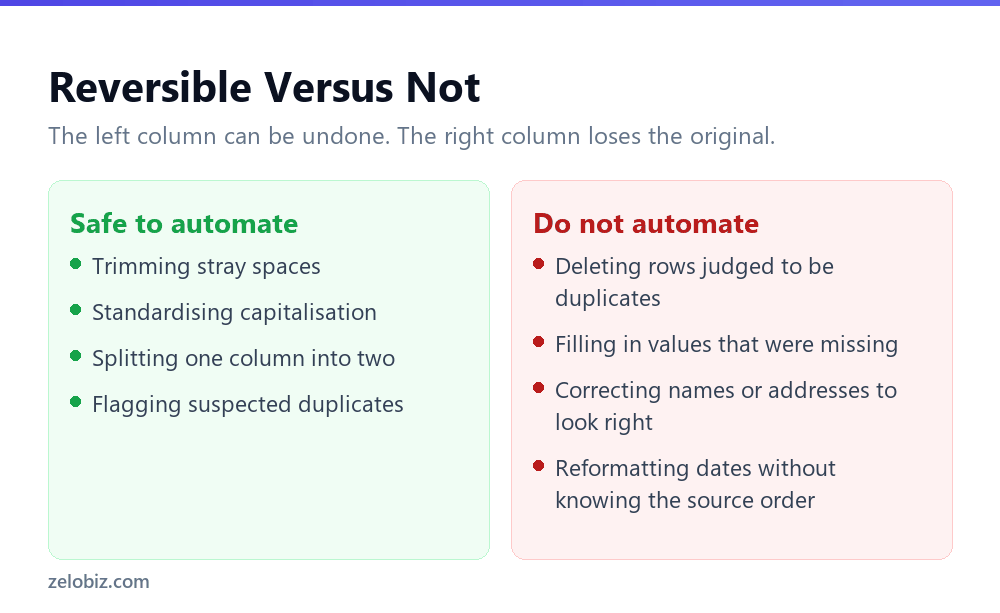
Sort every cleaning job into one of two categories before you start, because the answer changes how carefully you need to work.
Reversible: the original is still there
Trimming trailing spaces, fixing capitalisation, splitting a full name into first and last. If the result is wrong you can look at the source and try again, because nothing was thrown away.
These are genuinely good candidates for automation. They are tedious, high volume, and errors are recoverable.
Irreversible: the original is gone
Deleting rows judged to be duplicates. Filling a blank with a guessed value. Correcting a company name to something that looks more standard. Converting an ambiguous date.
In each case the information that would let you check the work has been destroyed by the work. That is the category to keep a human in.
The Workflow That Makes Mistakes Recoverable
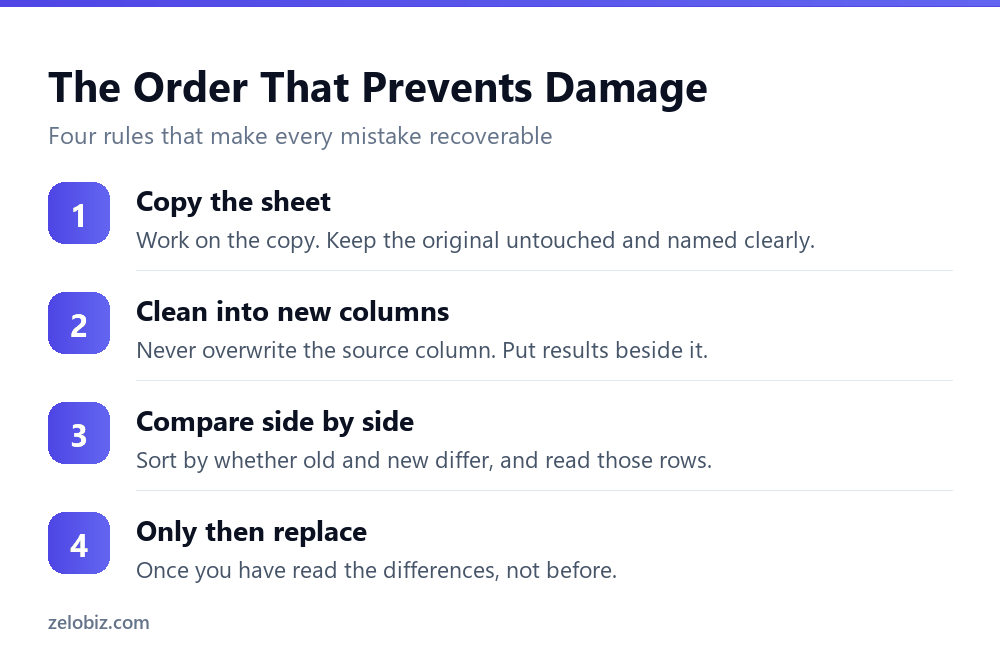
Four rules, and following them costs about two minutes.
Duplicate the sheet first
Right-click the tab, Move or Copy, tick Create a copy. Name it something obvious like Original untouched. This is the whole insurance policy and it takes ten seconds.
Clean into a new column, never over the source
If column B is messy, put the cleaned version in a new column beside it. Overwriting column B is what turns a fixable mistake into a permanent one.
Compare before you accept
Add a column with a simple comparison such as =B2=C2, then filter for FALSE. That shows you only the rows the cleanup actually changed, which is usually a small enough list to read properly.
This is the step people skip, and it is the one that catches the systematic error. If the cleanup misread a pattern, the changed rows will show it immediately.
Replace only after reading the differences
Once you have looked at what changed and it is what you intended, paste the cleaned column over the original as values and delete the working columns.
💡 Pro tip: If the list of changed rows is too long to read, that is information. It usually means the cleanup was more aggressive than you expected, and it is worth narrowing what you asked for rather than accepting the lot.
Dates: The One That Corrupts Silently
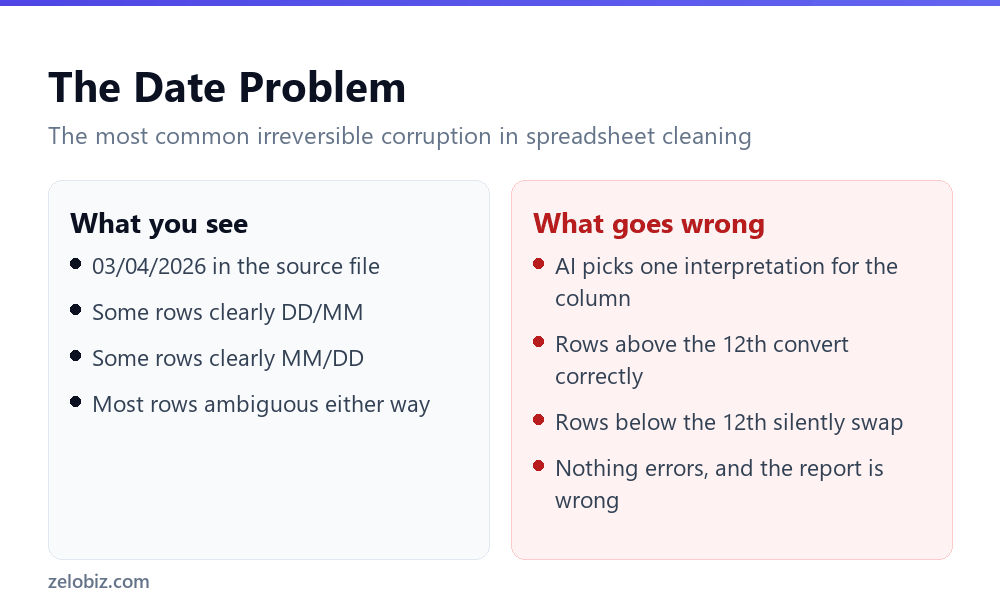
Dates deserve their own section because they fail in the worst possible way, which is invisibly and only for part of the column.
Take a text value of 03/04/2026. That is either the third of April or the fourth of March, and nothing in the cell says which. AI will pick an interpretation and apply it consistently, which sounds correct and is the problem.
If the source was mixed, or the model guessed wrong, every date where the day is 12 or lower converts to a plausible wrong date. Anything above the 12th converts correctly, because there is no valid month above 12. So roughly a third of your column is wrong and the rest is fine, which is much harder to spot than everything being wrong.
⚠️ Watch out: Never let anything convert a date column without telling it the source format explicitly. If you do not know the source format, find out before converting rather than after, because afterwards the evidence has been overwritten.
The safe approach is to state the format in the request, convert into a new column, and then check a row where the day is 12 or lower. Our guide to writing Excel formulas with AI covers the conversion formula itself.
A Worked Example: One Genuinely Messy Column
Take a customer column that has been typed into by different people for three years. It will contain most of the following, often in the same fifty rows.
The first three rows are pure formatting and should never involve AI. TRIM and Find and Replace handle them instantly and identically every time.
Row four is the judgement case: probably the same company, and worth flagging rather than merging automatically. Row six is not a data cleaning problem at all. It is a record that contains two pieces of information, and deciding what to do with it needs someone who knows the business.
That last distinction is the one worth carrying forward. A surprising share of what looks like messy data is actually information that was never given a column of its own, and cleaning it away loses something real.
⚠️ Watch out: Be wary of any cleanup that makes a column look tidier by discarding detail. A trading name, a department suffix or a note in brackets was put there by someone for a reason. Move it to its own column rather than deleting it.
Keep a Record of What Changed
This is the habit that separates a cleanup you can defend from one you cannot. It costs almost nothing at the time and is impossible to reconstruct later.
Before replacing anything, keep the sheet with both columns side by side. Rename it with the date. If a figure is questioned in three months, that sheet answers the question in seconds rather than starting an argument.
- What the source looked like. The original column, untouched.
- What you changed it to. The cleaned column beside it.
- How many rows were affected. A single count is enough, and it is the number people ask for first.
- What rule you applied. One sentence. Standardised company suffixes, trimmed spaces, left trading names alone.
If the spreadsheet feeds a report anyone else reads, this record is not optional bookkeeping. It is the difference between a correction and an unexplained discrepancy.
📊 Note: This matters more with AI than with formulas, because a formula is self-documenting. Anyone can read the cell and see what it did. A cleanup produced by a prompt leaves no trace of the rule that was applied unless you write it down.
What AI Is Genuinely Better At Than a Formula
It is worth being clear about where AI earns its place here, because a good deal of spreadsheet cleaning is better done with ordinary tools.
The pattern matches the one from automation generally. If the input has a predictable shape, a rule handles it better, faster and for free. AI earns its place where the input is unstructured and a human would otherwise have to read every row.
Duplicates Deserve Special Care
Deduplication is where the most damage gets done, because the operation is deletion and the judgement is genuinely difficult.
Acme Ltd, Acme Limited and ACME LTD are probably the same company. Acme Ltd and Acme Holdings Ltd probably are not. Smith, J and Smith, John might be, unless the organisation has two people called Smith.
AI is good at spotting the candidates and poor at making the call, because the call depends on knowledge of your business that is not in the spreadsheet.
- Ask it to flag, not to delete. A column marking suspected duplicates with a group number is useful. Rows silently removed are not.
- Sort by the flag and read them. The list is nearly always shorter than expected and takes a few minutes.
- Keep a record of what you merged. If a total changes later and nobody remembers why, that record is the only way back.
📊 Note: If the spreadsheet feeds anything financial or contractual, deduplicate manually. The time saved is not worth a merged customer record that quietly loses an invoice.
Common Questions
Can AI clean up messy spreadsheet data?
Yes, and it is genuinely good at cleanups that need understanding rather than pattern matching, such as standardising inconsistent free text or categorising open-ended responses. For trimming spaces, splitting columns or fixing capitalisation, built-in Excel tools are faster, free and deterministic.
What spreadsheet cleanups should not be automated?
Anything that destroys the original information: deleting rows judged to be duplicates, filling in missing values, correcting names or addresses, and converting dates whose source format you are unsure of. Those need a human decision.
Why do AI date conversions go wrong?
Because a value like 03/04/2026 is ambiguous and nothing in the cell says whether it is day-month or month-day. AI picks one reading and applies it consistently, so every date where the day is 12 or lower can convert to a plausible wrong date while the rest convert correctly.
How do I clean data safely in Excel?
Duplicate the sheet first, clean into a new column rather than over the source, add a comparison column and filter for rows that changed, read those rows, and only then replace the original. Every mistake stays recoverable that way.
Should I let AI remove duplicate rows?
Ask it to flag suspected duplicates with a group number rather than delete them. Whether Acme Ltd and Acme Holdings Ltd are the same company depends on knowledge of your business that is not in the spreadsheet, so the decision should stay with you.
How do I find trailing spaces I cannot see?
Put =LEN(B2) in a helper column and compare it against =LEN(TRIM(B2)). Where the two differ, there is whitespace you cannot see on screen. This is worth checking whenever a lookup fails on a value that looks correct.
Should I keep the original column after cleaning?
Keep it until the cleaned data has been used at least once and nobody has questioned it. Then keep the comparison sheet with both columns and a dated name. It costs nothing and answers questions about a changed figure in seconds.
Is Excel’s built-in cleaning better than AI?
For anything rule-based, yes. TRIM, Text to Columns, Find and Replace and PROPER are instant, deterministic and cost nothing. AI is worth reaching for when the cleanup requires understanding what the text means rather than matching a pattern.
The Short Version
- →Sort every cleanup into reversible or irreversible before starting.
- →Duplicate the sheet, clean into a new column, compare, then replace.
- →Filter for rows that changed and read them. That is where systematic errors show.
- →Never convert dates without stating the source format explicitly.
- →Ask AI to flag duplicates, not delete them. The judgement needs your business knowledge.
- →Use TRIM, Text to Columns and PROPER where a rule exists. They are free and exact.