
So embedding fonts in PowerPoint looks like a solved problem. Check one box, save the file, and the custom font travels with it to any other computer.
So that is true for viewing the file. It is not reliably true for editing it. A second, easy to miss setting decides whether someone editing the file keeps the real font or loses it silently.
But PowerPoint shows no warning when this happens. So a slide edited on another computer can drift onto a substitute font with nothing on screen announcing the switch.
PowerPoint’s Embed Fonts in the File option has two sub-choices. So one is Embed only the characters used in the presentation, the default. The other is Embed all characters. The default option only embeds the exact letters already typed in the file at the moment it was saved. So anyone who types new text after that, on a different computer, is typing characters that were never embedded. PowerPoint quietly substitutes a different font for them, with no warning dialog. Choosing Embed all characters instead, at the cost of a larger file, is the only way to keep the real font working through further editing. Verified against Microsoft’s own documentation on 19 September 2026.
The Embedded Fonts Setting Almost Nobody Reads Fully
So embedding fonts lives under File, Options, Save. So look for a section called Preserve fidelity when sharing this presentation. Checking Embed fonts in the file turns the feature on.
So right below that checkbox sit two radio buttons, easy to skip past. Embed only the characters used in the presentation, selected by default, and Embed all characters, which is not.
Most people check the box and move on, never noticing the second choice underneath it actually matters just as much.
Two Options, One Silent Trap
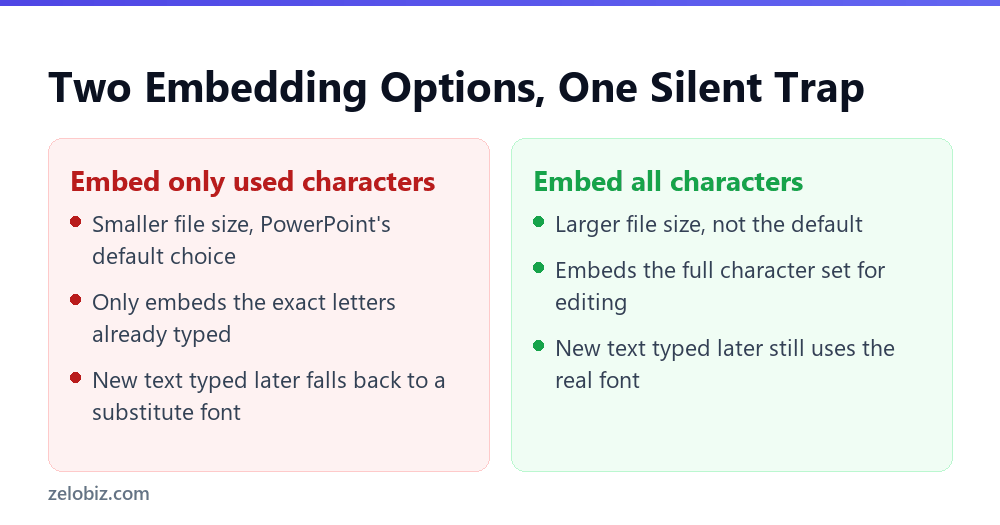
So the default option makes sense on its own terms. Embedding only the letters already typed keeps the file smaller, and Microsoft’s own guidance calls this the choice for a finished file nobody plans to edit further.
So this distinction rarely comes up in a quick tutorial, since most guides stop at checking the box. But the box alone protects viewing, not editing, and those are different promises.
What Happens When Someone Edits After Embedding
So say a deck uses a distinctive brand font throughout. It gets embedded with the default option before sending it to a colleague for review.
So the colleague opens it on their own computer, without the font installed. Everything looks correct. So every letter already typed shows up in the right font, exactly as expected.
⚠️ Watch out: Then the colleague adds a new bullet point to a slide. Since that new text uses characters the embedded set never included, PowerPoint quietly renders it in a substitute font instead. Nothing on screen flags the switch, and the deck now has two fonts on one slide.
So this often goes unnoticed until the file is projected on a screen. Or exported to PDF. So the mismatch becomes obvious to an audience instead of just the editor.
Why There Is No Warning Dialog
So PowerPoint does not track which specific characters were embedded versus typed later at the interface level. So it just renders whatever font is available for a given character, silently, the same way it always has.
So from PowerPoint’s perspective, nothing went wrong. A font substitution is normal, expected behavior whenever the exact font is not available for a piece of text. So the tool has no reason to flag it as an error.
Fixing It Going Forward
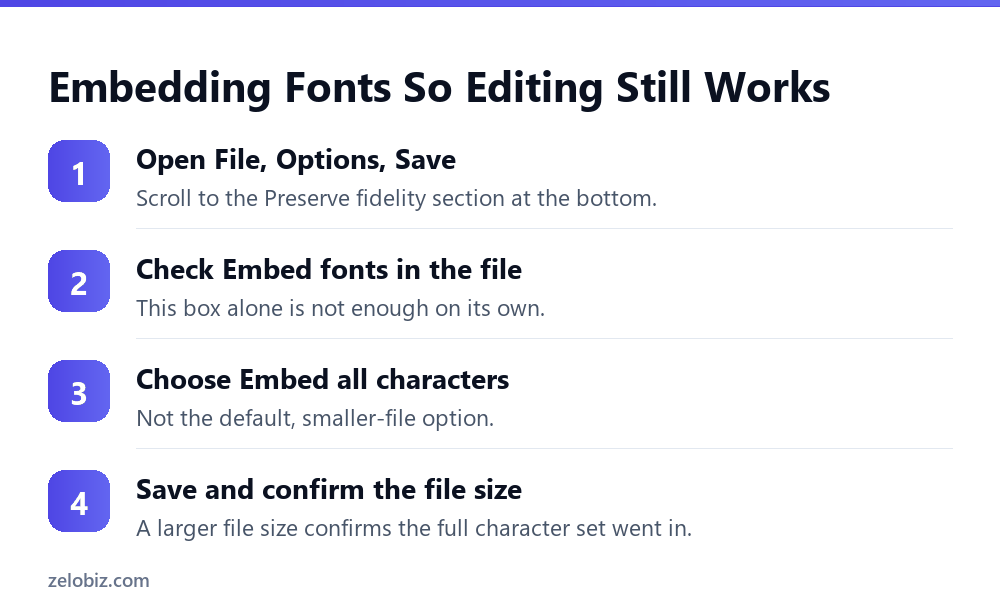
So the fix is choosing the other radio button, not just checking the main box. Go to File, Options, Save.
Under Preserve fidelity when sharing this presentation, check Embed fonts in the file if it is not already checked. Then choose Embed all characters, not the smaller default.
💡 Pro tip: After saving, check the file size against the version before you enabled embedding. So a noticeably larger file confirms the full character set actually went in. That is better proof than the box simply being checked.
The Mac and Windows Complication
So this gets harder across platforms. Mac PowerPoint cannot embed fonts into a file at all, and it does not reliably read fonts a Windows version embedded either.
So a file built and embedded correctly on Windows, using Embed all characters, can still show substitute fonts the moment a Mac user opens it. That happens no matter how carefully the Windows side was set up.
⚠️ Watch out: For a deck that will travel between Mac and Windows, embedding is not a complete solution on its own. Sending the actual font files alongside the presentation, for manual installation, is the only reliable backup for that specific case.
A Worked Example
So a marketing team builds a client pitch deck using a licensed brand font. They embed it with the default option, then send a draft to an agency partner for edits.
The partner adds two new slides with fresh talking points, typing directly into the existing template. Every word they type falls outside the embedded character set from the original save.
So those two new slides render in a generic fallback font. But the original slides still show the correct brand font. So nobody catches this during a quick review on screen, since the difference is subtle at a glance.
So the mismatch becomes obvious only once the deck is printed for the actual client meeting. So two visibly different fonts end up sitting side by side on the same slide.
Testing Whether Your Own File Is Protected
So a short test confirms whether a specific file is actually safe to hand off for editing. So save a copy, then open it on a computer without the font installed.
Then type a new sentence anywhere in that copy. If it renders in the correct font, Embed all characters is active and working. So if it switches to something else, the file is only protected for viewing, not editing.
💡 Pro tip: Run this test once per template your team reuses regularly, not once per individual file. A shared template with the wrong embedding setting quietly passes that same gap into every deck built from it.
Preventing This on Shared Templates
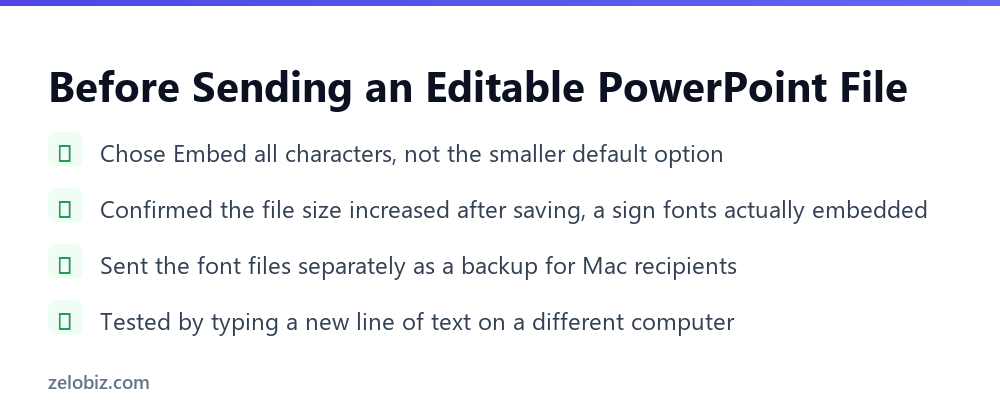
- →Choose Embed all characters for any file more than one person will edit.
- →Confirm the file size increased after saving, a sign the full character set actually embedded.
- →Send font files separately for any deck crossing between Mac and Windows.
- →Test by typing new text on a different computer before trusting the embed setting blindly.
- →Check a shared template once, since every deck built from it inherits the same setting.
Does This Apply to Exporting as PDF Too?
So exporting a PowerPoint file to PDF sidesteps this problem entirely, in one specific way. So a PDF rasterizes or subsets fonts as part of the export itself. That happens independent of whichever embed option was set inside PowerPoint.
So a finished PDF is safe from this particular issue, since nobody edits a PDF the way they would a live PowerPoint file. So the risk only exists for a deck staying in an editable format, passed between people.
What About a Font Bought From a Third-Party Marketplace?
So a font licensed from a marketplace instead of Microsoft can add another wrinkle. Some licenses actually forbid embedding altogether, regardless of which radio button you pick.
So check the font’s license terms before building a deck around it, especially for anything client-facing that will travel outside your own machine. A font that cannot be legally embedded needs the font-file-sharing approach from the start, not as a fallback.
⚠️ Watch out: Embedding a font whose license forbids it is a licensing problem, not just a technical one. PowerPoint will not stop you from checking the box, so the responsibility falls on whoever built the deck to check the license first.
Building the Habit Into a Team Template
So the most reliable fix here is not remembering to check a setting every time. So it is building Embed all characters into whatever master template a team reuses.
So once that setting lives in the template itself, every new deck built from it inherits the safer choice automatically. So nobody has to remember anything mid-project.
💡 Pro tip: Audit your team’s master template once, today, rather than fixing this deck by deck. One correction there protects every presentation built from it going forward.
A Short List of Signs Your File Is Not Safe
So a few clues point at risk before any test even runs. More than one name shows up in the file’s edit history. The file lives on a shared drive, not just your own machine. Someone else asked for a copy to add their own slides.
So any one of those is enough reason to switch the setting now. All three together make the smaller default a real gamble, not just a minor shortcut.
A Quick Way to Tell If a Deck Is at Risk
So ask one plain question about any file before it goes out the door. Will someone else add words to it?
If the answer is no, the smaller setting is fine. If the answer is yes, or even maybe, switch it now, not later.
So this one question takes less time than reading this whole section. It also saves more time than any fix applied after the fact.
So a deck that only you will ever touch again is low risk. A deck headed to a client, a partner, or a coworker for edits is not, and it deserves the safer choice every time.
A Faster Habit for Any Deck Leaving Your Desk
So one rule covers almost every case in this article. Any file more than one person will touch gets Embed all characters, no exceptions.
So a file only you will ever open can keep the smaller default setting. Nothing about it changes once it leaves your own computer.
So the moment a deck is shared, sent, or handed off for review, that default stops being safe. Switch the setting before it goes out, not after someone reports a font problem.
💡 Pro tip: Build this into a pre-send checklist alongside spell check and slide numbering. So it takes one click, and it costs nothing when the file only needs the default. It only pays off on the file that actually gets edited somewhere else.
Common Questions
Why does my embedded font disappear after someone edits the slide?
Because PowerPoint’s default embedding option only includes the exact characters already typed at the time of saving. Any new text typed afterward, on any computer, uses characters that were never embedded, and PowerPoint substitutes a different font for them silently.
How do I make embedded fonts survive future edits?
Go to File, Options, Save, and under Preserve fidelity when sharing this presentation, choose Embed all characters instead of the default Embed only the characters used in the presentation.
Does embedding fonts work the same way on Mac and Windows?
No. Mac PowerPoint cannot embed fonts into a file at all, and it does not reliably read fonts a Windows version embedded. A file crossing between the two platforms needs the actual font files sent separately as a backup.
Why does PowerPoint not warn me when a font substitution happens?
Because font substitution is treated as normal, expected behavior whenever the exact font is unavailable for a piece of text, not as an error. PowerPoint does not track which characters came from the original embed versus later edits.
Does exporting to PDF avoid this problem?
Yes. A PDF export handles fonts independently of PowerPoint’s embed setting, and since nobody edits a finished PDF the way they edit a live presentation, the character-set gap does not apply there.
How can I check if my file is actually protected before sending it?
Save a copy, open it on a computer without the font installed, and type a new sentence. If it renders correctly, Embed all characters is active. If it switches to a different font, the file only protects viewing, not editing.
Does a bigger file size always mean the fonts are safe?
Not on its own, but it is a fair sign. So a much larger file after turning the setting on usually means the full set went in. Still run the type-a-new-line test once to be sure, since size alone is not proof.
Is there a quick rule for which setting to pick?
Yes. So ask if anyone else will add text to the file. If yes, or even maybe, pick Embed all characters. If no one else will ever touch it again, the smaller default is fine.
The Short Version
- →PowerPoint’s embed fonts setting has two sub-options, and the default only covers characters already typed.
- →New text typed after embedding, on any computer, can silently fall back to a substitute font.
- →Embed all characters, not the default, is the only setting that protects future edits.
- →Mac and Windows handle embedded fonts differently, so cross-platform decks need the actual font files as backup.
- →A finished PDF export sidesteps this problem entirely, since nobody edits a PDF the way they edit a live deck.
So checking the embed fonts box was never the whole fix. So the second choice underneath it is what actually decides the outcome. It is easy to skip past, but it decides whether the file survives being edited somewhere else.
So the next time a deck needs to travel and stay editable, pick Embed all characters on purpose, and confirm it with a quick test before sending it out.
So one small choice, made once, saves a much bigger headache later. Pick it on purpose. Then check it once. That is the whole fix, start to finish.