

A colleague changes teams, gets a new email alias, and the old address stops working. Everyone who used to email them gets a bounce, so someone tells them to clear the Outlook AutoComplete cache. They do it. It works for a day.
Then the wrong address is back. Same colleague, same stale suggestion, as if the fix never happened. So the advice gets repeated, the cache gets cleared again, and the same thing happens a week later.
The cache was never the only place that address was stored. Clearing it fixes the problem exactly once, for exactly one of three possible sources, and says nothing about the other two.
Emptying Outlook’s AutoComplete list only removes the suggestion if the AutoComplete cache is actually where the wrong address is coming from. Outlook can also resolve a typed name from a saved Contact card, or from an entry in the organization’s address book (the Global Address List on Exchange or Microsoft 365). If the old address still lives in either of those, the suggestion comes right back after the cache is cleared, because it was never being read from the cache in the first place. Check the Contact card and the directory entry before assuming the cache needs another reset. Verified against Microsoft’s own documentation on the AutoComplete list on 24 September 2026.
Why Outlook AutoComplete Only Fixes Half the Problem
Outlook AutoComplete is a small local file that remembers addresses you have typed or sent to before. Type the first few letters of a name and a matching entry drops into a menu below the To field. Most of the time this is exactly what people mean when they talk about the autocomplete cache, and clearing it is the fix nearly every support article recommends.
Hover over a suggestion and, in most cases, an X appears on the right side of the row. Click it, or highlight the entry and press Delete, and that one entry is gone. Empty AutoComplete List, found under File, Options, Mail, wipes the whole file at once.
The Part Almost Every Guide Skips
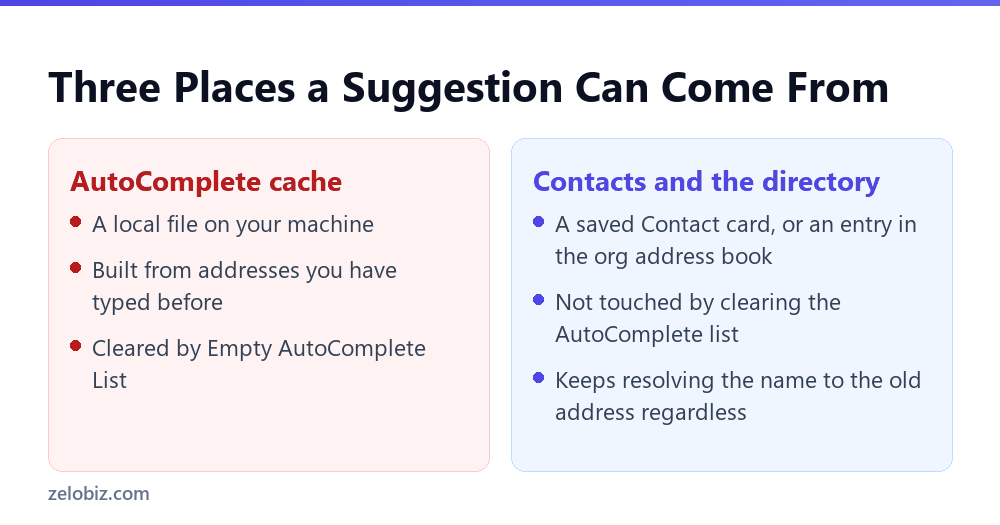
A typed name does not only resolve against the AutoComplete cache. Outlook also checks your saved Contacts, and, on a work or school account, the organization’s own address book. Any of the three can hand back a match, and Outlook has no reason to prefer the freshly emptied cache over the other two.
This is why the fix looks like it worked at first. The cache really is empty right after you clear it. The next message you send to that person, though, goes through the normal resolution process again, and if a Contact card or the directory hands back the old address, that address gets written straight back into the cache.
A Worked Example
A marketing coordinator moves to a new department and gets a new email alias to match her new role, while her display name in the company directory stays exactly the same.
A colleague who has emailed her for two years types her name, picks the top suggestion out of habit, and the message bounces from her old alias. IT walks them through Empty AutoComplete List. The next email goes through fine.
⚠️ Watch out: Three days later the same colleague types her name again and the old alias is back at the top of the list. Nobody touched the AutoComplete settings in between. The coordinator’s account still has the old alias listed as a secondary proxy address in Exchange, kept active during the transition so old email would not bounce outright, and Outlook’s directory lookup is still handing that address back as a valid match for her name.
The AutoComplete cache was never broken here. It was doing exactly what it is supposed to do: caching whatever the directory told it, which happened to be a technically valid but outdated address.
Checking the Contact Card
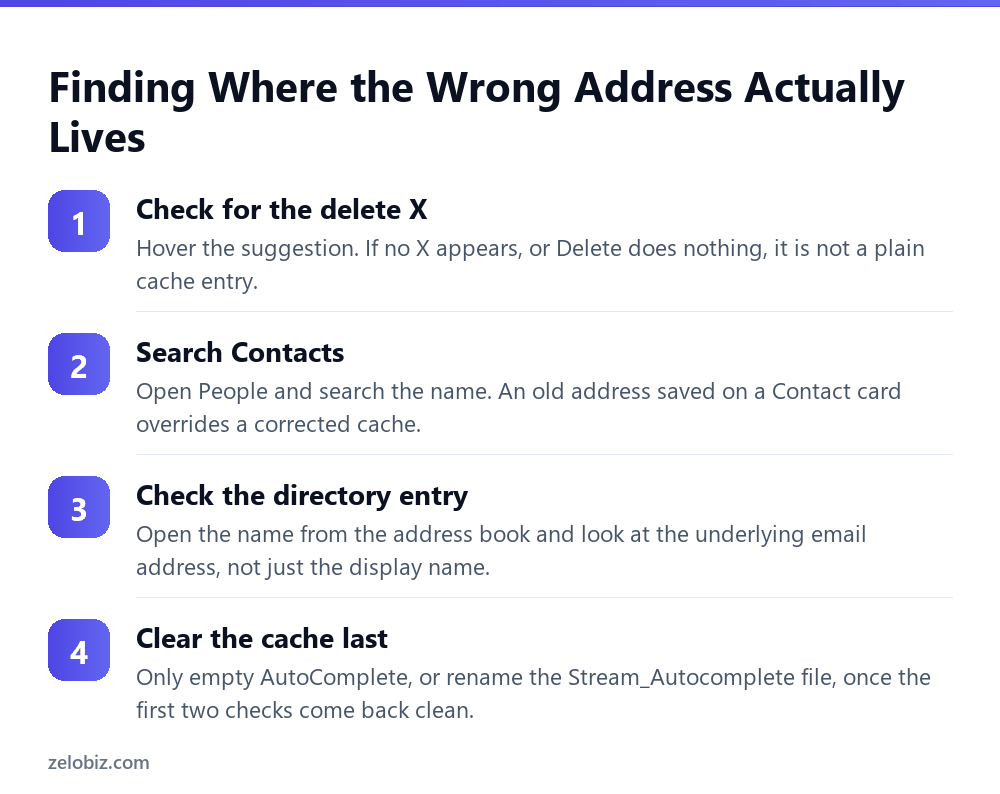
Open People or Contacts and search for the name causing the problem. If a Contact card exists for that person, look at every email address field on it, not just the one showing on the summary line, since a card can hold more than one address and Outlook does not always prefer the newest.
An outdated address saved directly on a Contact card will keep winning over a correct one in the directory, because Outlook generally treats a personal Contact entry as a stronger match than a directory lookup for the same name.
💡 Pro tip: If the card has an old address, either delete that field and let Outlook fall back to the directory, or update it to the correct address directly. Deleting the whole contact is not necessary and loses any other details saved on it.
Checking the Directory Entry
On a work or school account, open the address book (found under the To field, or through Home, Address Book) and search the name directly there instead of typing it into a message. Double-click the entry and look at the email address shown on the properties, which is the address Outlook actually resolves to for that display name.
If that address is wrong, the fix is not something you can do from your own Outlook. The directory entry lives on the server, usually Exchange or Microsoft 365, and only an administrator can update or remove a proxy address there. Report it to whoever manages the mailbox, rather than repeating the local cache fix on your own machine.
⚠️ Watch out: Clearing your AutoComplete cache when the real problem is a stale directory entry does nothing except delay the same complaint by a day or two. If a fix keeps needing to be repeated for the same person, that is the signal to check the directory instead of the cache again.
Retraining Outlook Once the Source Is Fixed
Once the Contact card and the directory both show the correct address, Outlook can still favor an old cache entry for a little while. Clear the cache one more time at this point, since now it will actually stay cleared.
For a few messages afterward, open the address book directly and pick the correct entry instead of typing the name and accepting the top suggestion. Doing this two or three times rebuilds the cache from the correct source and stops the old address from resurfacing.
💡 Pro tip: Send a short test message to the corrected address before relying on it for anything important, like a client update or an internal announcement. A bounce on a test message costs nothing; a bounce on a real one does not.
What the No-X Symptom Actually Means
A specific detail is worth watching for. If hovering over a wrong suggestion shows no X at all, or clicking it does nothing, that is not a broken interface. It is a sign the suggestion is not coming from the AutoComplete cache the normal way, since a plain cache entry always shows the X.
On accounts connected through Microsoft Search, some suggestions are pulled live from the directory rather than the local cache, and those do not carry the same delete option. Seeing this is a shortcut straight to checking the directory entry, skipping the cache step entirely.
Why This Matters More Than It Looks
A wrong autocomplete suggestion is not just an annoyance. On a shared or client-facing account, it means messages meant for one person can go to whoever the old address actually belongs to now, especially if that alias gets reassigned to someone else during a later staff change.
An organization going through frequent role changes, mergers, or rebranding should treat a recurring wrong-suggestion complaint as a directory hygiene issue, not an individual user’s cache problem. Fixing the account settings for one person and repeating that for every complaint that comes in is the same root cause showing up over and over.
When a Rule Is a Better Fix Than a Suggestion
For a shared mailbox or a role account handled by more than one person, relying on autocomplete to get the address right every time is fragile by design, since every person typing into it has their own separate cache with its own history of mistakes.
A distribution list or a properly maintained shared mailbox setup removes the guessing entirely, since nobody has to type or select an individual address for routine correspondence in the first place.
A Faster Habit for the Next Role Change
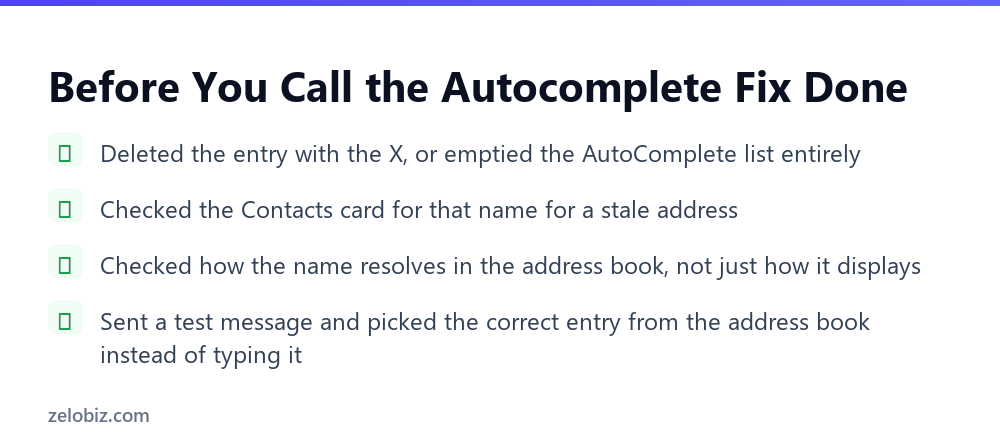
Anytime someone’s email address changes inside an organization, whether from a rebrand, a department move, or a legal name change, three things need updating, not one: the directory entry, any Contact cards other people have saved, and each person’s own AutoComplete cache.
- →Check the Contacts card first when a wrong suggestion returns after clearing the AutoComplete list.
- →Check the directory entry next, since that one needs an administrator to fix, not a local cache reset.
- →A missing delete X on a suggestion usually means it is not a plain cache entry at all.
- →Retrain the cache by picking from the address book directly a few times, rather than typing and accepting.
- →Treat a repeating complaint about the same person as a directory issue, not a one-off user mistake.
Clearing the cache alone fixes roughly a third of these cases, since it is only one of three places the wrong address can be stored. Skipping the other two is exactly why the same fix keeps getting requested for the same person.
A Quick Way to Tell Which Fix You Need
Ask one question before touching any settings: did clearing the cache fix this once already, only for the same address to come back later? If yes, the cache was never the actual source, and repeating that step again will not hold either.
If this is the first time the wrong address has shown up, clearing the cache is still the right first move, since that covers the most common case. Save the Contacts and directory checks for when the simple fix does not stick.
What a Typical Support Ticket Gets Wrong
A help desk ticket for this almost always gets logged the same way: user reports a wrong suggested address, technician walks them through clearing Outlook AutoComplete, ticket closed. Nothing in that workflow checks whether the cache was the actual source.
So the same ticket reopens a few days later, often from the same user, sometimes from someone else emailing the same person. Each time it gets treated as a fresh, unrelated case instead of a repeat of the same underlying directory problem.
A help desk that tracks which names keep generating this complaint can spot the pattern quickly. Three tickets about the same colleague’s address in a month is a directory issue, not three separate user mistakes with autocomplete.
💡 Pro tip: Add one extra question to the standard troubleshooting script: has this exact address come up wrong before, for this same person? A yes answer means skip straight to checking the Contact card and the directory, instead of clearing the cache a second or third time.
Common Questions
Why does the wrong email address keep coming back after I clear AutoComplete?
Because the AutoComplete cache is only one of three places Outlook can pull a suggestion from. If the address also exists on a saved Contact card, or in your organization’s address book, Outlook rebuilds the same suggestion from that source even after the cache is emptied.
How do I know if a suggestion is coming from the cache or somewhere else?
Hover over it. A plain AutoComplete entry shows a small X you can click to delete it. If no X appears, or deleting it has no effect, the suggestion is likely resolving from a Contact card or your organization’s directory instead.
Can I fix a wrong directory entry myself?
No. A directory entry, sometimes called the Global Address List, lives on the mail server, usually Exchange or Microsoft 365, and only an administrator can update or remove an outdated address listed there.
Does deleting a Contact card fix the problem?
You do not need to delete the whole card. Open it and correct or remove just the outdated email address field, since the card may hold other useful details you want to keep.
How long does it take for a corrected address to stick?
Once the Contact card and directory entry are both correct, clear the AutoComplete cache one more time, then pick the right entry from the address book directly for your next two or three messages to that person.
Why does a suggestion sometimes have no delete option at all?
This usually happens on accounts connected through Microsoft Search, where some suggestions are pulled live from the directory rather than from the local cache, and those do not carry the same delete control a cache entry does.
Is this a bigger risk for a shared mailbox than for a personal one?
Yes. A shared mailbox is typed into by more than one person, each with a separate AutoComplete cache and their own history of mistakes, so relying on a suggestion to get the address right is less reliable than a maintained distribution list or a rule.
The Short Version
- →An Outlook suggestion can come from the AutoComplete cache, a saved Contact card, or the organization’s directory.
- →Clearing the cache only fixes the problem if the cache was the actual source.
- →A missing delete X on a suggestion is a sign it is not a plain cache entry.
- →A directory fix needs an administrator, not a local settings change.
- →Retrain the cache by selecting from the address book directly once the underlying source is corrected.
The cache was never lying. It was faithfully repeating whatever the Contact card or the directory told it, and clearing it only ever resets one of the three places that information can live.
Next time the same wrong address shows up again after a cache reset, skip straight to the Contact card and the directory. That is almost always where the address is actually still living.