

To clear cache in any browser, press Ctrl + Shift + Delete, pick a time range, tick only cached images and files, and clear. But Windows has four separate caches. If a website is loading the wrong version, that’s browser cache. If a site won’t resolve at all, you need ipconfig /flushdns. If the Microsoft Store is stuck, run wsreset.exe. If File Explorer previews are wrong, it’s the thumbnail cache.
Why ‘just clear your cache’ so often fails
It’s the standard advice for anything odd happening on a computer, and it’s given as though there’s one cache and one button. There isn’t. Windows keeps at least four separate caches, each holding a different kind of thing, each cleared a different way.
So somebody clears their browser cache, the problem persists, and they conclude caching wasn’t the issue. Often it was — just not that cache.
A cache is only ever a stored copy kept to save time. The question is never whether to clear ‘the cache’. It’s which copy has gone stale.
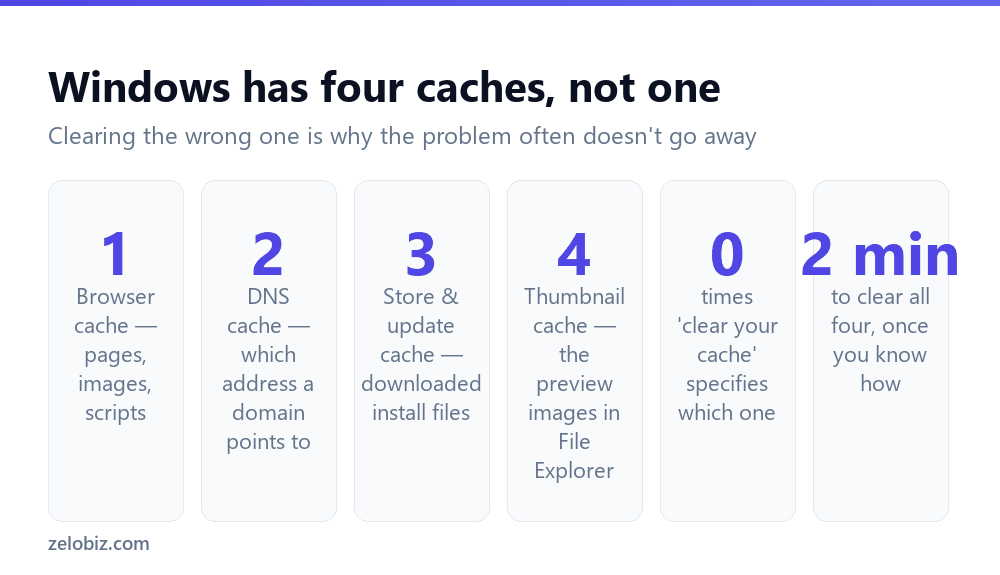
Match the symptom to the cache
That last row matters. Cache is blamed for a great deal it isn’t responsible for. If an application is slow, the cause is far more often memory pressure, a background update, or a failing drive. Clearing caches is cheap to try, but it isn’t a general-purpose repair.
Clearing browser cache
This is what people mean nine times out of ten. The shortcut is the same across every major browser, which is unusual enough to be worth memorising: Ctrl + Shift + Delete.
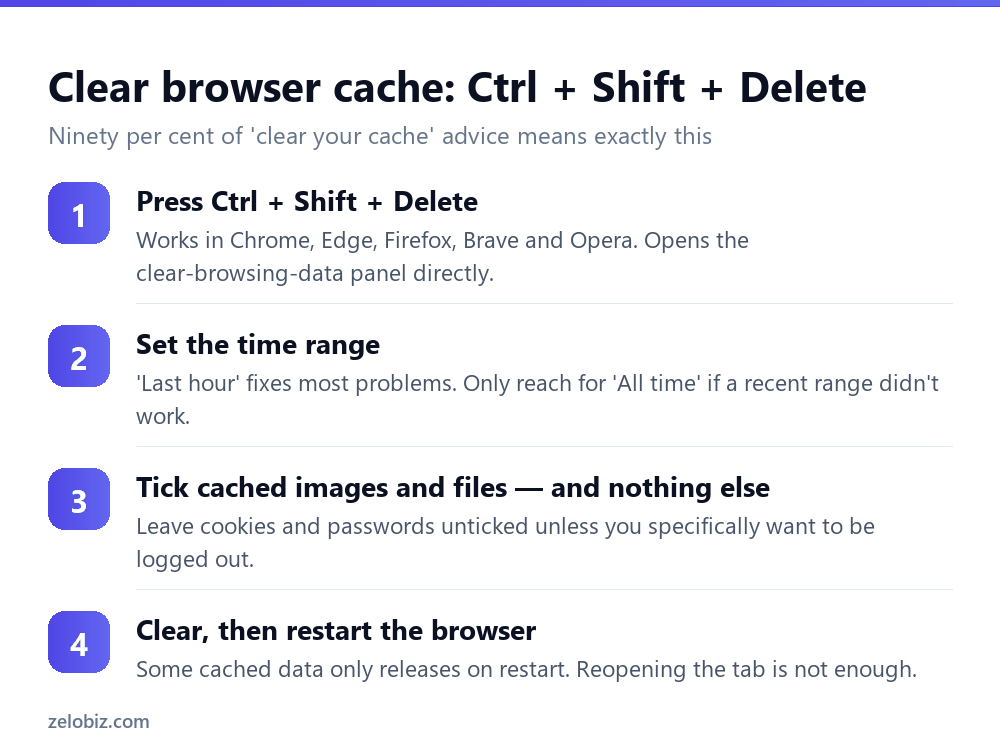
Only tick the box you need
The panel offers browsing history, cookies, cached images and files, passwords and more. For a page that’s displaying wrongly you need cached images and files and nothing else.
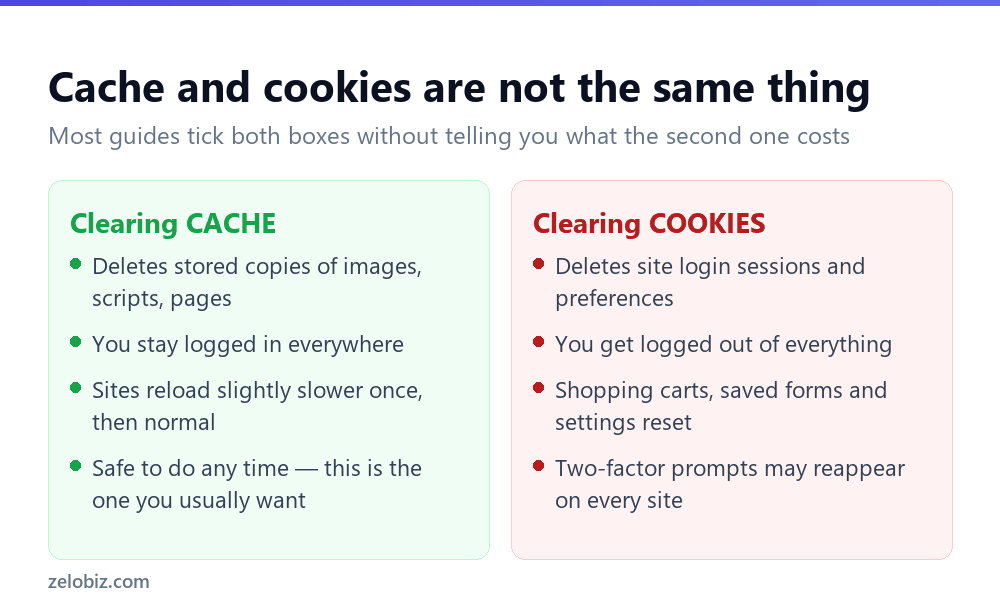
⚠️ Watch out: Ticking cookies logs you out of every site you use, resets preferences, and can trigger fresh two-factor prompts everywhere. Only clear cookies when you’re deliberately trying to reset a login problem.
The better option: clear the cache for one site only
Nuking your whole cache to fix one broken page is like rebooting to close a window. There are two narrower tools most people never use.
Hard refresh
Press Ctrl + F5 (or Ctrl + Shift + R) on the page that’s misbehaving. The browser re-downloads that page’s files instead of reusing its stored copies, and nothing else on your machine is touched. Try this before anything else — it fixes most stale-page problems in one keystroke.
Clear data for a single site
In Chrome or Edge, click the padlock icon in the address bar, then ‘Cookies and site data’ and ‘Manage on-device site data’. You can delete everything that one site has stored without logging out of anywhere else. This is the surgical option, and it’s the right one when a single web app is stuck.
💡 Pro tip: Developers reading this: open DevTools with F12, then right-click the reload button for ‘Empty cache and hard reload’. That also clears service workers, which a normal hard refresh does not — and a stale service worker is the usual culprit when Ctrl+F5 seems to do nothing.
Flushing the DNS cache
DNS is the system that turns a domain name into an address. Windows remembers recent lookups so it doesn’t have to ask again, and occasionally it remembers one that’s since changed — which is why a site can be up for everyone else and dead for you, or why a domain you just moved still points to the old server.
ipconfig /flushdns and press Enter.Worth knowing: browsers keep their own DNS cache separately. In Chrome or Edge, visit chrome://net-internals/#dns and click ‘Clear host cache’ if flushing Windows’ cache alone didn’t help.
Store, update and thumbnail caches
Microsoft Store
If the Store won’t open, hangs on a blank screen, or downloads stall at zero per cent, press Windows + R, type wsreset.exe and press Enter. A blank Command Prompt window sits there for ten to thirty seconds, then closes and the Store opens by itself. The empty window is normal and not a sign it has frozen.
Windows Update
When updates fail repeatedly with the same error, the downloaded files are often corrupt. Stop the Windows Update service, delete everything inside C:\Windows\SoftwareDistribution\Download, then start the service again. Windows re-downloads what it needs; nothing is permanently lost.
Thumbnail cache
Wrong preview images, or blank white squares where photos should be, mean the thumbnail database is corrupt. Open Disk Cleanup, tick Thumbnails, and clean. File Explorer rebuilds them as you browse, so the first visit to a large photo folder afterwards will be slower than usual.
Where the cache files actually live
Useful to know if you’re chasing disk space rather than a bug, because it tells you how much each cache is worth reclaiming.
You can safely delete the contents of %TEMP% at any time. Windows will refuse to remove anything currently in use and skip it — that’s expected, not an error. On a machine that hasn’t been cleaned in a year this alone often frees several gigabytes.
⚠️ Watch out: Delete the contents of these folders, never the folders themselves, and don’t go exploring elsewhere in C:\Windows. Nothing in this article requires touching system files.
App caches: Teams, Spotify, Discord
Desktop apps built on web technology keep their own caches, entirely separate from your browser’s, and they’re a common cause of an app that won’t log in or shows stale data.
Microsoft Teams is the worst offender. If it’s stuck on an old profile picture, won’t sign in, or shows conversations that no longer exist, quit it completely from the system tray, then delete the contents of %APPDATA%\Microsoft\Teams and reopen. You’ll sign in again, and nothing else is lost.
Spotify, Discord and Slack follow the same pattern under %APPDATA%. The rule is consistent: quit the app fully first, or the files are locked and the deletion silently does nothing.
Letting Windows handle it automatically
Storage Sense clears temporary files on a schedule so this stops being something you think about. Go to Settings › System › Storage › Storage Sense and turn it on.
Set it to run monthly, delete files in the Recycle Bin after 30 days, and clear Downloads never — that last one catches people out, because Storage Sense will happily delete files you downloaded and forgot were important. It leaves browser cache alone, so it complements the manual steps above rather than replacing them.
What clearing cache costs you
Very little, which is why it’s safe advice — but not nothing, and it’s worth knowing before you clear everything on a whim.
Sites you visit often will load more slowly the first time after clearing, because every image and script has to come down again. On a metered or slow connection that is a real cost. Offline-capable web apps may need to re-download their data. And if you clear cookies alongside, you’ll spend the next hour logging back into things.
- ✓Try Ctrl + F5 on the broken page before clearing anything
- ✓Tick only ‘cached images and files’ unless you want to be logged out
- ✓Match the cache to the symptom — DNS for resolution, browser for display
- ✓Use per-site data clearing when one web app is stuck
- ✓Restart the browser after clearing, not just the tab
- ✕Clearing everything for all time as a first move
- ✕Ticking cookies and passwords without realising what that does
- ✕Assuming cache is the cause when an app is merely slow
- ✕Running random ‘PC cleaner’ tools to do what four built-in commands do
- ✕Clearing the update cache while an update is mid-install
Frequently asked questions
What is the shortcut to clear cache?
Ctrl + Shift + Delete opens the clear-browsing-data panel in Chrome, Edge, Firefox, Brave and Opera. To refresh just the current page without clearing anything, press Ctrl + F5 instead.
Does clearing cache delete passwords?
No — not unless you tick the passwords box. Clearing cached images and files leaves saved passwords and logins alone. Clearing cookies logs you out of sites but still doesn’t delete stored passwords.
How do I clear cache without losing my logins?
Tick only ‘cached images and files’ and leave cookies unticked. Cookies hold your login sessions; cache holds copies of images and scripts.
How often should I clear my cache?
There’s no schedule worth keeping. Clear it when something is behaving oddly. Clearing it routinely just makes sites slower to load with no benefit.
What does ipconfig /flushdns actually do?
It empties Windows’ record of which address each domain name points to, forcing a fresh lookup. Use it when a site won’t resolve, or after a domain has moved to a new server.
Will clearing cache speed up my computer?
Almost never. Cache exists to make things faster, so clearing it usually makes them briefly slower. Free disk space, fewer startup programs and more RAM are what actually help.
- →Reclaim real space with how to free up disk space on Windows
- →Remove tracking data properly: how to delete cookies
- →Find what’s actually using your resources — how to open Task Manager
- →Capture the error before you fix it: how to screenshot on Windows