

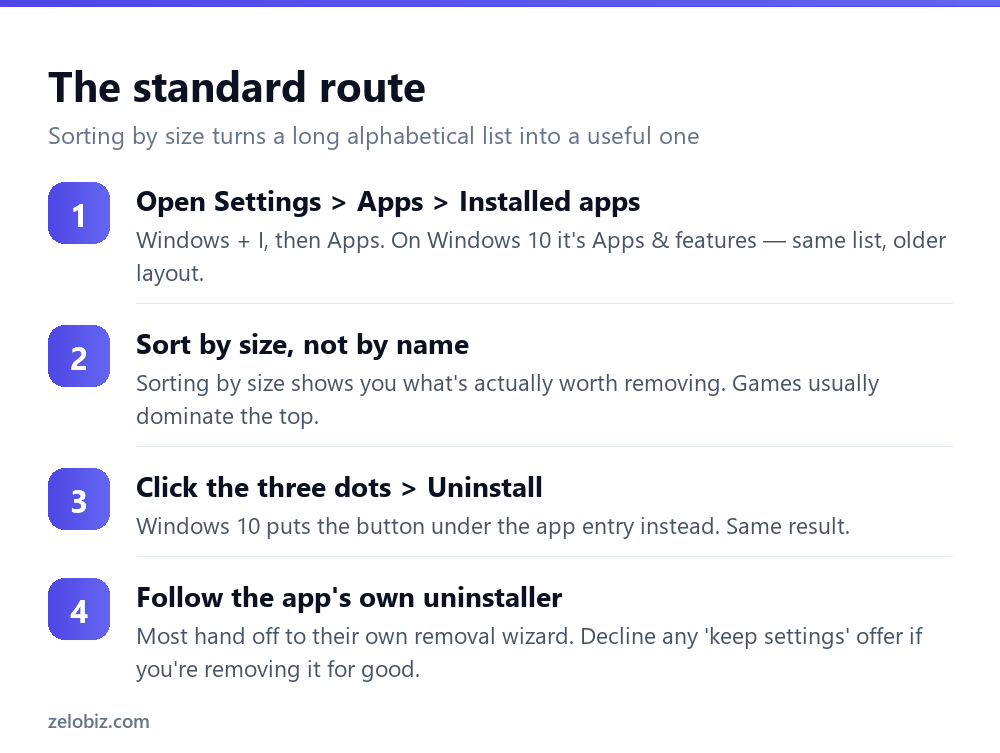
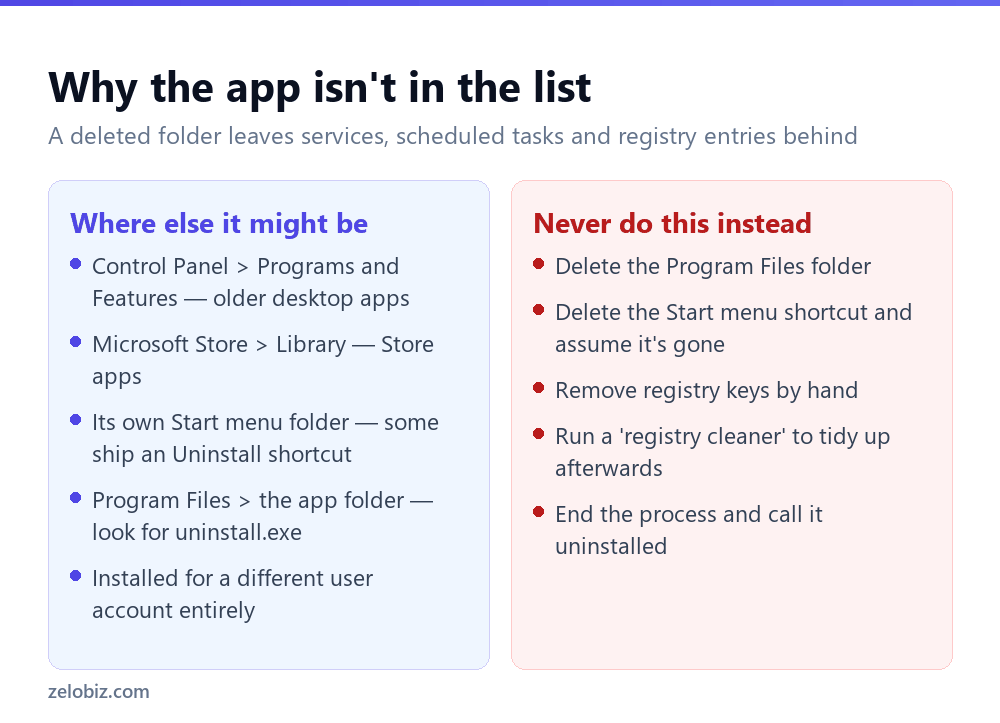
To uninstall a program on Windows, open Settings › Apps › Installed apps, find it in the list, click the three dots and choose Uninstall. On Windows 10 the same list is under Apps & features. Never delete the folder from Program Files instead — that leaves services, scheduled tasks and registry entries behind, and the app will still appear installed while being broken.
Why deleting the folder doesn’t work
It’s the intuitive move. The program lives in a folder, so deleting the folder should remove the program. On Windows it doesn’t, and it makes things worse.
Installing software on Windows does more than copy files. It writes registry entries, may register background services, adds scheduled tasks, drops files into shared system folders, and creates file associations. The uninstaller exists because it holds the list of everything that was done.
Delete the folder and all of that stays. The app still appears in your installed list, its services still try to start at boot and fail, and — most annoyingly — you often can’t reinstall it, because the installer sees an existing installation and refuses.
The uninstaller isn’t a formality. It’s the only thing that knows what the installer changed.
Three places programs hide
Modern Windows has three parallel systems for installing software, and the Settings list doesn’t always show all of them.
The last row is the exception to everything above. Portable apps were never installed — they run from wherever you put them and touch nothing else. For those, deleting the folder genuinely is the correct removal method.
Control Panel still exists, and sometimes it’s better
Control Panel › Programs and Features is the older interface and Microsoft has been retiring it for a decade, but it hasn’t gone.
It’s worth knowing because it occasionally succeeds where Settings fails. The two call slightly different removal paths, and an app that errors from Settings sometimes uninstalls cleanly from Control Panel. It also shows install dates and publishers in a sortable table, which is handy when you’re trying to work out what a mystery entry actually is.
Get to it quickly with Windows + R, then appwiz.cpl.
When the uninstaller fails
Close it properly first
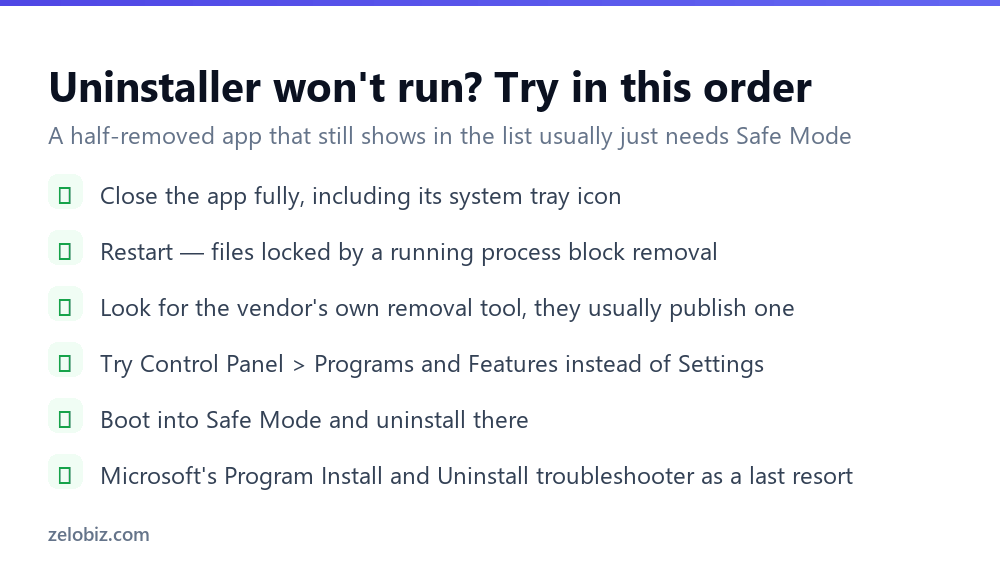
Many apps keep running in the system tray after you close the window. Right-click the tray icon and choose Exit or Quit, then try again. A running process holds its files open and the uninstaller can’t remove them.
The vendor’s removal tool
Antivirus software is the worst offender here, and almost every antivirus vendor publishes a dedicated removal utility for exactly this reason. Search for the product name plus ‘removal tool’ and you’ll find the official one. Adobe, Autodesk and several others do the same.
Use the vendor’s tool rather than a general-purpose uninstaller. It knows precisely what that product installed, including the parts deliberately protected against tampering.
Safe Mode
Booting into Safe Mode starts Windows with almost nothing running, which releases locked files and stops self-protecting software from defending itself. Hold Shift while clicking Restart, then Troubleshoot › Advanced options › Startup Settings › Restart, and pick Safe Mode. Uninstall from there and it usually goes without complaint.
Built-in Windows apps
Many of the apps that ship with Windows can be removed the same way as anything else — right-click in the Start menu and choose Uninstall. Solitaire, Weather, Clipchamp, News and most of the pre-installed extras all go quietly.
Some can’t. Edge, the Microsoft Store, Photos and a handful of others are treated as system components, and Windows either greys out the option or reinstalls them at the next feature update.
⚠️ Watch out: Scripts and ‘debloat’ tools that force-remove protected system apps circulate widely. They frequently break Windows Update or the Store in ways that are hard to diagnose months later. The disk space saved is trivial; the risk isn’t.
Finding out what a mystery entry is
Installed-app lists always contain a few things nobody recognises, and the temptation is to remove anything unfamiliar. Some of those are drivers and runtimes that other software depends on.
The publisher column in Control Panel is the quickest tell. Entries from Intel, AMD, NVIDIA, Realtek or your laptop’s manufacturer are usually drivers or support utilities — leave them. Anything called ‘Microsoft Visual C++ Redistributable’ is a shared runtime that games and applications require; removing those breaks software in ways that are genuinely hard to trace back.
If a name means nothing, search it before removing it. Thirty seconds of checking beats an afternoon working out why a program stopped launching.
Uninstalling doesn’t cancel a subscription
Worth stating because it catches people out with real money attached. Removing an application from your PC has no effect on any subscription behind it.
Adobe, Microsoft 365, antivirus renewals and anything bought through an app store keep billing after the software is gone. Cancel through the vendor’s account page, or through Microsoft Store › your profile › Payment and billing for Store purchases, and confirm it there before you uninstall.
What gets left behind
Even a clean uninstall usually leaves something — configuration files, saved preferences, licence information. That’s often deliberate, so reinstalling later restores your settings.
If you want it genuinely gone, check these two locations after uninstalling and delete the app’s folder if it’s still there: %APPDATA% and %LOCALAPPDATA%. Paste either into File Explorer’s address bar to go straight there.
Leftover registry entries are harmless. They occupy a few kilobytes and Windows ignores them. This is worth saying plainly because it’s the entire sales pitch for registry cleaners, and a registry cleaner is far more likely to break something than a stale key ever was.
Reinstalling after a failed removal
A specific and common trap: the uninstall half-completes, and the installer then refuses to run because it detects an existing copy.
Microsoft publishes a free Program Install and Uninstall troubleshooter for exactly this. It finds broken registry entries left by a partial removal and clears them so the installer will proceed. It’s the supported fix, and it works far more often than editing the registry by hand.
Download it from Microsoft’s support site, run it, and choose Uninstalling when it asks. It lists what it can see, including entries that no longer appear anywhere else.
Removing several at once
On a new laptop full of preinstalled software, going one at a time is tedious. There are two reasonable approaches.
Bulk uninstallers like BCUninstaller queue multiple removals and run them unattended, then scan for leftovers. Useful for a big clear-out, and the open-source ones are genuinely safe — unlike the ‘PC optimiser’ category they sit beside in search results.
Winget, built into Windows, removes software from the command line: winget uninstall "App Name". List everything first with winget list. It’s the fastest option if you’re comfortable with a terminal, and it scripts cleanly when setting up several machines.
- ✓Use Settings > Apps, or Control Panel if that fails
- ✓Sort by size to find what’s actually worth removing
- ✓Close the app from the system tray before uninstalling
- ✓Use the vendor’s removal tool for antivirus software
- ✓Boot into Safe Mode for anything that resists
- ✕Deleting the Program Files folder to remove an app
- ✕Deleting registry keys by hand
- ✕Running registry cleaners to tidy up leftovers
- ✕Force-removing protected Windows components with debloat scripts
- ✕Assuming an app is gone because its shortcut is
Frequently asked questions
How do I uninstall a program in Windows 11?
Settings, Apps, Installed apps. Find the program, click the three dots beside it and choose Uninstall. On Windows 10 the same list is under Apps & features.
Can I just delete the program folder?
No, except for portable apps that had no installer. Deleting the folder leaves registry entries, services and scheduled tasks behind, and often prevents you reinstalling the app later.
Why can’t I find the program in the uninstall list?
It may be a Store app, installed under a different user account, or a portable app that was never registered. Check Control Panel, Programs and Features as well, since it sometimes lists things Settings does not.
What do I do if the uninstaller won’t work?
Close the app from the system tray and restart first. Then try the vendor’s own removal tool, or boot into Safe Mode and uninstall from there — that releases locked files and stops self-protecting software interfering.
Should I use a registry cleaner after uninstalling?
No. Leftover registry entries take up a few kilobytes and Windows ignores them. Registry cleaners are far more likely to remove something needed than to deliver any measurable benefit.
How do I uninstall built-in Windows apps?
Right-click the app in the Start menu and choose Uninstall. Most optional ones like Solitaire, Weather and Clipchamp will go. Core components such as Edge and the Microsoft Store cannot be removed this way.
- →Reclaim the space afterwards — how to free up disk space
- →Check what a mystery app is doing: how to open Task Manager
- →Keep everything patched with how to update Windows
- →Clear leftover cached data: how to clear cache on Windows