
The quickest way to change your password in Windows is Ctrl + Alt + Delete, then Change a password. That works for both account types. Which type you have matters though: a local account password changes only on that PC, while a Microsoft account password changes at account.microsoft.com and updates Outlook, Xbox, OneDrive and every other Microsoft service at the same time.
Work out which account you have first
Windows has two kinds of sign-in and they behave completely differently. Most guides pick one and don’t mention the other, which is why people follow instructions and find the option isn’t where it should be.
Go to Settings › Accounts › Your info. If it shows an email address under your name, you have a Microsoft account. If it says Local account underneath, you have a local one.
Changing a Microsoft account password changes it everywhere — email, Xbox, OneDrive, Teams. Changing a local password affects one machine and nothing else.

The shortcut that works either way
Before going through Settings, know that Ctrl + Alt + Delete handles both account types and is available from anywhere, including when Settings won’t open.
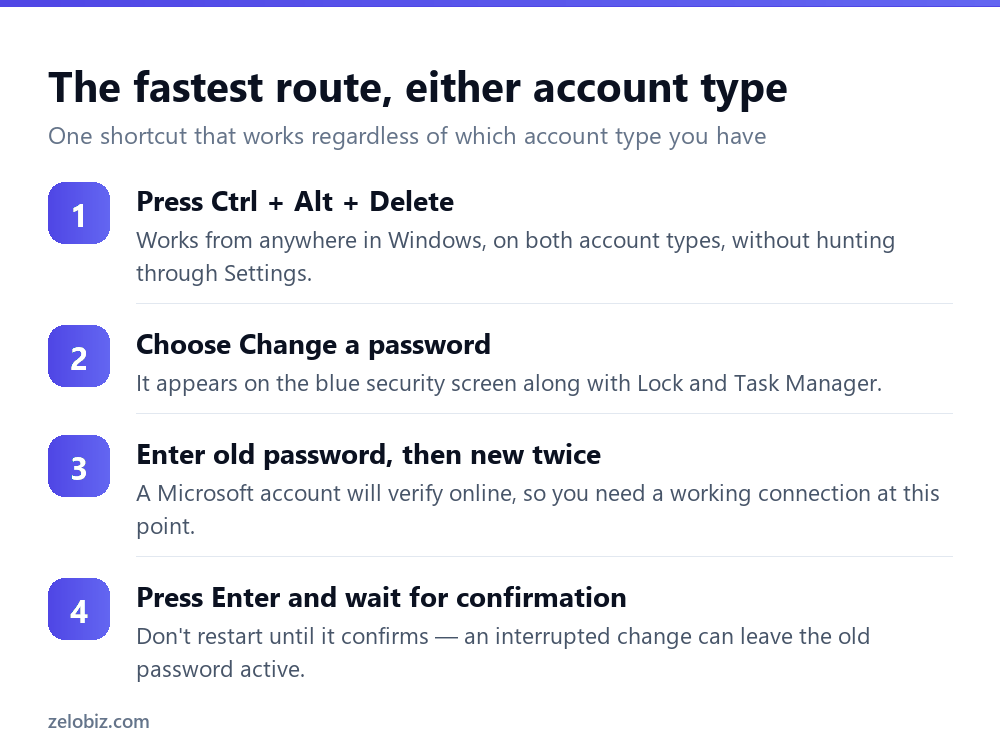
⚠️ Watch out: Wait for the confirmation before restarting or shutting down. If a Microsoft account change is interrupted before it syncs, the old password can remain active — and you’ll be typing the new one wondering why it’s rejected.
Changing a local account password
Through Settings: Accounts › Sign-in options › Password › Change. You’ll enter the current password, then the new one twice, and optionally a hint.
The hint is visible to anyone at the sign-in screen, so make it meaningless to strangers. ‘The usual one’ is fine. Your dog’s name is not, particularly if your password is your dog’s name.
Setting up recovery before you need it
A local account has no online recovery. If you forget the password there’s no reset email, because Microsoft has no record of the account existing.
What you get instead is three security questions, set under the same Sign-in options page. Do this now rather than later — it’s the only self-service recovery a local account has, and the alternative involves recovery media and a certain amount of swearing.
Changing a Microsoft account password
This one lives online rather than in Windows. Go to account.microsoft.com, sign in, then Security › Change password.
Because the account is the same one behind Outlook.com, Xbox, OneDrive, Microsoft 365 and Teams, the change applies to all of them immediately. Any device signed in with it will ask for the new password the next time it needs to authenticate — phones and tablets included, which catches people out when their mail stops syncing an hour later.
Windows itself may keep letting you in with the old password briefly, because it caches credentials for offline sign-in. It sorts itself out once the machine syncs. Signing out and back in forces it.
💡 Pro tip: If two-factor authentication is on, you’ll be prompted for a code. Have your phone or authenticator app to hand before you start rather than halfway through.
Use a PIN for signing in
Windows Hello lets you sign in with a PIN instead of typing a password, and people routinely assume that’s a downgrade. It isn’t.

A password authenticates you to a service, so anyone who steals it can use it from anywhere on earth. A PIN authenticates you to this device, is stored in the TPM security chip, and is worthless to anyone who doesn’t also have your laptop in their hands.
Set one up under Settings › Accounts › Sign-in options › PIN (Windows Hello). Your password still exists underneath as the fallback — the PIN replaces typing it daily, not the account password itself.
When you’ve forgotten it
Different problem depending on account type, and this is where the distinction really bites.
Microsoft account
Straightforward. Go to account.live.com/password/reset from any device — your phone will do — and reset it with your recovery email or phone number. Then sign in on the PC with the new password. Nothing on the machine is lost.
Local account
Harder. If you set security questions, click Reset password on the sign-in screen and answer them. If you didn’t, there’s no supported reset — the password is the only thing protecting that profile and Windows has nothing to verify you against.
At that point the practical options are signing in with another administrator account on the same PC and changing the password from there, or reinstalling Windows and recovering files from the drive separately. Neither is quick, which is the argument for setting those security questions today.
Changing someone else’s password
On a shared family PC, an administrator can reset another user’s local account password without knowing the old one.
Open Settings › Accounts › Other users, select the account, and you’ll find the option under Change account type or through Computer Management for more control. On a machine with several accounts this is the escape hatch when somebody forgets theirs.
There’s a real cost to it though. Resetting a local password this way loses that account’s saved browser passwords, stored Wi-Fi keys and any files encrypted with EFS, because those were protected with the old password. Files themselves are fine — it’s the encrypted credentials that don’t survive. Always try the security questions first.
Work and school accounts
If the machine belongs to an employer or a school, neither route above may apply. Those accounts are managed centrally, and the password policy — length, complexity, how often it expires — is set by an administrator.
Ctrl + Alt + Delete still works and will push the change to the directory. What you can’t do is opt out of expiry, reuse a recent password, or set something shorter than the policy allows. If the change is refused without explanation, it’s almost always a history rule rejecting a password you’ve used before.
Choosing a password worth having
Length beats complexity. A long passphrase of ordinary words is both harder to crack and easier to remember than a short string of substituted characters.
correct-horse-battery-staple is stronger than P@ssw0rd! and you’ll actually remember it. Substituting 3 for e and @ for a is a pattern every cracking tool has known about for twenty years; it adds almost nothing.
The bigger risk is reuse. If the same password protects your PC and an online account that later gets breached, attackers will try it everywhere. A password manager solves this properly — one strong password you remember, everything else generated and unique.
- ✓Check Settings > Accounts > Your info to identify your account type
- ✓Set local account security questions before you need them
- ✓Use a PIN for daily sign-in — it’s device-bound and safer
- ✓Use a long passphrase rather than a short complex string
- ✓Wait for confirmation before restarting after a change
- ✕Assuming a Microsoft password change only affects your PC
- ✕Writing a hint that identifies the password to anyone reading it
- ✕Reusing your Windows password on websites
- ✕Relying on character substitution for strength
- ✕Leaving a local account with no security questions set
Frequently asked questions
How do I change my password on Windows 11?
Press Ctrl + Alt + Delete and choose Change a password — this works for both account types. Alternatively go to Settings, Accounts, Sign-in options, Password, Change.
What’s the difference between a local and Microsoft account?
A local account exists only on that PC and its password affects nothing else. A Microsoft account is an online identity, so changing its password also changes it for Outlook, Xbox, OneDrive and Teams. Check Settings, Accounts, Your info to see which you have.
How do I change my password without knowing the old one?
For a Microsoft account, reset it at account.live.com/password/reset using your recovery email or phone. For a local account you need the security questions, or another administrator account on the same PC to change it for you.
Is a PIN more secure than a password?
For signing in to a device, yes. A PIN never leaves the machine and is protected by the TPM chip, so it’s useless to anyone without physical access. A stolen password can be used from anywhere.
Why does Windows still accept my old password after changing it?
Windows caches credentials so you can sign in offline. After a Microsoft account change, the machine may accept the old one until it syncs. Sign out and back in, or connect to the internet, to force it.
How often should I change my password?
Modern guidance from NIST and Microsoft is not on a schedule. Forced rotation makes people pick weaker, predictable variations. Change it when there’s a reason — a breach, a shared device, or a suspicion someone knows it.
- →Check your account and network details — how to find your IP address
- →Remove saved logins from a browser: how to clear cache on Windows
- →Keep the machine patched with how to update Windows
- →Capture the sign-in error: how to screenshot on Windows