
To find your IP address, first decide which one you need. Your private IP — for printers, file sharing or remote desktop — comes from ipconfig in Command Prompt, and looks like 192.168.1.42. Your public IP — what websites see, and what someone means when they ask for ‘your IP’ — is found by searching what is my IP in any browser.
Two addresses, two different questions
This is the part most guides skip, and it’s why people follow instructions carefully and still end up with the wrong number.
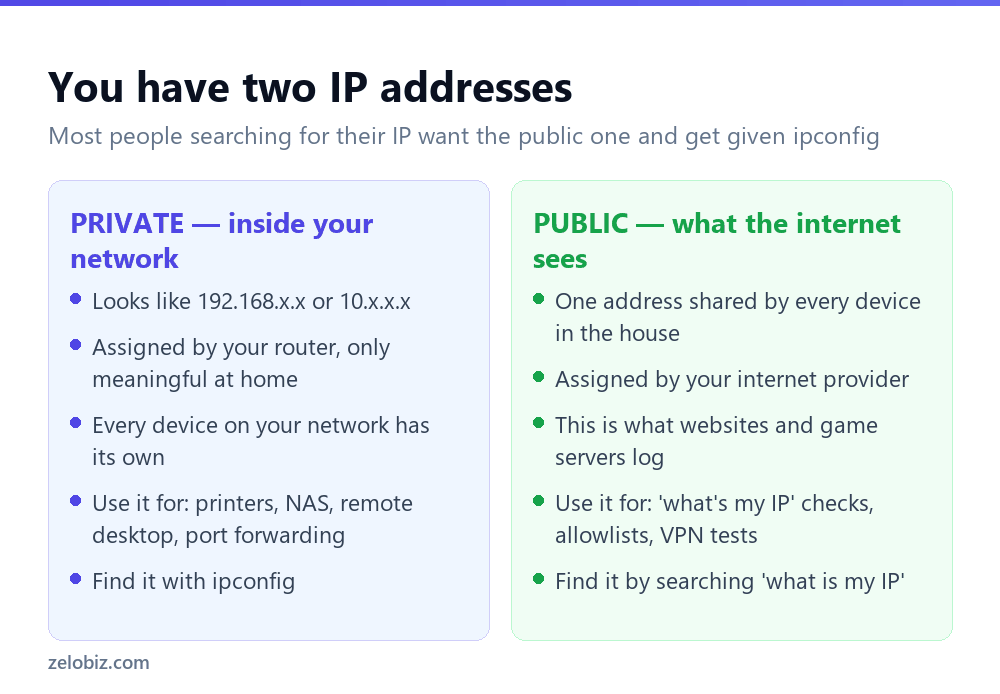
Your computer has a private address that only exists inside your home or office network, handed out by your router. It’s how your laptop finds the printer. Nobody outside your building can reach it or even see it.
Your network also has a public address, assigned by your internet provider, and every device in the house shares it. That’s what a website logs, what a game server sees, and what someone means when they say ‘send me your IP’.
If you type ipconfig and paste the result to someone outside your network, you’ve almost certainly given them the wrong number.
Finding your public IP
The quickest method by a distance: type what is my IP into Bing or Google. Both display it directly in the results without you visiting anything.
This works because the search engine, like every website, can see the address your request arrived from. That’s the whole point of a public IP — it’s not private information in any meaningful sense, and every site you visit already has it.
If you’d rather not use a search engine, curl ifconfig.me in Command Prompt returns the same thing as plain text. Windows 10 and 11 both include curl, so nothing needs installing.
💡 Pro tip: Getting a different public IP from what you expected? You’re probably connected to a VPN, or your provider uses carrier-grade NAT, which shares one address across many customers. Both are normal.
Finding your private IP
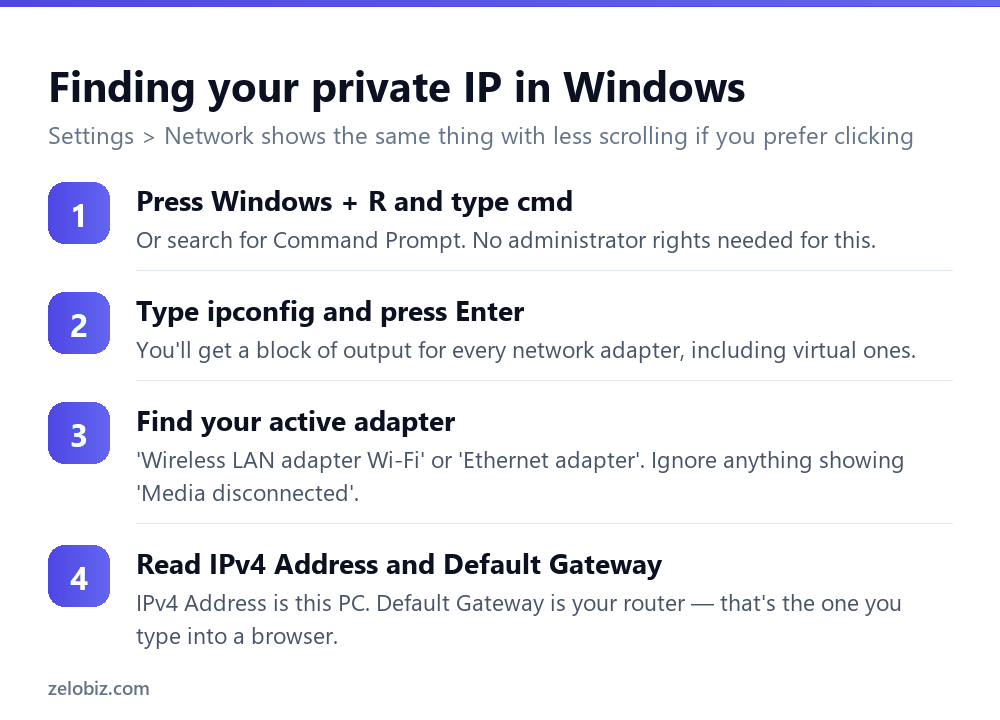
Two ways, and they give identical answers. Use whichever you prefer.
Without the command line
Go to Settings › Network & internet, click your Wi-Fi or Ethernet connection, and scroll to the bottom. IPv4 address, subnet mask and gateway are all listed. Slightly slower, but nothing to type and nothing to misread.
Reading ipconfig output
The output is longer than people expect because Windows lists every adapter, including virtual ones created by VPNs, Docker, VirtualBox and Bluetooth. Most will say ‘Media disconnected’ — skip those. The one you want is ‘Wireless LAN adapter Wi-Fi’ or ‘Ethernet adapter Ethernet’, whichever you’re actually using.
The 169.254 address means something is broken
Worth calling out because it looks like a normal address and isn’t.
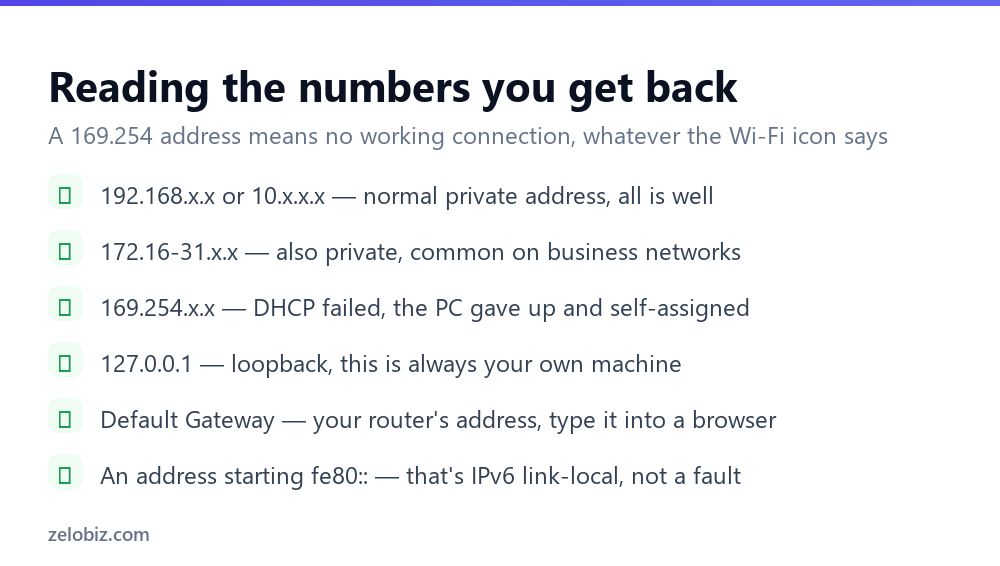
If your IPv4 address starts 169.254, your computer asked the router for an address, got no reply, and assigned itself one. That’s APIPA, and it means you have no working network connection regardless of what the Wi-Fi icon shows. You’ll be able to see the network name and still reach nothing.
The fix is usually to renew the lease: run ipconfig /release then ipconfig /renew from an administrator Command Prompt. If that fails, restart the router — the DHCP service that hands out addresses has probably stopped or run out of them.
Finding your router’s address
Frequently the actual thing people need. To open your router’s settings page you need its address, and it’s the Default Gateway line in ipconfig output.
It’s usually 192.168.1.1 or 192.168.0.1, but plenty of providers use something else — 10.0.0.1 and 192.168.1.254 are both common. Guessing wastes time; reading the gateway line doesn’t. Type that address into a browser and you’ll get the login page.
Finding another device’s IP
For a printer, NAS or smart device on your network, there are three approaches.
Check the device itself. Most printers can print a network configuration page from their front panel, and NAS units show their address in the admin interface. This is the reliable option.
Check the router. Log into it and look for ‘Connected devices’ or ‘DHCP clients’. You get a list of everything on the network with names and addresses, which is the fastest way to find something you can’t physically reach.
Scan from the command line. Run arp -a to list addresses your PC has recently communicated with. It’s incomplete — it only shows devices there’s been traffic with — but it takes two seconds and often finds what you need.
Why your IP keeps changing
Both of your addresses can change, for different reasons, and neither is a fault.
Your private address is leased from the router for a fixed period. Reconnect after the lease expires and you may get a different one. That’s fine for laptops and phones, and a problem for a printer or NAS you’ve mapped by address — which is why those should get a DHCP reservation, pinning one address to one device permanently. It’s a setting in your router, not on the device.
Your public address changes when your provider decides it should, typically after a router restart or an outage. Most home connections are dynamic. If you need a fixed one — for a server, or to be allowlisted by a corporate network — you have to ask your provider for a static IP, usually for a monthly fee.
Setting a static IP on the PC itself
Sometimes you want this machine to keep one address permanently — it hosts something, or you’ve allowlisted it on a firewall.
A DHCP reservation in the router is the better way, because the router stays in charge and can’t hand the same address to something else. But you can also set it on Windows: Settings › Network & internet, click your connection, then Edit next to IP assignment and switch from Automatic to Manual.
If you do it that way, you must fill in the subnet mask (usually 255.255.255.0), the gateway (your router) and DNS servers yourself, and you must pick an address outside the router’s DHCP pool or you’ll eventually get a clash. Getting DNS wrong here is the classic outcome: the machine has a valid address, can ping the router, and can’t load a single website.
What ipconfig /all adds
Plain ipconfig covers most needs. ipconfig /all is worth knowing for the times it doesn’t.
The DNS Servers line is the one to check when pages won’t load but the network otherwise works. If it’s blank or pointing somewhere unexpected, that’s your problem.
IPv4, IPv6, and why you see both
You’ll likely see two addresses per adapter: a short one like 192.168.1.42 and a much longer one full of colons. The first is IPv4, the second IPv6.
IPv4 ran out of addresses years ago, and IPv6 is the replacement with enough space to last indefinitely. Both run side by side on most connections. For nearly everything you’ll do at home — printers, file shares, remote desktop — you want the IPv4 address. An address beginning fe80:: is IPv6 link-local, only valid on your local network, and not something you need to copy anywhere.
- ✓Decide whether you need the private or public address first
- ✓Use ‘what is my IP’ in a search engine for the public one
- ✓Read the Default Gateway line to find your router
- ✓Set a DHCP reservation for printers and NAS devices
- ✓Treat a 169.254 address as no connection at all
- ✕Pasting your ipconfig result to someone outside your network
- ✕Guessing at 192.168.1.1 instead of reading the gateway
- ✕Assuming a changing IP means something is broken
- ✕Copying the fe80:: address when a program asks for an IP
- ✕Reading adapters marked ‘Media disconnected’
Frequently asked questions
What is the command to find IP address in Windows?
ipconfig in Command Prompt. Look for the IPv4 Address line under your active adapter. Use ipconfig /all for more detail including MAC address and DNS servers.
What is the difference between public and private IP?
A private IP identifies your device inside your own network and looks like 192.168.x.x. A public IP identifies your whole network to the internet and is shared by every device in the building.
Why does my IP address start with 169.254?
Your PC couldn’t get an address from the router and assigned itself one. It means you have no working connection. Run ipconfig /release then ipconfig /renew, and restart the router if that doesn’t help.
How do I find my router’s IP address?
Run ipconfig and read the Default Gateway line. That’s your router. Type it into a browser to reach its settings page. It’s commonly 192.168.1.1 but varies by provider.
Is it safe to share my IP address?
Your public IP is visible to every website you visit, so it isn’t secret. It reveals your rough geographic area and your provider, but not your identity or exact address. There’s no need to share it casually, and no cause for alarm if you have.
How do I get a static IP address?
For a device on your own network, set a DHCP reservation in your router so it always gets the same address. For a fixed public IP, you have to request one from your internet provider, usually at extra cost.
- →Use the address you just found: how to map a network drive
- →Clear a stale DNS entry with how to clear cache on Windows
- →Check what’s using the connection — how to open Task Manager
- →Capture the output to send on: how to screenshot on Windows