
To password protect a PDF, use Adobe Acrobat’s Tools › Protect › Protect Using Password (or Microsoft Word’s Save As › encryption option, if you have the original source file) and choose between an open password, required to view the file at all, and a permissions password, which lets anyone view it but restricts editing, printing, or copying. Understanding which one you actually need matters more than the software you use to set it.
Two passwords, two different jobs
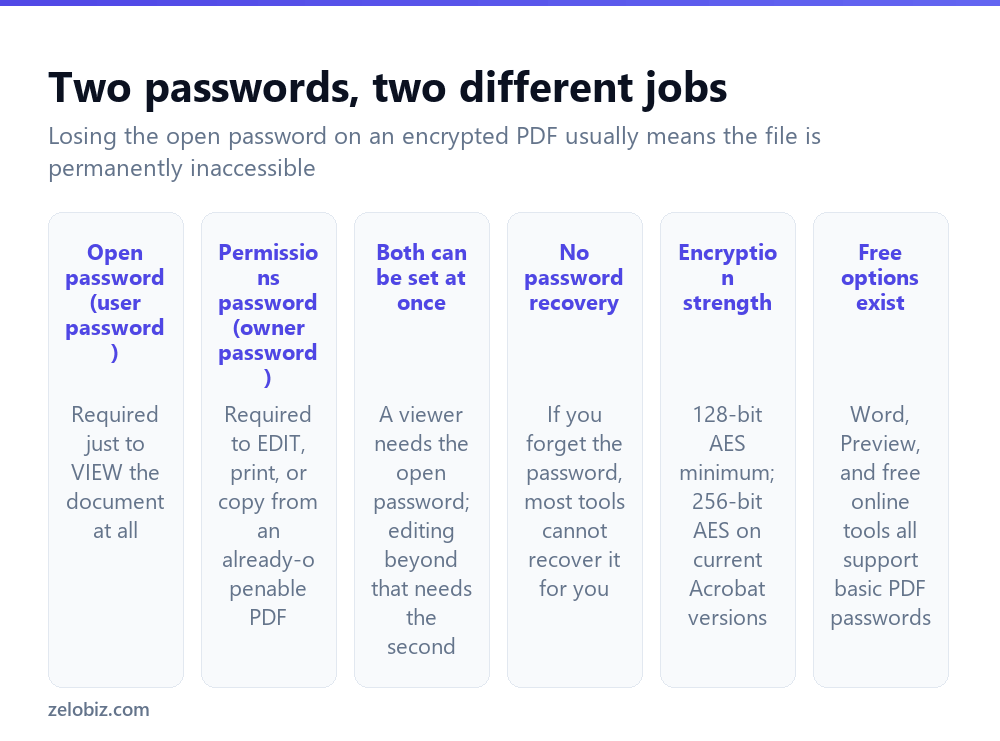
This distinction is the source of most confusion around PDF passwords, and it’s worth understanding clearly before setting anything.
An open password (sometimes called a user password) must be entered before the PDF will display at all — without it, the file is just an encrypted blob no viewer can render. This is what you want for anything genuinely confidential, where the content itself shouldn’t be visible to someone without the password.
A permissions password (owner password) lets anyone open and read the document freely, but restricts specific actions — editing the text, printing it, copying content out of it, or adding comments — unless that second password is provided. This suits a finished report you want people to read but not alter or redistribute.
You can set both at once on the same file — an open password for viewing, plus a separate, different permissions password for anyone who additionally needs editing rights.
Adding a password with Adobe Acrobat
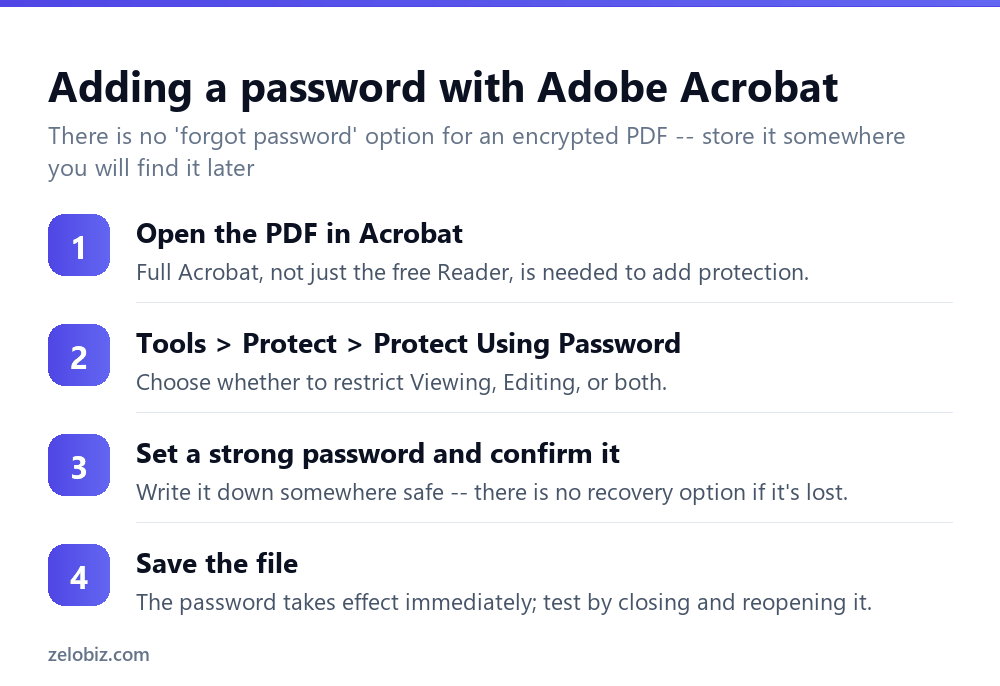
This requires full Acrobat, not the free Acrobat Reader. Reader can open password-protected PDFs and enter passwords, but it can’t add protection to a file in the first place — that’s an editing capability reserved for the paid version.
Tools › Protect › Protect Using Password, then choose Viewing (sets an open password) or Editing (sets a permissions password) — or configure both in sequence. Type the password, confirm it, and save.
💡 Pro tip: There is no password recovery for a properly encrypted PDF. Store it in a password manager or somewhere equally reliable the moment you set it — not in a sticky note or a file named ‘password.txt’ sitting next to the protected PDF itself.
Adding a password without Acrobat
If you have the original source file, Microsoft Word can export directly to a password-protected PDF: File › Save As › PDF, then Options, tick Encrypt the document with a password, and set it there. This produces an open-password-protected PDF in one step, without touching Acrobat at all.
On a Mac, Preview can add an open password to an existing PDF: File › Export, tick Encrypt, and set the password in the same dialog. It doesn’t offer the more granular permissions-password options Acrobat does, but covers the common case of “only people with this password should be able to open it at all.”
Free online tools can add a password too, with the same privacy caveat as any online PDF service — the file passes through a third-party server during processing. Fine for a document that isn’t sensitive in the first place; a poor choice for one you’re specifically trying to protect, since the protection would only take effect after an unprotected version already left your computer.
Choosing a genuinely strong password
The same rules apply as any other password: length matters more than complexity tricks, and a unique password beats a memorable but predictable one. A random 12+ character password, or a four-word passphrase, both work well and are things a password manager can generate and store for you.
Avoid anything guessable from context — the document’s own filename, a date mentioned inside it, or a company name if it’s a business document. These are exactly what someone would try first.
A worked example: sending a financial statement
Say you’re emailing a bank statement PDF to an accountant. It contains real financial detail, so this is a case for an open password — not just a permissions password, since the content itself is sensitive, not merely something you don’t want edited.
If you have Acrobat: open the PDF, Tools › Protect › Protect Using Password › Viewing, set a strong unique password generated by a password manager, and save. Then send the PDF as a normal email attachment, but share the password through a separate channel — a text message, a phone call, or a different messaging app — rather than in the same email. If the email itself is ever intercepted or forwarded to the wrong person, the password travelling separately means the attachment alone is still useless to them.
This two-channel habit matters more than which specific tool created the password. A perfectly encrypted PDF with its password sitting in the same email thread offers close to no real protection against anyone who gains access to that thread.
Permissions passwords have limits worth knowing
A permissions password restricts what compliant PDF software allows, but it isn’t unbreakable the way encryption for an open password is. Screenshotting a page, or retyping visible text by hand, sidesteps a copy restriction entirely without needing to break any encryption — because the content was never hidden, only the copy-and-paste mechanism was restricted.
This matters for setting expectations correctly: a permissions password is a reasonable deterrent against casual editing or copying by someone using standard PDF software as intended. It is not a security measure against someone determined to extract the content by other means. For content that genuinely must not be seen by unauthorized people, an open password (or simply not sending the file to that person) is the actual protection; a permissions password alone is not.
Removing password protection later
If you know the password, removing protection is straightforward: open the file (entering the password), then in Acrobat use Tools › Protect › Encrypt › Remove Security. In Preview, re-export without ticking Encrypt.
If you don’t know the password, there’s no legitimate built-in way to remove it. This is by design — a recoverable password wouldn’t be providing real protection. Contact whoever originally set the password if the file is genuinely needed and inaccessible.
When something’s not behaving as expected
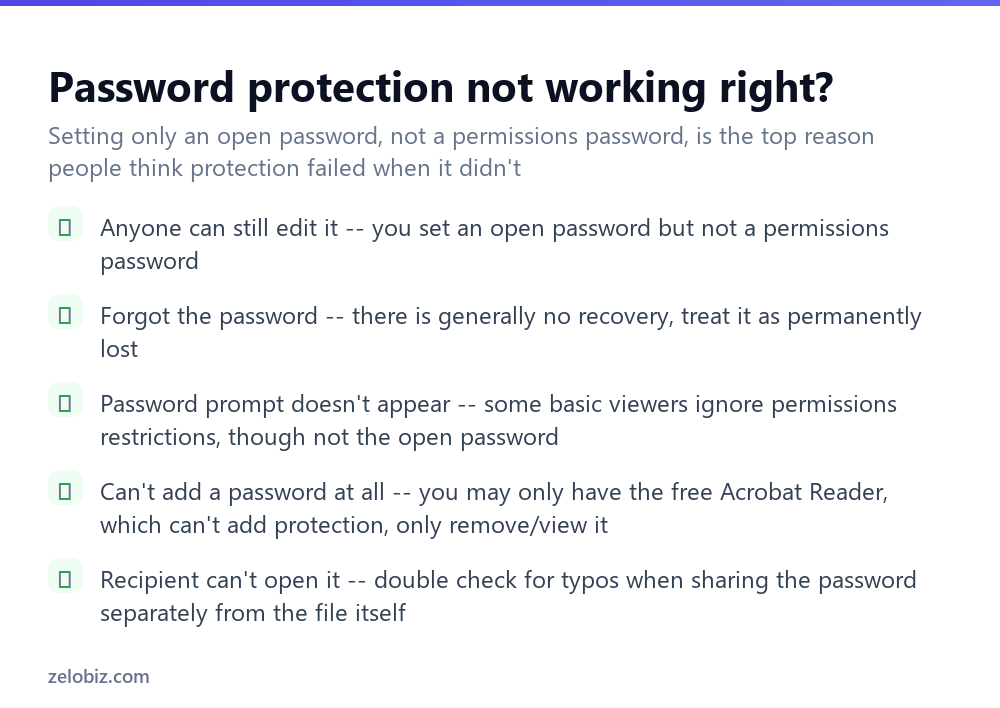
Anyone can still edit or copy from the file — an open password restricts viewing only; editing and copying are governed by the separate permissions password. If both matter, both need to be set.
Forgot the password — treat it as permanently lost for a properly encrypted PDF. There’s no built-in recovery, and third-party “PDF password recovery” tools found online range from ineffective against modern encryption to genuinely unsafe to run.
Can’t add a password at all — confirm which Acrobat product you have. The free Acrobat Reader can open protected files but can’t create protection; that capability is part of the paid Acrobat product, or available through Word/Preview if you have the source file.
Recipient says they can’t open it — double-check the password is being shared accurately, ideally through a different channel than the file itself (a text message if the file went by email, for instance), and watch for characters that look similar — a lowercase l versus a capital I, or a zero versus the letter O.
- ✓Know whether you need an open password, a permissions password, or both
- ✓Store the password in a password manager the moment you set it
- ✓Use full Acrobat, Word, or Preview to add protection — not the free Acrobat Reader alone
- ✓Share the password through a different channel than the protected file itself
- ✓Avoid online converters for genuinely sensitive documents
- ✕Setting only an open password and expecting it to also block editing
- ✕Storing the password in a plain text file next to the protected PDF
- ✕Assuming a forgotten password can be recovered — it generally can’t
- ✕Using a guessable password like the filename or a visible date
- ✕Uploading a sensitive file to an online tool just to add password protection to it
Frequently asked questions
How do I put a password on a PDF?
Use Adobe Acrobat’s Tools, Protect, Protect Using Password, or Word’s Save As PDF with encryption enabled if you have the original source file.
What’s the difference between an open password and a permissions password on a PDF?
An open password is required to view the file at all. A permissions password lets anyone view it but restricts editing, printing, or copying unless entered.
Can I remove a password from a PDF?
Yes, if you know the current password — use Acrobat’s Remove Security option. Without the password, there is no legitimate way to remove it.
What happens if I forget a PDF password?
For a properly encrypted PDF, there is generally no recovery. Store any password you set in a password manager immediately.
Can the free Acrobat Reader add a password to a PDF?
No. Adding password protection requires full Acrobat, or the encryption feature in Word or Preview if you still have the original source file.
Is it safe to password-protect a PDF using a free online tool?
Not for genuinely sensitive files — the document is uploaded to a third-party server during processing, which defeats the purpose for anything confidential.
- →Sign a document before locking it: how to sign a PDF
- →Combine files before protecting them: how to merge PDF files
- →Make edits before adding a password: how to edit a PDF
- →Need an editable copy instead: how to convert PDF to Word