
To convert PDF to Excel, use Adobe Acrobat’s File › Export To › Spreadsheet › Microsoft Excel Workbook, which detects table structure in the PDF and rebuilds it as a real spreadsheet. Free alternatives include uploading the PDF to Google Sheets via File › Import. Success depends heavily on whether the PDF contains a genuine table with real structure, or just text visually arranged to look like one — the second case rarely converts cleanly with any tool.
The distinction that decides whether this will actually work
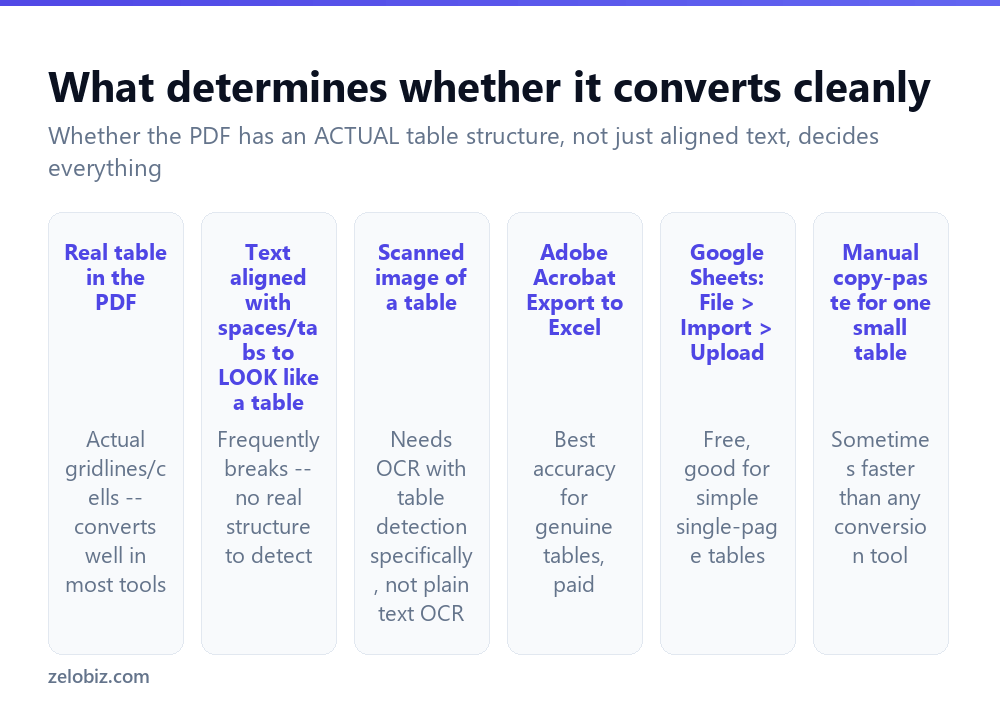
A PDF that was generated from an actual spreadsheet or a table built with real rows and columns in the source document (Word tables, database exports, most invoices and statements) usually converts with reasonable accuracy, because there’s genuine structural information the conversion tool can detect and rebuild.
A PDF where the “table” is actually just text carefully spaced or tabbed to line up visually — common in older documents, some scanned-and-OCR’d files, and text exported from certain older software — has no real table structure at all. The visual alignment that looks like columns to your eye is invisible to a conversion tool, which sees only a stream of text with spaces in it. These convert poorly regardless of which tool you use, and often need manual rebuilding.
A scanned image of a table needs a step beyond plain OCR: table-aware OCR, which detects grid lines and cell boundaries specifically, not just individual characters. Acrobat and a handful of dedicated tools handle this; generic OCR tools built for plain paragraph text generally don’t.
Before choosing a tool, check: can you select individual cells’ worth of text separately in the PDF, or does clicking anywhere near the table select the whole block as one piece? The first suggests real structure; the second suggests an image or unstructured text.
Converting with Adobe Acrobat
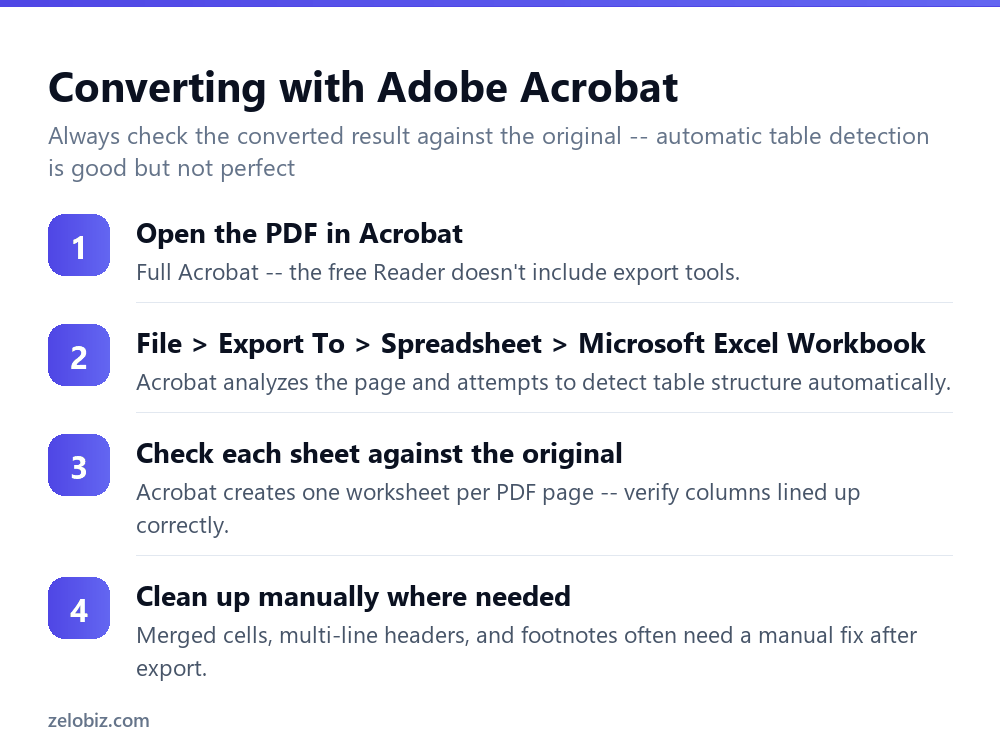
This is the most reliable option for genuine tables, and it requires full Acrobat — the free Acrobat Reader doesn’t include export functionality.
File › Export To › Spreadsheet › Microsoft Excel Workbook. Acrobat analyzes the page layout and attempts to detect table boundaries automatically, producing one worksheet per PDF page in the resulting file.
Open the result and check it against the original PDF side by side — specifically whether columns lined up correctly and whether any rows got merged or split unexpectedly. Automatic detection handles simple tables well and struggles more with multi-row headers, merged cells, or tables that span a page break.
Free alternative: Google Sheets
File › Import › Upload, select the PDF. Google Sheets attempts to detect and import tabular data directly. It handles simple, single-page tables reasonably well, though generally with less accuracy than Acrobat on anything more complex — multiple tables on one page, or tables spanning several pages, are where it tends to fall short.
Worth trying first for a simple, one-off table before paying for anything, given it costs nothing and takes under a minute to test.
For scanned tables: OCR with table detection
If the PDF is a scanned image, standard conversion tools that only extract unstructured text won’t reconstruct a usable table — you’ll end up with a wall of numbers and no column boundaries.
Acrobat’s export tool includes OCR as part of the same process when it detects a scanned page, so it’s often the simplest single tool that handles both problems (scanned image plus table structure) together, rather than needing a separate OCR step first.
Sometimes manual copy-paste is genuinely faster
For a small table — a handful of rows and columns — on a text-based (not scanned) PDF, selecting the text directly and pasting it into Excel, then using Data › Text to Columns to split it into proper columns, can be faster and more reliable than running a full conversion tool and then cleaning up its output. Worth considering before reaching for Acrobat or an online tool for anything genuinely small.
A worked example: converting a bank statement
Say a bank sends monthly statements as PDFs, and you want the transaction table in Excel to build a running spending analysis. This is a good candidate to convert — the transaction table in a bank statement is almost always a genuine table with real rows and columns, not just visually-aligned text.
Open the statement in Acrobat, File › Export To › Spreadsheet › Microsoft Excel Workbook. Check the result against the original: the date, description, and amount columns should line up correctly row by row. The amount column is the one most likely to need a Text to Columns fix afterward, since currency symbols and commas in the original formatting sometimes prevent Excel from recognising the values as real numbers automatically.
Once one month converts cleanly, the same statement layout from that bank should convert the same way every month, making it worth saving the process as a short checklist — export, check the amount column, run Text to Columns, done — rather than re-verifying every column from scratch each time.
Multiple tables on one page
When a single PDF page has more than one distinct table — common in financial reports with a summary table above a detail table — automatic conversion tools sometimes merge them into one confused block rather than recognising two separate tables.
Acrobat generally handles this better than most free tools, since its table detection looks for visual breaks (whitespace gaps, different column counts) between distinct tables on the same page. If a free tool merges tables that should be separate, manually splitting them apart in the resulting spreadsheet is usually faster than searching for a different tool that might handle the specific layout correctly.
Converting just one table from a longer document
If the table you need is buried inside a much longer PDF report, converting the entire document just to extract one table wastes effort on pages you don’t need. Extract the relevant pages into a separate PDF first (see the split-a-PDF guide linked below), then run the conversion on that smaller file — fewer pages for the tool to analyze generally means fewer opportunities for it to misread something on an unrelated page.
Cleaning up after conversion
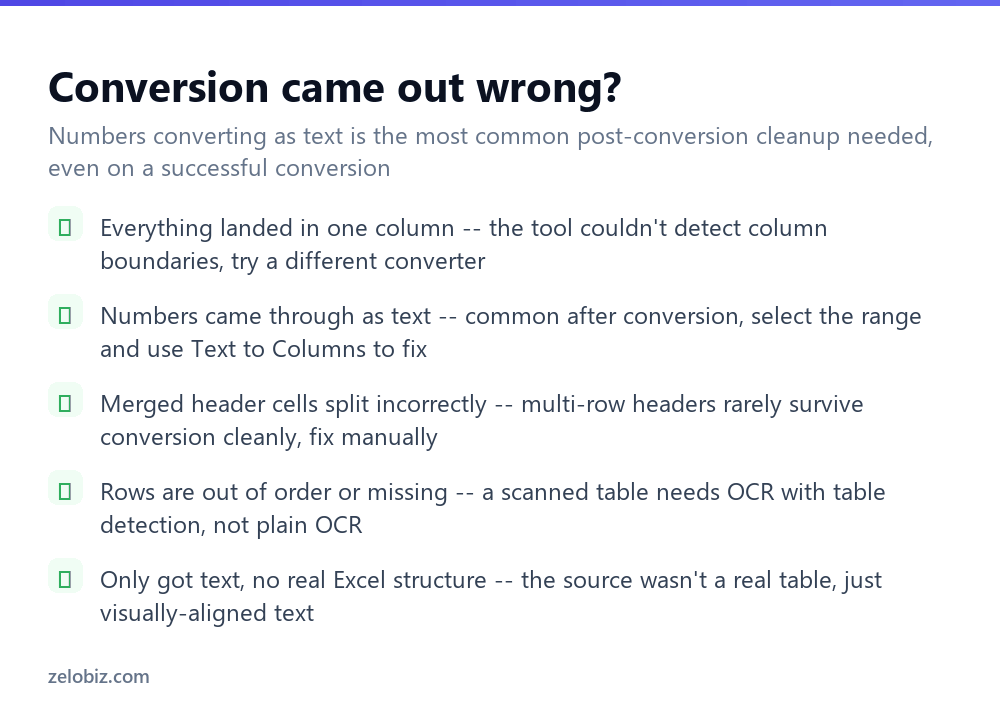
Numbers came through as text — extremely common even on an otherwise successful conversion. Select the affected range and run Data › Text to Columns › Finish (accepting the defaults forces Excel to re-evaluate the cell type), which converts them back to real numbers you can sum and calculate with.
Everything landed in a single column — the tool failed to detect column boundaries at all. Try a different conversion tool, or fall back to manual copy-paste plus Text to Columns for a smaller table.
Merged header cells split incorrectly — multi-row or merged headers are one of the least reliable parts of any automatic conversion. Expect to rebuild the header row manually in most cases rather than trusting the automatic result.
Rows are out of order or data is missing — for a scanned source, this usually means plain OCR was used instead of table-aware OCR. Re-try with a tool that specifically handles table structure in scanned documents, such as Acrobat’s export tool.
- ✓Check whether the PDF has a real table structure before choosing a tool
- ✓Try Google Sheets’ free import first for a simple, single-page table
- ✓Use Text to Columns after conversion to fix numbers that landed as text
- ✓Compare the converted result against the original page before trusting it
- ✓Consider manual copy-paste for a small table on a text-based PDF
- ✕Assuming any converter can reconstruct a table from visually-aligned text with no real structure
- ✕Using plain OCR on a scanned table instead of table-aware OCR
- ✕Trusting a multi-row header conversion without checking it manually
- ✕Skipping the side-by-side check against the original PDF
- ✕Reaching for a full conversion tool when copy-paste would be faster for a small table
Frequently asked questions
How do I convert a PDF table to Excel?
Use Adobe Acrobat’s File, Export To, Spreadsheet, Microsoft Excel Workbook, or upload the PDF to Google Sheets via File, Import for a free alternative on simple tables.
Why did my PDF to Excel conversion put everything in one column?
The conversion tool couldn’t detect column boundaries, usually because the PDF’s “table” is actually just visually-aligned text rather than a real table structure.
Why do numbers show up as text after converting a PDF table?
This is common even on a successful conversion. Select the range and use Data, Text to Columns, Finish to convert them back to real numbers.
Can I convert a scanned PDF table to Excel?
Yes, but it needs OCR with table detection specifically, not plain text OCR. Adobe Acrobat’s export tool handles both the OCR and table structure together.
Is there a free way to convert PDF to Excel?
Google Sheets’ File, Import, Upload handles simple single-page tables reasonably well for free, though with less accuracy than Acrobat on complex tables.
When is manual copy-paste better than a conversion tool?
For a small table on a text-based (non-scanned) PDF, copying the text and using Text to Columns in Excel is often faster than running a conversion tool and cleaning up its output.
- →Need the whole document editable, not just a table: how to convert PDF to Word
- →Fix the table further once it is in Excel: how to make a pivot table
- →Combine several PDF sources first: how to merge PDF files
- →Make direct edits to the PDF instead: how to edit a PDF