
To use Google Sheets, go to sheets.google.com and start a blank sheet, or use Google Drive > New > Google Sheets. Enter data directly by clicking any cell and typing — there’s no “Save” button, since every change syncs automatically in real time. Use formulas starting with = for calculations (like =SUM(A1:A10)), and click Share to collaborate, setting each person’s permission as Viewer, Commenter, or Editor. Version history (File > Version history) lets you restore any earlier state if needed.
The essentials to know first
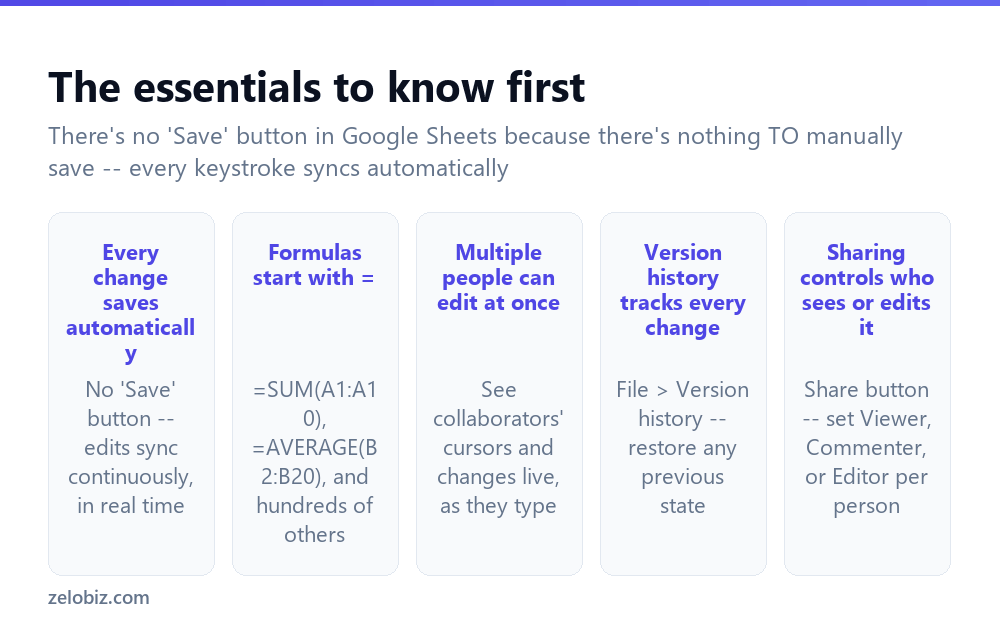
Every change saves automatically — there’s no “Save” button anywhere in Google Sheets, because there’s genuinely nothing to manually save; every keystroke syncs to Google’s servers continuously in real time.
Formulas start with = — typing an equals sign into any cell signals a formula is coming, like =SUM(A1:A10) or =AVERAGE(B2:B20), among hundreds of available functions.
Multiple people can edit at once — collaborators’ cursors and changes appear live as they type, making Sheets genuinely useful for real-time, simultaneous collaborative work rather than one person editing at a time.
Version history tracks every change — File > Version history shows a full timeline of edits, letting you restore the sheet to any previous state if something goes wrong.
Sharing controls who sees or edits it — the Share button sets a specific permission level per person: Viewer (read-only), Commenter (can comment but not edit), or Editor (full edit access).
There’s no Save button in Google Sheets because there’s genuinely nothing to manually save — every keystroke syncs automatically and continuously, which is a meaningfully different mental model than a traditional desktop spreadsheet application requiring periodic manual saves.
Getting started
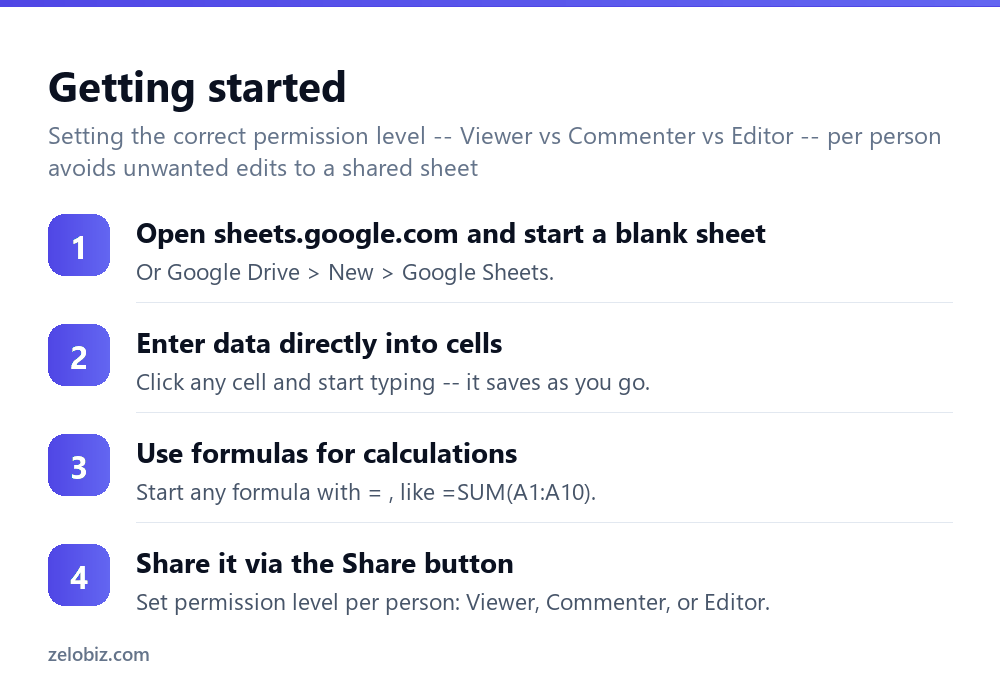
Open sheets.google.com and start a blank sheet — or alternatively, Google Drive > New > Google Sheets.
Enter data directly into cells — click any cell and start typing; it saves automatically as you go, with no separate save action needed.
Use formulas for calculations — starting any formula with an equals sign, such as =SUM(A1:A10) to total a range of cells.
Share it via the Share button — setting the correct permission level per person: Viewer, Commenter, or Editor, depending on what access each person genuinely needs.
Real-time collaboration
When multiple people have a sheet open simultaneously, each collaborator’s cursor and active cell selection appear in a distinct color, and any edits they make show up live for everyone else, essentially instantly. This makes Sheets genuinely useful for situations like a team jointly building a budget together during a live meeting, rather than passing a single file back and forth between edits.
Comments (Insert > Comment, or the comment icon that appears when a cell range is selected) offer a way to discuss a specific cell or range without directly editing the data itself, useful for flagging a question or concern for a collaborator to address without altering the actual numbers.
Version history: undoing more than a single mistake
Beyond the standard Ctrl+Z undo for immediate mistakes, File > Version history > See version history shows a complete timeline of every change made to the sheet, including who made each change and when, and allows restoring the entire document to any specific prior point in time. This is genuinely more powerful than a simple undo for recovering from a larger accidental change, or for reviewing exactly what a specific collaborator changed and when.
A worked example: a small team building a shared expense tracker
Say a small team wants to jointly track shared project expenses in real time rather than each person keeping a separate personal record and reconciling them manually at the end of the month.
They start a blank sheet and set up columns for date, description, amount, category, and who paid, then share it with Editor access for every team member who might need to log an expense directly, rather than funneling everything through one person acting as a bottleneck. Because changes sync in real time, a team member can log an expense from a phone immediately after making a purchase, and it’s visible to everyone else within seconds, rather than waiting for an end-of-week email update.
For the category column, they use data validation (Data > Data validation) to restrict entries to a fixed dropdown list — “Travel,” “Supplies,” “Meals,” and a few others — rather than leaving it as free text, which prevents the same category from ending up logged three different ways (“meals,” “Meals,” “food”) and breaking any later attempt to total spending by category.
They add a running total using =SUM() referencing the amount column, and a second formula breaking totals down by category using =SUMIF(), both of which update automatically as new rows are added, meaning the totals are always current without anyone needing to manually recalculate anything after each new entry.
When a disagreement comes up later about whether a specific expense was actually logged correctly, rather than relying on memory, they check File > Version history to see exactly who entered that row and when, resolving the question definitively rather than through guesswork.
Useful functions beyond SUM and AVERAGE
VLOOKUP or its more modern successor XLOOKUP searches for a value in one range and returns a corresponding value from another, useful for pulling matching information across two related sheets — looking up a customer’s email address from a customer ID, for instance, without manually cross-referencing two separate tables by eye.
IF returns one value or another based on a condition (like flagging any expense over a certain amount for review), and COUNTIF counts how many cells in a range meet a specific condition, both genuinely useful for building simple automated logic into a sheet rather than manually reviewing every row by eye each time.
Google Sheets also includes a built-in function reference and search, accessible by typing = followed by a function name, which shows a description and example directly while typing — useful for discovering a function that fits a specific need without needing to look it up separately.
For conditional formatting — automatically highlighting cells that meet a condition, like a budget line that’s gone over its limit — Format > Conditional formatting sets a rule once that continues applying to every future row added to that range, meaning new entries are automatically flagged without needing to reapply the formatting manually each time new data comes in.
Freezing rows and columns while scrolling
On a large sheet, header row labels can scroll out of view, making it hard to remember which column holds what once far enough down the data. View > Freeze locks a chosen number of rows or columns in place so they stay visible regardless of how far the rest of the sheet is scrolled — a small setup step that meaningfully improves usability on anything beyond a small handful of rows, particularly once a sheet grows past what fits comfortably on a single screen without scrolling at all through it from top to bottom every single time it’s opened by anyone on the whole wider team, regardless.
Common Sheets confusion
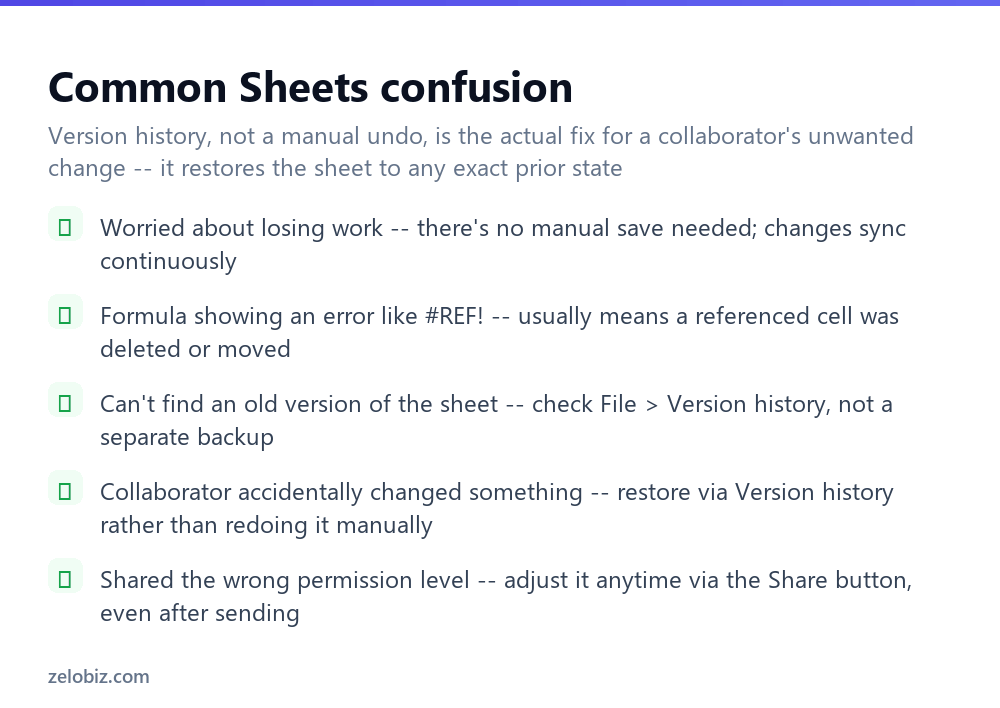
Worried about losing work — there’s no manual save needed; changes sync continuously and automatically as they’re made.
Formula showing an error like #REF! — usually means a cell the formula referenced was deleted or moved, breaking the reference.
Can’t find an old version of the sheet — check File > Version history rather than looking for a separate backup file, since Sheets tracks this internally.
Collaborator accidentally changed something — restore via Version history rather than trying to manually redo the change from memory.
Shared the wrong permission level — adjust it anytime through the Share button, even well after the sheet was originally shared.
- ✓Trust that changes save automatically without a manual save step
- ✓Use Version history to recover from a larger mistake, not just Ctrl+Z
- ✓Set the correct permission level (Viewer/Commenter/Editor) per person sharing access
- ✓Use comments to discuss a cell without altering the actual data
- ✓Start any calculation with = rather than typing the result manually
- ✕Worrying about lost work when changes actually save continuously
- ✕Manually redoing a collaborator’s mistake instead of using Version history to restore it
- ✕Giving Editor access to everyone by default regardless of what they actually need
- ✕Editing a cell’s value directly just to leave a note or question for a collaborator
- ✕Typing a calculated value manually instead of using a formula that updates automatically
Frequently asked questions
How do I use Google Sheets?
Go to sheets.google.com, enter data directly into cells, use formulas starting with = for calculations, and share it with the right permission level per person.
Do I need to save my work in Google Sheets?
No. Every change saves automatically and continuously — there’s no Save button because there’s nothing to manually save.
How do I undo a big mistake in Google Sheets?
Use File > Version history to restore the sheet to any earlier point in time, beyond what a simple Ctrl+Z undo can recover.
Can multiple people edit a Google Sheet at the same time?
Yes. Collaborators’ cursors and edits appear live in real time as they work.
What’s the difference between Viewer, Commenter, and Editor access?
Viewer is read-only, Commenter can comment but not edit, and Editor has full edit access. Set this per person via the Share button.
Why is my formula showing a #REF! error?
A cell the formula referenced was likely deleted or moved, breaking the reference it depended on.
- →Collect data that flows into a sheet: how to make a Google Form
- →Visualize the data with a chart: how to make a chart in Google Sheets
- →Store and organize related files: how to use Google Drive
- →Export a finished sheet as PDF: how to convert Google Doc to PDF