
An inherited Excel spreadsheet is one of the more stressful things to land on a desk. Someone has left, the workbook produces a number the business relies on, and nobody remaining can explain how it gets there.
You can work through it with AI far faster than by tracing formulas manually, and this is the one place where using AI in a workbook carries almost no risk. Nothing changes. You are asking questions about a file, not letting anything edit it.
Short answer: Work outwards from structure rather than inwards from formulas. Map which sheets feed which, identify which cells are typed and which are calculated, trace what the headline number depends on, then hunt for hardcoded values, broken links and stale ranges. AI is well suited to this because the whole exercise is read-only.
Why This Is the Safest Use of AI in a Spreadsheet
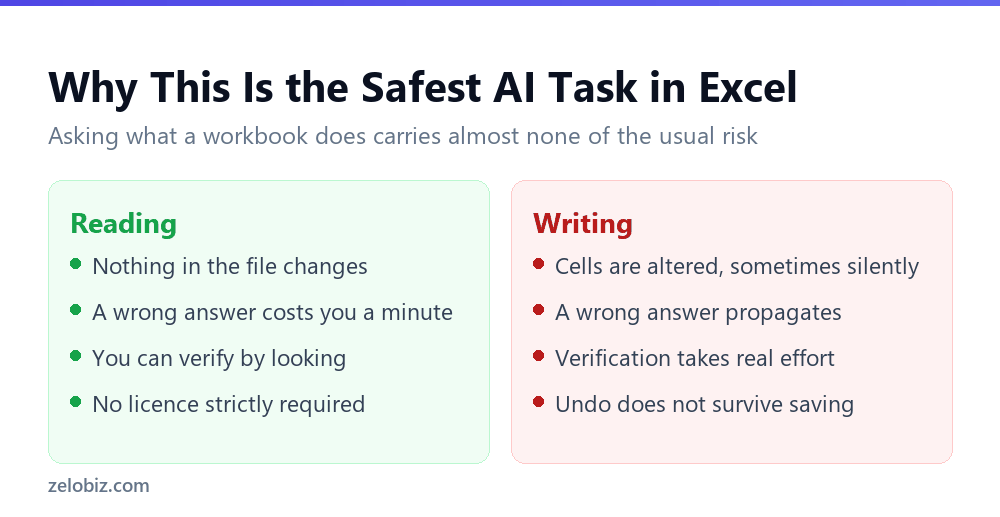
Most caution about AI in spreadsheets concerns it changing things. A formula that is subtly wrong, a cleanup that destroys the original, a summary with invented confidence.
Auditing has none of that. You are asking what something does. If the answer is wrong you find out when you look at the cell, and the cost is a minute of your time rather than a corrupted file or a wrong number in a report.
That asymmetry is worth knowing, because it means you can be far more relaxed here than anywhere else in Excel. Ask freely, check what matters, and nothing you ask can break the workbook.
Start With Structure, Not Formulas
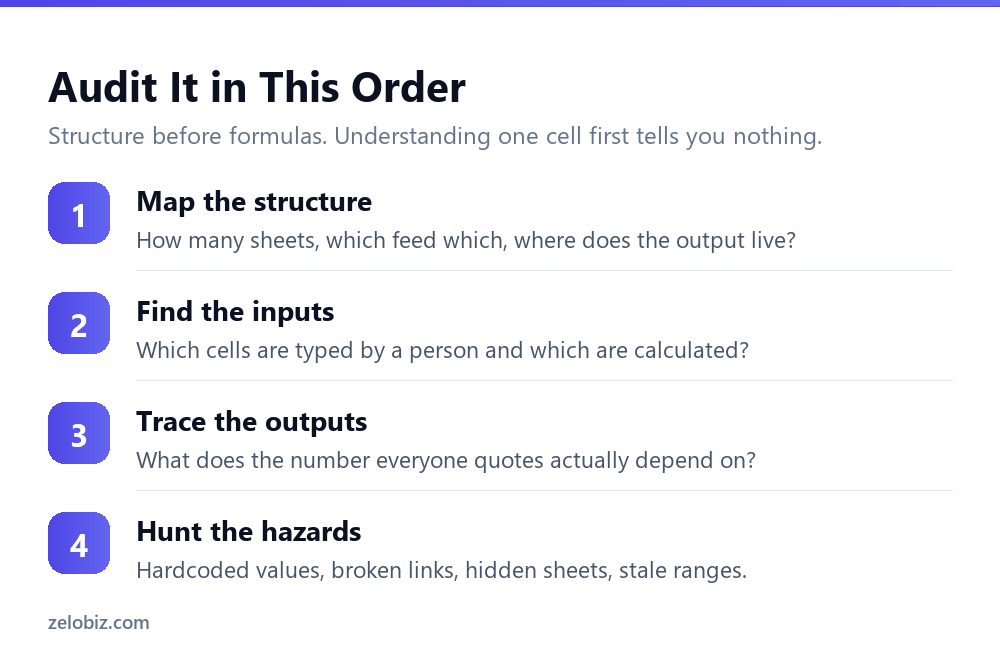
The instinct is to click the scariest formula and ask what it does. That is the wrong starting point, because a formula makes sense only once you know what the workbook is for.
Step 1: map the sheets
How many sheets are there, which ones feed which, and where does the number people actually quote live? Most workbooks have one output that matters and several sheets that exist to produce it.
Ask for the dependency direction explicitly. Knowing that Summary reads from Data and Data reads from a pasted export tells you where to start looking when something is wrong.
Step 2: separate inputs from calculations
Which cells does a human type into, and which are computed? This distinction matters more than anything else in the file, because inputs are where errors enter and calculations are where they spread.
In Excel you can find this yourself quickly with Go To Special and Constants, which highlights every cell containing a typed value rather than a formula. Do that first and then ask about anything surprising.
Step 3: trace the headline number
Pick the figure the business actually uses and work backwards. What feeds it, what feeds that, and how far back does the chain go before it reaches something typed?
This is where AI is genuinely faster than tracing precedents by hand, particularly when the chain crosses sheets.
Step 4: hunt the hazards
Only now look for the specific failure modes, which the next section covers. Doing this before you understand the structure produces a list of oddities with no sense of which ones matter.
The Four Hazards Worth Finding
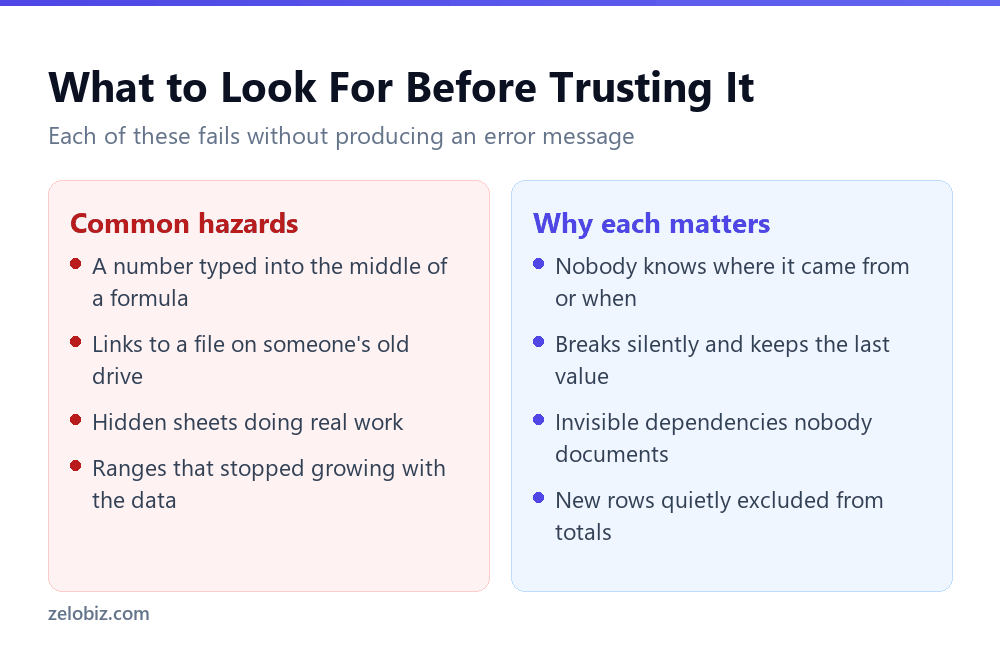
These share a characteristic: each fails without producing an error, which is why they survive in workbooks for years.
Hardcoded numbers inside formulas
A formula like =B2*1.2 where 1.2 is a tax rate typed by someone in 2019. It is correct until the rate changes, and then it is silently wrong forever, because nothing about the cell suggests it contains an assumption.
Ask specifically for formulas containing literal numbers other than 0 and 1. That phrasing finds them without drowning you in every formula in the file.
Links to files that no longer exist
External links to a path on a departed colleague’s drive. Excel keeps showing the last value it retrieved, so the number looks fine and stopped updating months ago.
Check Data, then Edit Links, to see them all in one place. This one is worth doing before anything else if the workbook came from someone who has left.
Hidden sheets
Hidden sheets frequently contain lookup tables and rate cards that the visible sheets depend on. Right-click any sheet tab and choose Unhide to see whether any exist.
Ranges that stopped growing
A formula referencing A2:A500 in a sheet that now has 800 rows. The total is correct arithmetic over the wrong subset, and it gets quietly more wrong every month.
⚠️ Watch out: Stale ranges are the most common serious fault in inherited workbooks. Compare the last row referenced in the main formulas against the actual last row of data. If they differ, every figure downstream is understated and has been for a while.
Questions That Get Useful Answers
Phrasing matters here more than tool choice. These are the ones that produce something actionable.
💡 Pro tip: The last one is the most valuable and the least obvious. Asking what assumptions a model makes often surfaces things the original author never documented, because they were obvious to them at the time and are not obvious to anyone now.
Before You Change Anything
There is a strong temptation to start tidying immediately. Resist it for a week. An inherited workbook usually contains decisions that look wrong and are not, and you cannot tell which is which until you understand the whole thing.
Take a copy and date it
Before your first edit, save a copy named with today’s date and the word original. If something you change turns out to have mattered, that file is the only way back to a known-good state.
Run it once and record the output
Note the headline figures exactly as they stand today. When you later restructure something, those numbers are your regression test. If they move and you did not intend them to, you broke something.
Find out who else uses it
Workbooks that produce a number people rely on are often linked to by other files, pasted into decks monthly, or opened by someone in another team. Changing the sheet layout breaks all of that silently.
⚠️ Watch out: Be particularly careful about deleting columns that look unused. In an inherited workbook, an apparently empty column is sometimes referenced by a formula elsewhere, or by another file entirely. Hide it for a month instead of deleting it.
Documenting What You Find
The audit is worth half as much if it lives only in your head. The person who built this file understood it completely and wrote none of it down, which is exactly why you are in this position.
A short note at the top of the workbook, or on a new first sheet, covering four things is enough.
- What this produces. One sentence naming the output and where it goes.
- What gets typed in. Which cells or sheets take manual input, and by whom, and how often.
- What it assumes. Any rate, cutoff or exclusion that is baked into a formula rather than sitting in a labelled cell.
- What would break it. Adding rows past a fixed range, renaming a sheet, or a source file moving.
Ten minutes on that note is the highest-value thing you will do with the file. It is also the thing most likely to be skipped, because by the time you understand the workbook it all feels obvious, which is precisely the trap the last person fell into.
📊 Note: If you found hardcoded assumptions during the audit, move them into labelled cells on an inputs sheet and point the formulas at those cells. That single change converts a buried assumption into a visible one, and it is the most durable improvement you can make to an inherited model.
What AI Cannot Tell You
Two limits worth holding onto, because both matter when you take over a file properly.
It cannot tell you whether the logic is correct for your business. A formula might apply a discount in a way that made sense under an old pricing policy. AI can tell you exactly what it does and has no idea whether that is what it should do.
And it cannot tell you why. Why this rate, why this cutoff date, why this customer is excluded. That knowledge left with the person who built it, and the only route to it is asking whoever remains.
The practical answer is to write down what you learn as you go. A short note at the top of the workbook covering what it produces, what is typed, and what assumptions it makes is worth more to the next person than anything else you could leave behind.
Common Questions
How do I understand a spreadsheet someone else built?
Work from structure inwards. Map which sheets feed which and where the output lives, separate typed cells from calculated ones, trace what the headline number depends on, then look for hardcoded values, broken links, hidden sheets and stale ranges.
Is it safe to use AI on a spreadsheet I do not understand?
For reading, yes, and it is the safest AI task in Excel. Asking what a workbook does changes nothing, so a wrong answer costs you a minute rather than corrupting a file. Be far more careful about letting anything edit a workbook you do not yet understand.
How do I find hardcoded numbers in formulas?
Ask specifically for formulas containing literal numbers other than 0 and 1. That phrasing surfaces buried assumptions such as a tax rate typed into a formula years ago, without returning every formula in the file.
How do I find out which cells are typed rather than calculated?
Use Go To Special and choose Constants, which highlights every cell containing a typed value rather than a formula. That single step tells you where errors can enter the workbook.
What is the most common fault in an inherited spreadsheet?
A range that stopped growing with the data, such as a formula referencing A2:A500 in a sheet that now has 800 rows. It produces correct arithmetic over the wrong subset and gets progressively more wrong without ever showing an error.
Can AI tell me if the spreadsheet is correct?
It can tell you what the formulas do. Whether that is right for your business depends on context that is not in the file, such as which pricing policy applied when a rule was written. That part still needs a person who knows the history.
The Short Version
- →Auditing is read-only, which makes it the safest use of AI in a spreadsheet.
- →Map structure before you look at any individual formula.
- →Use Go To Special and Constants to find every typed cell yourself in seconds.
- →Ask for formulas containing hardcoded numbers. That is where assumptions hide.
- →Check the last row referenced against the last row of data. Stale ranges are the big one.
- →AI tells you what it does, never whether it is right for your business.