

So Excel throws a REF error when a formula points at a cell that used to be there. Nothing about the formula changed. So the thing it depended on is just gone.
So everyone learns the same first move. Press Ctrl+Z. Also, it usually works, and the formula comes back good as new.
But that only works inside a short window. Once AutoSave commits the file, the undo history is gone. So the REF error becomes permanent, in a way most guides never mention.
Ctrl+Z fixes a REF error only while the undo history is still intact, meaning no save, no close, and often no more than a few actions afterward in a cloud file with AutoSave on. Once that window closes, Excel keeps no record of what the formula used to point to, so undo cannot bring it back. The real fix at that point is File, Info, Version History, restoring a copy of the workbook from before the deletion, not retrying the same keyboard shortcut. Verified against Microsoft’s own documentation and Excel’s AutoSave behavior on 15 September 2026.
What Actually Triggers a REF Error
So a REF error means a formula lost the thing it was pointing at. That happens two different ways. Most guides blur them into one problem.
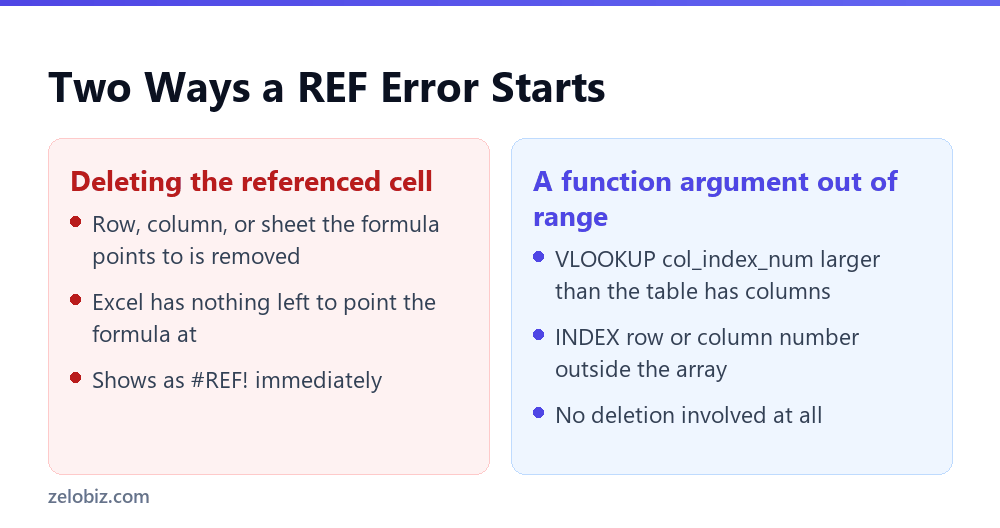
First, deletion. Delete the row, column, sheet, or cell a formula references, and Excel has nothing left to calculate from. So the formula bar shows REF where the reference used to sit.
Second, a bad argument. A VLOOKUP asking for column 5 of a 3 column range returns REF, because the argument points past what exists. Nothing was deleted here. The formula was simply written wrong.
The Undo Window Nobody Explains
So Ctrl+Z is the instinctive first move. It genuinely works right after the deletion, in the same session, before anything gets saved.
⚠️ Watch out: Test this on a workbook you do not need, not a live one. Delete a referenced cell, wait 30 seconds with AutoSave on, then try Ctrl+Z. So whether it still works depends on your Excel build and how much you have done since. That inconsistency is exactly why this fix is unreliable advice on its own.
Why AutoSave Changed the Rules
So older REF error guides assume a save is a deliberate, occasional action. Something you do after confirming the sheet looks right. AutoSave removed that checkpoint entirely.
📊 Note: For how Excel’s other silent defaults can quietly corrupt a value with no error at all, see why typing 40 shows up as 4000% in Excel. Different mechanism, same pattern: a default nobody questions until it breaks something.
So with AutoSave on, a deletion can reach the cloud copy within a few seconds. That is often long before anyone notices the error and reaches for Ctrl+Z. So by the time it gets spotted, the saved state already reflects the broken formula.
Also, undo may only reach back through whatever happened after that save. Not the deletion itself. So this is not a flaw in AutoSave, it is doing exactly what it was built to do.
Still, AutoSave was not designed with REF recovery in mind. Neither was most of the advice written before it became the default in Microsoft 365.
The Real Fix Once It Is Already Saved
So version history, not undo, is what actually recovers a REF error after AutoSave has committed it. So this works a little differently for a cloud file than a local one.
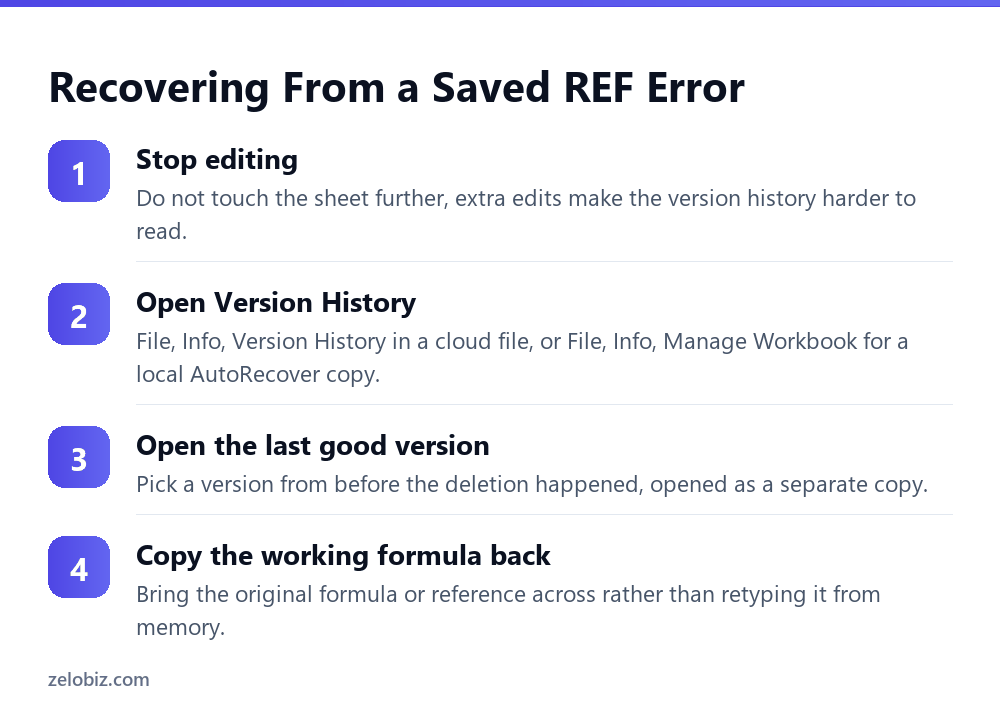
In a file stored on OneDrive or SharePoint, File, Info, Version History lists every autosaved snapshot with a timestamp. So any of them can open as a separate copy, without touching the current file.
Then find one from before the deletion, and the original formula is sitting there, intact. For a purely local file without AutoSave, the closest equivalent is an AutoRecover copy under File, Info, Manage Workbook.
However, those are usually kept for a much shorter window. They are not guaranteed to exist for every session, so treat this path as a backup plan, not a promise.
💡 Pro tip: Once you recover the working formula from an old version, copy the formula itself back into the current file. Do not retype it from memory. A REF error is often a symptom of a reference structure that took real thought to build the first time.
Finding Every REF Error at Once
So a large workbook rarely breaks in exactly one cell. Hunting for REF errors one at a time by scrolling is slow. It also misses cells sitting off screen or on a different sheet.
Instead, press Ctrl+G to open Go To. Then choose Special, then Formulas, then check only the Errors box. That selects every cell holding a formula error, REF included, in one pass.
💡 Pro tip: Run this check before sending a workbook to anyone else. It takes under ten seconds, and it catches exactly the kind of scattered REF errors a quick visual scan misses.
Does Fixing One REF Error Fix the Rest?
So sometimes. So it depends on whether the downstream cells hold formulas or hard values. That distinction matters more here than almost anywhere else in Excel.
⚠️ Watch out: If cell C2 shows REF and cell D2 has a formula referencing C2, fixing C2 clears D2 too, since D2 recalculates from whatever C2 now holds. But if D2 was typed as a plain REF value, or copied as a value instead of a formula, fixing C2 does nothing for D2. It needs its own fix.
So this is why a workbook can look like it has one REF error, when Go To Special actually finds five. Errors that look identical on screen can trace back to very different breaks.
A Worked Example
So say a monthly expense sheet totals five category columns in column G, using =SUM(B2,C2,D2,E2,F2). So one cell reference per category, not a single range.
Someone deletes the Travel column, column D, because the company stopped tracking it separately. So every formula in column G that referenced D2 now shows REF.
So undo would have fixed this instantly, right after the deletion. But the file autosaves to SharePoint every few seconds. So nobody notices the REF errors until the next morning’s review, and by then yesterday’s undo history is long gone.
So the fix is Version History. Open the copy from just before the deletion, then rebuild the SUM formula as a range, =SUM(B2:F2). That way, a future column deletion shifts the range instead of breaking one reference.
REF Errors That Have Nothing to Do With Deleting Anything
So not every REF error comes from a deletion. Treating all of them as an undo problem misses the ones baked into a formula from day one.
A VLOOKUP written as =VLOOKUP(A2,A:C,5,FALSE) asks for column 5 of a 3 column range. So there is no fifth column, and REF appears the moment the formula is entered. Nothing was ever deleted.
So the fix here is checking the column count in the lookup range against the col_index_num argument directly. There is no deleted cell to search for, because none ever existed.
Also, this pattern shows up in XLOOKUP and INDEX MATCH rebuilds too, whenever a range gets shortened but the argument that counts columns or rows never gets updated to match.
Testing Whether Your Own File Is at Risk
So a quick test shows whether a specific workbook is exposed to the slow version of this problem. So open a copy of the file, not the original.
Then delete a cell that a formula depends on. Wait a full minute with AutoSave on. Then try Ctrl+Z.
If undo still restores the formula cleanly, good. If it does not, or if it only partly recovers, that confirms the file behaves exactly as described here, and it is worth knowing before a real deletion happens under pressure.
⚠️ Watch out: Run this test on a throwaway copy. The point is confirming the behavior, not risking a file currently in use by a team.
Preventing REF Errors Going Forward
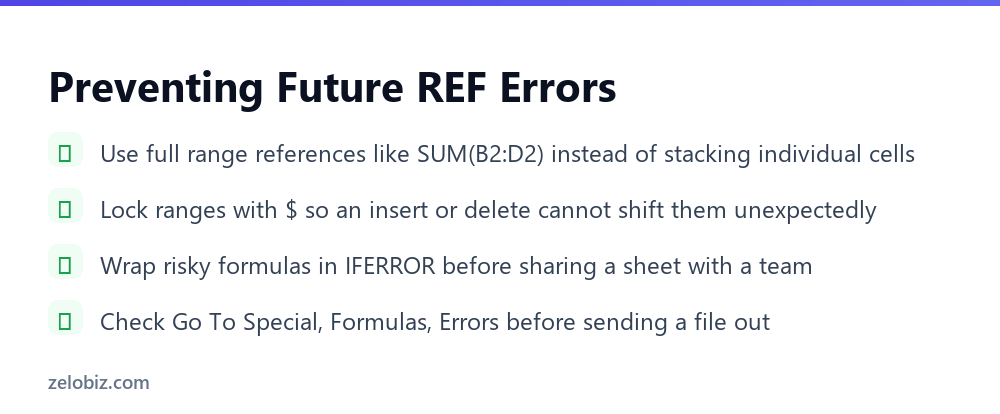
So most of this comes down to habits that take seconds and save hours later. Especially on a workbook more than one person touches.
- →Reference full ranges like B2:F2 instead of stacking individual cells one by one.
- →Lock ranges other people cannot accidentally shift with absolute references where it matters.
- →Run Go To Special, Formulas, Errors before sharing any workbook.
- →Know where your file’s version history lives before you need it under pressure.
- →Wrap fragile formulas in IFERROR on shared templates so a REF error fails visibly, not silently.
REF Errors on Shared and Co-Authored Files
So this risk compounds on a file more than one person edits. Each additional editor is another chance for a careless delete to reach a cell someone else’s formula depends on.
A file open to five people over a week has five separate chances for exactly this mistake. Nobody has to be doing anything wrong by Excel’s own rules.
Deleting a column you think is unused, when someone else’s formula three tabs over still points at it, is an easy and reasonable mistake to make. So for a shared file, know your version history path before this happens, not after.
Checking it for the first time during a deadline is a bad time to learn whether your organization even retains enough history to help at all.
REF Errors in Named Ranges
So a named range makes this worse, not better. People trust a name like SalesData more than a raw cell address, and that trust is not always earned.
So delete a row inside a named range, and the name usually just shrinks to fit. Delete the entire range the name points to, though, and every formula using that name shows REF at once.
Also, the name itself still exists in Name Manager, pointing at nothing. So Excel does not warn you the name is now broken until a formula tries to use it.
💡 Pro tip: Open Name Manager, under the Formulas tab, and scan for any name whose Refers To box shows REF instead of a normal address. That is a broken name waiting to break the next formula built on it.
So a named range feels safer than it is. Check it the same way you would check a raw reference, especially after any cleanup pass that removes rows or columns.
When It Is Worth Just Rebuilding the Formula
So not every REF error is worth chasing back to its root cause. Sometimes the fast path wins.
So if the fix takes two minutes to retype, just retype it. Skip the hunt for an old version. This applies to a single, simple formula on a small sheet.
But if the formula is long, or it feeds ten other cells, or nobody quite remembers how it was built, that is when Version History earns its place. Rebuilding a complex formula from memory is how a second, sneakier bug gets born.
So ask one plain question first. Do I actually know what this formula did? If yes, retype it. If not, go find the old copy.
Common Questions
What does REF mean in Excel?
It means a formula is pointing at a cell, row, column, or sheet that no longer exists, usually because it was deleted, or because a function argument asks for something outside the range it was given.
Does Ctrl+Z always fix a REF error?
No. It only works while the undo history covering that deletion is still intact, and AutoSave or closing the file can both end that window far sooner than most people expect.
How do I fix a REF error after the file has already saved?
Use File, Info, Version History in a cloud file to open a copy from before the deletion, then copy the working formula or reference back into the current version.
Can I find every REF error in a workbook at once?
Yes. Press Ctrl+G, choose Special, then Formulas, and check only Errors. That selects every formula error on the active sheet in one step.
Why does fixing one REF error not clear the others?
Because a cell that references the fixed cell through a formula updates automatically, but a cell holding a REF value as plain text or a copied value does not, and needs fixing on its own.
Can a REF error happen without deleting anything?
Yes. A function argument that points past what actually exists, like a VLOOKUP column number larger than the table has columns, produces REF the moment the formula is entered.
Does AutoSave make REF errors worse?
It makes them harder to undo, not more frequent. AutoSave can commit a deletion to the saved file within seconds, closing the Ctrl+Z window long before most people notice the error.
Is a REF error in a named range different from a normal one?
Not in cause, but it is easier to miss. So check Name Manager under the Formulas tab for any name whose Refers To box shows REF. Excel does not flag a broken name on its own.
The Short Version
- →REF errors come from either a deletion or a function argument pointing outside the actual range.
- →Ctrl+Z only helps before AutoSave commits the change or the file closes.
- →Version History, not undo, is the real fix once the file has already saved.
- →Go To Special finds every formula error on a sheet in one pass.
- →Fixing one REF cell does not automatically fix a downstream cell holding a plain error value.
So none of this makes REF errors dangerous exactly. It makes the standard advice incomplete for how Excel actually saves files now.
So knowing where the real fix lives saves the panic of pressing Ctrl+Z on a file that already moved past the point undo can reach. Next time, skip straight to asking how recent the change was, not whether undo will work. That one question decides which fix actually applies.