

An AI PDF summarizer looks like it should work on anything you can open, and the moment it does not is usually the first time anyone reads the actual limits. Adobe documents them clearly. Almost nobody checks them before they hit one.
This covers what Acrobat’s AI Assistant is documented to accept, what it refuses outright, and the specific fix for each of the four reasons a file gets rejected.
Short answer: Acrobat AI Assistant processes PDFs up to 600 pages and under 100 MB. It will not open a password protected or usage restricted file, and it does not work on PDF Portfolios. It does not read images or complex vector graphics as content, and a single question or prompt is limited to under 500 characters. Split large documents, remove restrictions you are authorised to remove, and keep questions short and specific. Verified against Adobe’s documentation on 3 September 2026.
The Documented Ceiling
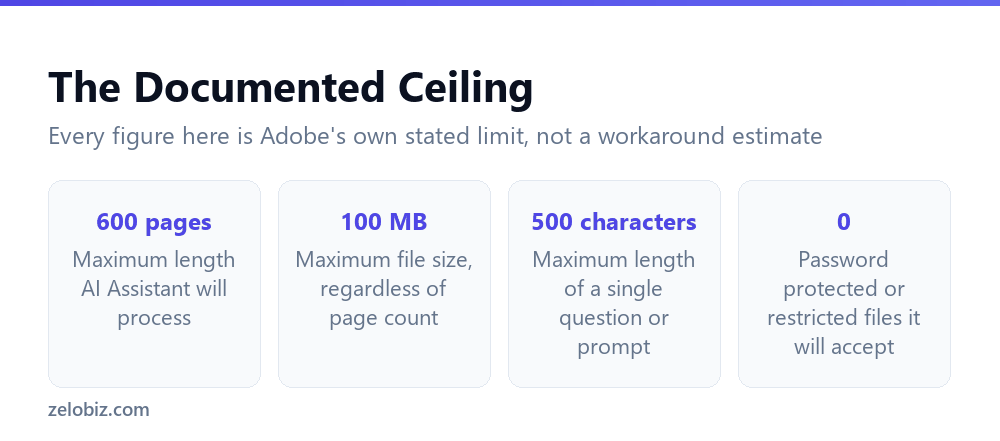
Four numbers cover most of what trips people up, and all four come from Adobe rather than from trial and error.
600 pages, up from 120
The current ceiling is 600 pages. It was not always this high. Adobe’s earlier release capped AI Assistant at 120 pages before raising it, which is worth knowing if you tried the feature some time ago, found it rejected a document, and never tried again.
100 MB, independent of page count
File size is a separate ceiling from page count, and a shorter document can still fail on size if it is packed with high resolution images or embedded media. A 200 page report full of large photographs can exceed the limit before a 500 page text-heavy document does.
Under 500 characters per question
Prompts to AI Assistant are capped at under 500 characters. That is roughly the length of this paragraph. A single detailed, multi-part question will not fit, and the fix is not a workaround, it is simply asking narrower questions one at a time.
No password protection or usage restrictions
Adobe states plainly that AI Assistant will not work on a file that is password protected or carries usage restrictions. This applies whether the protection is on opening the file or on what can be done with it once open.
Why a File Gets Refused, and the Actual Fix

Each of the four documented rejection reasons has a specific, practical response rather than a generic try again later.
⚠️ Watch out: If a document is protected because someone else restricted it deliberately, such as a client contract or a document you received under confidentiality terms, that restriction exists for a reason and removing it is not simply a technical workaround. Check that you are actually authorised before you do.
The 120 to 600 Page Jump, and What It Signals
The change from a 120 page ceiling to 600 is worth noting for more than the number itself. It tells you these limits are not fixed physics. They are business and infrastructure decisions Adobe revisits, and Adobe’s own description of the limits as server-set backs that up directly.
The practical consequence is that a limit you hit six months ago may not apply today, and a workaround you built around an old ceiling might now be unnecessary complexity. It is worth retesting a rejected file occasionally rather than assuming the limit is permanent.
📊 Note: The reverse is also possible. A server-set limit can tighten as well as loosen, particularly if usage patterns change. Treat every figure in this article as accurate at the time it was checked, not as a permanent specification.
What It Is Not Reading, Even Inside the Limits
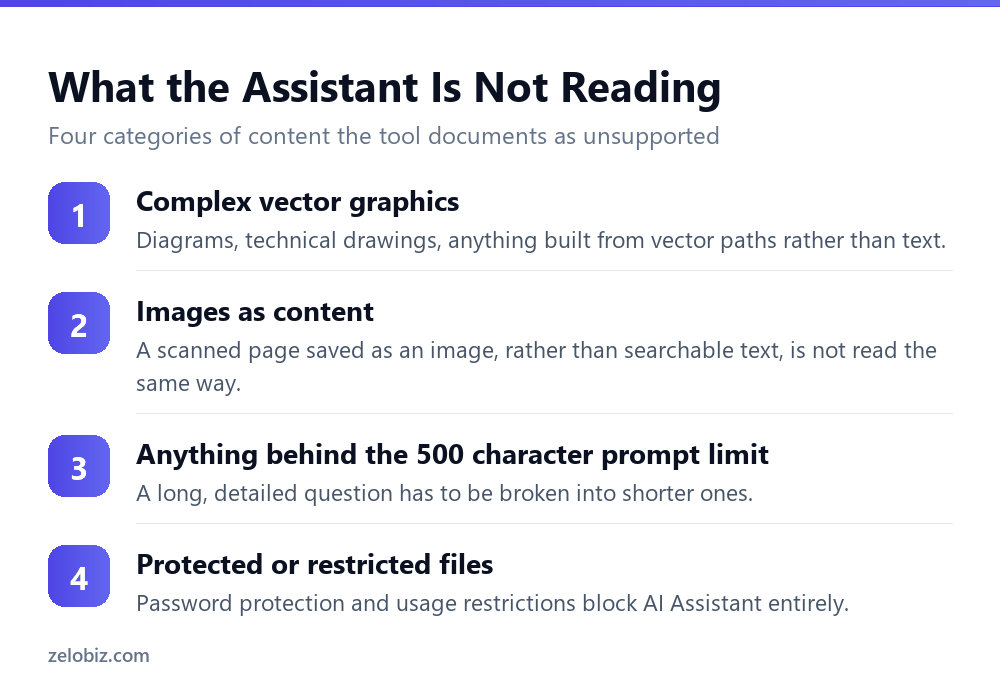
A file can sit comfortably inside the page and size limits and still leave AI Assistant unable to summarise the parts that actually matter, because some content types are documented as unsupported regardless of file size.
Complex vector graphics
Technical drawings, architectural plans, detailed diagrams built from vector paths rather than text. If the value of your document is mostly in a diagram, the summary will reflect the surrounding text and effectively skip the figure that was the point.
Scanned pages saved as images
A scanned contract or an old document saved as a flat image looks like text to a human eye and is not text to the tool underneath. If a PDF was produced by scanning paper rather than exporting from a word processor, run it through OCR first, or check whether it already has a searchable text layer, before assuming the summary missed something by mistake.
This is the single most common reason people report that a summary skipped an entire section. It usually is not a bug. It is a scanned page with no underlying text for the tool to read.
💡 Pro tip: Before summarising an old or scanned PDF, try selecting a sentence of text on the page. If nothing highlights, there is no text layer, and the fix is OCR, not a different prompt.
Working Within the Prompt Limit
Under 500 characters rules out a long, layered question in one go. The practical response is the same one that applies to a long document: break it apart.
- One question, one ask. Summarise section three, rather than summarise section three and tell me if it contradicts section one.
- Name the section, not the whole document. A shorter, targeted prompt both fits the character limit and returns a more useful answer.
- Chain questions rather than combining them. Ask the first question, read the answer, then ask the follow-up as a separate prompt.
This is the same discipline as splitting a long document for a whole-document summary in Word: the constraint forces you into smaller, more specific requests, and the results are usually better for it. We covered the equivalent split-document advice for Copilot in what Copilot in Word still can’t do.
Splitting a Long PDF Without Losing the Thread
Splitting a 600-plus page document sounds like it should lose the connections between sections, and it does if you split arbitrarily. Splitting along the document’s own structure avoids most of that problem.
Split at chapter or section breaks, not at page counts
A report, contract, or manual almost always has a structure already, whether that is numbered sections, chapters, or clearly headed parts. Splitting along those boundaries keeps each piece coherent on its own, which matters because AI Assistant summarises each file independently and has no memory of the others.
Carry forward what each part needs to make sense alone
If section four refers back to a definition in section one, that definition needs to travel with section four, or the summary of section four will read as though a term appeared from nowhere. This is manual work and there is no shortcut for it, but it is usually a handful of sentences per split, not a rewrite.
Summarise, then read the summaries together
Once each part has its own summary, read them in sequence rather than asking AI Assistant to reconcile them for you, since each summary was produced without visibility into the others. A contradiction between two sections will not be flagged automatically. It will only be visible to you, reading both.
Verifying What Comes Back
None of the limits above address accuracy. A file within every stated boundary can still return a summary that misreads a table, drops a caveat, or restates a number wrong. Adobe’s documented limits govern what the tool will attempt, not whether the attempt is correct.
For a document where being wrong is expensive, the same principle applies as anywhere else AI touches a document that will leave your hands. Check every number and date against the source page, and treat a fluent summary as a starting point rather than a finished answer. We worked through the same discipline for Word documents in why Track Changes doesn’t catch every AI edit, and the underlying lesson transfers directly: a clean result is not proof that nothing needs checking.
📊 Note: The limits documented here are described by Adobe as server-set, meaning they can change without a version update on your end. If a figure in this article stops matching what you see in Acrobat, the limit has likely moved rather than your file being the exception.
Common Questions
What is the page limit for Acrobat AI Assistant?
600 pages. This was raised from an original limit of 120 pages, so a document that was rejected some time ago may work now if you have not tried since.
What is the file size limit for AI Assistant?
Under 100 MB, which is a separate constraint from the page limit. A shorter document packed with high resolution images can exceed 100 MB before a longer, text-heavy document does.
Why won’t AI Assistant open my PDF?
The most common documented reasons are password protection or usage restrictions, the file being a PDF Portfolio rather than a single PDF, or exceeding the page or size limits. Each has a specific fix rather than being an unpredictable failure.
Can AI Assistant read a scanned PDF?
Only if the scan has a text layer, typically added through OCR. A scanned page saved purely as an image has no text for the tool to read, which is the most common reason a summary appears to skip a whole section.
Is there a limit on how long a question to AI Assistant can be?
Yes, prompts and questions are limited to under 500 characters. Break a longer, multi-part question into separate, narrower prompts asked one after another.
Does AI Assistant read diagrams and images in a PDF?
No. Adobe documents that it does not support images or complex vector graphics as content, so a summary will reflect the surrounding text and effectively skip the figure itself.
Can I summarise a PDF Portfolio with AI Assistant?
Not directly. AI Assistant is not supported for PDF Portfolios. Open the specific PDF you need from within the portfolio and use that individual file instead.
The Short Version
- →600 pages and under 100 MB are the documented ceilings, checked independently.
- →Password protected, restricted, or portfolio files are refused outright.
- →Scanned pages without a text layer are read as nothing. OCR them first.
- →Complex diagrams and vector graphics are not summarised as content.
- →Prompts are capped under 500 characters. Ask narrower questions, one at a time.
- →A file within every limit can still return a wrong summary. Check the source.