

You know the file is there. You can see it in the folder, or you opened it yesterday. You type part of the name, or a phrase you know is inside it, into the search box, and File Explorer comes back with nothing.
The usual advice is to rebuild the search index. Sometimes that helps. Often it does nothing at all, because the index was never involved in that particular search to begin with.
File Explorer search behaves in two completely different ways depending on where you are searching from, and most troubleshooting guides only cover one of them.
File Explorer search only pulls fast, content-aware results from locations that are actually in the search index, mainly your user folders and libraries. Search anywhere else, an external drive, a second internal drive, a network share, a folder you added manually, and Windows falls back to a live scan of that folder that checks file names only by default. A phrase that exists only inside the file’s text will not match, no matter how obviously the file sits right there. Rebuilding the index only helps when the folder was already indexed and the index itself got out of sync. Verified against Microsoft’s own Windows Search documentation on 22 September 2026.
What File Explorer Search Actually Checks
Windows keeps a background database of file names, and for many common file types, the text inside them, for a specific set of locations. That database is the search index, and it is what makes search in your Documents or Desktop folder feel instant.
A search inside an indexed location checks that database directly, so it returns results almost immediately and can match a word buried deep inside a document, a spreadsheet, or an email file, not just the file name.
The Part Most Guides Leave Out
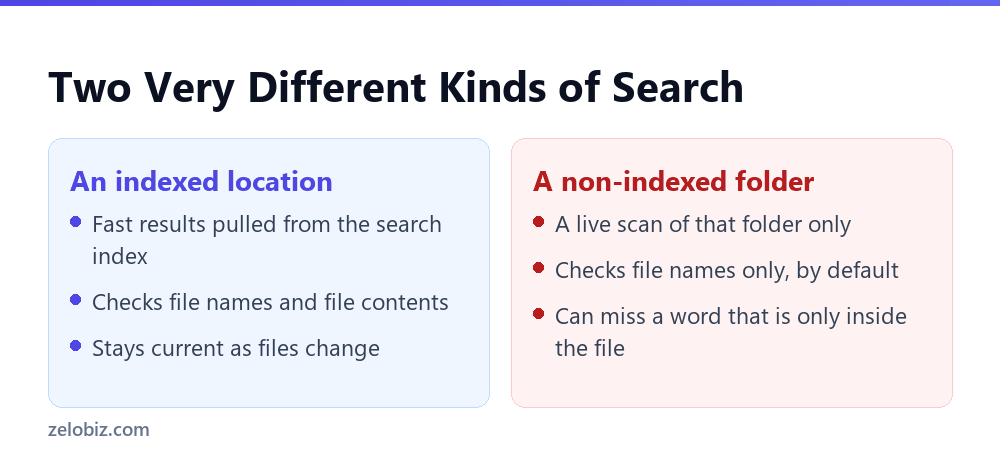
Search outside an indexed location does not use that database at all. File Explorer instead scans the folder you are currently in, live, at the moment you search, and by default that scan only compares the search box against file names.
This is why the exact same search can work perfectly in one folder and fail completely in another, even on the same computer, searching for the same kind of file. The folder’s index status is the actual variable, not the search box or the file itself.
A Worked Example
Someone keeps two years of project reports on a second internal drive, organized by client folder, dozens of Word documents per client.
They remember a specific clause appearing in one report and search for that exact phrase from the client’s folder. File Explorer search returns nothing, even scrolling through the folder confirms the file is right there.
⚠️ Watch out: That second drive was never added to Windows Indexing Options, since only certain default locations get indexed automatically. Every search inside it is a live, file-name-only scan, so a phrase that only exists in the document body was never going to match, no matter how many times the search runs.
Opening the specific file and using the program’s own Ctrl+F found the phrase instantly. The file was never missing. File Explorer was just never checking inside it in the first place.
Checking Whether a Location Is Actually Indexed
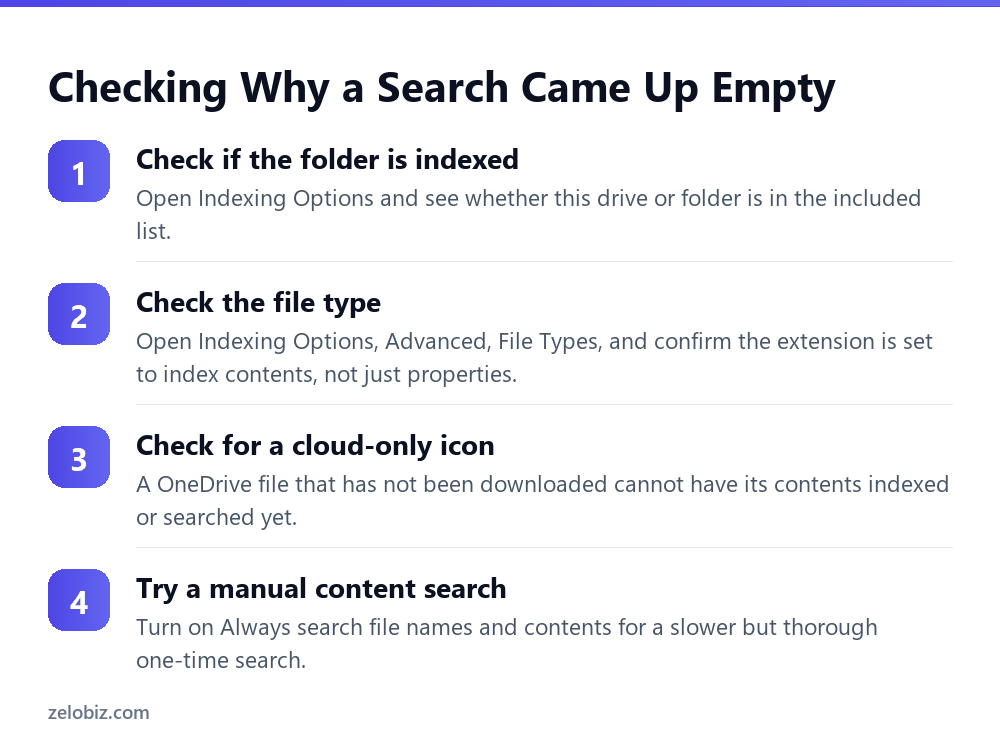
Open Indexing Options from the Start menu search box and look at the list of included locations. If the folder you are searching, or a parent folder above it, is not on that list, every search there is a live, file-name-only scan by design, not a bug.
Adding the folder to that list turns on proper indexing for it, though a large folder can take a while to finish its first pass before search results there become fast and content-aware.
💡 Pro tip: Add a folder to Indexing Options once, rather than repeatedly searching it and assuming the results are wrong. A folder outside the index will always behave this way until it is added, no matter how many times you try the search again.
The File Type Setting Almost Nobody Checks
Even inside an indexed location, a specific file type can be set to index only its properties, name, date, size, rather than its contents. Indexing Options, Advanced, File Types shows this setting per extension.
A less common file extension, or one from specialized software, sometimes defaults to properties only, which means a search for a phrase inside that file type will never match, even in a fully indexed folder.
⚠️ Watch out: Rebuilding the whole index does not change this setting. If a specific file type never seems to be searchable by content, check its entry in Advanced, File Types before assuming the index itself is broken.
Why OneDrive Files Behave Differently
A file stored in OneDrive can exist in three states: fully downloaded, cloud-only, or somewhere in between while it downloads. A cloud-only file shows a cloud icon in File Explorer and its actual content is not stored on the device at all yet.
Search can still find a cloud-only file by name, since the name and basic properties are always present locally. It cannot search that file’s contents until the file is actually downloaded, which explains a specific and confusing pattern: a search that finds some documents in a folder by content but not others, purely based on which ones happen to be downloaded at that moment.
The Setting That Forces a Full Search
File Explorer has an option, under Folder Options, Search, called Always search file names and contents. Turning it on tells Windows to run a content search even in non-indexed folders, at the cost of speed.
This is the closest thing to a universal fix, since it removes the location-dependent behavior entirely. A search on a large, non-indexed folder can still take a noticeable amount of time, so this is better used deliberately than left on permanently for routine searching.
💡 Pro tip: Turn this setting on right before searching an external drive or a large project folder you know is not indexed, then turn it back off afterward if search speed elsewhere matters more day to day.
Rebuilding the Index the Right Way
Rebuilding the index genuinely helps in one specific case: the folder is already an indexed location, but the index database itself has drifted out of sync with what is actually on disk, often after a large file operation, a crash, or a long period without the indexing service running.
Indexing Options, Advanced, Troubleshooting has the Rebuild button. It can take hours on a large indexed set, running in the background, so results may stay incomplete for a while after starting it, not immediately after clicking the button.
- →Rebuilding the index only helps for a folder that was already in the indexed locations list.
- →A folder outside that list gets a file-name-only live scan, by design, not by mistake.
- →A specific file type can be set to skip content indexing even inside an indexed folder.
- →A OneDrive cloud-only file cannot have its contents searched until it is actually downloaded.
- →Always search file names and contents forces a full search anywhere, at the cost of speed.
Network Locations Add Another Layer
A mapped network drive is almost never part of the local search index, since indexing generally applies to storage the computer can access directly and continuously, not a shared folder on another machine that might be offline.
Search on a network location is close to the slowest case: a live, file-name-only scan, over the network connection itself, which is also why it can feel noticeably slower than searching a local folder of the same size.
A Faster Way to Search Without Fixing the Index
Search operators sidestep some of this without touching any settings. Typing kind:word or ext:docx narrows results by file type using metadata that is available even in a non-indexed location, since file type itself is not something that needs content indexing to detect.
These operators will not find a phrase inside a document on a non-indexed drive, since that still needs content indexing or the always-search-contents setting. They do make a file-name search on a large, unindexed folder considerably more precise in the meantime.
A Quick Reality Check Before You Blame the Index
It helps to remember that Windows never promises every folder behaves the same way in search. The indexed set is deliberately limited to keep the index itself fast and small, not because Microsoft assumes people only keep files in a handful of default folders.
That tradeoff made more sense years ago, when a typical computer had one drive and most files lived under the user profile by default. It matters more now, with cheap external storage, multiple drives, and cloud sync all spreading files across locations the index was never built to cover automatically.
Testing Whether Your Own Setup Has This Problem
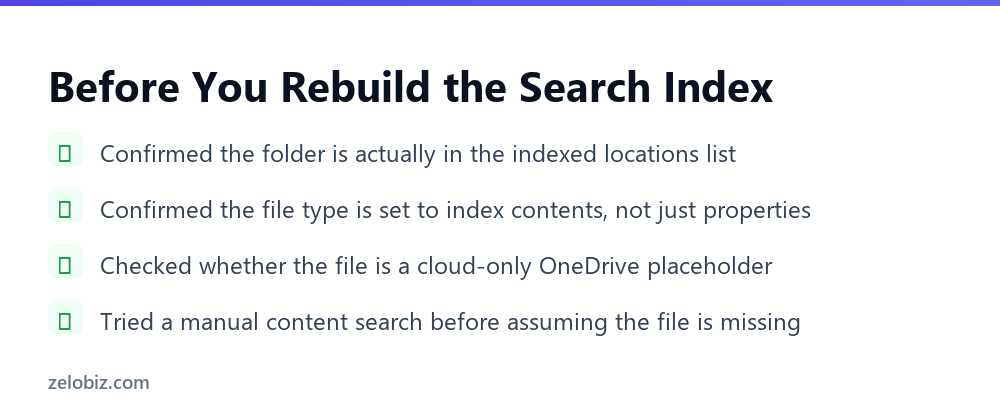
A two minute check settles which category a specific search failure falls into. Search for the exact file name first, not a phrase from inside it.
If the file name search finds it but a content phrase search does not, the folder is very likely outside the index, or the file type is set to properties only. If even the file name search fails, something else is wrong, most likely a permissions issue or the file genuinely being somewhere else.
📊 Note: A file you have permission to see but not to open in that location can also fail to appear in search results, since Windows checks access before returning a match.
Why This Feels Worse Than It Used To
Older versions of Windows search felt more consistent, partly because fewer people stored working files on a second drive, an external drive, or a synced cloud folder split across download states. Most files simply lived inside the one indexed set of folders Windows already covered.
A modern setup spreads files much further: a game drive, a backup drive, a OneDrive folder with some files kept local and others cloud-only, a network share for shared documents. Each of those is a separate search behavior, and none of them announce which one applies to the folder you happen to be looking at.
⚠️ Watch out: File Explorer gives almost no visual signal about whether a given folder is indexed. The search box looks identical whether it is about to run an instant, content-aware search or a slow, file-name-only scan, which is exactly why the failure feels random instead of explainable.
Knowing the three-way split, indexed, non-indexed, and cloud-only, turns a confusing, seemingly random failure into a short checklist. The search was not unreliable. It was running one of three predictable modes, and the mode depended entirely on where the folder sat.
A Second Related Trap: Search Scope in the Ribbon
File Explorer’s Search tab has a Location group with options like This Folder, All Subfolders, and Current Folder. It is easy to leave this set to a narrower scope than intended after a previous search, and not notice.
A search left on This Folder only checks the folder you are currently viewing, not anything inside its subfolders, even if the file you want is one level down. This looks exactly like a missing file, when the real cause is simply an unchecked scope setting left over from an earlier search.
💡 Pro tip: Check the search scope in the ribbon before assuming a deeper search problem. Switching it to All Subfolders costs one click and rules out the simplest explanation first.
Common Questions
Why can’t File Explorer search find a file I know is in the folder?
Most likely because the folder is not part of Windows’ search index. Outside an indexed location, File Explorer does a live scan that checks file names only by default, so a phrase that only exists inside the document will not match.
Does rebuilding the search index fix this?
Only if the folder was already an indexed location and the index database had gotten out of sync. Rebuilding does nothing for a folder that was never indexed in the first place, since there is no index entry to rebuild.
Why does search work for some file types but not others in the same folder?
Indexing Options, Advanced, File Types lets a specific extension be set to index properties only rather than contents. A file type set that way will never match a content search, even inside a fully indexed folder.
Why can’t I search inside a OneDrive file?
If the file shows a cloud icon and has not been downloaded yet, its contents are not stored on the device, so there is nothing local to search or index. Search can still find it by name, just not by what is written inside it.
Is there a setting that searches everywhere, no matter what?
Yes. Folder Options, Search has an option called Always search file names and contents, which forces a content search even in non-indexed locations, though it runs noticeably slower on a large folder.
Does a mapped network drive get indexed the same way as a local folder?
No. A network location is almost never part of the local index, so search there defaults to a live, file-name-only scan over the network connection, which is typically the slowest case.
How can I tell quickly whether a folder is the problem?
Search for the file’s exact name first. If that finds it but a content phrase does not, the folder is very likely outside the index or the file type is set to skip content indexing.
The Short Version
- →File Explorer search behaves completely differently inside an indexed location than outside one.
- →A non-indexed folder gets a file-name-only live scan by default, not a bug, a design choice.
- →Rebuilding the index only helps a folder that was already indexed and had gotten out of sync.
- →A OneDrive cloud-only file cannot be content-searched until it is actually downloaded.
- →Always search file names and contents is the closest thing to a universal fix, at the cost of speed.
The file was never missing. File Explorer was checking the wrong thing, or checking nothing at all, depending entirely on where that folder happened to sit relative to the search index.
Check the indexed locations list before assuming a search failure means a corrupted index or a lost file. Most of the time, neither is true, and the fix is adding the right folder to the right list.