
To right click on a Mac trackpad, click with two fingers anywhere on the trackpad — this is the default method. Alternatively, hold Control and click with one finger, which works even if two-finger clicking has been turned off. On a Magic Mouse, right-click must first be enabled in System Settings, since it’s off by default; once enabled, click the right side of the mouse. A standard external two-button mouse’s right button typically works immediately with no setup required.
Right-click methods by input device
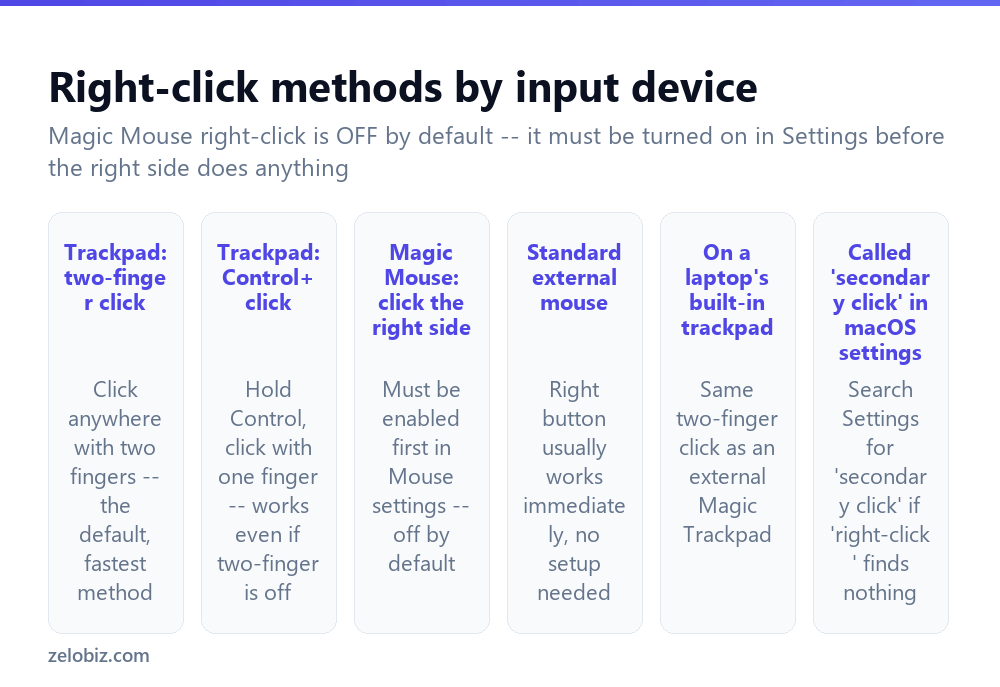
Trackpad (built-in laptop trackpad or external Magic Trackpad): two-finger click anywhere on the surface is the default and fastest method, requiring no key held down. Control+click with a single finger works as a backup, functioning even if two-finger click has been disabled for any reason.
Magic Mouse: right-click requires enabling it first in System Settings — it’s genuinely off by default on a fresh Mac or new Magic Mouse. Once enabled, clicking the right side of the mouse (as opposed to the left, or clicking with two fingers simultaneously) performs the right-click.
A standard external mouse with two distinct physical buttons generally works immediately with no macOS setting needed — macOS recognizes a conventional two-button mouse’s right button automatically.
macOS refers to right-click as “Secondary Click” throughout its settings interface, not “right-click.” Searching Settings for “right-click” sometimes returns nothing useful — search for “secondary click” instead if that happens.
Enabling and configuring right-click on a trackpad
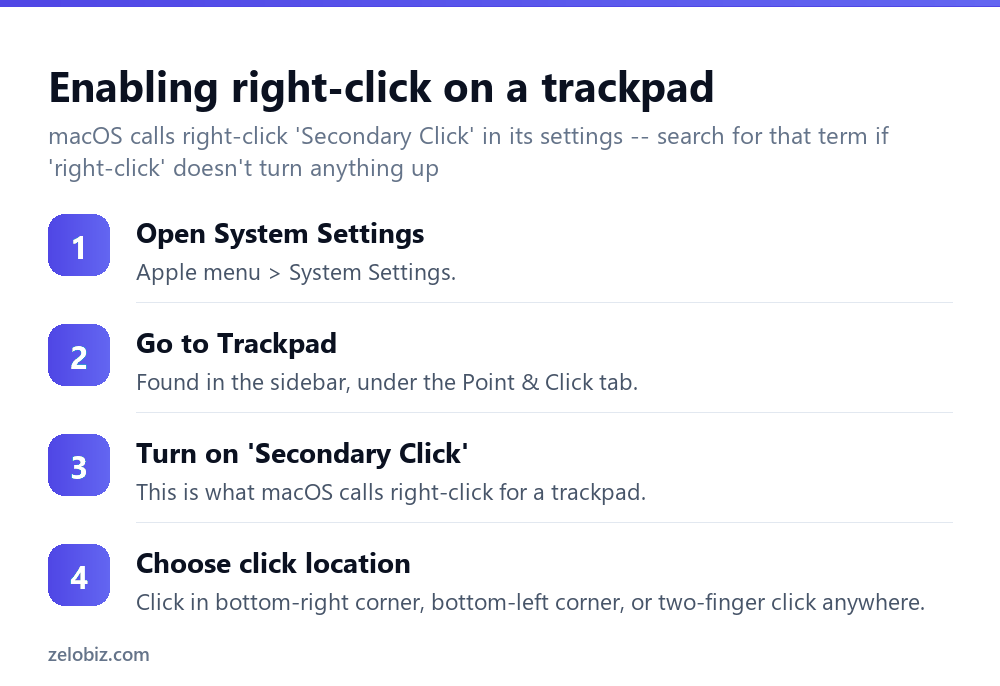
Apple menu › System Settings, then find Trackpad in the sidebar, under the Point & Click tab.
Confirm Secondary Click is turned on — this is macOS’s setting name for what right-click functionality is called elsewhere.
Choose the specific method from the options offered: click in the bottom-right corner, click in the bottom-left corner, or click with two fingers anywhere on the trackpad surface — the two-finger option is generally the fastest and most commonly used once it becomes a habit.
Enabling right-click on a Magic Mouse
Apple menu › System Settings › Mouse, and confirm Secondary Click is enabled here as well — this is a separate setting from the trackpad one, and having one enabled doesn’t automatically enable the other if both devices happen to be connected.
Once enabled, choose whether the right side or left side of the mouse triggers secondary click, matching your own dominant-hand preference if needed.
Using the keyboard method: Control+click
Regardless of trackpad settings, holding Control and clicking with a single finger or standard mouse click performs a right-click equivalent on virtually any input device and in virtually any situation — worth knowing as a reliable fallback that doesn’t depend on any specific Secondary Click setting being correctly configured.
What right-click / Secondary Click actually does
The same core function as right-clicking on Windows — opening a contextual menu specific to whatever you clicked on. Right-clicking a file in Finder offers options like Rename, Duplicate, Move to Trash, and Get Info; right-clicking text in most apps offers Cut, Copy, Paste, and formatting options; right-clicking an app icon in the Dock offers Options and Quit, among other context-specific choices depending on exactly what’s under the cursor at the time.
A worked example: setting it up on a brand-new Mac
Say you’ve just switched from Windows to a new MacBook, and right-clicking with two fingers on the trackpad — the gesture you’d expect from years of Windows laptop habit — doesn’t seem to be doing anything.
First, confirm it’s genuinely not working rather than being triggered in the wrong spot: two-finger click needs both fingers to make contact with the trackpad roughly together, not one finger resting and a second added afterward, which some laptops interpret differently. Try it deliberately, both fingers landing at the same moment.
If that still produces nothing, go to System Settings › Trackpad › Point & Click and confirm Secondary Click is actually toggled on — it ships enabled by default on a new Mac in most cases, but a previous owner’s settings, a managed/enterprise-configured machine, or a fresh macOS install occasionally leaves it off. Toggling it on and testing again immediately confirms whether that was the actual issue.
Once confirmed working, it’s worth spending a few minutes deliberately practicing the gesture on a few different apps — Finder, a web browser, a text document — since muscle memory built on years of a physical right mouse button takes a short adjustment period to transfer to a trackpad gesture, even once the setting itself is correctly enabled.
Right-click equivalents in specific common situations
A few frequently-needed right-click actions worth knowing the Mac names for directly, since the resulting menu items sometimes use different wording than their Windows equivalents even though the underlying action is functionally the same.
Renaming a file in Finder — right-click, then choose Rename, functionally identical to Windows’ rename option.
Opening a file with a different app than its default — right-click the file, hover over Open With, and choose from the list of compatible apps offered.
Compressing files into a zip — select the file(s), right-click, and choose Compress, which creates a standard .zip archive directly, no separate compression app needed.
Getting detailed file information (size, creation date, permissions) — right-click and choose Get Info, roughly equivalent to Windows’ Properties option, though organized somewhat differently.
Adjusting click sensitivity and tracking speed alongside right-click
While in Trackpad or Mouse settings configuring Secondary Click, it’s worth also checking the Tracking Speed and Click sensitivity sliders on the same settings screens — these control how fast the cursor moves and how firmly you need to press to register a click generally, and adjusting them alongside getting Secondary Click working can make the whole trackpad or mouse experience feel more natural in one pass, rather than needing to revisit settings repeatedly as different small frustrations come up individually over the following days.
When it’s not working
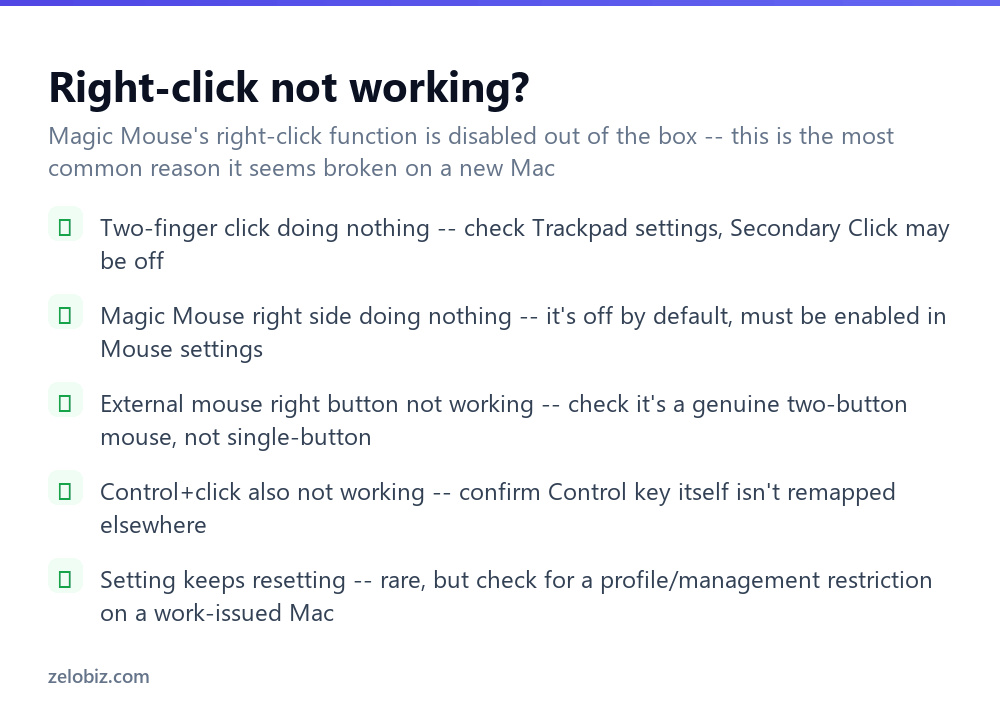
Two-finger click on a trackpad doing nothing — check Trackpad settings specifically; Secondary Click may have been turned off, whether by accident or by a previous user of the machine.
Magic Mouse right side doing nothing — this is very often simply because it hasn’t been enabled yet, since it’s off out of the box on a new device.
External mouse right button not working — confirm it’s genuinely a two-button mouse and not a single-button design (some minimalist or older mice are single-button only, with no physical right-click functionality at all regardless of any software setting).
Even Control+click isn’t working — check whether the Control key itself has been remapped to something else under System Settings › Keyboard › Keyboard Shortcuts › Modifier Keys, which would explain Control+click no longer functioning as expected.
A quick reference
Switched from Windows and the two-finger gesture feels unfamiliar: practice it deliberately on a few apps — the muscle memory transfers faster than expected once the setting itself is confirmed on. Using both a trackpad and a Magic Mouse: check Secondary Click separately in both Trackpad and Mouse settings, since one being enabled doesn’t enable the other, and it’s easy to assume one setting covers both when it genuinely doesn’t.
A final habit worth building: whenever something in macOS seems to be missing an obvious option, try right-clicking on it before assuming the feature doesn’t exist. Many actions are tucked into contextual menus rather than a visible toolbar button, and a surprising number of “missing feature” complaints turn out to be exactly this — the option was there the whole time, just one right-click away and easy to overlook.
- ✓Search Settings for ‘Secondary Click’ if ‘right-click’ turns up nothing
- ✓Check both Trackpad and Mouse settings separately if you use both devices
- ✓Remember Control+click works as a fallback on virtually any input method
- ✓Confirm an external mouse genuinely has two physical buttons before assuming a software issue
- ✓Check Modifier Keys settings if even Control+click stops working
- ✕Assuming Magic Mouse right-click works out of the box — it’s off by default
- ✕Searching only for ‘right-click’ in Settings and giving up when nothing appears
- ✕Assuming a single-button external mouse has a software fix available for right-click
- ✕Forgetting Trackpad and Mouse Secondary Click settings are configured independently
- ✕Overlooking a remapped Control key as the reason Control+click stopped working
Frequently asked questions
How do I right-click on a Mac trackpad?
Click with two fingers anywhere on the trackpad, or hold Control and click with one finger as a fallback method.
Why doesn’t right-click work on my Magic Mouse?
It’s disabled by default. Enable Secondary Click under System Settings, Mouse, then choose the right or left side to trigger it.
What does macOS call right-click in its settings?
Secondary Click. Search Settings for that term specifically if searching ‘right-click’ doesn’t return useful results.
Does Control+click always work as right-click on a Mac?
Generally yes, on virtually any input device, making it a reliable fallback if a trackpad’s or mouse’s Secondary Click setting isn’t configured correctly.
Why doesn’t my external mouse have a working right-click?
Confirm it’s a genuine two-button mouse. Some single-button mouse designs have no physical right-click capability at all, regardless of settings.
What does right-clicking actually do on a Mac?
It opens a contextual menu specific to whatever was clicked — file options in Finder, text formatting options in a document, and so on.
- →Deal with an unresponsive app: how to force quit on Mac
- →Capture what you right-click on: how to screenshot on Mac
- →Connect a mouse or trackpad wirelessly: how to connect AirPods to a laptop
- →Send a file after finding it via right-click: how to AirDrop