
To free up storage on iPhone, first check Settings › General › iPhone Storage to see exactly what’s using space — don’t guess. Photos and videos are almost always the largest category; back them up to iCloud or a computer, then remove already-backed-up originals from the device. Offload unused apps (removes the app but keeps its documents, restorable by reinstalling) rather than deleting outright if you might want them back later, and review Messages for years of accumulated photo and video attachments, which build up silently over time.
Check what’s actually using space before deleting anything
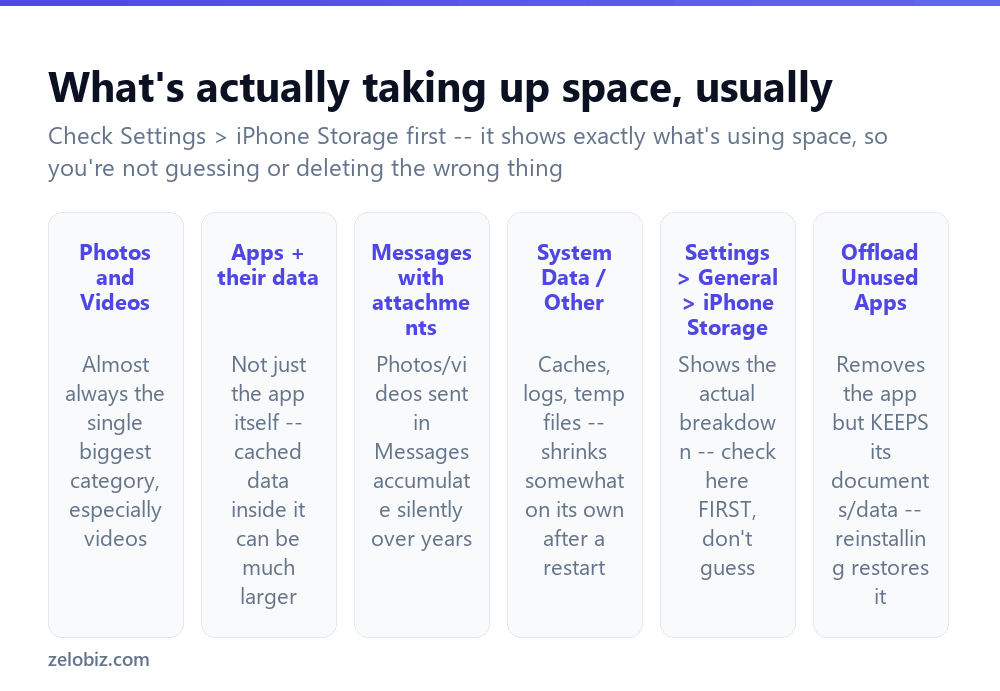
Settings › General › iPhone Storage shows an actual breakdown of what’s using space, ranked largest first — this is the essential first step before deleting anything, since guessing at what’s taking up room often leads to deleting the wrong things while the real culprit goes untouched.
Photos and Videos are almost always the single biggest category, particularly video, which takes up dramatically more space per item than a still photo.
Apps often surprise people — it’s not just the app itself but cached data inside it (a social media app’s cached images and videos, a navigation app’s downloaded offline maps) that can dwarf the size of the app’s actual program code.
Messages accumulate photo and video attachments silently over years of conversations, and this category is easy to overlook since it doesn’t feel like a place “storage” would build up.
System Data / Other covers caches, logs, and temporary files that iOS manages mostly on its own — it can shrink somewhat after a restart, but isn’t something you can directly clear through a dedicated setting the way you can with photos or apps.
The single highest-leverage first move for most people is checking the actual storage breakdown before doing anything else — it turns cleanup from guesswork into a targeted plan based on what’s genuinely taking up the most space on that specific device.
Freeing up space methodically
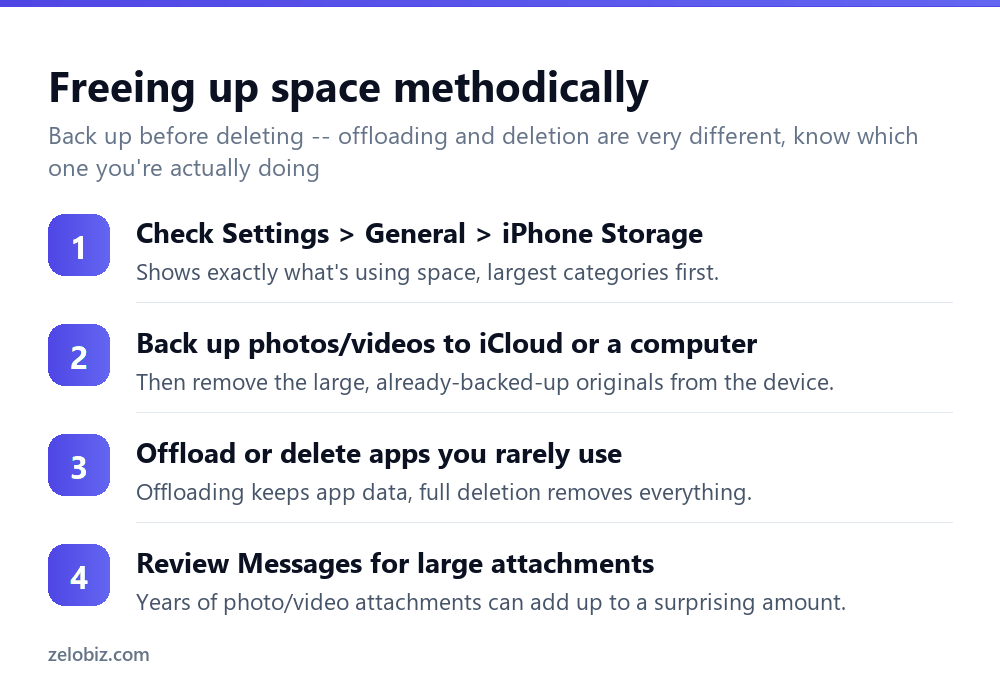
Check the storage breakdown in Settings first, as above, to know what’s actually worth targeting.
Back up photos and videos to iCloud Photos, or manually to a computer via the methods covered in the photo transfer guide linked below, then remove the already-backed-up originals from the device — never delete photos you haven’t confirmed are safely backed up somewhere else first.
Offload or delete rarely-used apps. Offloading (Settings, General, iPhone Storage, select the app, Offload App) removes the app itself but keeps its documents and data, restorable simply by reinstalling the app later. Deleting removes everything, app and all its data, permanently.
Review Messages for large attachments — Settings, General, iPhone Storage often includes a direct link into a Messages-specific review tool showing the largest conversations and attachments by size.
Using iCloud Photos to reduce on-device storage
Settings › [your name] › iCloud › Photos offers two distinct modes worth understanding clearly: Download and Keep Originals stores full-resolution versions of every photo directly on the device, using the most local storage. Optimize iPhone Storage keeps smaller, space-saving versions on the device itself while the full-resolution originals live safely in iCloud, downloading a full-resolution version on demand only when you actually need to view, edit, or export it at full quality.
Switching to Optimize iPhone Storage is one of the single most effective changes for a device that’s chronically low on space, particularly for anyone with a large photo library and reasonably reliable internet access for the occasional on-demand full-resolution download.
Offloading vs deleting apps — know the difference
This distinction matters enough to restate directly: offloading is the safer default for an app you’re not sure you’ll need again — it frees the app’s own storage footprint while quietly preserving its documents and settings, ready to restore the moment you reinstall. Deleting is appropriate when you’re genuinely certain you won’t need that app or its data again, since deletion removes everything with no equivalent easy recovery path.
A worked example: a device chronically stuck at ‘Storage Almost Full’
Say an iPhone keeps showing the low-storage warning every few weeks despite periodic manual cleanup, and it’s becoming a recurring annoyance rather than a one-time fix.
Start with the storage breakdown in Settings and note the top two or three categories specifically, rather than cleaning broadly. If Photos is the dominant category, switching iCloud Photos to Optimize iPhone Storage (rather than repeatedly manually deleting photos) addresses the root cause structurally — new photos will keep arriving regardless, so a one-time deletion only buys temporary relief without changing the underlying pattern.
If a specific app’s data is unexpectedly large, check whether that app has its own internal cache-clearing option (many streaming, social media, and navigation apps do, buried in their own settings) before resorting to offloading or deleting the app entirely — this can reclaim significant space while keeping the app fully set up and signed in.
For a device that’s chronically tight on space despite these steps, the underlying issue may simply be that its total storage capacity no longer matches how it’s actually being used — worth honestly considering whether the usage pattern (a lot of video, many large apps) has outgrown what the device was ever going to comfortably handle, rather than assuming there’s always another setting to find that will fix it permanently for good.
Clearing browser and app caches specifically
Beyond offloading, individual apps often have a dedicated cache-clearing option buried in their own settings menu, separate from anything visible in the main iOS Storage screen — Safari’s website data (Settings, Safari, Clear History and Website Data) is a common example that can quietly grow large over months of browsing and isn’t obvious from the top-level storage breakdown alone. Checking a handful of the heaviest-used apps for their own internal cache or offline-data settings, rather than assuming offloading is the only lever available, can reclaim meaningful space without losing the app’s actual login state or preferences in the process at all, which offloading alone would still leave intact anyway.
Reviewing large individual files, not just categories
Beyond the category-level breakdown, Settings, General, iPhone Storage also lists individual apps sorted by size, and tapping into a specific app often reveals a further breakdown between the app itself and its documents/data. This level of detail is worth checking specifically for any single app taking up an unexpectedly large share — sometimes one specific app is responsible for a disproportionate amount of the total, and addressing that one app directly is far more effective than broadly trimming across many smaller categories.
When storage still shows full after cleanup
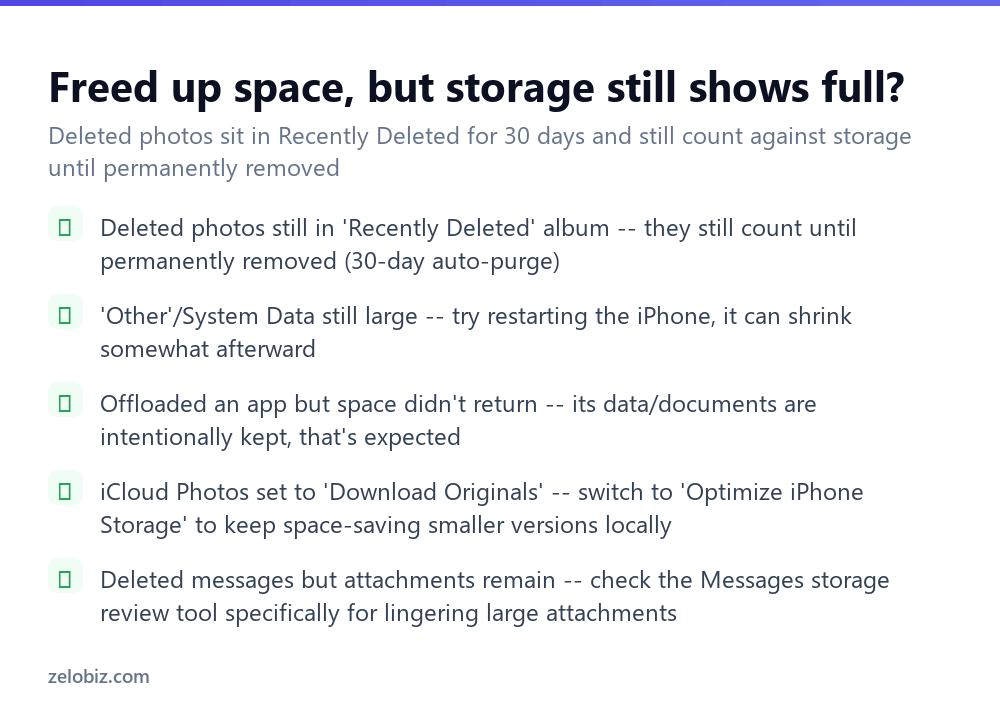
Deleted photos still count against storage — they sit in the Recently Deleted album for 30 days before automatically, permanently purging, and continue counting toward total storage used the entire time they’re there. Manually empty Recently Deleted if the space is needed sooner than the 30-day automatic window.
“Other” or System Data still large — try restarting the iPhone; this category can shrink somewhat on its own afterward as iOS clears certain temporary caches during the restart process.
Offloaded an app but space didn’t fully return — this is expected behavior, not a malfunction; offloading intentionally preserves the app’s documents and data, which is exactly what allows it to restore seamlessly on reinstall.
Deleted messages but large attachments remain — check the dedicated Messages storage review tool specifically, since some attachments can persist or be missed by simply deleting individual message threads.
- ✓Check Settings, iPhone Storage first to see what’s actually using space
- ✓Back up photos and videos before deleting the originals from the device
- ✓Offload rather than delete an app you might want back later
- ✓Switch iCloud Photos to Optimize iPhone Storage for a chronically full device
- ✓Empty Recently Deleted manually if you need the space back sooner than 30 days
- ✕Guessing at what’s taking up space instead of checking the actual breakdown first
- ✕Deleting photos or videos before confirming they’re safely backed up elsewhere
- ✕Deleting an app outright when offloading would have preserved its data
- ✕Forgetting Recently Deleted photos still count against storage for 30 days
- ✕Expecting offloading an app to also remove its saved documents and data
Frequently asked questions
How do I check what’s using storage on my iPhone?
Go to Settings, General, iPhone Storage for a full breakdown showing exactly what’s using space, ranked largest first.
What’s the difference between offloading and deleting an app?
Offloading removes the app but keeps its documents and data, restorable by reinstalling. Deleting removes everything permanently with no easy recovery.
Why does storage still show full after I deleted photos?
Deleted photos sit in the Recently Deleted album for 30 days and still count against storage until permanently purged, either automatically or manually.
What is Optimize iPhone Storage in iCloud Photos settings?
It keeps smaller, space-saving photo versions on the device while full-resolution originals stay in iCloud, downloading full quality only when actually needed.
What usually takes up the most storage on an iPhone?
Photos and videos, especially video, almost always account for the largest share of storage used on a typical iPhone.
How do I find large attachments in Messages taking up storage?
Settings, General, iPhone Storage often links directly to a Messages-specific review tool showing the largest conversations and attachments by size.
- →Back up photos before deleting: how to transfer photos from iPhone to computer
- →Protect everything with a full backup first: how to back up an iPhone
- →Send large files without using cloud storage: how to AirDrop
- →Connect accessories once storage is sorted: how to connect AirPods to a laptop