
To back up an iPhone, use iCloud Backup (Settings › [your name] › iCloud › iCloud Backup, turned on) for automatic, wireless backups that run in the background whenever the phone is charging, connected to Wi-Fi, and locked, or back up to a computer via cable (Finder on a Mac, or the Apple Devices/iTunes app on Windows) for a manual, local backup that doesn’t depend on iCloud storage space. These are genuinely different backups, not two versions of the same thing — having both provides real, meaningful redundancy.
iCloud backup vs computer backup — genuinely different, not redundant
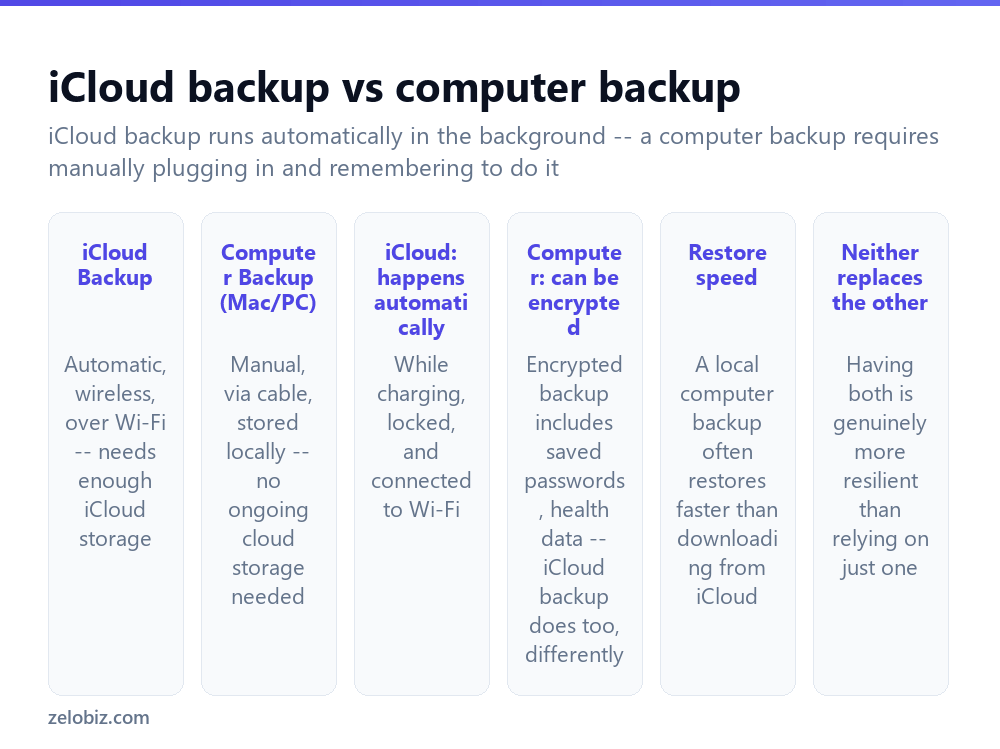
iCloud Backup runs automatically once enabled, with no manual action needed on an ongoing basis — it happens quietly whenever the phone is plugged in, connected to Wi-Fi, and the screen is locked, all three at once. Its constraint is storage: the free iCloud tier is limited, and a full iPhone backup often needs a paid iCloud storage plan to actually complete and be kept up to date.
Computer backup requires manually connecting a cable and initiating it (through Finder on a Mac, or the Apple Devices app, formerly part of iTunes, on Windows), but stores the backup locally on that computer’s own storage with no ongoing cloud storage subscription needed at all.
Both can optionally be encrypted. An encrypted backup, on either platform, includes additional sensitive data — saved passwords, health data, and similar — that an unencrypted backup leaves out.
Neither backup method is a full substitute for the other. iCloud backup can fail silently if storage runs out and isn’t checked; a computer backup only exists if that specific computer survives and is available when needed. Having both running is genuinely more resilient than relying on either alone.
Setting up automatic iCloud Backup
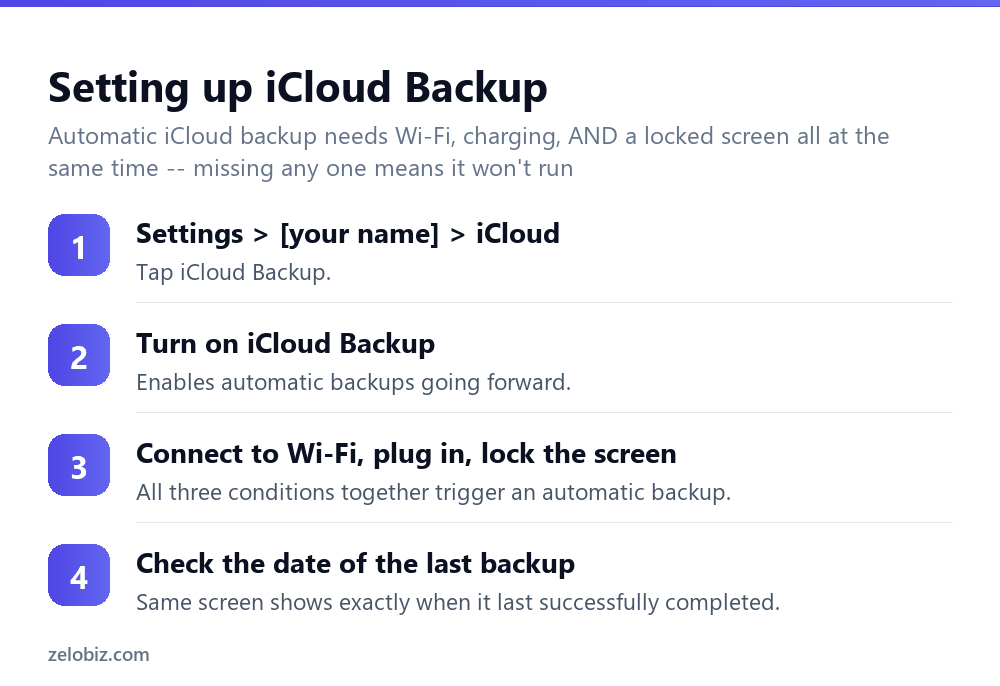
Settings › [your name] › iCloud, then tap iCloud Backup.
Turn on iCloud Backup if it isn’t already enabled — this is a one-time setup step, not something needing to be repeated for each backup afterward.
For an automatic backup to actually trigger, three conditions need to be true simultaneously: connected to Wi-Fi, charging (plugged into power), and the screen locked. Missing any one of the three — being on cellular data instead of Wi-Fi, or unplugged, or actively in use with the screen unlocked — means it won’t trigger, even with the feature itself correctly turned on.
The same iCloud Backup settings screen shows the date of the last successful backup, worth checking periodically to confirm it’s genuinely staying current rather than assuming it’s working silently in the background.
Backing up to a computer
On a Mac, connect the iPhone via cable, open Finder, select the iPhone from the sidebar, and click Back Up Now under the General tab. Tick Encrypt Local Backup first if you want the backup to include saved passwords and health data, since that option needs to be set before backing up, not after.
On Windows, the equivalent is the Apple Devices app (or the classic iTunes app on older Windows setups) — connect via cable, select the iPhone, and choose Back Up Now under the Summary or Backups section.
A local computer backup restores back to a device noticeably faster in many cases than restoring the same data by downloading it from iCloud, since it’s reading directly from local disk rather than over an internet connection — worth keeping in mind if speed of restoration ever genuinely matters, such as setting up a replacement device quickly.
What actually gets backed up
Both backup types generally cover app data, device settings, message history, photos and videos (if not already separately handled by iCloud Photos), and call history. Some data — like content already stored in iCloud separately (Mail, iCloud Photos when that specific feature is enabled) — may not be duplicated into the device backup itself, since it’s already safely stored elsewhere in Apple’s system independently.
A worked example: getting ready to sell or hand down an old iPhone
Say you’re upgrading to a new iPhone and want to make sure absolutely nothing is lost from the old one before wiping it and passing it on.
First, trigger both backup types deliberately rather than assuming the automatic iCloud one is current: manually initiate an iCloud backup, and separately connect to a computer for a fresh local backup. Confirm each one’s completion date reads as today’s date specifically, not an older one, before proceeding to anything else.
When setting up the new iPhone, choosing to restore from the most recent backup (offered directly during the new device’s setup process) brings over apps, settings, messages, and photos automatically. Restoring from the local computer backup is often meaningfully faster than restoring from iCloud, particularly for a large library, since it reads directly from the computer’s disk rather than downloading everything over an internet connection.
Only after confirming the new device looks correct — messages present, key apps reinstalled and signed in, recent photos visible — should the old iPhone actually be erased (Settings, General, Transfer or Reset iPhone, Erase All Content and Settings) before selling or handing it down to someone else entirely, with confidence that nothing important was left behind unrecovered and forgotten on the old device, sitting unused in a drawer somewhere, gathering dust for years.
What a backup does NOT protect against
It’s worth being clear-eyed about what a standard iPhone backup does and doesn’t cover. It protects against device loss, damage, or a failed software update. It does not protect against something being deleted and that deletion itself being backed up before you notice — if a backup runs automatically after a photo or message was deleted, the backup reflects the state after deletion, not before. For genuinely irreplaceable content, exporting a separate manual copy (via the photo transfer methods covered elsewhere) provides a layer of protection a rolling automatic backup alone doesn’t fully cover.
When a backup isn’t completing or seems out of date
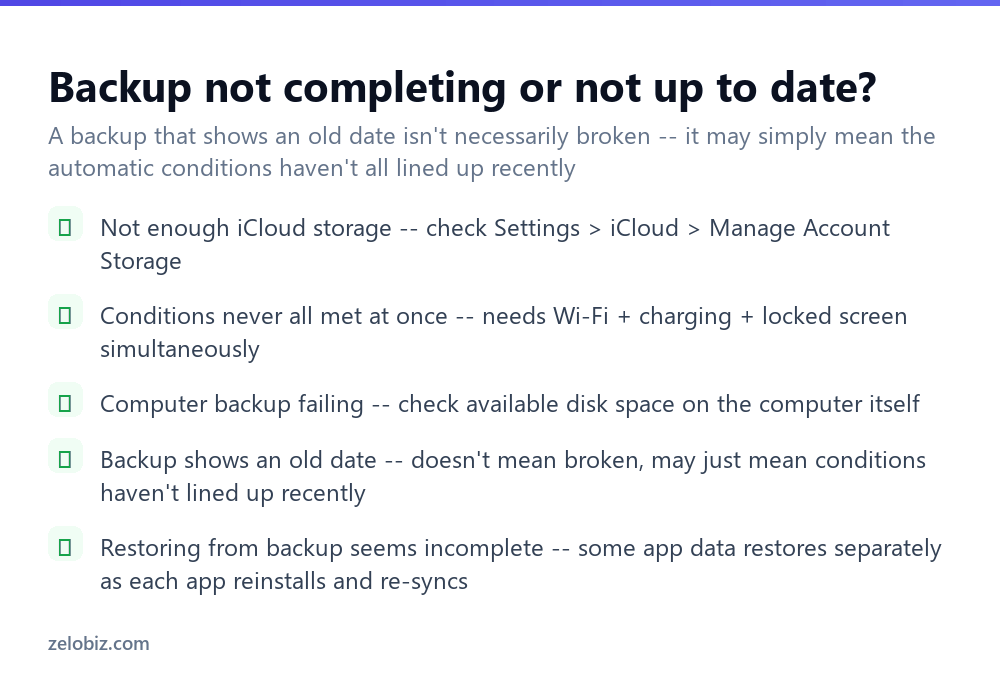
Not enough iCloud storage — check Settings › [your name] › iCloud › Manage Account Storage to see actual available space, and either free up iCloud storage or upgrade to a paid tier if the backup genuinely doesn’t fit.
Automatic conditions never all line up — if the phone is rarely charged overnight on Wi-Fi with the screen locked (common for someone who charges via a car charger during the day, for instance), automatic backup may simply not be getting the chance to trigger, regardless of the setting being correctly enabled.
Computer backup failing — check available disk space on the computer itself; a backup can fail partway through if the destination drive doesn’t have enough free space to complete it.
Backup date looks old — this doesn’t automatically mean something is broken; it may simply reflect that the automatic trigger conditions genuinely haven’t occurred recently. Manually triggering a backup (by plugging in, connecting to Wi-Fi, and locking the screen deliberately, or backing up via computer) confirms whether it’s actually able to complete successfully.
- ✓Set up both iCloud and computer backup for genuine redundancy
- ✓Check the last successful backup date periodically rather than assuming it’s current
- ✓Ensure Wi-Fi, charging, and a locked screen all happen together for automatic iCloud backup
- ✓Tick Encrypt Local Backup before backing up to a computer if you want passwords included
- ✓Check available storage, on iCloud or the computer, if a backup is failing to complete
- ✕Relying on only one backup method as if it fully covers the other’s failure modes
- ✕Assuming iCloud backup is current without ever checking the actual last-backup date
- ✕Charging only via a car charger or power bank and never meeting all three automatic conditions
- ✕Forgetting to enable encryption before a computer backup if passwords and health data matter
- ✕Ignoring a backup failure notification instead of checking available storage
Frequently asked questions
How do I back up my iPhone?
Use iCloud Backup (Settings, your name, iCloud, iCloud Backup, turned on) for automatic wireless backups, or connect to a computer via Finder (Mac) or Apple Devices (Windows) for a manual local backup.
What’s the difference between iCloud backup and a computer backup?
iCloud backup is automatic and wireless but needs enough iCloud storage. A computer backup is manual via cable but stores locally with no ongoing storage subscription needed.
Why isn’t my iPhone backing up to iCloud automatically?
Automatic backup requires Wi-Fi, charging, and a locked screen all at the same time. If any one is missing, or if iCloud storage is full, it won’t complete.
Should I use iCloud backup or a computer backup?
Ideally both — they’re genuinely different backups, and having both provides real redundancy that relying on just one doesn’t.
Does an encrypted backup include more data than a regular one?
Yes. Encrypted backups (on iCloud or a computer) include saved passwords and health data that an unencrypted backup leaves out.
Why does my iPhone backup show an old date?
It likely means the automatic trigger conditions — Wi-Fi, charging, and a locked screen together — haven’t all occurred recently, not necessarily that backup is broken.
- →Free up space before backing up: how to free up storage on iPhone
- →Move photos manually as an extra safeguard: how to transfer photos from iPhone to computer
- →Send files quickly between devices: how to AirDrop
- →Connect a new device once restored: how to connect AirPods to a laptop