
To AirDrop a file, turn on Wi-Fi and Bluetooth on both Apple devices (both are required together), set your AirDrop receiving visibility to Contacts Only or Everyone for 10 Minutes, select the file you want to send, tap the Share or AirDrop icon, and tap the recipient’s device icon that appears. The file transfers directly between the two devices wirelessly — no cable, no cloud upload, and no shared Wi-Fi network required, since AirDrop creates its own direct connection between nearby devices.
What AirDrop actually needs to work
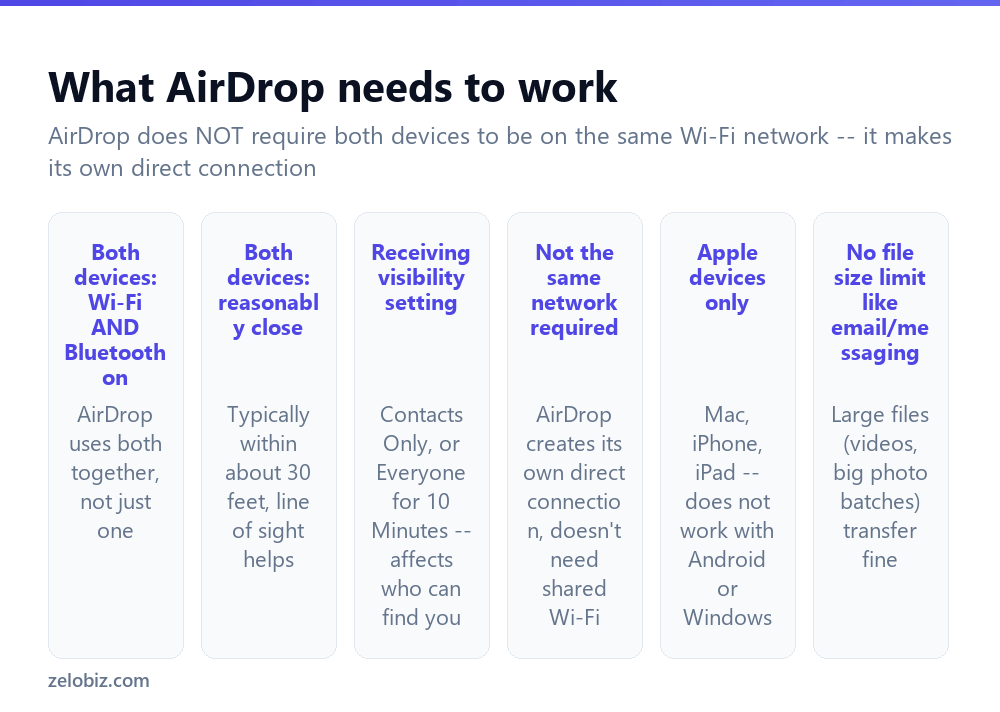
Both Wi-Fi and Bluetooth on, on both devices — this is the single most important requirement, and the most common source of confusion. AirDrop uses Bluetooth to discover nearby devices and Wi-Fi to actually transfer the file data; both need to be active, not just one or the other.
Devices within reasonable range — typically around 30 feet, though a direct line of sight with no walls or major obstructions in between helps reliability meaningfully more than distance alone.
Receiving visibility set correctly — covered in more detail below, since this setting determines whether a given sender can even see your device as an available AirDrop target in the first place.
A genuinely common misconception: AirDrop does not require both devices to be on the same Wi-Fi network. It creates its own direct peer-to-peer connection between the devices, which is exactly why it keeps working fine on, say, a coffee shop’s guest Wi-Fi where devices might otherwise be isolated from each other on the network itself.
Sending a file
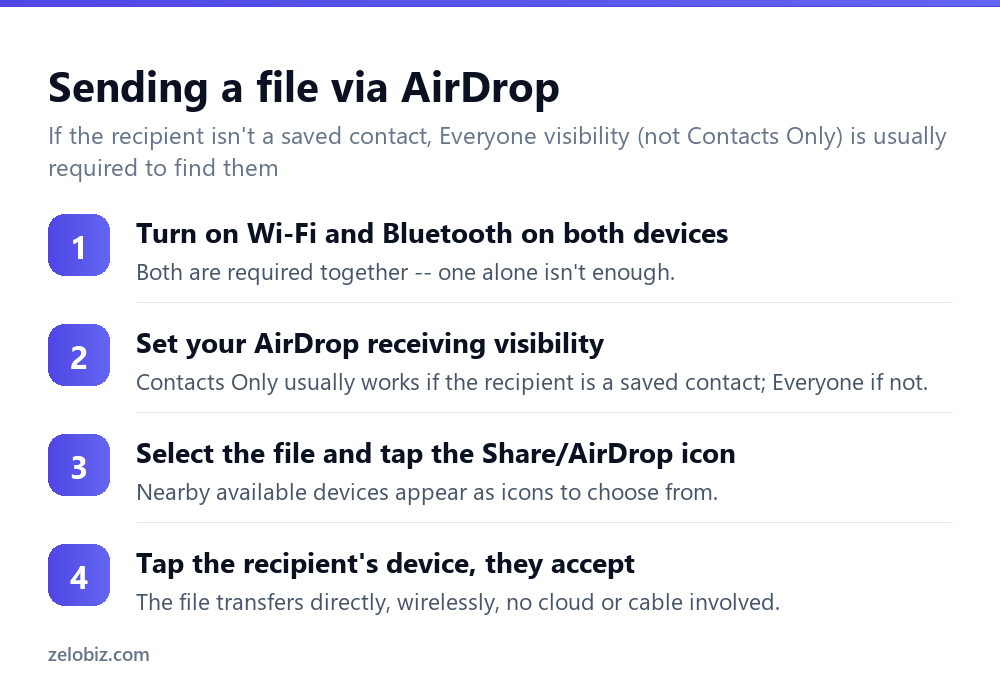
Confirm Wi-Fi and Bluetooth are both on for both devices — the single most common reason AirDrop fails is one of these being off on either end.
Check your own AirDrop receiving visibility setting (Control Center on iPhone/iPad, or the AirDrop icon in Finder’s sidebar on a Mac) — set to Contacts Only if the recipient is saved in your contacts, or Everyone for 10 Minutes if they aren’t, or if Contacts Only isn’t finding them for some reason.
Select the file, photo, or link you want to send, and tap the Share icon (or the AirDrop icon directly, depending on the app). Nearby available AirDrop devices appear as selectable icons.
Tap the recipient’s device icon. They’ll see an incoming AirDrop request on their end and need to accept it before the transfer actually begins — it doesn’t happen automatically without their confirmation.
Receiving visibility settings, explained
Receiving Off — your device won’t appear as an AirDrop target to anyone at all, even someone standing right next to you.
Contacts Only — your device is discoverable only to people whose Apple ID (tied to their phone number or email) is saved in your Contacts app, and vice versa. This is the more private default setting.
Everyone for 10 Minutes — your device is discoverable to any nearby Apple device for a limited 10-minute window, then automatically reverts back to the previous setting. This is the one to use for sending to or receiving from someone not saved in your contacts, such as someone you just met.
AirDrop only works between Apple devices
This is a hard limitation worth stating plainly: AirDrop works exclusively between Mac, iPhone, and iPad devices. It does not work with Android phones, Windows computers, or any other non-Apple device — there’s no version of AirDrop or compatible feature available on those platforms. For sending files to a non-Apple device, other methods (email, a cloud storage link, a messaging app, or a USB cable transfer) are necessary instead.
A worked example: sharing a large video after an event
Say you took a long video at a family gathering and want to share it with several relatives standing nearby, all with iPhones, right after recording it — rather than uploading it somewhere and sending everyone a link.
Open the video in Photos, tap Share, then AirDrop. If everyone in the group is already saved in your Contacts, Contacts Only visibility on their end is enough for their devices to appear as targets. For anyone not saved, they’d need to temporarily switch their own device to Everyone for 10 Minutes so you can find and select them.
Because AirDrop transfers directly device-to-device rather than through any upload and download cycle, a large video transfers quickly over the direct local connection — meaningfully faster than uploading it to cloud storage first and having each person separately download it afterward, and with no file size limit like many messaging apps impose that would otherwise compress or reject a long, high-resolution video.
Repeating the process for each additional recipient is straightforward — AirDrop supports selecting multiple recipients at once in the sharing sheet if several nearby devices are all visible simultaneously, sending the same file to all of them in parallel rather than needing to repeat the whole process one person at a time.
Sending to multiple people at once
When several AirDrop-visible devices appear in the sharing sheet at the same time, tapping more than one of them queues the transfer to all selected recipients simultaneously, rather than requiring the full share process to be repeated individually for each person. Each recipient still needs to individually accept the incoming transfer on their own device before it actually completes on their end.
AirDrop and privacy
Since Everyone visibility genuinely makes a device discoverable to any nearby Apple device, it’s worth treating it as a temporary, situational setting rather than a permanent one — which is exactly why Apple built in the automatic 10-minute expiry rather than requiring it to be manually turned back off. Leaving a device permanently on Everyone visibility means it stays discoverable (and technically receivable-to, though the recipient still has to accept any actual transfer) to any nearby stranger, which most people would rather avoid as an ongoing default state, particularly in a crowded public place like an airport, campus, or conference where many unfamiliar Apple devices are likely to be nearby at any given moment.
When AirDrop isn’t finding the other device
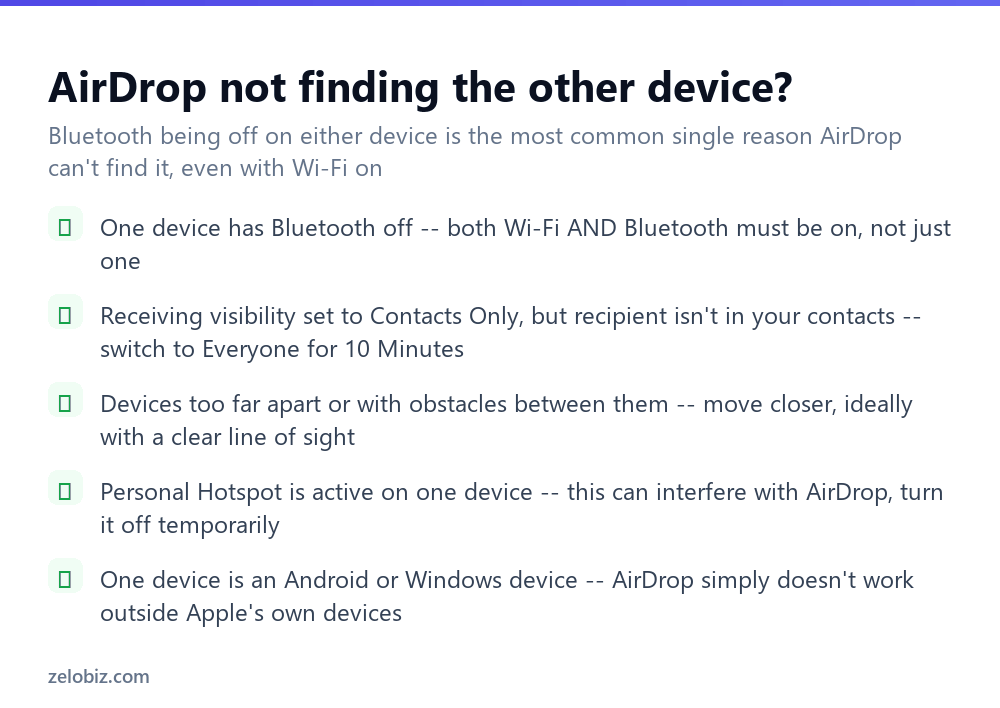
One device has Bluetooth off — double-check specifically, since Wi-Fi being on alone isn’t sufficient; both need to be active together on both devices.
Receiving visibility set to Contacts Only, but the recipient isn’t actually a saved contact — switch to Everyone for 10 Minutes on the receiving device to make it discoverable.
Devices too far apart, or with obstacles between them — move physically closer, ideally with a clear line of sight rather than through walls or other obstructions.
Personal Hotspot is active on one of the devices — this can interfere with AirDrop’s own Wi-Fi usage; turning off Personal Hotspot temporarily often resolves an otherwise unexplained connection failure.
One device isn’t an Apple device — confirm both devices are genuinely Mac, iPhone, or iPad; AirDrop has no equivalent on Android or Windows regardless of any settings adjustment.
A quick reference
Sending to a group of people at once: select multiple visible recipients in the same share sheet rather than repeating the process one at a time. Worried about privacy in a crowded space: leave visibility on Contacts Only by default and switch to Everyone only for the specific moment a transfer is actually needed, switching back afterward if the automatic timeout hasn’t already handled it.
- ✓Confirm both Wi-Fi and Bluetooth are on, on both devices, not just one
- ✓Switch to Everyone for 10 Minutes when sending to someone not in your contacts
- ✓Stay within reasonable range with a clear line of sight where possible
- ✓Turn off Personal Hotspot temporarily if AirDrop is unexpectedly failing
- ✓Remember AirDrop only works between Apple devices, with no Android or Windows equivalent
- ✕Assuming Wi-Fi alone, without Bluetooth, is enough for AirDrop to work
- ✕Leaving receiving visibility on Contacts Only when the recipient isn’t actually a contact
- ✕Expecting AirDrop to work reliably through walls or across a large distance
- ✕Overlooking Personal Hotspot as a possible interference source
- ✕Trying to AirDrop to an Android or Windows device — it simply isn’t supported
Frequently asked questions
How do I use AirDrop to send a file?
Turn on Wi-Fi and Bluetooth on both devices, select the file, tap Share or the AirDrop icon, and tap the recipient’s device icon that appears.
Does AirDrop require both devices to be on the same Wi-Fi network?
No. AirDrop creates its own direct connection between devices and doesn’t need a shared Wi-Fi network.
Why can’t I find someone’s device on AirDrop?
Check that both Wi-Fi and Bluetooth are on for both devices, and that the receiving device’s visibility is set to Everyone if the sender isn’t a saved contact.
Does AirDrop work with Android or Windows devices?
No. AirDrop only works between Apple devices — Mac, iPhone, and iPad.
What’s the difference between Contacts Only and Everyone in AirDrop settings?
Contacts Only makes your device discoverable only to people saved in your Contacts app. Everyone for 10 Minutes makes it discoverable to any nearby Apple device temporarily.
Why does AirDrop sometimes fail even with Wi-Fi and Bluetooth on?
Check whether Personal Hotspot is active on either device, since it can interfere with AirDrop, and confirm the devices are within reasonable range with a clear line of sight.
- →Transfer photos a different way: how to transfer photos from iPhone to computer
- →Connect audio devices too: how to connect AirPods to a laptop
- →Capture something to send via AirDrop: how to screenshot on Mac
- →Free up space before a big transfer: how to free up storage on iPhone