
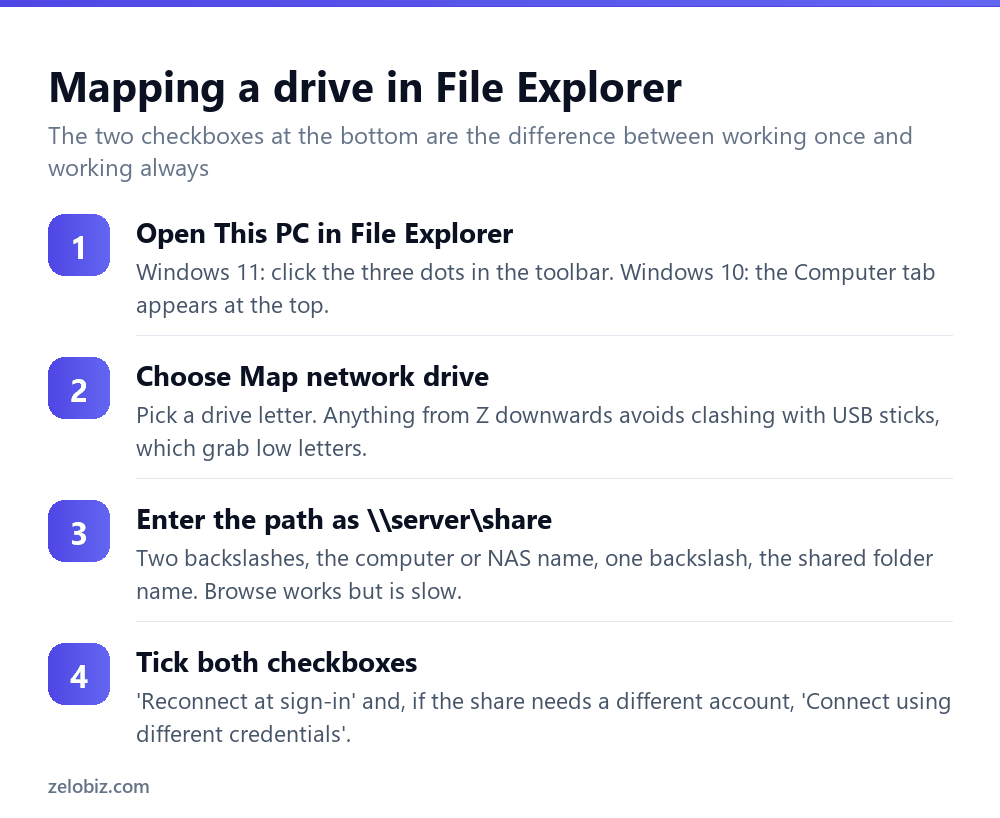
To map a network drive, open File Explorer, go to This PC, choose Map network drive, pick a letter, and enter the path as \\server\share. Tick Reconnect at sign-in before you click Finish — without it the drive disappears at every restart. If the share needs a different account, also tick Connect using different credentials and let Windows remember them.
Mapping is easy. Keeping it is not
Connecting to a shared folder takes about a minute. The reason people search for this isn’t the mapping — it’s that the drive keeps vanishing, or shows a red X, or asks for a password every single morning.
Nearly all of that comes down to two things: whether Windows saved your credentials, and whether it tries to reconnect before the network is actually available. Both are fixable, and neither is obvious from the mapping dialog.
A red X on a mapped drive doesn’t mean it’s broken. It usually means Windows checked before the network was ready and gave up.
Getting the path right
The format is \\computer-name\share-name. Two backslashes at the front, one in the middle. That leading pair is UNC notation and Windows won’t accept the path without it.
If the name doesn’t work but the IP address does, that’s a name-resolution problem rather than a permissions or sharing one. Mapping by IP is a perfectly acceptable workaround for a device with a fixed address, and it’s more reliable on mixed networks where Windows name discovery is patchy.
💡 Pro tip: Give the NAS or server a static IP, or a DHCP reservation on your router. Mapping to an address that changes is the quiet cause of drives that work for months and then don’t.
Making it survive a restart
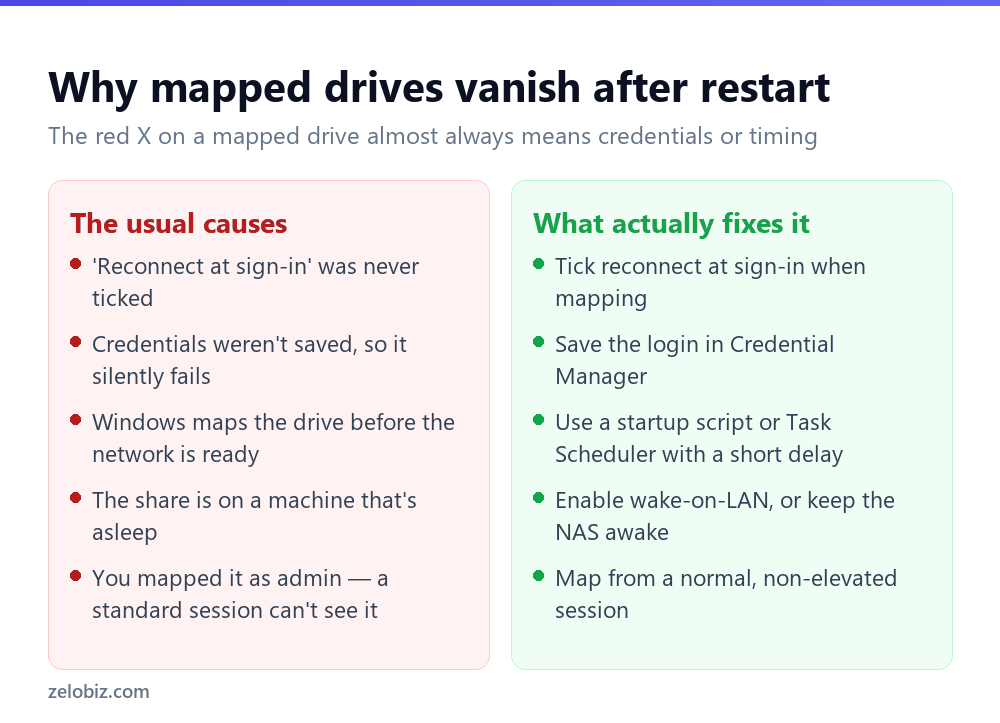
‘Reconnect at sign-in’ is necessary but frequently not sufficient, which is why people tick it and still lose the drive.
Save the credentials properly
If the share needs a username and password, Windows must have them stored or the reconnect fails silently at sign-in. Open Credential Manager from the Start menu, go to Windows Credentials, and add a Windows credential: the server name as the address, then the username and password.
For a domain or NAS account, enter the username in full — SERVERNAME\username or DOMAIN\username rather than just the username. A bare username is one of the most common reasons stored credentials don’t take.
The timing problem
Windows often tries to restore mapped drives before the network adapter has finished connecting, particularly on Wi-Fi and on machines with fast SSDs. The drive fails, shows a red X, and then works the moment you click it — because by then the network is up.
The reliable fix is a small delay. Create a Scheduled Task set to run at log-on with a 30-second delay, running net use Z: \\server\share /persistent:yes. That runs after the network is genuinely available and the red X stops appearing.
The command-line method
Faster than the dialog once you know it, and the only sensible option if you’re setting up several machines or scripting it.
net use Z: \\server\share /persistent:yes maps the drive and keeps it across restarts. Add credentials inline with /user:DOMAIN\username password if needed, though typing a password into a command leaves it in your command history — better to let Credential Manager hold it.
When it won’t connect at all
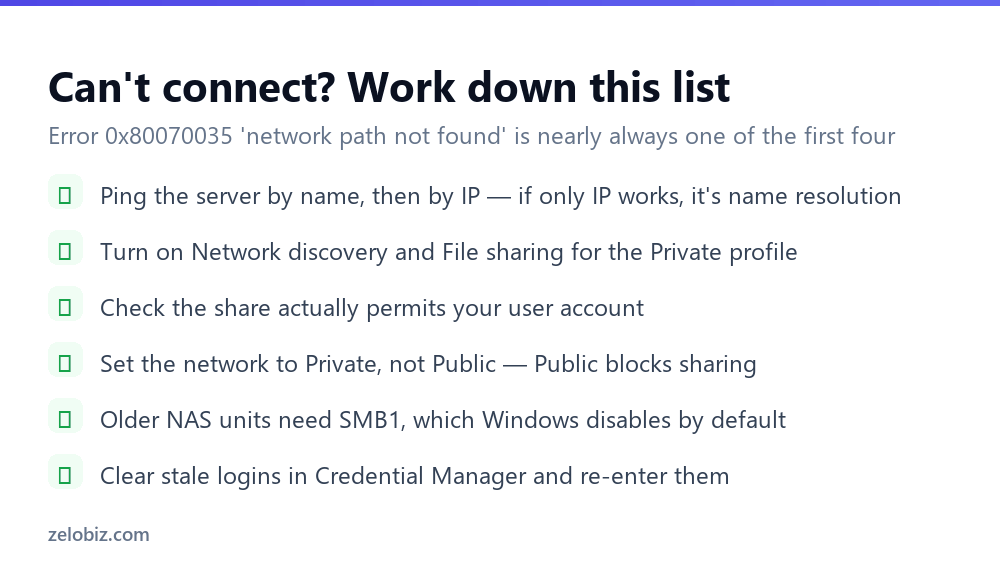
Error 0x80070035, ‘The network path was not found’, is the one you’ll see most. It sounds like the share is missing; usually it isn’t.
Network profile set to Public
Windows blocks file sharing entirely on networks marked Public, which is correct behaviour in a coffee shop and a nuisance at home. Go to Settings › Network & internet, click your connection, and set the profile to Private. This single setting resolves a surprising share of cases.
Network discovery turned off
Control Panel › Network and Sharing Centre › Advanced sharing settings. Under the Private profile, turn on network discovery and file and printer sharing. Windows resets these after some feature updates, so a drive that stopped working after an update is often this.
Older NAS devices and SMB1
Windows disabled the SMB1 protocol by default years ago because it’s genuinely insecure, and older NAS units and network printers sometimes only speak SMB1. If your device is old and nothing else has worked, that’s likely the cause.
⚠️ Watch out: You can re-enable SMB1 through Windows Features, but don’t. It’s the protocol WannaCry spread through. Update the NAS firmware to something that supports SMB2 or SMB3, or replace it — re-enabling SMB1 exposes every machine on the network.
Mapped drives and administrator mode
A quirk that wastes a lot of time: drives mapped in a normal session are invisible to programs running as administrator, and vice versa. Windows treats elevated and standard sessions as different users for this purpose.
So if a mapped drive works in File Explorer but an application ‘can’t find’ it, check whether that application is running elevated. Map the drive from a normal session for normal use, and if a specific elevated program needs it, map it again from an administrator command prompt.
Mapping a drive for other people
If you’re setting this up for a team rather than yourself, doing it by hand on each machine doesn’t scale and breaks the moment someone gets a new laptop.
On a domain, Group Policy Preferences handle it centrally — you define the mapping once and it applies at log-on for whoever you target. Without a domain, a small batch file containing the net use line, placed in each user’s Startup folder, does the same job. Press Windows + R and type shell:startup to open that folder directly.
Either way, put the credentials in Credential Manager rather than in the script. A batch file with a plain-text password gets copied around, emailed, and eventually ends up somewhere it shouldn’t.
Shortcuts instead of drive letters
You don’t always need a drive letter. Drive letters are finite and a machine with eight mapped shares gets cluttered fast.
Add a network location — also in the This PC menu — creates a shortcut under This PC without consuming a letter. It behaves the same for browsing and opening files. The one limitation is that some older software insists on a drive letter and won’t accept a UNC path, which is the main reason mapping still exists.
- ✓Tick ‘Reconnect at sign-in’ every time
- ✓Store credentials in Credential Manager with the full DOMAIN\username
- ✓Give the server a static IP or DHCP reservation
- ✓Use a delayed scheduled task if the red X keeps returning
- ✓Set the network profile to Private at home or in the office
- ✕Re-enabling SMB1 to reach an old NAS — update the device instead
- ✕Mapping from an elevated prompt for everyday use
- ✕Using low drive letters that clash with USB devices
- ✕Putting a password directly into a net use command you’ll keep
- ✕Assuming 0x80070035 means the share is gone
Frequently asked questions
How do I map a network drive in Windows 11?
Open File Explorer, click This PC, then the three dots in the toolbar and Map network drive. Choose a drive letter, enter the path as \\server\share, and tick Reconnect at sign-in before clicking Finish.
Why does my mapped drive keep disconnecting?
Usually saved credentials are missing, or Windows is trying to reconnect before the network is ready. Store the login in Credential Manager, and if a red X still appears at start-up, use a scheduled task with a 30-second delay to run the mapping.
What does error 0x80070035 mean?
‘The network path was not found.’ Most often the network profile is set to Public, network discovery is off, or the name isn’t resolving. Try the IP address instead of the name — if that works, it’s name resolution rather than permissions.
How do I map a network drive using Command Prompt?
Run net use Z: \\server\share /persistent:yes. Add /user:DOMAIN\username to specify an account. Use net use to list mappings and net use Z: /delete to remove one.
Can I map a network drive without a drive letter?
Yes — use ‘Add a network location’ instead. It creates a shortcut under This PC without using a letter. Some older applications still require a real drive letter.
Why can’t my program see the mapped drive?
It’s probably running as administrator. Windows keeps elevated and standard sessions separate for mapped drives, so a drive mapped normally is invisible to an elevated program and vice versa.
- →Find the address to map to — how to find your IP address
- →Free up room before copying files across: how to free up disk space
- →Diagnose a stuck transfer with how to open Task Manager
- →Capture the error dialog: how to screenshot on Windows