

To schedule an email in Outlook, write the message as normal, then in classic desktop Outlook go to the Options tab (while composing) and click Delay Delivery to set a specific date and time, then click Send as usual — the email waits in your Outbox and sends automatically at that moment. In the newer Outlook.com and new Outlook interfaces, click the small dropdown arrow next to the Send button and choose Send later instead.
What to know before scheduling anything important
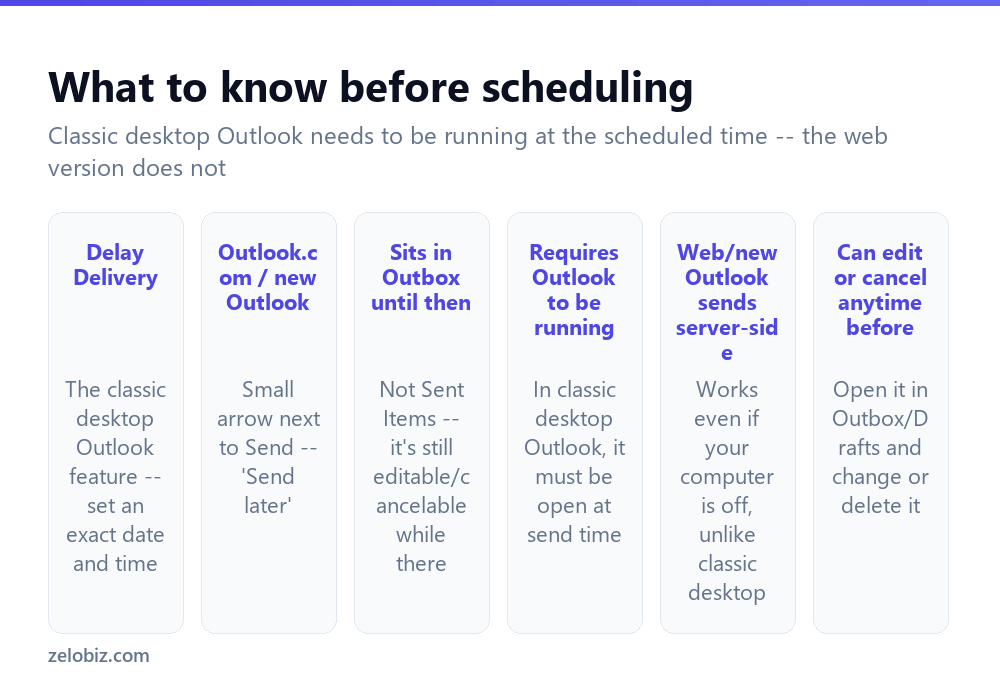
The single most important distinction, and the one that causes the most confusion: classic desktop Outlook requires the application to be open and connected at the scheduled send time. The email sits in your Outbox, not Sent Items, until that moment arrives — if your computer is asleep, shut down, or Outlook simply isn’t running when the scheduled time hits, the email won’t send until the next time you open Outlook after that time, at which point it goes out immediately rather than waiting further.
Outlook.com and the newer “new Outlook” interface work differently — scheduling happens server-side, meaning the email sends at the scheduled time regardless of whether your computer or browser is open. This is a meaningful practical difference if you’re scheduling something to go out overnight or while you’re away.
If you’re on classic desktop Outlook and scheduling something for outside normal working hours, leave your computer on and Outlook running, or the message simply won’t send until you next open it.
Scheduling in classic desktop Outlook
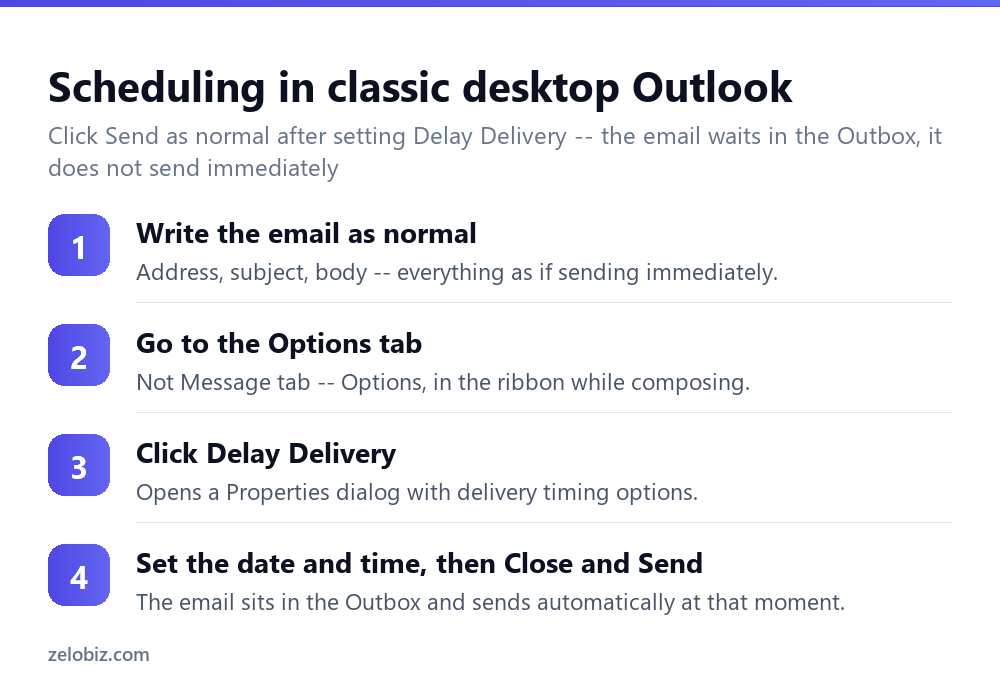
Compose the email exactly as you normally would — recipients, subject, body, attachments, all filled in as if sending right away.
Before sending, go to the Options tab in the message composition window’s ribbon (a different tab from the main Message tab), and click Delay Delivery.
A Properties dialog opens with a “Do not deliver before” checkbox and a date/time picker. Set the exact date and time you want it to send, then close that dialog.
Click Send as you normally would. This doesn’t send it immediately — it moves the message into your Outbox, where it waits until the scheduled time, then sends automatically without any further action from you.
Scheduling in Outlook.com and new Outlook
The interface is simpler here: compose the message, and instead of clicking the main Send button, click the small dropdown arrow directly next to it. This reveals a Send later option, which opens a straightforward date and time picker.
Since this version schedules server-side, it’s the more reliable option for anything genuinely time-sensitive where you can’t guarantee your computer will be on at the scheduled moment.
Editing or canceling a scheduled email
In classic desktop Outlook, a scheduled message sits in the Outbox folder until it sends — open it from there like any draft, and you can edit the content, change the delivery time, or delete it entirely, right up until the scheduled moment actually arrives and Outlook sends it.
In Outlook.com and new Outlook, scheduled messages typically appear in a dedicated Scheduled folder or view, offering the same edit-or-cancel flexibility before the send time hits.
💡 Pro tip: Once the scheduled time passes and the message actually sends, there’s no recalling it through the scheduling feature itself — at that point it’s a normal sent email, subject to the same recall limitations covered in the Outlook recall guide linked below.
Common uses beyond “send it later”
Scheduling isn’t only for genuinely delayed sends — a few practical patterns come up often. Working outside normal hours but not wanting to seem like you are — drafting a reply late at night but scheduling it for the next morning, so it doesn’t create an expectation of after-hours availability for the recipient.
Coordinating across time zones — writing a message when you have time, but scheduling it to land during the recipient’s working hours rather than arriving in the middle of their night.
Following up on a deadline — drafting a reminder email in advance and scheduling it to send exactly when a deadline is approaching, without needing to remember to send it manually at the right moment.
A worked example: sending a reminder ahead of a deadline
Say a project deadline is Friday at 5pm, and you want to send a gentle reminder to your team on Thursday morning without needing to remember to do it manually at the right moment.
Write the reminder email on any day that’s convenient — Monday, if that’s when it occurs to you. In classic desktop Outlook, go to Options, Delay Delivery, and set the exact date and time for Thursday morning. Click Send as normal; the message now waits quietly in your Outbox for several days until that moment arrives.
The catch worth remembering: if your work laptop goes fully off over the weekend or you’re not back at your desk with Outlook running by Thursday morning, the reminder won’t send until you next open Outlook after that time — and it will go out immediately at that point, potentially arriving Thursday afternoon instead of morning, or even Friday, well past when it would have been useful.
For exactly this kind of scenario — something scheduled several days out where you can’t guarantee your computer’s state — Outlook.com or new Outlook’s Send later is the more dependable choice, since it schedules server-side and doesn’t depend on your device being on at all.
Scheduling recurring reminders vs a one-off scheduled email
It’s worth distinguishing scheduling a single email for later from setting up something that repeats. Delay Delivery and Send later both handle a one-time scheduled send — write it once, it goes out once, at the time you specify.
For something that needs to recur — a weekly status update reminder, for instance — scheduling isn’t the right tool at all. That’s better handled with a calendar reminder that prompts you to send a fresh email each time, or, for fully automated recurring messages, a mail-merge or workflow tool outside Outlook’s basic scheduling feature, which isn’t built for repeat sends.
When it’s not working as expected
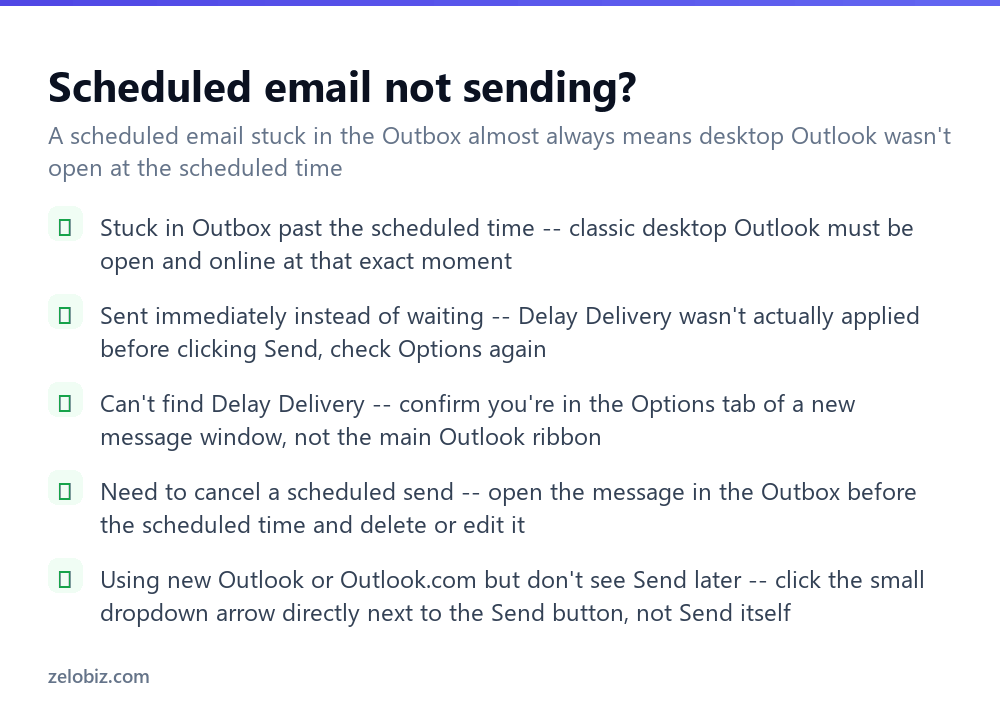
Message stuck in the Outbox past its scheduled time — classic desktop Outlook wasn’t open and connected at that moment. It will send the next time Outlook is opened and syncs, but immediately rather than waiting further.
Email sent right away instead of waiting — Delay Delivery likely wasn’t actually applied before clicking Send. Check the Options tab again on future messages to confirm the delay was set before sending, not just opened and closed without confirming it.
Can’t find Delay Delivery at all — confirm you’re looking at the Options tab specifically within an open message composition window, not the main Outlook ribbon while browsing your inbox — the option only appears while actively composing.
Using new Outlook but don’t see Send later — it’s hidden behind the small dropdown arrow immediately next to the Send button, not a separate menu elsewhere in the interface.
- ✓Keep desktop Outlook running if you’re relying on Delay Delivery for an important send
- ✓Use Outlook.com/new Outlook’s Send later for anything that must go out while your computer might be off
- ✓Check the Outbox to edit or cancel a scheduled message before it sends
- ✓Confirm Delay Delivery was actually set before clicking Send, not just opened
- ✓Use scheduling to land messages during a recipient’s working hours across time zones
- ✕Assuming a scheduled email in classic desktop Outlook will send if your computer is off
- ✕Looking for Delay Delivery in the wrong tab of the ribbon
- ✕Forgetting a scheduled message can still be edited or deleted from the Outbox before it sends
- ✕Expecting to recall an email after its scheduled send time has already passed
- ✕Scheduling a message and then closing Outlook entirely before the send time in the desktop app
Frequently asked questions
How do I schedule an email to send later in Outlook?
In classic desktop Outlook, use Options, Delay Delivery to set a date and time, then click Send. In Outlook.com or new Outlook, click the dropdown arrow next to Send and choose Send later.
Does my computer need to be on for a scheduled Outlook email to send?
In classic desktop Outlook, yes — it must be open and connected at the scheduled time. In Outlook.com and new Outlook, scheduling happens server-side and doesn’t require your computer to be on.
Can I cancel a scheduled email in Outlook?
Yes. Open it from the Outbox (desktop) or Scheduled folder (web/new Outlook) any time before the scheduled send time to edit or delete it.
Why is my scheduled email stuck in the Outbox?
Classic desktop Outlook wasn’t open and connected at the scheduled time. It will send the next time Outlook is running, immediately rather than waiting further.
Where is the Delay Delivery option in Outlook?
In the Options tab of an open message composition window — not the main Outlook ribbon, and only visible while actively writing a new message.
Can I still recall a scheduled email after it sends?
Once the scheduled time passes and it sends, it becomes a normal sent email subject to Outlook’s usual recall limitations, not the scheduling feature.
- →Take back a message sent by mistake: how to recall an email in Outlook
- →Automate what happens to replies: how to create a rule in Outlook
- →Add a signature to every scheduled message: how to make a signature in Outlook
- →Keep a scheduled-heavy inbox organized: how to archive emails in Outlook