

To add a shared mailbox in Outlook, an administrator must first grant you access to it. Once that’s done, go to File › Account Settings › Account Settings, select your own account, click Change › More Settings, go to the Advanced tab, click Add, and type the shared mailbox’s email address. It then appears as a second set of folders below your own mailbox — not a separate login or password.
What a shared mailbox actually is
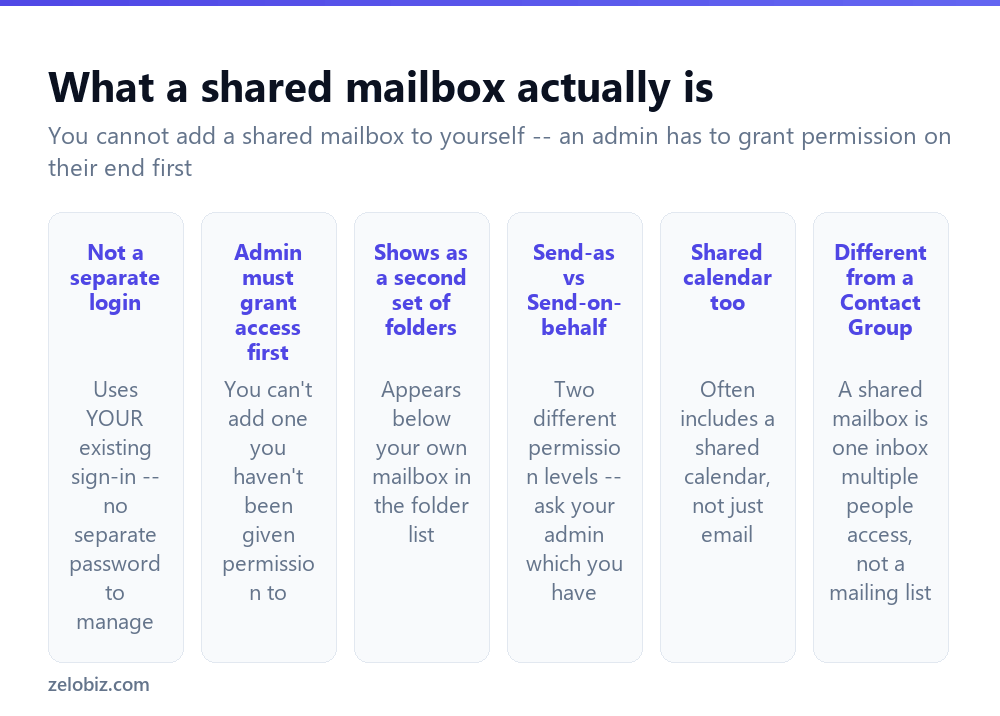
A shared mailbox is a single inbox that several people can access using their own individual sign-ins — common for a general support address, an info@ or sales@ address, or any inbox a team needs to monitor together rather than one person owning it alone.
You cannot simply add one yourself. An administrator has to grant you (or a group you belong to) permission to access it first, on the Microsoft 365 or Exchange admin side. If you try to add a shared mailbox you haven’t been granted access to, it will fail — this is expected, not a sign something’s broken on your end.
Once access exists, there’s no separate password to remember — you sign into it using your own regular Outlook credentials, and it simply shows up as additional folders.
Don’t confuse a shared mailbox with a Contact Group (covered in a separate guide). A Contact Group is a saved mailing list for sending to several people at once. A shared mailbox is one single inbox that multiple people can read and reply from together.
Adding a shared mailbox in desktop Outlook
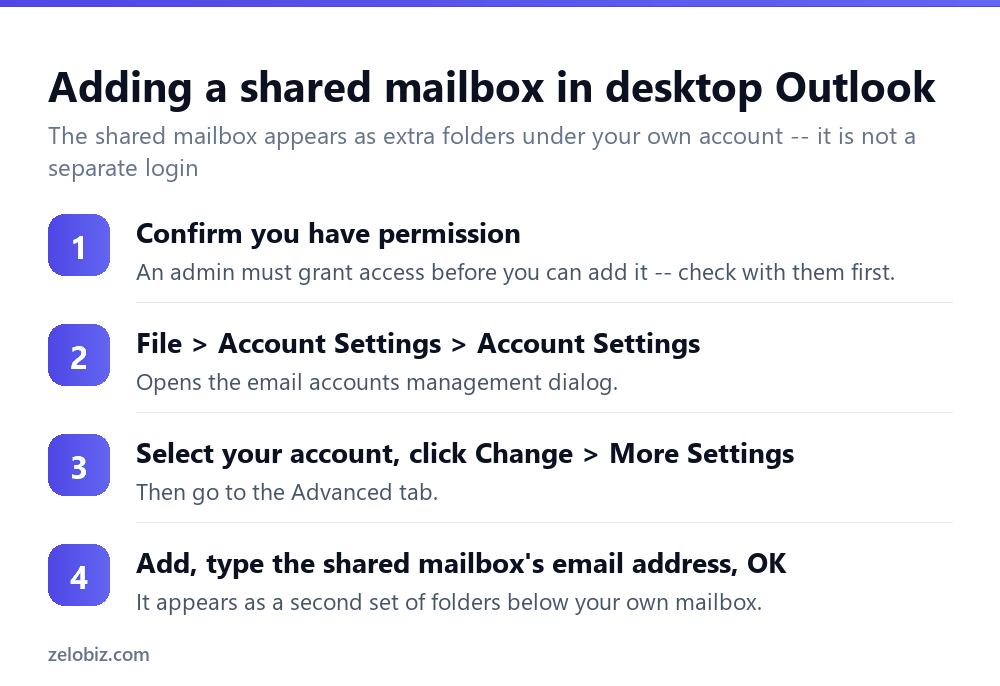
Confirm with whoever manages your organization’s Microsoft 365 or Exchange setup that you’ve actually been granted access — this is the most common blocker, and no amount of correctly following the steps below will work without it done first on their end.
File › Account Settings › Account Settings, select your own existing email account from the list, and click Change.
In the dialog that opens, click More Settings › Advanced tab, then Add, and type the shared mailbox’s full email address (e.g. support@yourcompany.com).
Click OK through the remaining dialogs. The shared mailbox now appears as a distinct second section of folders in your folder list, below your own mailbox, complete with its own Inbox, Sent Items, and other standard folders.
Send-as vs Send-on-behalf-of
These are two different permission levels an admin can grant, and it’s worth knowing which one you actually have, since it changes how a reply from the shared mailbox appears to the recipient.
Send-as permission means an email sent from the shared mailbox appears to come purely from that address — “support@yourcompany.com” with no indication of which individual actually sent it.
Send-on-behalf-of permission means the email shows as sent “On Behalf Of” the shared mailbox by your specific individual account — both addresses are visible to the recipient.
If replies from a shared mailbox look different than expected — showing your personal name when you expected just the shared address, or vice versa — this permission distinction, set by an admin, is almost always why.
Accessing a shared mailbox on the web or mobile
In Outlook on the web, shared mailboxes you’ve been granted access to typically appear automatically in the folder list the same way, or can be added manually via right-click your account name › Add shared folder or mailbox and typing the address.
On mobile, the process varies somewhat by Outlook app version, but generally involves adding it as an additional account or shared folder from within account settings — worth checking your specific app’s current settings menu, since mobile interfaces change more frequently than desktop.
A worked example: setting up a support inbox
Say your company has a support@yourcompany.com address that three people on the support team need to monitor and reply from together, and it’s currently only accessible to whoever set it up originally.
The admin creates the shared mailbox (if it doesn’t already exist) and grants each of the three team members Full Access plus Send-as permission specifically, since replies from a support address should generally appear to come purely from “Support,” not from a named individual on the team.
Each team member then adds it themselves via File, Account Settings, following the steps above. Once added, all three see the same shared Inbox, Sent Items, and any other folders in real time — a reply one person sends is visible to the others immediately, avoiding the risk of two people answering the same customer question separately without realizing it.
Worth agreeing on a team convention alongside the technical setup — something as simple as moving a handled email to a “Done” folder, or flagging it, once someone’s replied — so the shared inbox itself makes it obvious what still needs attention without anyone having to ask.
Shared mailbox vs a delegate on your personal mailbox
A related but different feature worth distinguishing: giving someone delegate access to your own personal mailbox (so an assistant can manage your calendar and email on your behalf) is a different setup from a shared mailbox, configured through File › Account Settings › Delegate Access rather than the shared-mailbox process above. A shared mailbox is its own independent inbox several people access equally; delegate access is one person managing someone else’s personal mailbox on their behalf. They solve related but genuinely different problems, and it’s worth confirming with your admin which one actually fits the situation before setting either up.
When something’s not working
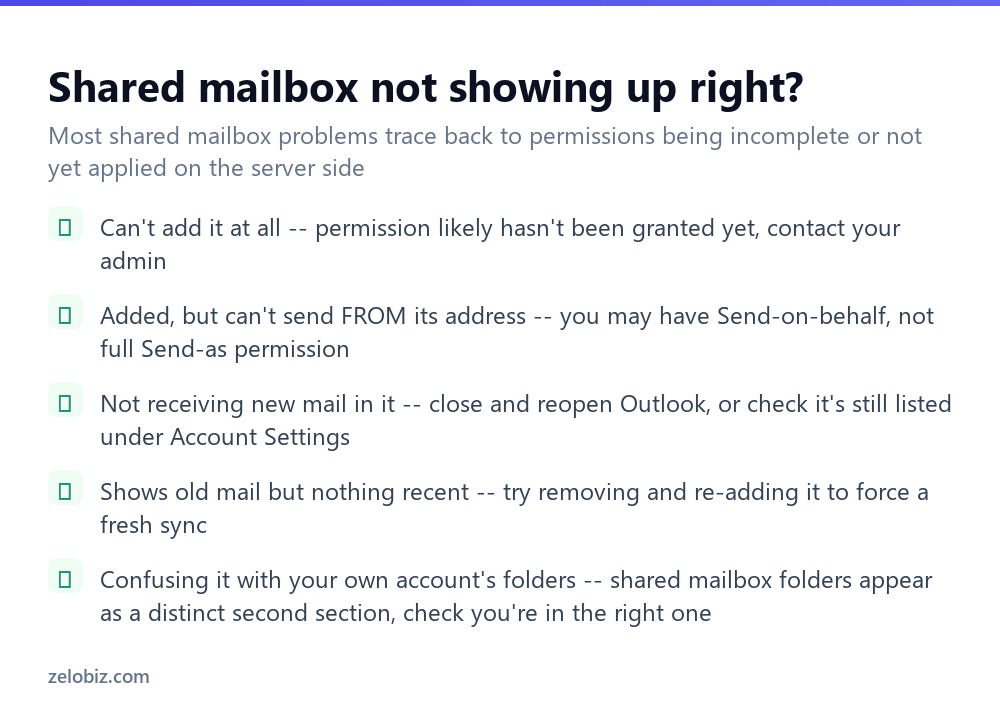
Can’t add it at all — permission almost certainly hasn’t been granted yet, or hasn’t finished propagating on the server side (which can take a little time after an admin grants it). Confirm directly with your admin rather than retrying the same steps repeatedly.
Added successfully, but can’t send from its address — you likely have read/reply access but not Send-as or Send-on-behalf-of permission specifically, which is granted separately. Ask your admin to confirm which permissions were actually applied.
Not receiving new mail in it — close and fully restart Outlook, which often resolves a sync that’s simply gotten stuck, before assuming access was lost entirely.
Shows old mail but nothing recent — try removing the shared mailbox from Account Settings and re-adding it, which forces a fresh full sync rather than relying on an existing connection that may have stalled.
A quick reference
Can’t add it at all: check with your admin that access has genuinely been granted and has had time to propagate. Can see mail but replies show your personal name: you likely have Send-on-behalf-of rather than Send-as — ask your admin to confirm which was applied. Need it on your phone too: check your specific mobile Outlook app’s current account-settings menu, since the exact steps vary more by app version on mobile than they do on desktop, and those menus tend to shift around more between updates than the desktop version does over time.
A shared mailbox is, by design, meant to feel like just another set of folders once it’s set up correctly — if it’s causing ongoing friction beyond initial setup, that’s usually a sign the underlying permissions weren’t fully configured, rather than something requiring a technical workaround on your end.
- ✓Confirm access has actually been granted before attempting to add it yourself
- ✓Ask your admin which permission (Send-as vs Send-on-behalf-of) you have
- ✓Restart Outlook fully before assuming a sync problem means lost access
- ✓Remove and re-add the mailbox to force a fresh sync if mail seems stuck
- ✓Keep shared mailbox folders visually distinct from your own in your mental model
- ✕Trying repeatedly to add a shared mailbox you haven’t actually been granted access to
- ✕Assuming a shared mailbox works like a separate login with its own password
- ✕Confusing a shared mailbox with a Contact Group mailing list — they’re different features
- ✕Being confused by a Send-on-behalf-of reply showing two names instead of one
- ✕Troubleshooting for a long time before simply asking your admin whether access is actually set up
Frequently asked questions
How do I add a shared mailbox to Outlook?
An admin must grant you access first. Then go to File, Account Settings, Account Settings, select your account, Change, More Settings, Advanced, Add, and type the shared mailbox’s address.
Do I need a separate password for a shared mailbox?
No. A shared mailbox uses your own existing sign-in — there’s no separate password to remember or share with others.
Why can’t I add a shared mailbox in Outlook?
You likely haven’t been granted access yet. An administrator needs to grant permission on the Microsoft 365 or Exchange side before you can add it.
What’s the difference between Send-as and Send-on-behalf-of permission?
Send-as makes an email appear to come purely from the shared mailbox address. Send-on-behalf-of shows both the shared mailbox and your individual name to the recipient.
Is a shared mailbox the same as a Contact Group?
No. A shared mailbox is one inbox multiple people can access and reply from. A Contact Group is a saved mailing list for sending to several people at once.
Why isn’t a shared mailbox showing recent emails?
Try removing it from Account Settings and re-adding it to force a fresh sync, rather than assuming access has been lost.
- →Set up an address for the shared mailbox: how to make a signature in Outlook
- →Automate sorting for a busy shared inbox: how to create a rule in Outlook
- →Keep a shared inbox from overflowing: how to archive emails in Outlook
- →Send from it to a saved list of contacts: how to create a group email