
To remove a page break in Word, first turn on formatting marks (Ctrl+Shift+8 on Windows, Cmd+Shift+8 on Mac, or the pilcrow ¶ icon on the Home tab) so the break becomes visible as a dotted line labeled “Page Break.” Click right at the start of that line and press Delete. Page breaks are invisible by default, which is exactly why finding and deleting one blindly rarely works — you need to see it first.
Finding a page break before you can remove it
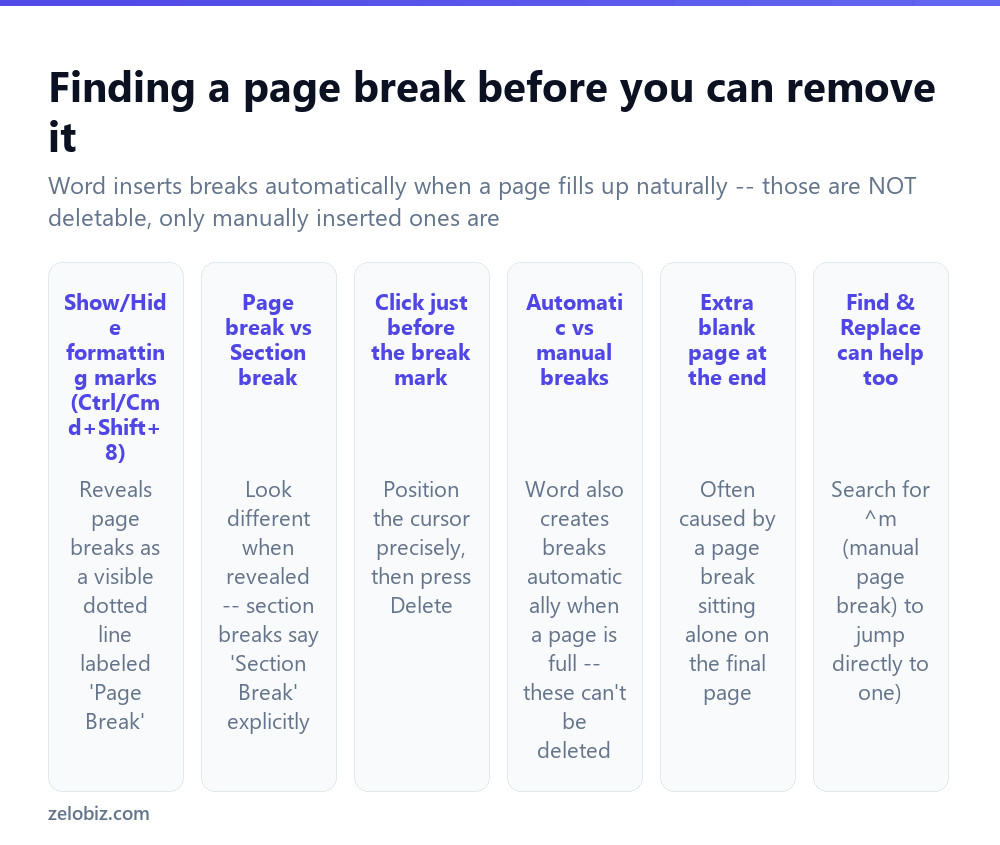
Turn on formatting marks — Ctrl+Shift+8 (Windows) or Cmd+Shift+8 (Mac), or click the ¶ icon in the Home tab’s Paragraph group. This reveals invisible formatting characters throughout the document, including page breaks, which appear as a distinct dotted horizontal line explicitly labeled “Page Break.”
Distinguish a page break from a section break once formatting marks are visible — a section break shows as a similar dotted line but explicitly labeled “Section Break (Next Page)” or similar, and behaves quite differently since section breaks can carry their own independent formatting (covered in the page numbers guide linked below). Deleting the wrong one can have unintended side effects beyond just removing a page split.
Automatic vs manual breaks — Word automatically starts a new page whenever the current one fills up with content, and this automatic break cannot be deleted, since it isn’t an inserted character at all, just where content naturally overflows. Only manually inserted breaks (via Insert › Page Break, or Ctrl+Enter) are actual deletable characters.
If Delete or Backspace doesn’t seem to be removing anything even after formatting marks are on and a break appears clearly visible, double-check you’re not actually looking at an automatic page-full break, which has no removable character behind it at all — it’s just where the previous page’s content happened to end.
Removing a manual page break
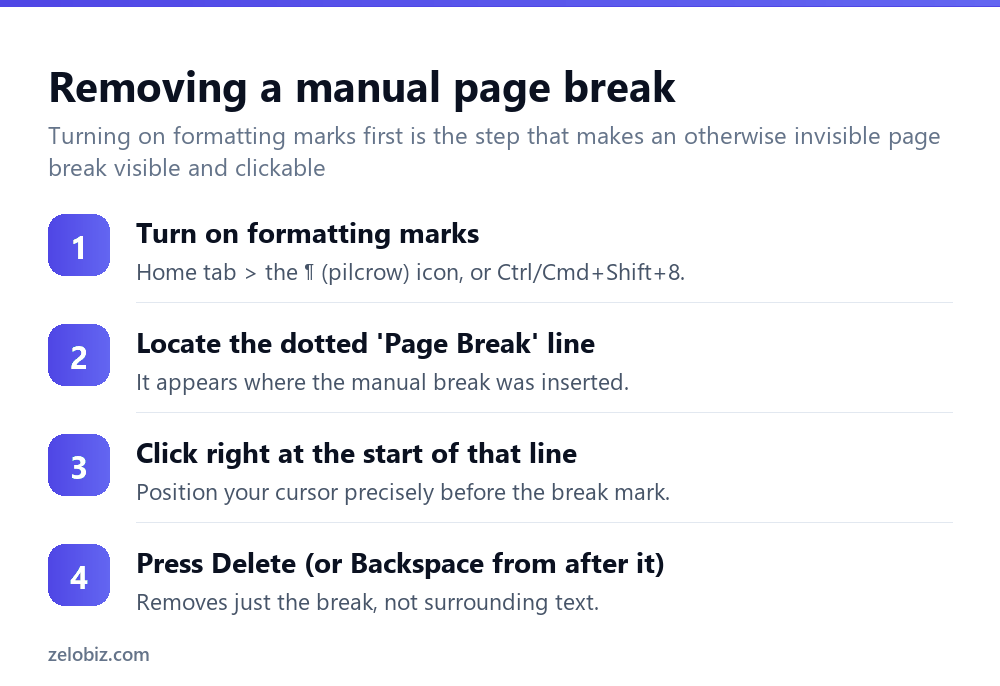
Turn on formatting marks as described above.
Locate the dotted “Page Break” line in the document.
Click your cursor right at the very start of that line — positioning precisely matters here, since clicking in the wrong spot can select or affect nearby text instead of the break character itself.
Press Delete (or position after the break and press Backspace instead) — this removes just the break character, and the content before and after it flows back together onto continuous pages.
Using Find & Replace to jump to a page break
For a long document with a page break somewhere that’s hard to spot by scrolling, Find & Replace (Ctrl+H) can search specifically for a manual page break using the special search code ^m in the Find field — this jumps directly to it (or, using Replace with nothing in the Replace field, removes all manual page breaks in the document in one action, which is worth real caution before running on a whole document, since it removes every manual break at once with no per-instance confirmation).
Removing an unwanted blank page
A trailing blank page at the very end of a document is one of the most common specific complaints, and it’s frequently caused by a manual page break sitting alone on that final page with nothing after it. Turn on formatting marks, scroll to the very end of the document, and check for a page break character sitting by itself — deleting it collapses the blank page.
If no page break appears at the end but a blank page persists anyway, check for a trailing empty paragraph with unusually large “Space After” formatting, which can sometimes push enough blank space to spill onto a new page even without an actual page break character present.
A worked example: cleaning up a document assembled from several sources
Say a report was assembled by copying sections from several other Word documents, and it now has inconsistent, seemingly random page breaks scattered throughout — some sections start mid-page, others jump to a new page for no obvious reason.
Turn on formatting marks first, then scroll through the entire document from the start, noting every dotted “Page Break” line as it appears — in an assembled document like this, several manual breaks pasted in from the original source documents are a common and likely cause, each one copied along with the section content it originally belonged to.
Delete each one individually by clicking right before it and pressing Delete, checking after each deletion that the surrounding content flows together the way you actually want before moving to the next one, rather than deleting all of them in a rush and then trying to sort out the resulting layout afterward.
Once all the stray manual breaks are cleared, decide deliberately where new page breaks should genuinely go — typically before each major new section — and insert those intentionally via Insert › Page Break (or Ctrl+Enter) rather than leaving section starts to whatever position they naturally land on the page, which is what created the inconsistent look in the first place.
Page breaks vs starting a new section for real formatting differences
It’s worth pausing to consider, when cleaning up breaks, whether what’s actually needed is a plain page break at all, or a genuine Section Break instead. If different parts of the document need different page numbering, different headers, or different margins, a plain page break can’t provide any of that — only a section break can, since a section break is what actually allows formatting to vary from one part of a document to another. Using a plain page break where a section break was really needed is a common reason someone later struggles to make part of a document look or number differently from the rest, not realizing the plain break they’d inserted was never capable of supporting that in the first place.
When the break keeps coming back or something else is going on
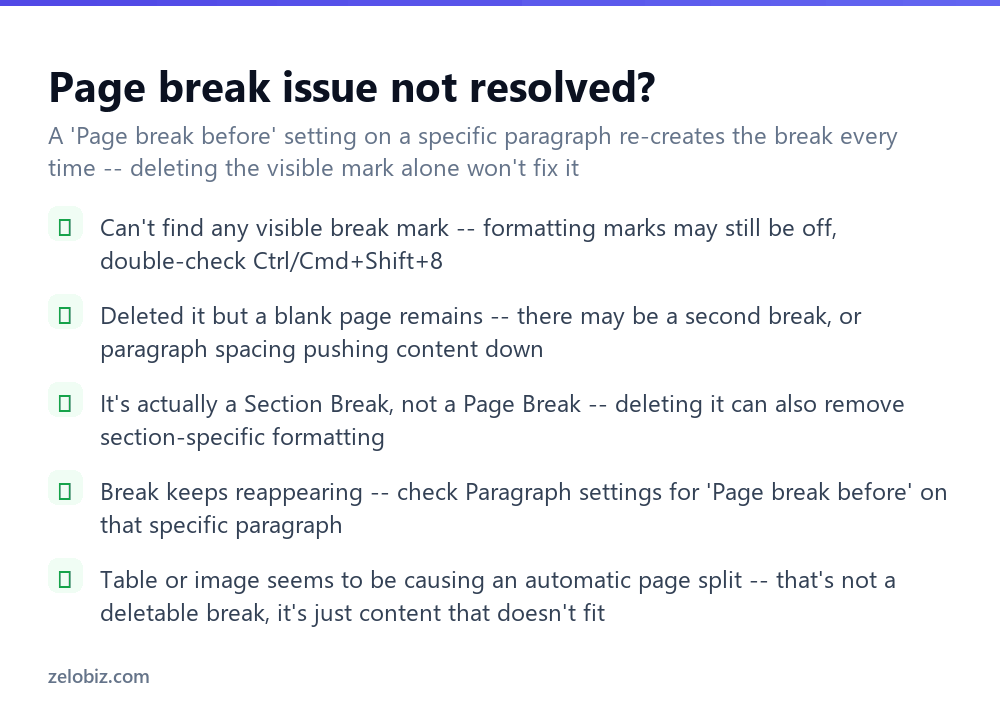
Can’t find any visible break mark — double-check formatting marks are genuinely turned on (Ctrl+Shift+8 / Cmd+Shift+8 toggles them, so pressing it again might have turned them back off).
Deleted it, but a blank page remains — there may be a second break nearby, or paragraph spacing pushing content down; check the area both immediately before and after where the deleted break was.
It’s actually a Section Break, not a Page Break — deleting a section break can also merge or remove section-specific formatting from either side of it, not just the page split itself; proceed carefully and check formatting on both sides afterward if this turns out to be the case.
The break keeps reappearing after deletion — check Paragraph settings › Line and Page Breaks › “Page break before” on the specific paragraph right after where the break was; this paragraph-level setting recreates a break automatically every time, independent of any manually inserted break character, and needs to be unchecked specifically to stop it.
A table or image seems to be forcing a page split — this is often just content that doesn’t fit in the remaining space on the current page, not an actual deletable break at all; adjusting the content’s size, or the surrounding formatting, is the real fix rather than searching for a break character that doesn’t exist there.
- ✓Turn on formatting marks before trying to find or delete any page break
- ✓Distinguish a Page Break from a Section Break before deleting it
- ✓Use Find & Replace with ^m to locate a manual break in a long document
- ✓Check Paragraph settings for ‘Page break before’ if a break keeps reappearing
- ✓Check for an unusually large Space After value if a blank page persists with no visible break
- ✕Trying to delete an automatic break caused by a page simply being full
- ✕Deleting a Section Break without checking what formatting it was carrying
- ✕Assuming a blank page always means a manual page break is present somewhere
- ✕Running Find & Replace to remove all breaks at once without considering the consequences
- ✕Confusing content that just doesn’t fit on the current page with an actual inserted break
Frequently asked questions
How do I remove a page break in Word?
Turn on formatting marks (Ctrl+Shift+8), find the dotted ‘Page Break’ line, click right before it, and press Delete.
Why can’t I see the page break I’m trying to delete?
Page breaks are invisible by default. Turn on formatting marks to reveal them as a dotted line before trying to remove one.
Why won’t a page break delete no matter what I try?
It may be an automatic break caused by the page simply being full, which has no removable character — only manually inserted breaks can actually be deleted.
How do I remove a blank page at the end of my Word document?
Turn on formatting marks, scroll to the end, and delete any page break character sitting alone on that final page.
Why does a page break keep reappearing after I delete it?
Check Paragraph settings, Line and Page Breaks, for ‘Page break before’ on the paragraph right after it — this setting recreates the break independently.
What’s the difference between a Page Break and a Section Break in Word?
A Page Break just starts a new page. A Section Break can also carry independent formatting, so deleting one can affect formatting on either side of it.
- →Section Breaks matter for numbering too: how to add page numbers in Word
- →Format spacing before cleaning up breaks: how to double space in Word
- →Build navigation once breaks are sorted: how to make a table of contents in Word
- →Share the cleaned-up document: how to convert Word to PDF