

To clear browsing history, press Ctrl+Shift+Delete (Cmd+Shift+Delete on Mac) in most browsers, or go to Settings > Privacy > Clear browsing data. Select “Browsing history” specifically (deselecting cookies and cache if you only want history removed), choose a time range, and confirm. Unlike clearing cookies, clearing history alone generally keeps you signed into sites you were already logged into.
Clearing history by browser
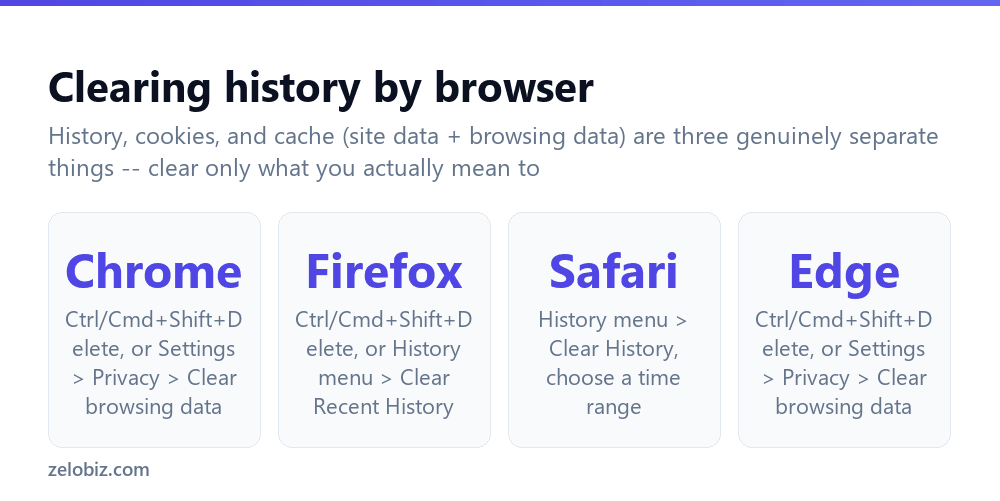
Chrome — press Ctrl+Shift+Delete (Cmd+Shift+Delete on Mac), or go to Settings > Privacy and security > Clear browsing data, select “Browsing history,” choose a time range, and clear.
Firefox — press Ctrl+Shift+Delete, or use the History menu > “Clear Recent History,” select a time range and “Browsing & Download History,” and clear.
Safari — use the History menu > “Clear History,” then choose a time range from the dropdown (last hour, today, today and yesterday, or all history).
Edge — press Ctrl+Shift+Delete, or go to Settings > Privacy, search, and services > Clear browsing data, select “Browsing history,” and clear.
History, cookies, and cache are three genuinely separate categories of browsing data. Clearing history alone generally leaves you signed into your accounts, since login status is tracked through cookies, not history — clear only the specific category you actually mean to.
Clearing browsing history
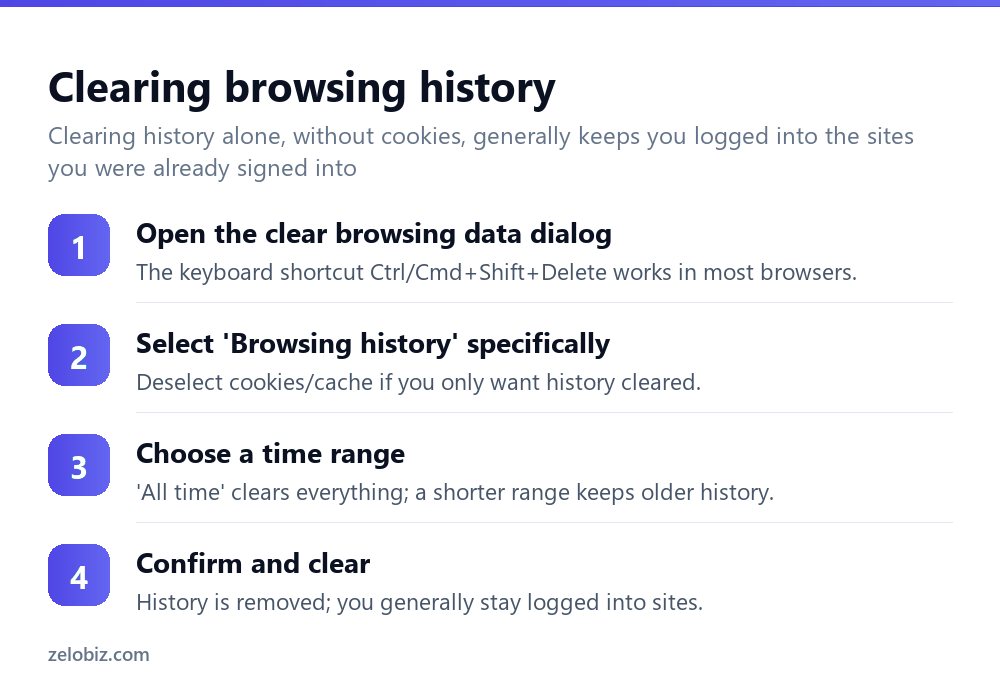
Open the clear browsing data dialog — the keyboard shortcut Ctrl+Shift+Delete (Cmd+Shift+Delete on Mac) works in Chrome, Firefox, and Edge; Safari uses its History menu instead.
Select “Browsing history” specifically — and deselect cookies, cached images and files, and any other categories if you only want the visited-pages list cleared, not your logins or site data.
Choose a time range — “All time” removes your entire history; shorter ranges like “Last hour” or “Last 7 days” remove only recent entries while keeping older history intact.
Confirm and clear — the address bar will stop suggesting the cleared pages, and the History menu will no longer list them.
Clearing just one site from history
If the goal is removing a single visited page rather than the entire history, most browsers support deleting individual entries: open the full History page (Ctrl+H in Chrome and most browsers), find the specific entry, and delete it directly — either by hovering and clicking a remove icon, or right-clicking and selecting “Remove from history,” without affecting anything else in the list.
Why history reappears on other devices
If browsing history that was just cleared on one device still shows up on another, the browser is likely signed into a synced account (a Google account in Chrome, a Microsoft account in Edge, a Firefox account, and so on) that syncs history across devices. Clearing history on just one device doesn’t remove it from the synced account’s stored copy or from other signed-in devices — either clear history on each device individually, or turn off history syncing in the account’s sync settings if this syncing behavior isn’t wanted.
Using a private window instead of clearing manually
For browsing you don’t want recorded in history at all — rather than clearing it afterward — a private or incognito window (available in every major browser, typically via Ctrl+Shift+N or a menu option) doesn’t save history, cookies, or site data for that session once the window is closed. This is often more convenient than remembering to clear history manually afterward for browsing that’s specifically meant to stay unrecorded.
A worked example: clearing history before selling a laptop
Say someone is selling a personal laptop and wants to remove their browsing history before handing it over, along with everything else that identifies it as previously theirs.
Clearing browsing history alone genuinely isn’t enough in this situation — it removes the visited-pages list, but saved passwords, autofill data, and any accounts still signed in would all remain unless separately addressed. The more complete approach is opening the same clear-browsing-data dialog and selecting every category at once — browsing history, cookies and site data, cached files, autofill form data, and saved passwords — rather than just history, and choosing “All time” as the range rather than a shorter window.
Beyond the browser itself, they’d also want to sign out of any accounts still logged in at the operating system level (not just within the browser), and for a device actually being sold or given away, consider whether a full factory reset of the device itself is more appropriate than clearing browser data alone, since browser history is only one of many places personal information can be stored on a device that’s changing hands.
Clearing history across multiple browser profiles
Chrome, Firefox, and Edge all support multiple separate profiles within the same browser — for instance, a personal profile and a separate work profile. Clearing history while one profile is active only clears that specific profile’s history; a second profile’s history remains completely untouched and needs to be cleared separately by switching to it first. This is a common source of confusion when someone clears history expecting a complete reset, only to find a different profile still shows old entries — the fix is simply switching profiles and repeating the clear-history steps in each one individually.
What clearing history does and doesn’t affect
Clearing browsing history removes the local list of visited pages stored on that specific device — it doesn’t affect what the sites themselves may have logged on their own servers (a shopping site’s own record of what you viewed, for instance, stored on their end rather than your browser), and it doesn’t affect your internet service provider’s own connection logs, which exist independently of anything the browser stores locally.
It also doesn’t remove downloaded files themselves from your device — clearing “download history” (a separate checkbox in most clear-data dialogs) removes the list of what was downloaded, not the actual files sitting in your downloads folder, which need to be deleted separately if that’s also the goal.
Understanding this distinction matters most for anyone clearing history specifically for privacy reasons — browser-level clearing genuinely limits what’s visible to someone else using the same device afterward, but it doesn’t erase records that exist independently on servers or with an internet provider, which browser settings have no ability to reach or affect.
For genuine privacy from an internet provider specifically, rather than just from someone else using the same device, a VPN addresses a meaningfully different part of the problem than clearing browser history ever can, since it encrypts the connection itself rather than just clearing a local record afterward — worth understanding as a separate, complementary tool rather than assuming browser history clearing alone covers every privacy concern someone might actually have.
Browsing history troubleshooting
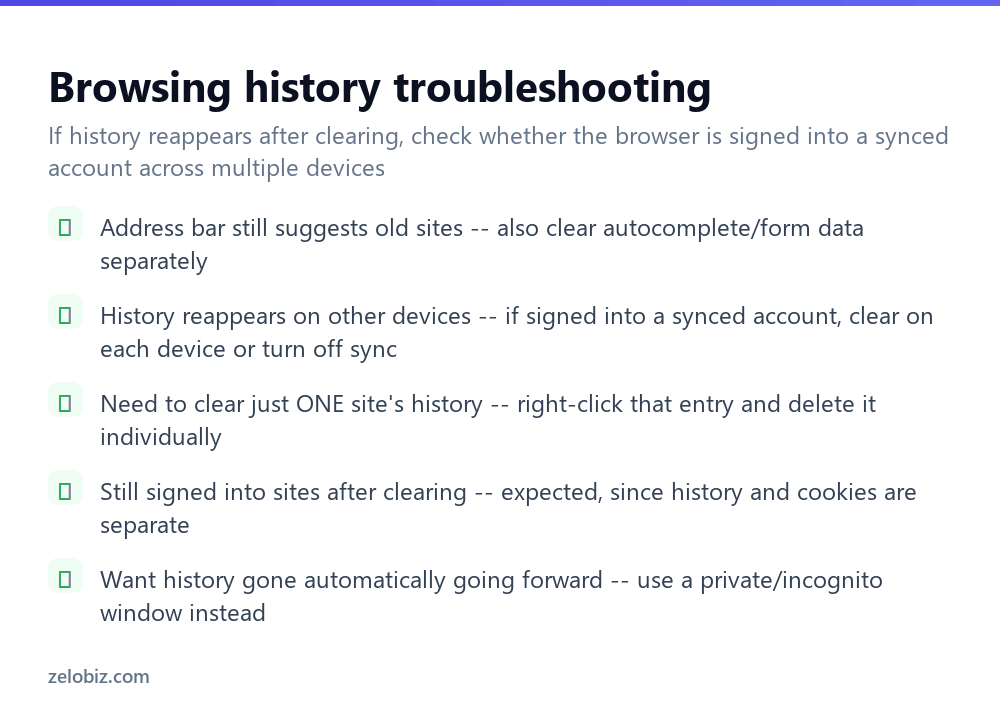
Address bar still suggests old sites — this often comes from autocomplete or form data rather than history itself; clear that category separately in the same clear-browsing-data dialog.
History reappears on other devices — check whether the browser is signed into a synced account across multiple devices, and clear on each device, or disable sync.
Need to clear just one site’s history — open the full History page and delete that specific entry, rather than clearing everything.
Still signed into sites after clearing history — expected, since history and cookies (which control login status) are cleared separately.
Want history not recorded going forward — use a private or incognito window for that browsing instead of clearing history after the fact.
Cleared history but the browser still feels sluggish — history itself rarely causes slowdown at typical sizes; a large cache or too many open tabs is a more likely cause, worth checking separately rather than clearing history repeatedly expecting it to fix a performance issue it isn’t actually causing.
Cleared history disappeared from the History menu but a shortcut still shows the old page — a pinned bookmark or a browser shortcut isn’t part of history at all, and needs to be removed separately if that’s also the goal.
- ✓Select ‘Browsing history’ specifically if that’s all you want cleared
- ✓Use the full History page to remove a single entry without clearing everything
- ✓Check for account sync if cleared history reappears on another device
- ✓Use a private/incognito window for browsing you don’t want recorded at all
- ✓Clear autocomplete/form data separately if the address bar still suggests old sites
- ✕Assuming clearing history also signs you out of your accounts
- ✕Clearing your entire history to remove just one visited page
- ✕Forgetting that a synced account keeps history on other signed-in devices
- ✕Manually clearing history after every session instead of using a private window
- ✕Assuming autocomplete suggestions are part of browsing history itself
Frequently asked questions
How do I clear my browsing history?
Press Ctrl+Shift+Delete (Cmd+Shift+Delete on Mac) or go to Settings > Privacy > Clear browsing data, select ‘Browsing history,’ choose a time range, and confirm.
Does clearing history sign me out of websites?
Generally no — history and cookies are separate. Clearing history alone typically keeps you signed into your accounts.
How do I clear history for just one website?
Open the full History page, find that specific entry, and delete it individually rather than clearing everything.
Why does my cleared history reappear on another device?
The browser is likely signed into a synced account that stores history across devices. Clear on each device, or turn off sync.
What’s the difference between clearing history and using private browsing?
Clearing history removes what’s already recorded. Private/incognito windows don’t record history at all for that session.
Does clearing history remove cookies too?
Not unless you also select cookies in the same dialog — they’re separate categories you can clear independently.
- →Clear cookies as a separate step: how to delete cookies
- →Browse more privately going forward: how to use a VPN
- →Secure your accounts too: how to enable two-factor authentication
- →Lock down your home network: how to secure your wifi