
To use Google Drive, go to drive.google.com and upload files by dragging them in, or use New to create a Doc, Sheet, or Slide directly. Organize files into folders (right-click > New folder), and share access via the Share button, setting each person’s permission as Viewer, Commenter, or Editor. Understand that “My Drive” (files you own) and “Shared with me” (files others own but shared with you) are genuinely different — only files you own count against your own storage quota.
The core areas of Google Drive
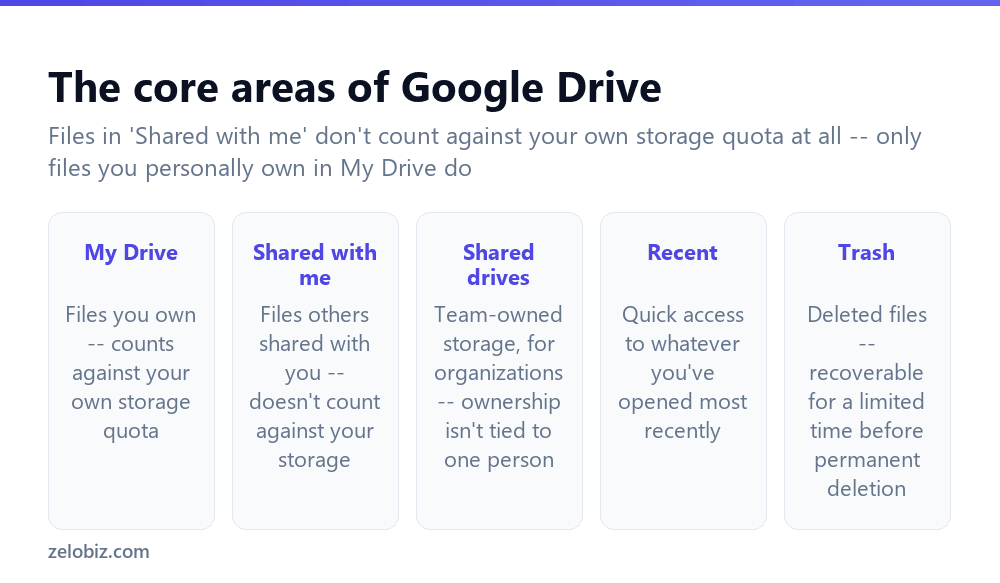
My Drive — files you personally own, whether uploaded or created directly within Google Drive; these count against your own personal storage quota.
Shared with me — files others have shared with you but that they still own; these genuinely don’t count against your own storage at all, regardless of file size.
Shared drives — team-owned storage available on Google Workspace organizational accounts, where ownership isn’t tied to any single individual, meaning files remain accessible to the team even if the person who added them leaves the organization.
Recent — a quick-access view showing whatever files you’ve opened most recently, regardless of which folder they actually live in.
Trash — deleted files land here first, remaining recoverable for a limited time before being permanently removed.
Files in “Shared with me” genuinely don’t count against your own storage quota, since you don’t own them — a common point of confusion for anyone wondering why their storage usage doesn’t match what appears to be a large number of files visible in their Drive.
Using Google Drive
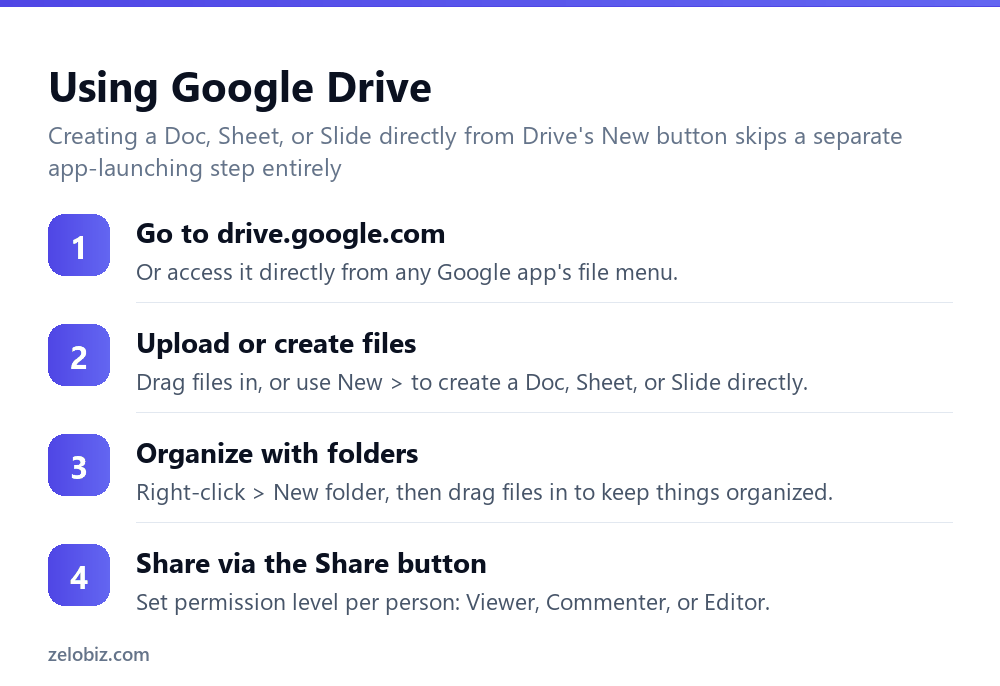
Go to drive.google.com — or access Drive directly from within any other Google app’s file menu, since they’re all connected to the same underlying storage.
Upload or create files — drag files directly into the browser window to upload them, or use the New button to create a Doc, Sheet, or Slide directly without needing to separately open that app first.
Organize with folders — right-click anywhere in Drive and choose “New folder,” then drag files into it to keep related content grouped together.
Share via the Share button — setting the correct permission level per person: Viewer, Commenter, or Editor, depending on what access they genuinely need.
Finding files you didn’t create yourself
If a colleague shares a file directly with you, it appears in “Shared with me” rather than automatically appearing in “My Drive” — a common source of confusion when someone can’t locate a file they know was shared with them. Using Drive’s search bar, or checking “Shared with me” specifically rather than only browsing “My Drive,” resolves this quickly.
A shared file can also be manually added to “My Drive” (via right-click > “Add shortcut to Drive,” or the equivalent option in the current Drive interface) if you want it to appear alongside your own files for easier future access, without this affecting who actually owns the original file.
A worked example: organizing files for a small team
Say a small team is setting up Google Drive for the first time to manage shared project files, and wants a structure that stays organized as the number of files grows rather than becoming an unsorted pile within a few months.
Rather than each person creating and sharing individual folders from their own “My Drive,” which ties every file’s ultimate ownership to whichever person created it — creating real risk if that person later leaves the team and their account access changes — they set up a Shared drive instead, available on their Google Workspace organizational plan. Every file added to the Shared drive is genuinely team-owned from the start, meaning access and continuity don’t depend on any single person’s individual account remaining active.
Within the Shared drive, they create top-level folders by project rather than by person or file type, since a project-based structure means anyone new joining a specific project can be given access to exactly that one folder rather than the entire Shared drive, and anyone leaving a project can have that specific access removed without affecting their access to anything else.
For files still actively being drafted by one person before they’re ready to share with the wider team, they keep those in the individual’s own “My Drive” temporarily, moving them into the appropriate Shared drive folder only once ready for broader visibility — avoiding a Shared drive cluttered with half-finished drafts that aren’t yet meant for general viewing.
They also agree on a simple naming convention upfront — date prefix plus a short descriptive name, like “2026-08-Q3-budget-draft” — since Drive’s search is powerful but still works considerably better when files have consistent, descriptive names rather than generic ones like “Untitled document” or “Copy of Copy of budget.”
Working offline
Google Drive supports offline access for Docs, Sheets, and Slides through a browser extension or the desktop app, allowing specific files to be opened and edited even without an internet connection, with changes syncing automatically once connectivity returns. This needs to be enabled in advance, per file or globally in settings, since it’s not available by default the moment connectivity drops — worth setting up ahead of any trip or situation where connectivity is known to be unreliable, rather than discovering the gap in the moment it’s actually needed.
Google Drive desktop app vs. browser-only use
The Google Drive desktop app creates a folder on your computer that mirrors your Drive contents, letting files be accessed through the regular file system (File Explorer on Windows, Finder on Mac) rather than only through a web browser. This is particularly useful for files that need to be opened directly by other, non-Google desktop applications, since browser-only Drive access doesn’t integrate as smoothly with software expecting a normal file path on the local disk.
The desktop app also offers a choice between “Stream files” (showing files as available without fully downloading each one to local disk until opened, saving disk space) and “Mirror files” (keeping a genuinely full local copy of everything, useful specifically for offline access to files not individually configured for offline use). Choosing between the two comes down mainly to available local disk space versus how often files genuinely need to be accessed without an internet connection at all. Either mode can be switched later from the desktop app’s own preferences if the original choice turns out not to fit actual day-to-day usage.
Checking storage usage
Google Drive’s storage settings page shows a breakdown of what’s actually consuming space — Drive files, Gmail attachments, and Photos all typically share the same overall storage quota on a personal account, which surprises people expecting Drive usage to be tracked entirely separately. Reviewing this breakdown before assuming more storage needs to be purchased often reveals large, forgotten email attachments or old photo backups as the actual culprit rather than Drive files themselves.
Common Drive confusion
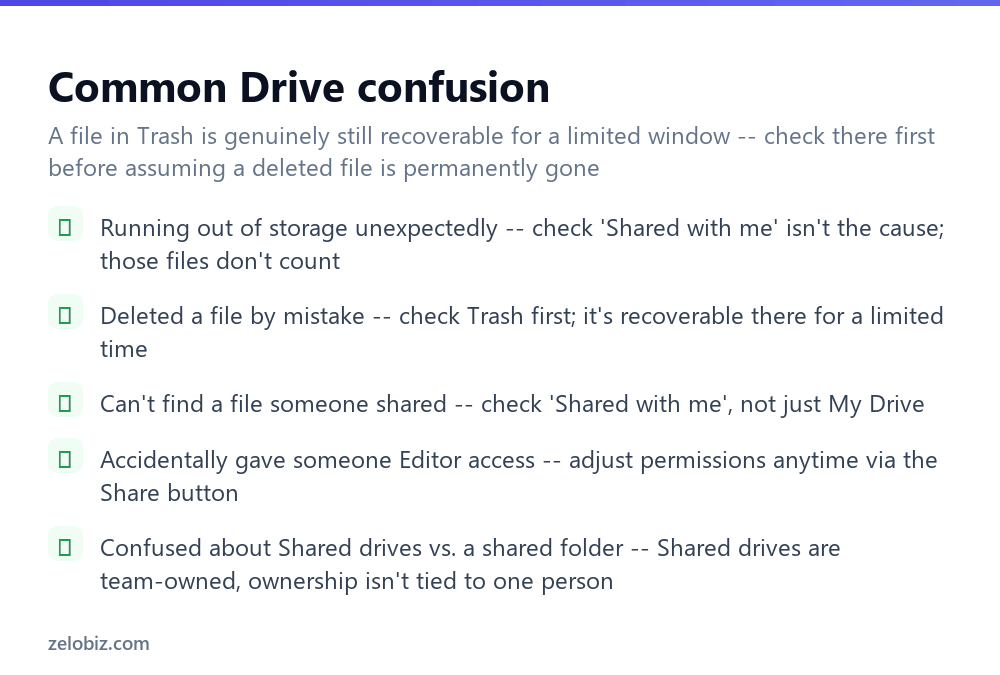
Running out of storage unexpectedly — check that “Shared with me” files aren’t mistakenly assumed to be the cause; only files you actually own count against your quota.
Deleted a file by mistake — check Trash first, where deleted files remain recoverable for a limited time before permanent deletion.
Can’t find a file someone shared — check “Shared with me” specifically, not just “My Drive,” since shared files don’t automatically appear there.
Accidentally gave someone Editor access — adjust the permission level anytime through the Share button, even well after the file was originally shared.
Confused about Shared drives vs. a shared folder — Shared drives are genuinely team-owned, with ownership not tied to any one person, unlike a regular folder someone personally owns and merely shares with others.
- ✓Check ‘Shared with me’ when looking for a file someone else shared
- ✓Check Trash before assuming a deleted file is permanently gone
- ✓Set the correct permission level (Viewer/Commenter/Editor) per person sharing access
- ✓Use Shared drives for team-owned content that shouldn’t depend on one person’s account
- ✓Create Docs, Sheets, or Slides directly from Drive’s New button when convenient
- ✕Assuming shared files count against your own personal storage quota
- ✕Assuming a deleted file is unrecoverable without checking Trash first
- ✕Giving broader access than actually needed when sharing a sensitive file
- ✕Storing genuinely team-owned content in one person’s personal My Drive instead of a Shared drive
- ✕Only browsing ‘My Drive’ when a file was actually shared with you instead
Frequently asked questions
How do I use Google Drive?
Go to drive.google.com, upload or create files, organize them into folders, and share access using the Share button with the right permission level per person.
Do files shared with me count against my storage?
No. Files in ‘Shared with me’ are owned by someone else and don’t count against your own storage quota at all.
Where do deleted files go in Google Drive?
They move to Trash first, remaining recoverable for a limited time before being permanently deleted.
Why can’t I find a file someone shared with me?
Check ‘Shared with me’ specifically — shared files don’t automatically appear in ‘My Drive.’
What’s the difference between a shared folder and a Shared drive?
A shared folder is owned by one person who shares it; a Shared drive is genuinely team-owned, with ownership not tied to any single individual.
How do I change someone’s access level to a file I shared?
Use the Share button on that file anytime to adjust their permission between Viewer, Commenter, or Editor, even after initially sharing it.
- →Build spreadsheets stored right in Drive: how to use Google Sheets
- →Collect data straight into a Drive-linked sheet: how to make a Google Form
- →Export a Drive file as a shareable PDF: how to convert Google Doc to PDF
- →Sign a document stored in Drive: how to add a signature in Gmail