
The standard advice for reviewing AI edits in Word is turn Track Changes on. It is correct and it is also incomplete, because it only protects you from edits made after you followed it.
The edit that actually causes trouble is the one made before anyone thought to turn Track Changes on, because that edit leaves the document looking exactly as clean as it would if nothing had happened at all.
Short answer: Copilot in Word will respect Track Changes and record its edits as tracked changes, but only if Track Changes is switched on before the edit happens. It cannot turn the setting on itself. If you suspect an edit happened before Track Changes was enabled, or across a save you cannot fully account for, Compare is the tool that catches it, because it reads two saved files rather than relying on an edit history that may never have started. Verified 3 September 2026.
The Setting Has to Be On Before, Not After
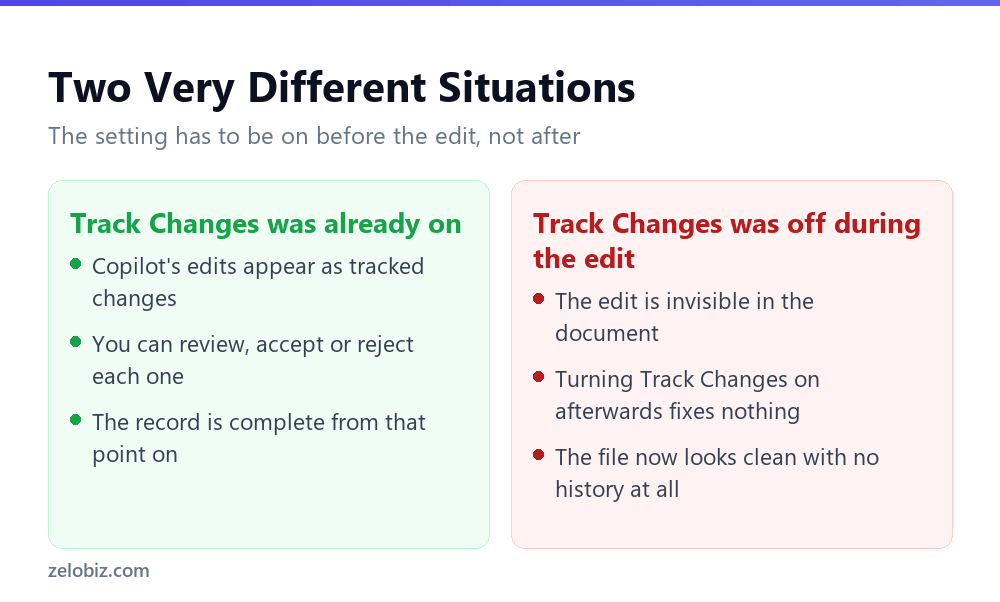
Microsoft documents this precisely: Edit with Copilot will respect Track Changes, and if Track Changes is enabled then Edit with Copilot changes will be tracked. The word enabled is doing the work in that sentence. It describes a state the setting has to be in before Copilot acts, not something that can be applied retroactively.
Turning Track Changes on after an untracked edit does exactly what it sounds like: it starts tracking changes from that moment forward. It does nothing to the edit that already happened. The document simply continues on, indistinguishable from one that was never touched by AI at all.
⚠️ Watch out: If a document has passed through any AI editing step and you are not certain Track Changes was on for the entire session, do not treat a clean-looking file as evidence that nothing changed. Clean is also what an untracked edit looks like.
Three Tools That Get Confused for Each Other
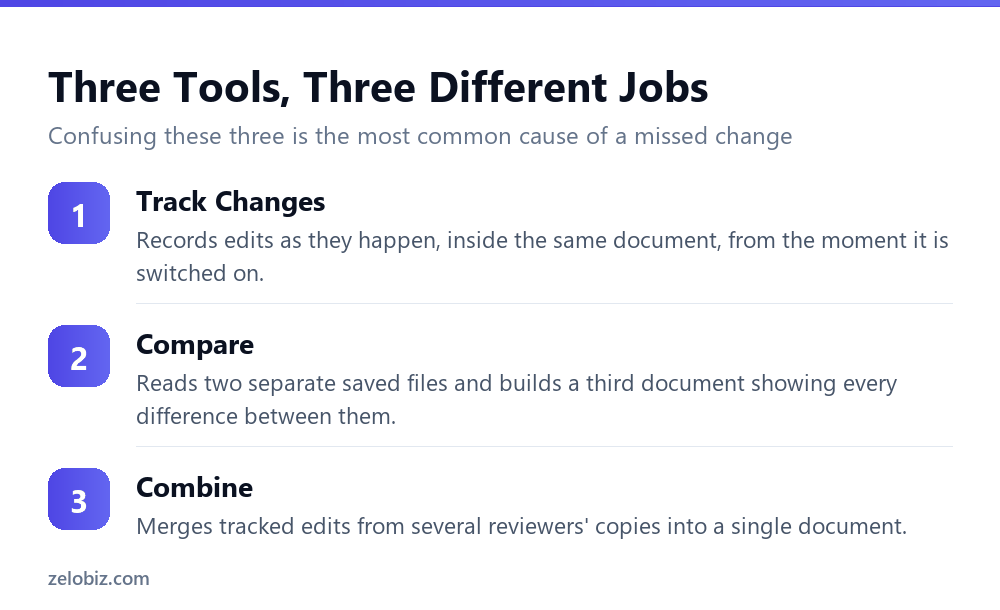
Word actually has three separate features for this kind of problem, and using the wrong one is the most common reason people believe a document was checked when it was not.
Track Changes records as you go
This is the one everyone knows. It works inside the live document, from the moment it is switched on, and it needs to be on continuously to produce a complete record.
Compare reads two files you already have
Under the Review tab, Compare then Compare two versions of a document opens what Microsoft calls the legal blackline option. You point it at an original document and a revised document, and it builds a third, new document showing every difference between them. Neither of the two source files is changed.
This is the tool that does not care whether Track Changes was ever turned on, because it is not reading an edit history at all. It is comparing two snapshots directly, which makes it the only reliable check when you cannot vouch for what happened in between.
Combine merges several reviewers, not two versions
A different job again. If several people have reviewed separate copies of the same document and you need their tracked changes merged into one file, that is Combine, not Compare. Reaching for Compare when you actually have several reviewers’ copies is a common mix-up, and it produces a result that looks plausible while merging nothing.
Setting Up Compare
On the Review tab, in the Compare group, select Compare, then Compare two versions of a document. Browse to your original document and your revised document, and choose whether you want to see character level or word level changes.
Character level catches a single letter changed inside a word. Word level is easier to read for most purposes, since it will not flag a plural added to an otherwise identical sentence as though the whole sentence changed. For checking an AI edit, word level is usually the more useful default, and you can rerun at character level if something looks off.
💡 Pro tip: Save a clean, untouched copy of any document before you run it through an AI editing step, even if Track Changes is already on. That copy is what turns Compare from a theoretical safety net into something you can actually use in five minutes if a question comes up later.
A Workflow That Actually Closes the Gap
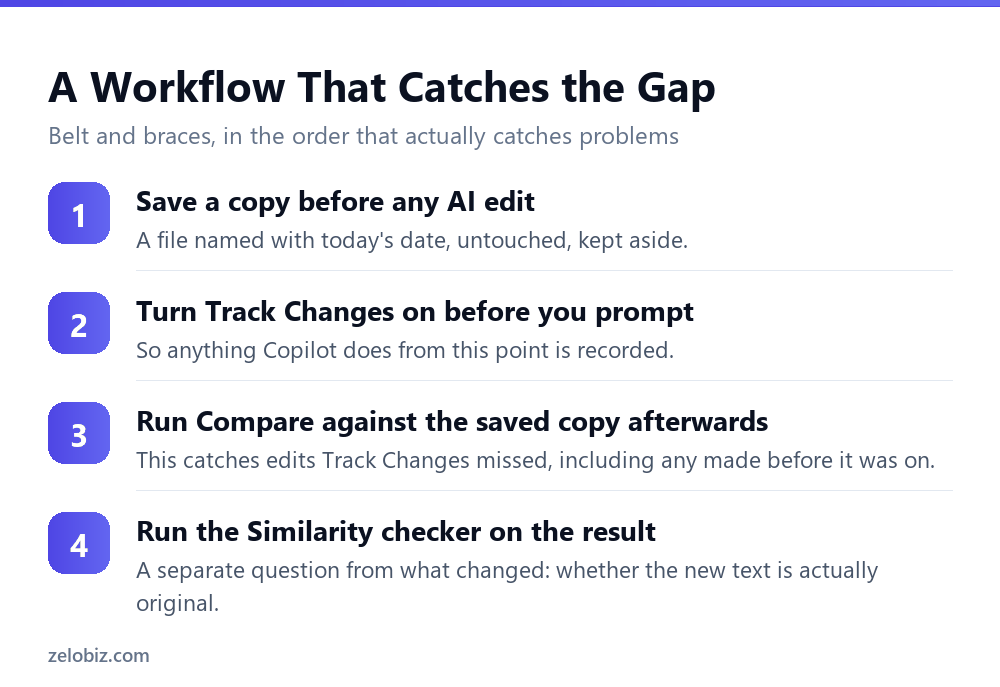
None of the individual steps here are unusual. What matters is the order, because doing them out of sequence is how people end up with a saved copy that is not actually clean, or a Track Changes record with a hole in it.
Save first, before anything touches the document
The saved copy is only useful if it predates any AI involvement. Save it, name it clearly with a date, and do not open it again until you need it for Compare.
Turn Track Changes on before you prompt
This is still worth doing even though it will not catch everything. It gives you a readable, accept-or-reject record for the current session, which is faster to review than a full Compare output when nothing unusual has happened.
Run Compare against the saved copy afterwards
This is the step that actually closes the gap Track Changes leaves. It does not matter whether Track Changes was on for the whole session, was turned on partway through, or was never enabled at all. Compare will show you the true difference between the file you started with and the file you have now.
Run the Similarity checker as a separate question
What changed and whether the new text is original are two different questions, and Compare only answers the first one. Under Editor on the Home tab, scroll to Similarity and select Check for similarity. It reports what percentage of your content matches text found online and flags the specific passages, so you can judge whether attribution is warranted for any of them.
📊 Note: This full sequence is worth reserving for documents where being wrong is expensive, such as anything contractual or anything leaving your organisation under someone’s name. For routine internal drafts, Track Changes on its own is usually proportionate.
Reading a Compare Result Without Missing the Point
Compare’s output can be dense on a document with many small changes, and the volume of markup itself becomes a way to miss what actually matters.
Sort by significance, not by position
A changed date buried on page four deserves more attention than five reworded sentences on page one that kept the same meaning. Read through once for anything that changes a number, a name, or a commitment, before you read again for wording.
Watch for deletions, not just additions
New text is visible by definition. A deleted clause, a removed caveat, a dropped condition is easy to miss in a wall of markup, and it is often the more consequential kind of change. Compare marks deletions distinctly, and it is worth deliberately scanning for them as a separate pass.
💡 Pro tip: On a document with heavy markup, read the Compare output twice: once for anything removed, once for anything added. Reading it only once tends to favour whichever direction is more visually obvious, which is usually additions.
Why This Matters More With AI Than With a Human Editor
A colleague who edits your document without Track Changes on will usually tell you what they changed, or you will notice from context because you know the document and you know them. An AI edit carries none of that. It produces fluent text with no signal about how much of the original survived, and the fluency itself works against you, because a well-written paragraph does not look like something was altered.
That is the same failure pattern we found in generated email, where a confident draft invents commitments nobody made. Our guide to AI email triage in Outlook covers the equivalent decision for a different medium: work out which part of the process needs a deterministic check and which part can run on trust, rather than trusting the whole thing by default.
When the Full Sequence Is Overkill
Running all four steps on every document you touch would make Copilot slower to use than writing by hand, and that is not the point of any of this. The sequence exists for documents where being wrong has a real cost.
The judgement call is not whether AI touched the document. It is what happens if something in it turns out to be wrong after it has already gone out. That question, more than any feature list, decides how much of this is worth doing.
Common Questions
Does Copilot in Word show up in Track Changes?
Yes, but only if Track Changes was already switched on before Copilot made the edit. Microsoft states that Copilot respects Track Changes when it is enabled, but it cannot turn the setting on itself, so an edit made before you enabled it will not appear.
If I turn on Track Changes now, can I see what Copilot already changed?
No. Track Changes only records edits made while it is active. Anything changed before you turned it on is not recoverable through Track Changes, and Copilot cannot retroactively flag its own earlier edits.
What is the difference between Compare and Track Changes in Word?
Track Changes records edits live, inside the document, from the moment it is switched on. Compare works differently: it reads two separate saved files, an original and a revised version, and produces a third document showing every difference, regardless of whether Track Changes was ever enabled.
What is the difference between Compare and Combine?
Compare shows the differences between two versions of one document. Combine merges tracked changes from several reviewers’ separate copies into a single document. Using Compare when you actually have several reviewers’ files will not merge their edits.
Should I use character or word level comparison?
Word level is usually more readable, since it will not flag something like an added plural as a full sentence change. Character level catches smaller edits, such as a single altered figure, and is worth a second pass if something looks off.
How do I check whether AI-generated text in Word is original?
Use the Editor Similarity checker. Select Editor on the Home tab, scroll to Similarity, and choose Check for similarity. It reports the percentage of your content that matches text found online and flags the specific passages for review.
What is the safest way to review a document that went through AI editing?
Save an untouched copy before any AI involvement, turn Track Changes on before prompting, run Compare against the saved copy afterwards regardless of what Track Changes shows, then run the Similarity checker as a separate check on originality.
The Short Version
- →Track Changes only records edits made after it is switched on, not before.
- →Turning it on later does not reveal what already changed.
- →Compare reads two saved files directly, so it works regardless of Track Changes history.
- →Combine merges several reviewers’ copies. It is not a substitute for Compare.
- →Save an untouched copy before any AI edit, so Compare has something reliable to check.
- →What changed and whether it is original are separate questions. Check both.