
AI Apps Script for Google Sheets is genuinely useful and carries a risk that a formula does not. A script runs with your Google account’s permissions, and it can reach files, email and the wider internet on your behalf.
That is not a reason to avoid it. It is a reason to read the code before clicking run, and to know which four things to look for.
Short answer: Before running AI-written Apps Script, find every call that writes, deletes or reaches outside the file. Look specifically for setValues, clear, deleteRow, deleteSheet, UrlFetchApp, MailApp and DriveApp. Read the authorisation prompt rather than clicking through it, and run it first on a copy of your data. Google gives a script six minutes per execution and a custom function thirty seconds, so scale is the other thing that breaks. Verified 30 August 2026.
Why This Is Different From a Formula
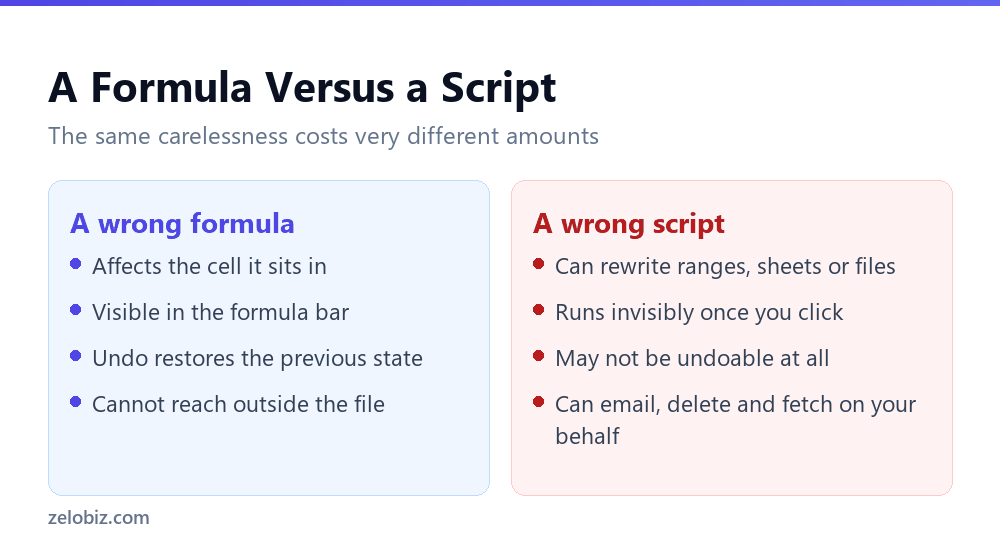
A formula is contained. It sits in a cell, produces a value, and cannot do anything except calculate. If it is wrong, the damage is a wrong number that you can see and undo.
A script is a program running as you. It can rewrite entire ranges, delete sheets, create files in your Drive, send email from your address and make requests to any URL. Those are not exotic capabilities, they are the ordinary things Apps Script is for.
The practical consequence is that the review step is not optional here in the way people treat it as optional for a formula. A formula you can test on five rows. A script that deletes rows you can only test on a copy.
The Four Things to Look For
You do not need to understand every line. You need to find the lines that do something irreversible.
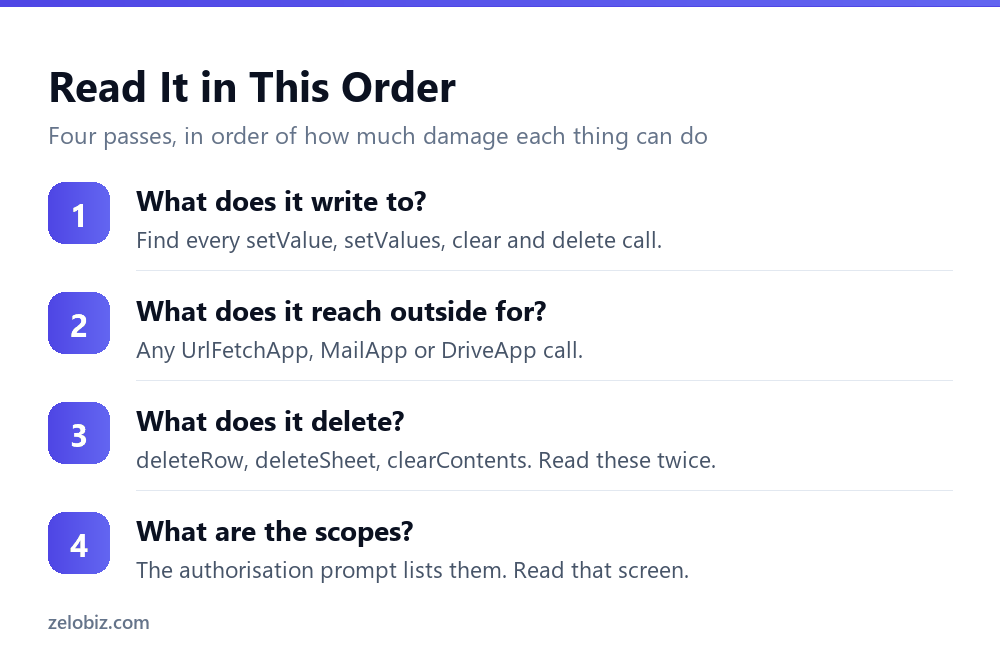
One: what does it write to?
Search the code for setValue, setValues, appendRow and clearContent. Each of those changes your sheet.
For each one, check the range it targets. A script meant to write into column E that actually targets the whole sheet is a bad afternoon, and the difference between those two is one line you can read.
Two: what does it reach outside for?
UrlFetchApp makes web requests. MailApp and GmailApp send email. DriveApp touches your files.
None are inherently wrong, and a script calling an AI API needs UrlFetchApp to work at all. But you should know why each is there. A formatting script that wants Drive access deserves a question.
Three: what does it delete?
deleteRow, deleteRows, deleteSheet, clear. Read these twice, then read the condition attached to them three times.
Deletion inside a loop is where the classic bug lives. Deleting rows while iterating forwards shifts everything up, so a loop that looks correct skips rows and removes the wrong ones. This is a genuine mistake that both humans and AI make regularly.
Four: what does the authorisation screen say?
The first time you run a script, Google shows you exactly which permissions it wants. Almost everybody clicks through this without reading it, which is a shame because it is the clearest summary of what the code can do that you will ever get.
⚠️ Watch out: If a script that is supposed to tidy a spreadsheet asks for permission to send email as you, stop and read the code again. The authorisation screen is derived from what the code actually calls, so it does not lie about capability even when your understanding of the script does.
The Bug Worth Recognising on Sight
Deleting rows in a forward loop is the single most common serious mistake in spreadsheet scripts, and it survives review because the code reads as though it is correct.
Here is the broken version. It is trying to delete every row where the first column is empty.
// Looks right. Skips rows and deletes the wrong ones.
for (var i = 2; i <= lastRow; i++) {
  if (data[i - 2][0] === '') {
    sheet.deleteRow(i);
  }
}
The problem is that deleting row 5 shifts row 6 up into position 5. The loop then moves to position 6, which now holds what used to be row 7. Every deletion causes the loop to skip the row immediately after it.
On a sheet with two blank rows next to each other, the second one survives. On a sheet with many, roughly half survive, and the ones that were deleted may not be the ones you meant.
The fix is one character
// Correct. Iterate backwards so deletions do not shift
// the rows you have not reached yet.
for (var i = lastRow; i >= 2; i--) {
  if (data[i - 2][0] === '') {
    sheet.deleteRow(i);
  }
}
Iterating backwards means a deletion only shifts rows you have already passed. Nothing you still need to examine moves.
This is worth committing to memory, because you can spot it in three seconds. Any loop containing deleteRow should be counting down, not up. If it counts up, the script is wrong regardless of how sensible the rest of it looks.
⚠️ Watch out: AI writes this bug regularly, and so do experienced developers. It is not a sign that the code is bad overall. It is a specific, well-known trap, and asking the model to iterate backwards when deleting rows fixes it immediately.
The Limits That Break Scripts at Scale
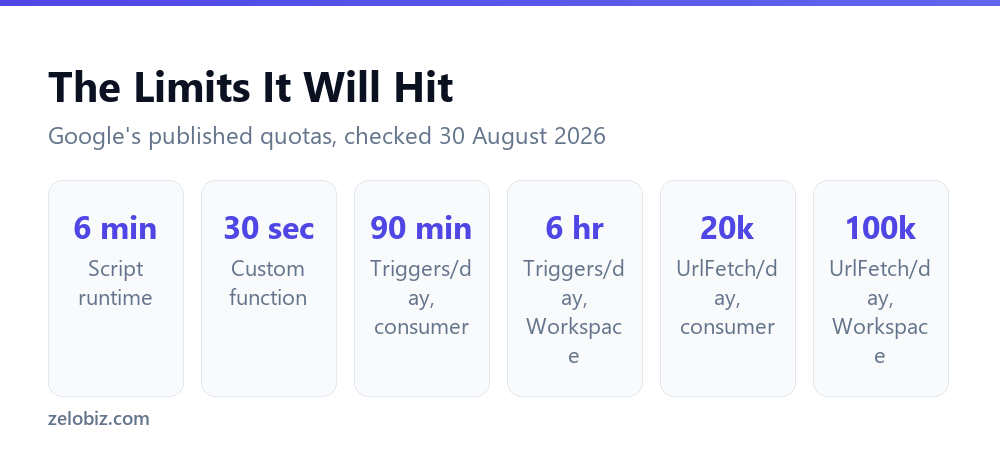
Working code often fails on real data purely because of quotas, and the figures are worth knowing before you build something around them.
The six-minute execution limit is the one that catches people. A script looping over five thousand rows and calling an API for each will not finish, and it stops partway with some rows processed and some not.
The fix is to process in chunks and record progress, so the next run continues where the last one stopped. If you ask AI for a script that handles a large sheet, ask explicitly for that behaviour, because it will not add it unprompted.
Note also the gap between account types on triggers. Ninety minutes of total trigger runtime a day on a personal Gmail account is a real constraint if you are running something hourly, and it is six times more generous on Workspace.
Custom Function or Menu Script?
AI will often give you a custom function when you needed a menu-driven script, because custom functions are what people ask for. The distinction matters.
If your task is processing a column, the menu script is almost always correct. It gets six minutes instead of thirty seconds, it can write results directly into a range, and crucially it does not recalculate. A custom function that calls a paid API will re-run and re-charge every time the sheet reopens, which our guide to ChatGPT in Google Sheets covers in more detail.
💡 Pro tip: Ask for it explicitly. Write a menu-driven Apps Script, not a custom function, that processes column B in chunks and writes results to column C. That one sentence produces a very different and usually better script.
Run It Safely the First Time
Three habits that make the first run of any new script uneventful.
- Duplicate the sheet first. Same rule as any bulk operation. Ten seconds, and it makes every mistake recoverable.
- Run it on twenty rows before five thousand. Point the range at a small test block. Everything that will go wrong goes wrong on twenty rows too, and much faster.
- Read the execution log. The Apps Script editor shows what ran and what failed. If a script finished suspiciously quickly, the log usually explains why.
📊 Note: Add a Logger.log line inside the loop while testing. Seeing which row it is on tells you immediately whether it stopped at the six-minute limit or failed on a specific record, and those are very different problems.
Common Questions
Is it safe to run Apps Script written by AI?
It is safe if you read it first. A script runs with your Google account’s permissions and can write, delete, email and fetch on your behalf, which is a different risk profile from a formula. Look for write, delete and external-access calls before running it, and test on a copy.
What should I look for in AI-written Apps Script?
Four things: what it writes to, using setValue, setValues, appendRow and clearContent; what it reaches outside for, using UrlFetchApp, MailApp or DriveApp; what it deletes, using deleteRow or deleteSheet; and what the authorisation screen asks for when you first run it.
Why does my Apps Script stop partway through?
Almost certainly the six-minute execution limit, which applies to both consumer and Workspace accounts. A script looping over thousands of rows with an API call each time will not finish. Process in chunks and record progress so the next run continues.
What is the difference between a custom function and a menu script?
A custom function is called by a formula, gets thirty seconds, cannot write to other cells, and recalculates automatically. A menu script is triggered by clicking, gets six minutes, can write to a range, and only runs when you ask. For processing a column, the menu script is usually correct.
Do Apps Script limits differ between free and Workspace accounts?
Some do. Script runtime is six minutes for both. But total trigger runtime is 90 minutes a day on a consumer account against 6 hours on Workspace, and UrlFetch calls are 20,000 a day against 100,000.
Why should I read the authorisation prompt?
Because it is generated from what the code actually calls, so it accurately describes the script’s capabilities even if you misread the code. A tidying script that requests permission to send email deserves another look.
Can I undo what an Apps Script did to my sheet?
Sometimes, and you should not rely on it. Version history in Google Sheets can restore an earlier state, which is genuinely useful, but a script that created files, sent email or made API calls has done things version history cannot reverse. Duplicating the sheet before the first run is the reliable protection.
Should I let AI write a script that emails people?
Be careful. MailApp and GmailApp send from your address, and a loop with a mistake in it can send many messages before you notice. Test with the recipient set to your own address first, and check the execution log before pointing it at a real list.
What is the most common bug in AI-written scripts?
Deleting rows inside a forward loop. Removing a row shifts everything up, so the loop skips records and deletes the wrong ones. It looks correct when you read it, which is why it survives review.
The Short Version
- →A script runs as you. It can write, delete, email and fetch. A formula cannot.
- →Find every setValue, deleteRow, UrlFetchApp, MailApp and DriveApp before running it.
- →Read the authorisation prompt. It describes capability accurately even when you misread the code.
- →Six minutes per execution, thirty seconds for a custom function. Scale breaks scripts.
- →Ask for a menu-driven script, not a custom function, when processing a column.
- →Duplicate the sheet, test on twenty rows, and read the execution log.
Apps Script quotas checked against Google’s own documentation on 30 August 2026.