
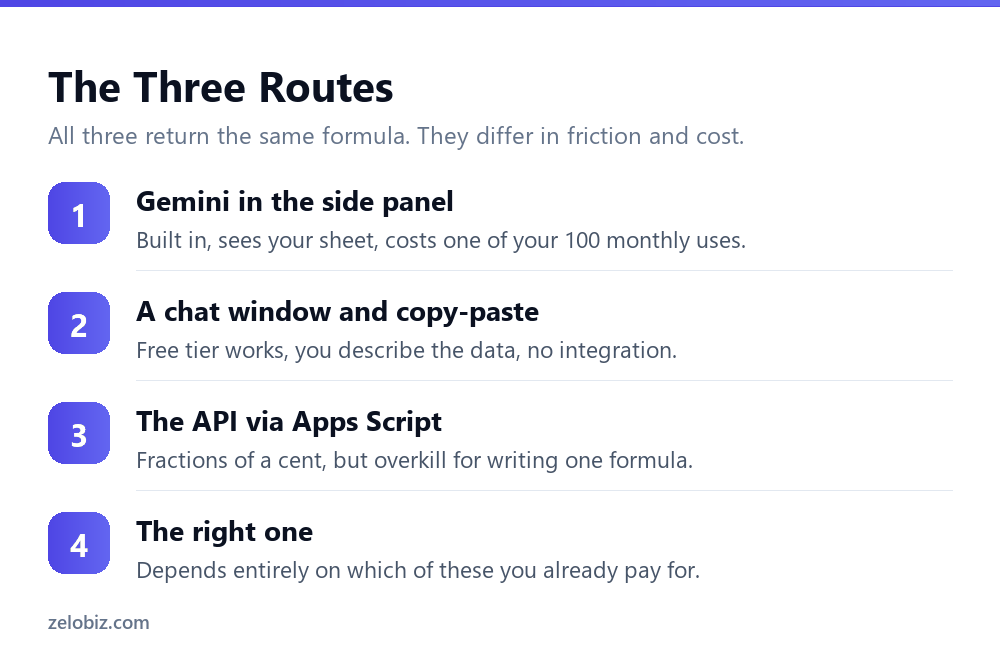
Google Sheets formula AI comes in three forms, and all three return essentially the same formula. What differs is what each costs you and how much typing you do to get there.
Most articles on this pick a winner. The honest answer is that the right route depends on which Workspace plan you are already paying for, and for a lot of people the free one is fine.
Short answer: If you are on Business Standard or above, the Gemini side panel is quickest because it can see your columns, and you have 100 spreadsheet builds a month. If you are on Business Starter you have no Gemini in Sheets at all, so use a chat window and paste five sample rows. The API route is excellent for processing thousands of rows and unnecessary for writing one formula. Verified 30 August 2026.
Route One: Gemini in the Side Panel
The built-in option, and the fastest when you have it. Its real advantage is not intelligence, it is context. It can see your columns and your data, so you do not have to describe them.
That saves the most tedious part of asking for a formula. Instead of explaining that column B holds regions and column D holds order values, you point at the sheet and ask for what you want.
The catch is the meter
Gemini in Google Sheets is capped. Business Standard and Business Plus both allow 100 uses a month for building and editing spreadsheets, with the AI function metered separately at 5,000. Business Starter has none at all, and only Enterprise editions raise that figure to 500.
That cap counts requests rather than rows, which is more generous than it sounds. Our guide to which Workspace plan you actually need covers the allowances in full, including the fact that Business Plus costs more than Standard for the identical Sheets limit.
⚠️ Watch out: If you are on Business Starter and cannot find Gemini in your spreadsheet, it is not a rollout delay or a settings problem. That plan has no Gemini in Sheets or Slides whatsoever, and only an upgrade changes it.
Route Two: A Chat Window and Copy-Paste
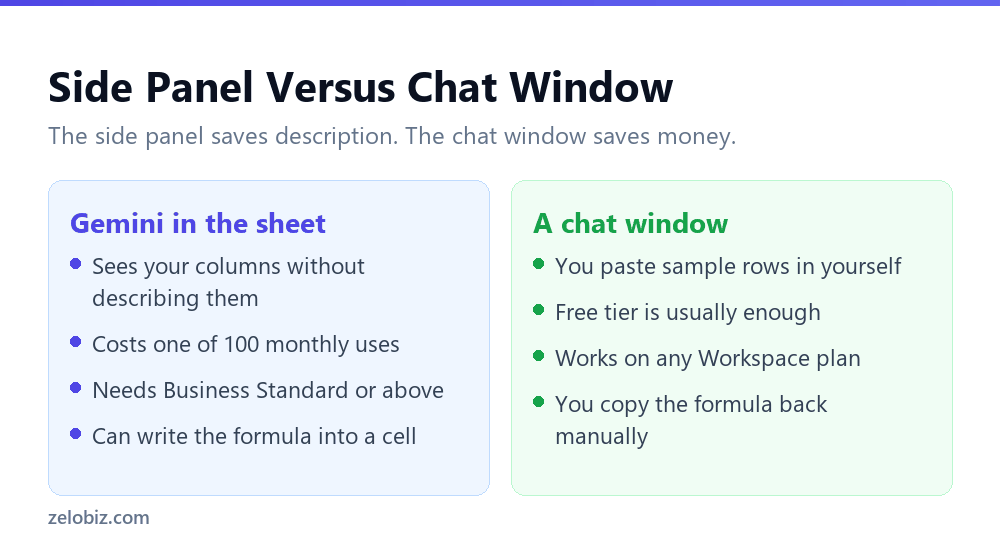
Unglamorous, free on most plans, and genuinely competitive. You describe what you want in any assistant, paste the formula back, and get on with your day.
The friction is that you have to supply the context the side panel would have read automatically. That is less work than it sounds, and it produces better results than people expect.
Paste five rows, not a description
The single biggest improvement you can make here is pasting five actual rows of your data rather than describing them. Real data is messier than anyone’s description of it, and the model handles the mess far better when it can see it.
Your description will say column F holds dates. Your data will contain three text entries, a blank and one cell where somebody typed a note. The formula you need accounts for those, and it can only do that if it knows.
When this beats the side panel
When you are on Business Starter and have no alternative. When you have used your hundred. When the question needs back-and-forth, because a conversation in a chat window is easier than repeated requests that each cost a credit.
💡 Pro tip: Anonymise before pasting if the data is client information. Replacing real names with Customer A through E takes ten seconds and removes the question entirely.
Route Three: The API via Apps Script
Worth understanding, mostly so you know when it is the wrong answer.
Writing a custom function that calls an AI API costs fractions of a cent per call. On the cheapest model, published rates are $0.05 per million input tokens and $0.40 per million output, which works out at roughly a cent per thousand rows for short tasks.
For writing one formula, this is absurd. You would spend twenty minutes setting up a key and a script to save yourself a request you already had for free.
Where it earns its place is per-row work. Classifying a thousand support tickets or summarising a thousand notes is exactly what the Gemini allowance cannot do and the API does cheaply. Our guide to using ChatGPT in Google Sheets without an add-on covers the setup, including the thirty-second limit that catches people out.
Which Route, by Situation
What to Spend a Credit On
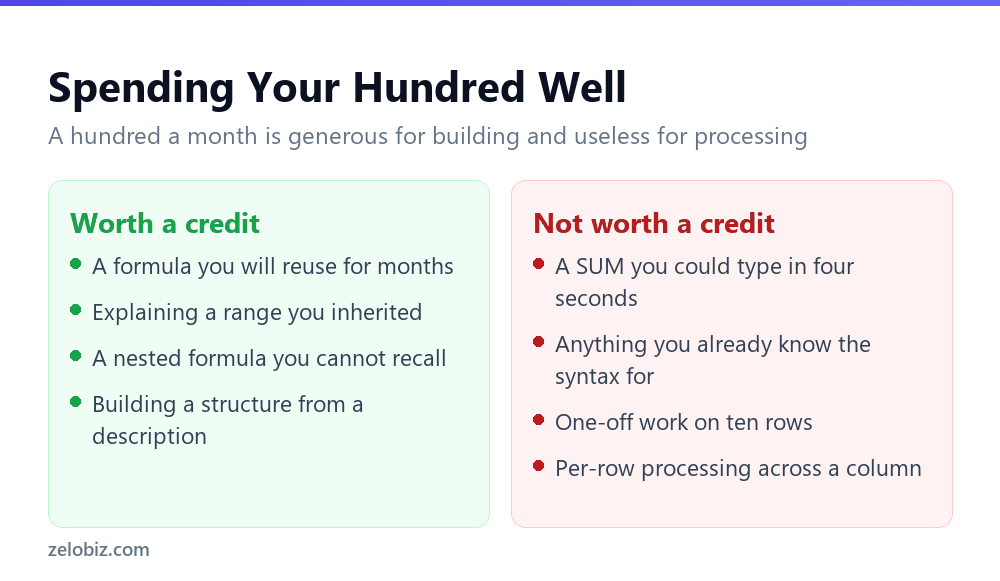
If you are metered, the allowance goes much further on some tasks than others, and the difference is whether the output keeps working after the request.
A formula is the best possible use of a credit. One request produces something you apply to any number of rows, for as long as the sheet exists. The AI was involved in writing it, not in running it.
Categorising one cell is the worst use. It costs the same credit and produces one cell. Do that four hundred times and you have exceeded a hundred-request allowance four times over, for work the API would have done for well under a cent.
A Worked Comparison
The same request through all three routes, so the difference in effort is visible rather than described.
The task: sum column D where column B is North, ignoring any row where column G says Cancelled. Data runs to row 1000.
Through the side panel
You open Gemini, type sum orders for the North region excluding cancelled ones, and it returns a formula. You did not name a single column, because it read them.
Cost: one of your hundred monthly uses. Elapsed time: about fifteen seconds.
Through a chat window
You paste five rows of the sheet, then write: column B is region, column D is order value, column G is status. Sum D where B is North and G is not Cancelled, rows 2 to 1000. It returns the same formula.
Cost: nothing. Elapsed time: about a minute, most of it pasting.
Through the API
You create an API key, open Apps Script, paste a function, store the key in Script Properties, save, return to the sheet and call your custom function.
Cost: a fraction of a cent. Elapsed time: twenty minutes the first time. This is the route that makes no sense for one formula and excellent sense for a thousand rows.
📊 Note: Notice that the chat window’s extra minute is spent supplying context, and that context usually improves the answer. The side panel reads your columns but not your intent, so a vague request there produces a vague formula just as readily.
What None of Them Can Do
Worth stating plainly, because all three will confidently attempt things they should refuse.
None of them know which rows in your data are wrong. A formula that correctly sums a column containing three duplicated orders returns a correct sum of incorrect data, and nothing about the output suggests a problem.
None of them know what your business means by a term. Asking for active customers produces a formula based on whatever the Status column contains, which may not match how your team uses the word.
And none of them can tell you whether the question is the right one. That remains the part of spreadsheet work that actually requires judgement, and it is unchanged by any of this.
Checking Whatever Comes Back
All three routes produce a formula that looks confident and may be quietly wrong. The verification is identical regardless of where it came from.
- Test on five rows where you know the answer, including one awkward case such as a blank or a text value in a number column.
- Check the ranges end on the same row. A formula summing D2:D1000 against B2:B999 will not error, it will silently ignore your last row.
- Check absolute versus relative references before filling down. This is the most common silent failure, because the model cannot see where you intend to copy it.
- Spot-check the first, last and a middle row after filling down.
The mechanics are the same in Sheets and Excel, and our guide to writing formulas with AI and checking them covers the method in more detail with worked examples.
📊 Note: Google Sheets and Excel do not share every function, and the differences are easy to miss. If you asked in a chat window without saying which application you are using, you may get an Excel formula that Sheets rejects. Say which one up front.
Common Questions
What is the best way to generate a Google Sheets formula with AI?
If you are on Business Standard or above, the Gemini side panel is quickest because it can see your columns without you describing them. On Business Starter you have no Gemini in Sheets, so a chat window with five pasted sample rows is the practical route.
Does Gemini in Google Sheets cost extra?
It is included in Business Standard and above at no additional charge. Google meters it per feature, so building and editing spreadsheets allows 100 uses a month on Business Standard and Business Plus, while the AI function allows 5,000. Business Starter has no access, and Enterprise editions allow 500 per month.
Is the free chat window as good as Gemini in the sheet?
For producing the formula itself, yes. The side panel’s advantage is context, since it reads your columns automatically. Paste five real rows into a chat window and the results are comparable, at no cost against your monthly allowance.
Should I use the API to write formulas?
No. Setting up an API key and an Apps Script to generate one formula takes far longer than either alternative and produces the same result. The API route is for processing thousands of rows, which is the job the Gemini allowance cannot cover.
Why does my formula work in Excel but not Google Sheets?
The two applications do not share every function, and an assistant that was not told which one you are using may return the wrong dialect. State the application in your request to avoid it.
How do I check an AI-generated Sheets formula?
Test it on five rows where you already know the correct answer, including one awkward case. Check that all ranges end on the same row, check absolute versus relative references before filling down, then spot-check the first, last and a middle row.
What is the best use of my monthly Gemini allowance?
Generating formulas and building structures, because one request produces something you reuse indefinitely at no further cost. The worst use is per-row processing, where each cell costs a full request and the allowance disappears immediately.
The Short Version
- →All three routes produce the same formula. They differ in cost and friction.
- →Gemini side panel is fastest, needs Business Standard, and costs one of 100 monthly spreadsheet builds.
- →A chat window is free and competitive if you paste five real rows rather than describing them.
- →The API route is for volume, not for authoring a single formula.
- →Spend credits on formulas and structures, never on per-row processing.
- →Verify the same way regardless of source: five known rows, then check the references.
Allowances and API pricing checked against Google’s and OpenAI’s own documentation on 30 August 2026.