

Before you try to speed up your computer, find out what’s actually slow. Open Task Manager with Ctrl + Shift + Esc, go to the Performance tab, and see which resource is pinned — CPU, Memory or Disk. Each one has a completely different fix. If it’s slow only at start-up, that’s startup programs. If it’s slow while you work, that’s memory, disk speed, or one specific process misbehaving.
Why generic speed-up advice fails
Search this question and you get the same list everywhere: clear temporary files, uninstall programs, disable startup items, run a disk cleanup, defragment, maybe buy more RAM. All reasonable things. None of them targeted at your machine.
A computer can be slow for at least five unrelated reasons, and the fix for one does nothing for the others. Freeing disk space on a machine that’s short of memory changes nothing. Disabling startup programs on a machine that’s slow while working changes nothing. People try everything, something eventually helps, and they never learn which.
Five minutes in Task Manager tells you which of five problems you have. That’s worth more than an afternoon of applying every fix on the internet.
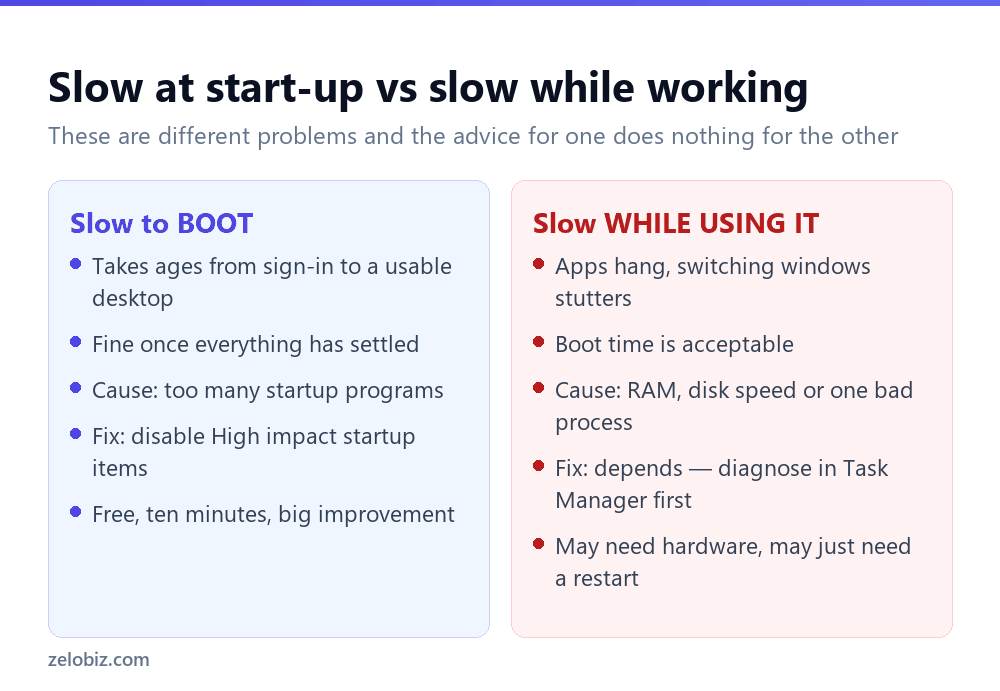
Answer this first: boot or use?
Slow to start but fine afterwards means too much launching at sign-in. Nothing else. Go straight to disabling startup programs, spend ten minutes, and you’re done. This is the most common complaint and the easiest to fix.
Slow while you’re using it is the harder case and everything below applies. It means a resource is saturated, and you need to know which.
Finding the bottleneck
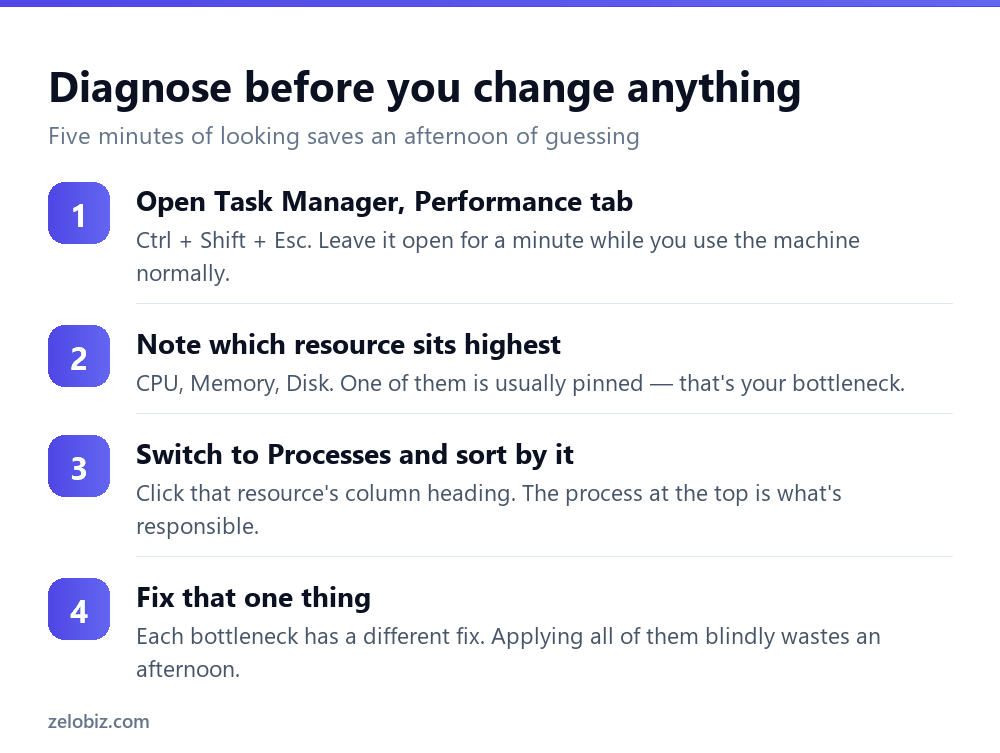
The important detail is to observe while the machine is being slow. Opening Task Manager on an idle desktop shows you nothing useful. Our guide to reading Task Manager covers the columns in detail; here’s what each finding means.
If it’s memory
The most common cause on machines with 8 GB or less. When Windows runs out of physical memory it starts using the disk as overflow, and disk is orders of magnitude slower than RAM. Everything becomes treacle.
The immediate fix is closing things — browser tabs especially, since each one holds memory. If you routinely run thirty tabs, that alone can account for several gigabytes.
The real fix is more RAM. It’s the cheapest meaningful upgrade available, often around £30 to £50, and on a desktop or an older laptop it’s a ten-minute job. Check Task Manager’s Performance tab under Memory: Slots used tells you how many slots are occupied and how many are free before you buy anything.
⚠️ Watch out: Many modern thin laptops have RAM soldered to the board and cannot be upgraded at all. Check your specific model before ordering — ‘Slots used: 1 of 1’ with no upgrade path is common.
If it’s the disk
Disk at 100% with everything crawling is the classic symptom of a mechanical hard drive in a machine running a modern operating system. Windows 11 was designed assuming an SSD.
Two things to separate. If disk sits at 100% for twenty minutes then settles, that was a background job — Windows Update, the search indexer, an antivirus scan — and it finished. Nothing is wrong. If it’s at 100% constantly across multiple sessions, the drive is the bottleneck.
Replacing a hard drive with an SSD is the single biggest performance improvement available to an older computer. Not more RAM, not a faster processor. A five-year-old laptop with an SSD fitted feels newer than a current machine with a spinning disk. Around £40 for a capable drive, and cloning software is usually included.
If the drive is nearly full, that compounds it — Windows needs working room. See freeing up disk space and aim to keep at least 15% free.
If it’s one specific process
High CPU with a single process at the top is the easiest case. Something is misbehaving rather than the machine being inadequate.
If it’s a browser, expand the entry — Chrome and Edge list each tab separately, so you can find the one page running a bad script. If it’s an application you recognise, restart it. If it’s something you don’t recognise and can’t identify, search the process name before ending it; some are legitimate Windows components with unhelpful names.
A process that spikes to 100% every few minutes and drops again is usually an updater or a scheduled scan. Those are visible in Task Scheduler — the startup guide covers finding them.
The things that genuinely help, in order
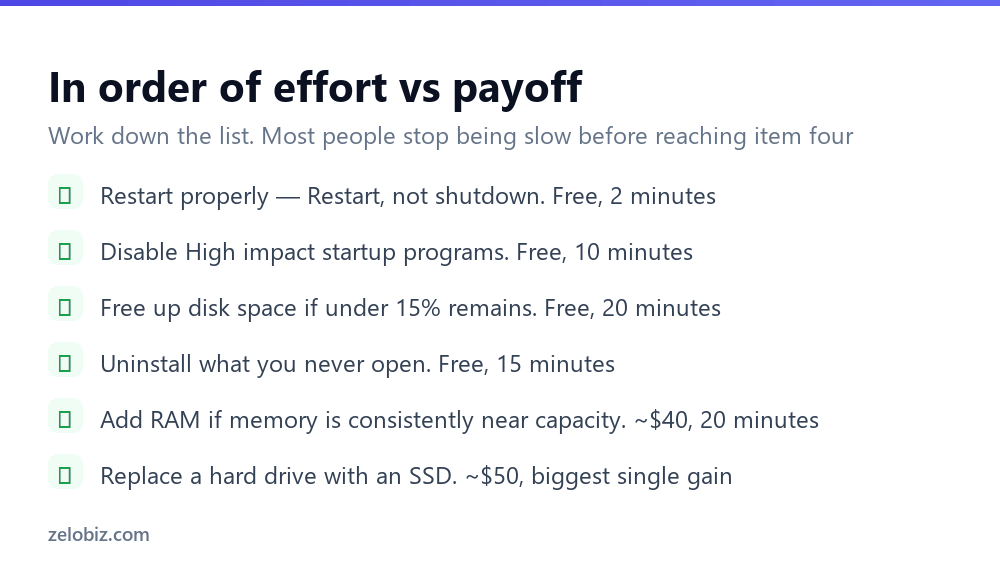
Restart properly
Not shutdown — Restart. Windows’ Fast Startup means shutting down and powering on doesn’t fully reinitialise the system, so a machine can accumulate weeks of uptime while its owner believes they turn it off nightly. Check Task Manager’s Performance tab for Up time; if it reads days or weeks, restart before doing anything else.
Startup programs
Ten minutes, free, and the biggest win for boot time. Covered fully in how to disable startup programs.
Disk space
Windows slows measurably below about 15% free. Free up disk space — and the usual culprits are system leftovers rather than your files.
Remove what you don’t use
Fewer installed programs means fewer background services and updaters. Uninstalling properly matters here — deleting folders leaves the services running.
What doesn’t help
Worth saying plainly, because these absorb a lot of time and money.
Registry cleaners don’t measurably speed anything up. The registry is a database; a few thousand stale entries in it cost nothing. This category has been sold on a misunderstanding for twenty years and carries real risk of removing something needed.
‘PC optimiser’ suites mostly bundle things Windows already does — disk cleanup, defragmentation, startup management — behind a subscription, and several install their own background processes, making the machine slower.
Defragmenting an SSD is unnecessary and mildly harmful. SSDs have no moving parts and no seek penalty. Windows already knows the difference and runs TRIM instead. Also worth noting clearing your cache generally makes things briefly slower, since caches exist to speed things up — clear them to fix misbehaviour, not for performance.
When nothing is pinned and it’s still slow
The awkward case: no resource saturated, yet everything feels sluggish. Two likely causes, both hardware.
Thermal throttling. When a laptop gets too hot it deliberately slows the processor to protect itself. Symptoms are loud fans, a hot chassis, and performance that degrades after ten minutes of work. Cause is almost always dust blocking the vents. Compressed air through the intakes often restores it completely.
A failing drive. A dying disk produces long pauses, apps that hang briefly then recover, and occasional freezes — with no obvious resource spike. Check the drive’s SMART health with CrystalDiskInfo or your manufacturer’s tool. If it reports Caution or worse, back up immediately and stop worrying about speed.
Finally, if the machine is heavily encrusted with years of software and none of the above applies, a factory reset genuinely does restore it — but it’s a last resort, not a first step, and it fixes nothing physical.
- ✓Diagnose in Task Manager before changing anything
- ✓Separate ‘slow to boot’ from ‘slow while working’
- ✓Restart rather than shutting down, and check Up time
- ✓Fit an SSD if the machine still has a mechanical drive
- ✓Check vents for dust if performance degrades as it warms up
- ✕Applying every fix on the internet without knowing the cause
- ✕Buying registry cleaners or PC optimiser subscriptions
- ✕Defragmenting an SSD
- ✕Clearing caches expecting a speed improvement
- ✕Ordering RAM before checking whether the slots are upgradeable
Frequently asked questions
Why is my computer so slow all of a sudden?
Check Task Manager’s Performance tab to see which resource is pinned. A sudden change is most often a background job like Windows Update or an antivirus scan, a browser tab running a bad script, or a pending restart after weeks of uptime.
What is the best way to speed up a slow computer?
If it still has a mechanical hard drive, fitting an SSD is by far the biggest single improvement. Otherwise, adding RAM when memory is consistently near capacity, then disabling startup programs for boot time.
Does clearing cache speed up your computer?
No — usually the opposite, briefly. Caches exist to make things faster, so clearing them means data has to be fetched again. Clear cache to fix stale or broken behaviour, not for performance.
How much free disk space does Windows need?
At least 15% of the drive, or 20GB minimum. Windows needs working room for updates and the page file, and performance degrades noticeably below that.
Are PC optimiser programs worth it?
Generally no. Most repackage tools already built into Windows behind a subscription, and several add their own background processes that make the machine slower. Registry cleaners in particular provide no measurable speed benefit.
Why is my computer slow even though nothing is using resources?
Usually thermal throttling from dust-blocked vents, or a failing drive. Check whether performance degrades as the machine warms up, and check the drive’s SMART health with a tool like CrystalDiskInfo.
- →Slow to boot — how to disable startup programs
- →Drive nearly full — how to free up disk space
- →Reading the numbers — how to open Task Manager
- →Too much installed — how to uninstall a program
- →Last resort — how to factory reset a laptop