

To disable startup programs, press Ctrl + Shift + Esc to open Task Manager, click Startup apps, sort by Startup impact, then right-click anything marked High and choose Disable. That doesn’t uninstall it — the app still works when you open it. If something keeps launching after you’ve disabled it there, it’s starting from the Startup folder, Task Scheduler or a Windows service instead.
Why Task Manager isn’t the whole story
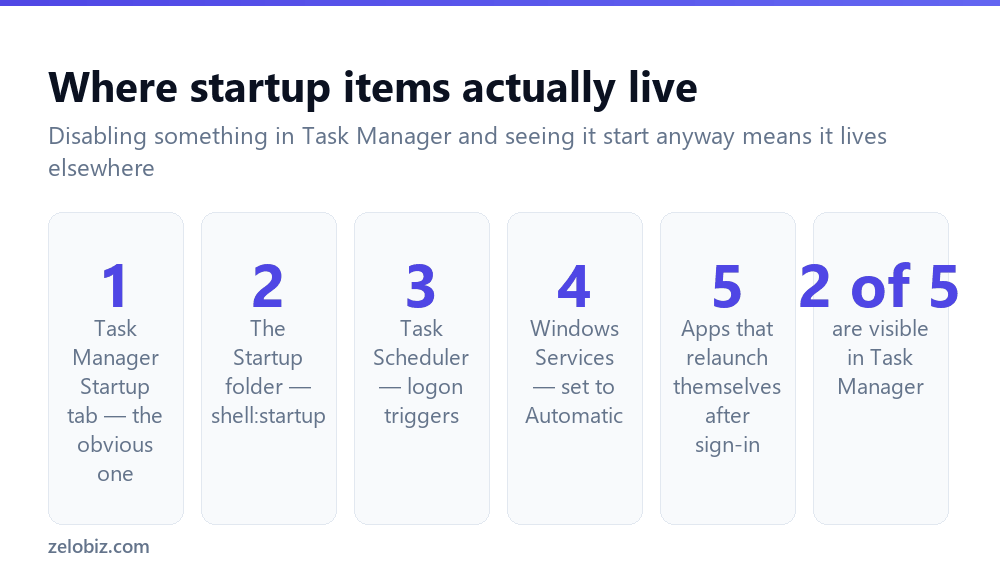
Task Manager’s Startup list is the well-known place to look and it covers the majority of cases. It also misses several routes into startup entirely, which is why people disable something, restart, and find it running anyway.
Windows has at least four independent mechanisms for launching software at sign-in. They were added at different points over thirty years and none of them replaced the others. Task Manager surfaces two.
If you disabled it and it still starts, the entry you disabled wasn’t the one launching it.
Start with Task Manager
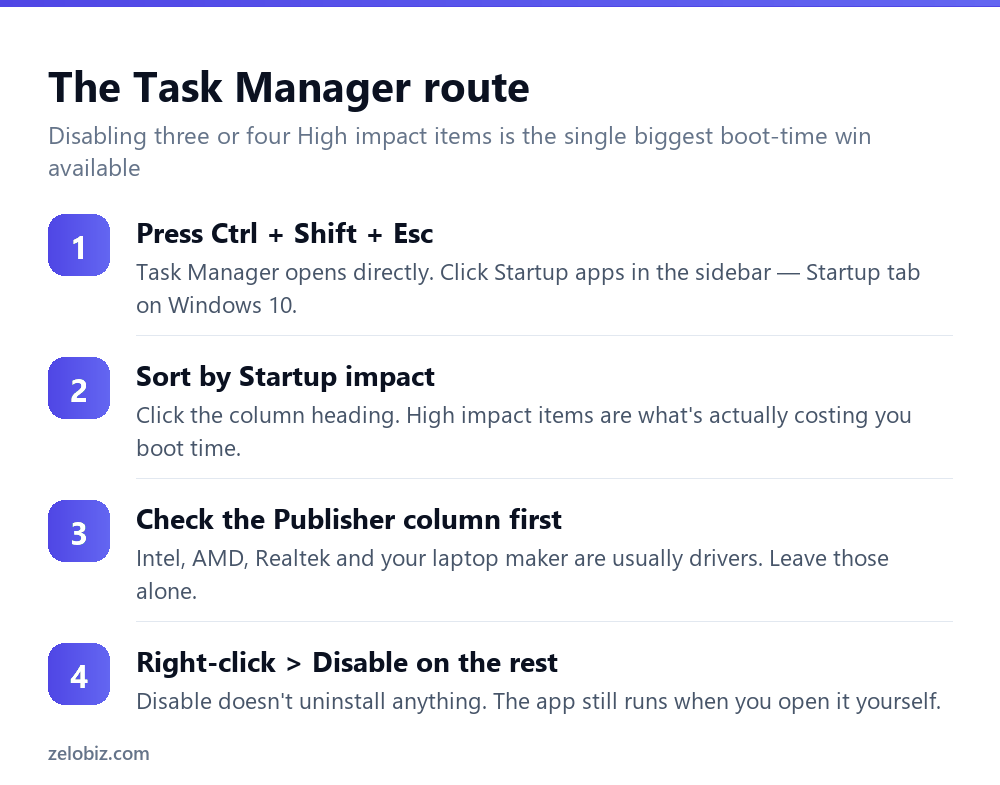
The Startup impact rating is Windows’ own measurement of how much each item costs at boot, based on CPU time and disk activity it observed. It’s a rough guide rather than a precise figure, but the High entries are genuinely the ones worth attention.
Windows 11 shows this under Startup apps in Task Manager’s sidebar. Windows 10 uses a Startup tab across the top. The list and the behaviour are identical.
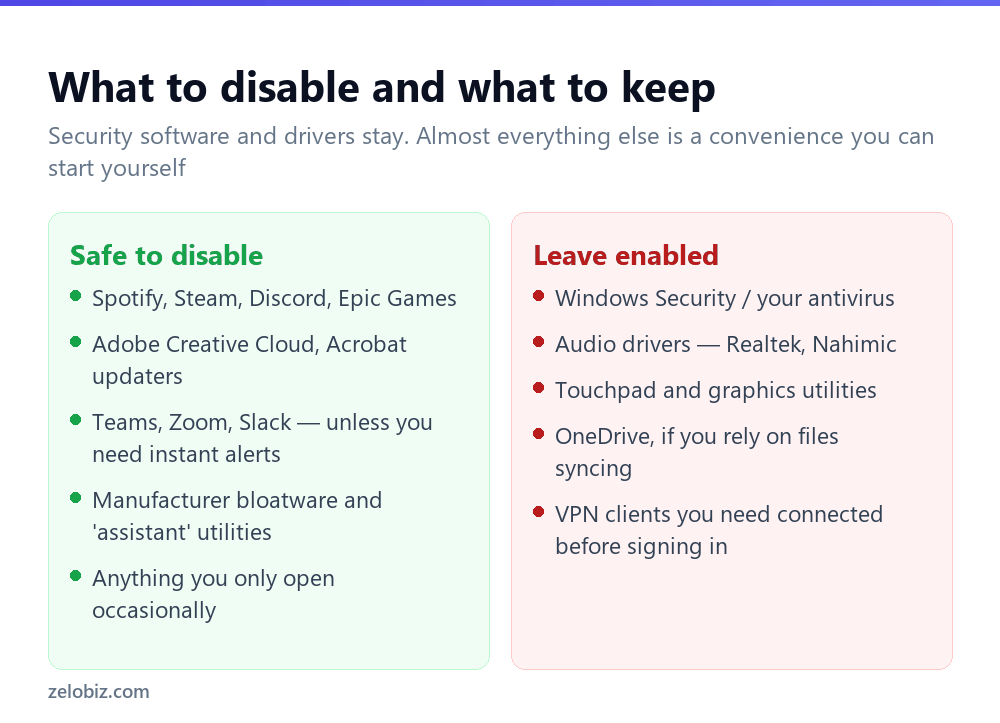
⚠️ Watch out: Don’t disable your antivirus or anything from your laptop’s manufacturer without checking what it does. Some vendor utilities handle function keys, fan curves or battery charging limits, and disabling them quietly removes features you use.
The Startup folder
The oldest mechanism, and still in use. It’s a plain folder — anything with a shortcut inside launches when you sign in.
Press Windows + R and type shell:startup for your own account, or shell:common startup for items that launch for every user on the machine. Delete a shortcut and that’s it — the program is untouched, only the instruction to launch it is gone.
This is also the easiest place to add something. Drop a shortcut in and it starts with Windows, which is genuinely useful for a mail client or a note-taking app you open every morning anyway.
Task Scheduler
The one people never think to check, and where a lot of updaters hide. Adobe, Google and various hardware vendors register scheduled tasks that run at logon rather than appearing in the startup list.
Search for Task Scheduler and open the Task Scheduler Library in the left panel. Look through the folders for company names you recognise. Anything with a trigger of ‘At log on’ is a startup item by another name, and you can right-click and disable it.
Be more careful here than in Task Manager. This is also where Windows keeps genuine maintenance tasks — defragmentation, restore point creation, update checks. Disable vendor tasks you recognise; leave anything under the Microsoft folder alone.
💡 Pro tip: A scheduled task set to run ‘At log on’ with a delay is the usual reason something appears thirty seconds after you sign in rather than immediately. If the timing feels odd, that’s where to look.
Services
Services run in the background independently of whether you’re signed in, and several are installed by ordinary applications rather than by Windows.
Press Windows + R, type services.msc, and sort by Startup Type. Anything set to Automatic runs at boot. Third-party entries — printer utilities, software updaters, licence managers — can usually be set to Manual, which means they start only if something actually asks for them.
⚠️ Watch out: Set services to Manual rather than Disabled. Manual lets Windows start the service if it’s genuinely needed; Disabled prevents it entirely and can break the application in confusing ways months later. And leave Windows’ own services alone unless you know specifically what one does.
A cleaner alternative: delay instead of disable
Some startup items you genuinely want, just not competing with everything else in the first twenty seconds. OneDrive, a backup client, a VPN — useful, but not urgent.
Rather than disabling them, delay them. Disable the item in Task Manager, then create a Task Scheduler task that runs the same program at log on with a two-minute delay. Point it at the executable, tick ‘Delay task for’ under the trigger, and the app starts once the desktop is already responsive.
It’s more setup than clicking Disable, and worth it for the two or three things you rely on daily. Everything you use occasionally is better off simply disabled.
Apps that put themselves back
Some software re-enables its own startup entry, either at every launch or after each update. Spotify, Skype and several updaters are known for it.
Fighting this from Task Manager is pointless — you’ll disable it, use the app, and find it re-enabled. Look in the application’s own settings instead. Nearly all of them have a ‘Start with Windows’ or ‘Launch at login’ checkbox, and turning it off there is the change that sticks.
If an app has no such setting and keeps reinstating itself, the honest options are living with it or uninstalling the app. That’s a deliberate design decision by the vendor and there’s no clean way around it.
Measuring the difference
Rather than guessing whether it helped, Windows records boot performance and you can read it.
Open Event Viewer, expand Applications and Services Logs › Microsoft › Windows › Diagnostics-Performance › Operational, and look for Event ID 100. Each entry gives a boot duration in milliseconds. Events 101 through 103 call out specific applications that degraded the boot, by name.
That last part is the useful bit: Windows has already worked out which apps slowed your start-up and written it down. Check those events before disabling things at random and you’ll target the right ones first time.
Fast Startup muddies the picture
Windows has a feature called Fast Startup that, on shutdown, saves the system state to disk rather than closing everything down — a sort of partial hibernation. Powering back on restores that state instead of booting properly.
It makes shutdown-and-power-on quick, but it means startup items don’t always behave as you’d expect, and a change you make may not appear to take effect. A full Restart always performs a genuine boot; shutting down and powering on may not.
So when testing whether disabling something helped, use Restart rather than shutdown. It’s also why ‘have you tried turning it off and on again’ sometimes fails while restarting works — they’re genuinely different operations now.
What this actually buys you
Worth being realistic. Disabling startup programs improves two things: how long the machine takes to become usable after signing in, and how much memory is occupied before you’ve opened anything.
On a machine with a dozen High-impact items, going from sign-in to a responsive desktop can drop from two minutes to under thirty seconds. That’s a real, daily improvement.
What it doesn’t do is make the computer faster once you’re working. An idle background app uses almost no CPU. If applications are slow while you use them, the cause is elsewhere — memory pressure, disk speed, or a specific process misbehaving — and startup items aren’t it.
- ✓Sort by Startup impact and start with the High entries
- ✓Check the Publisher column before disabling anything
- ✓Use the app’s own settings for anything that re-enables itself
- ✓Set third-party services to Manual, never Disabled
- ✓Check Task Scheduler for updaters that skip the startup list
- ✕Disabling antivirus or audio and graphics drivers
- ✕Touching anything in Task Scheduler’s Microsoft folder
- ✕Disabling every service set to Automatic
- ✕Expecting faster performance while working, rather than faster boot
- ✕Using ‘startup optimiser’ tools that do this less carefully than you would
Frequently asked questions
How do I stop programs from starting automatically in Windows 11?
Press Ctrl + Shift + Esc, click Startup apps, then right-click the program and choose Disable. Sorting by Startup impact first shows which ones are actually worth disabling.
Does disabling a startup program uninstall it?
No. Disabling only stops it launching automatically at sign-in. The program is untouched and works normally when you open it yourself.
Why does a program still start after I disabled it?
It’s launching from somewhere Task Manager doesn’t show — the Startup folder, a scheduled task set to run at log on, or a Windows service. Some apps also re-enable themselves, in which case use the app’s own settings instead.
Which startup programs are safe to disable?
Anything you open occasionally rather than constantly — Spotify, Steam, Discord, Adobe updaters, manufacturer bloatware. Keep antivirus, audio and graphics drivers, touchpad utilities and OneDrive if you rely on syncing.
How do I open the Startup folder in Windows?
Press Windows + R and type shell:startup for your own account, or shell:common startup for all users. Delete a shortcut to stop that program launching at sign-in.
Will disabling startup programs make my computer faster?
It makes it boot faster and frees memory before you open anything. It won’t make applications run faster once you’re working — an idle background app uses very little CPU.
- →Work out what’s actually slow — how to speed up your computer
- →Read the impact columns properly: how to open Task Manager
- →Remove what you never use with how to uninstall a program
- →Free up room on the drive: how to free up disk space