

To update Windows, go to Settings › Windows Update and click Check for updates. On Windows 10 it’s Settings › Update & Security › Windows Update. That installs monthly security fixes. Feature updates — the annual version upgrades — are offered separately and often don’t appear until Microsoft judges your hardware ready, which is why ‘You’re up to date’ can be true and misleading at the same time.
Check which version you actually have
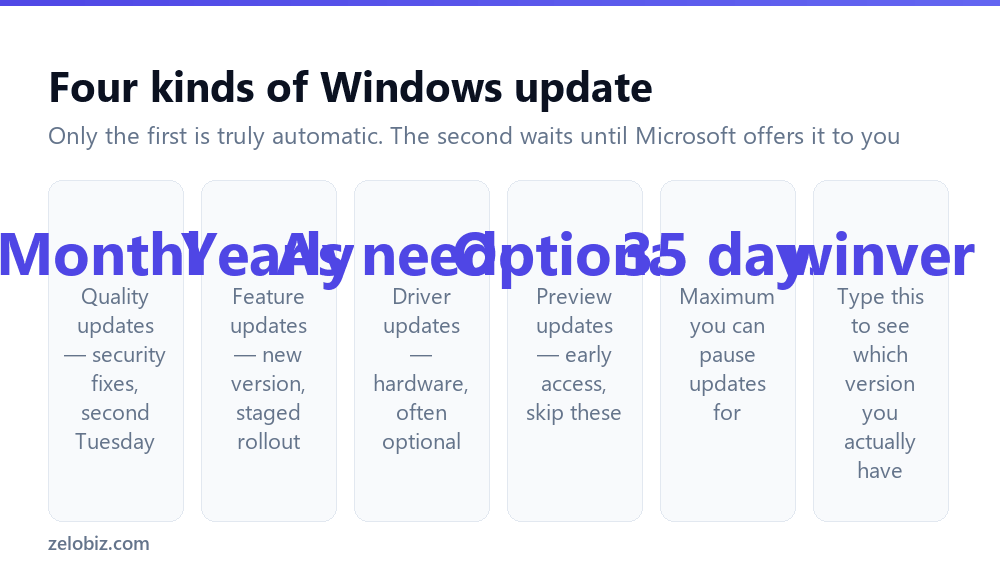
Before updating anything, find out where you stand. Press Windows + R, type winver, press Enter. A small box tells you your Windows edition and version number — something like 23H2 or 24H2.
That number matters more than the update button does. Each Windows version has a support lifetime, and once it ends you stop receiving security patches entirely, no matter how many times you click Check for updates. The machine keeps working and quietly stops being defended.
‘You’re up to date’ means up to date for the version you’re on. It says nothing about whether that version is still supported.
If you’re still on Windows 10
Worth addressing directly, because it affects a great many machines. Microsoft ended mainstream support for Windows 10 in October 2025. Consumer editions no longer receive security updates unless enrolled in the paid Extended Security Updates programme.
A Windows 10 machine today still boots, still runs your software, and still says you’re up to date. It simply isn’t getting patched against newly discovered vulnerabilities, and that gap widens every month.
Three realistic options. Upgrade to Windows 11 if the hardware qualifies — it’s still free, and the PC Health Check app will tell you in seconds. Enrol in Extended Security Updates for a limited reprieve if the hardware doesn’t. Or accept the risk knowingly, which is a legitimate choice for an offline machine and a poor one for anything doing banking.
⚠️ Watch out: The common blocker for Windows 11 is TPM 2.0 and Secure Boot. Both are often present but disabled in BIOS rather than absent — worth checking before concluding the machine can’t upgrade.
Running the update
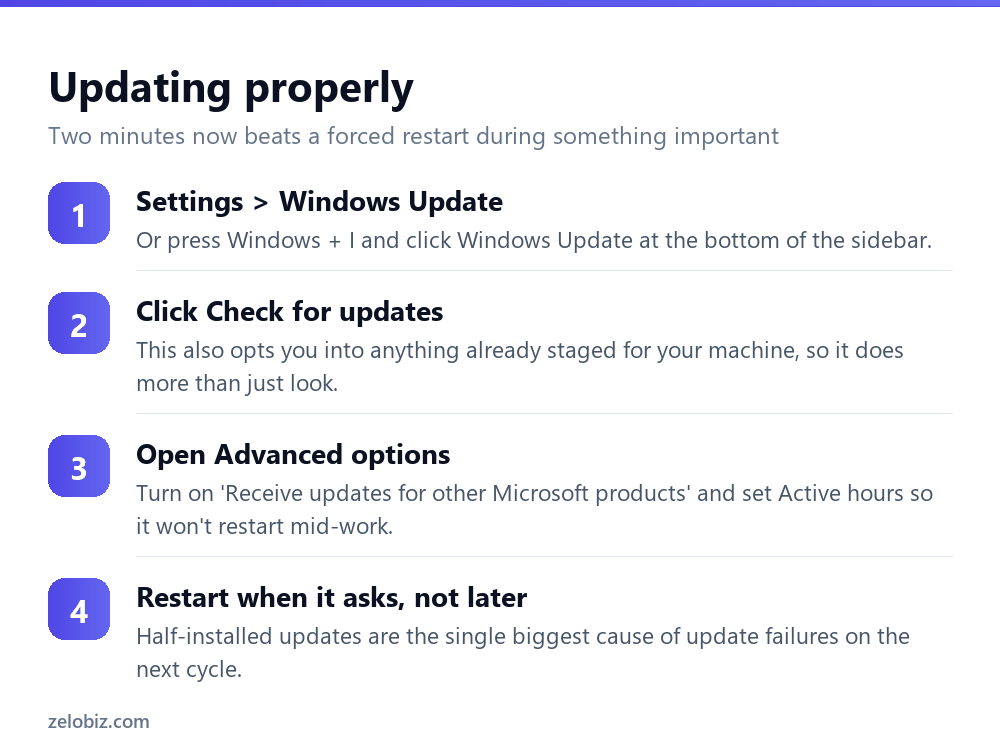
Two settings under Advanced options are worth changing on day one. Receive updates for other Microsoft products extends patching to Office and other Microsoft software, which otherwise updates on its own schedule or not at all. And Active hours tells Windows when you’re using the machine so it won’t restart underneath you.
Set active hours generously — wider than your actual working day. Windows respects them for scheduled restarts, and the cost of setting them too wide is a slightly later restart rather than anything harmful.
Feature updates and why they’re late
The annual version upgrade doesn’t arrive the day it’s announced. Microsoft rolls it out in waves, holding it back from hardware and driver combinations where it’s seen problems. Your machine may be six months behind the release date entirely by design.
If you want it early, there’s usually a Download and install link under the feature update on the Windows Update page once you’re eligible. Failing that, the Windows Update Assistant from Microsoft’s site will force the upgrade.
Whether you should is another matter. Being in the first wave of a feature update means finding the problems rather than benefiting from other people having found them. Unless you need a specific new capability, waiting is the better default.
Pausing updates without breaking things
Windows lets you pause updates for up to 35 days, in weekly increments, from the main Windows Update page. That’s deliberate: long enough to get through a deadline, short enough that nobody drifts a year behind.
After the pause expires you must install everything outstanding before you can pause again. There’s no way to extend it indefinitely through Settings, and the workarounds that disable the Update service entirely tend to leave the machine in a state where updates later fail in confusing ways.
💡 Pro tip: Pausing is the right tool for ‘not this week’. If you find yourself wanting to pause permanently, the actual problem is usually unpredictable restarts — fix that with Active hours instead.
When an update won’t install
The same update failing repeatedly, often with a code like 0x80070002 or 0x800f0922, is the most common complaint. It’s usually not a broken PC.
Restart before troubleshooting
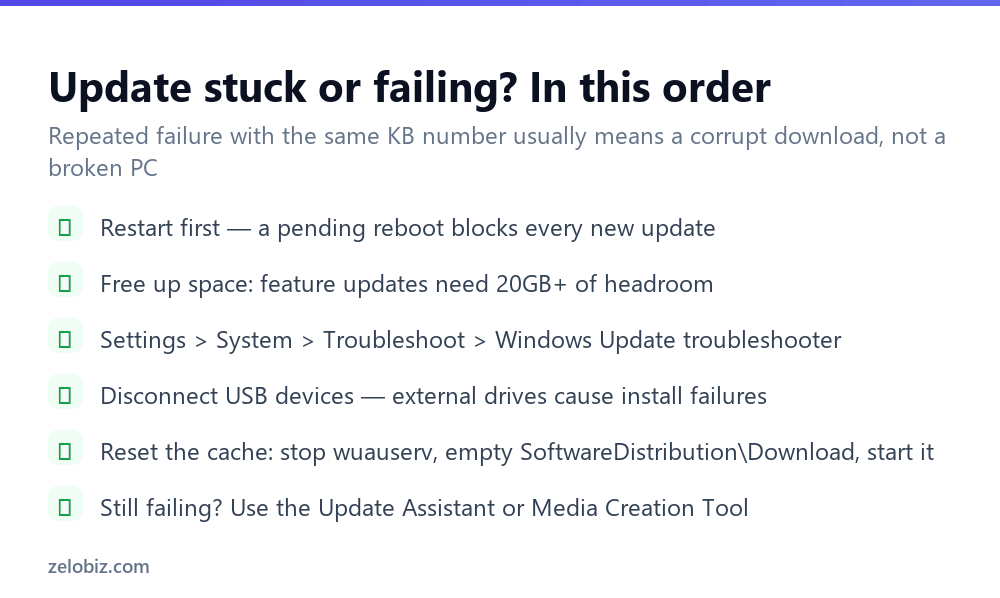
If a previous update is waiting for a reboot, new ones can’t install. This accounts for a surprising share of failures, and it’s free to rule out.
Check free space
Feature updates need 20 GB or more of headroom to unpack and stage. Monthly updates need far less but still fail on a nearly full drive. If your C: drive is tight, that’s the cause before anything else.
Reset the update cache
When the same KB fails repeatedly, the downloaded files are usually corrupt and Windows keeps retrying the same broken copy. Open Command Prompt as administrator and run net stop wuauserv, delete everything inside C:\Windows\SoftwareDistribution\Download, then net start wuauserv. Windows re-downloads cleanly. Nothing is lost.
Unplug external devices
External drives, card readers and docking stations genuinely do break feature updates — the installer can pick the wrong disk for its staging files. Disconnect everything except keyboard and mouse before a major upgrade.
Updates on a metered connection
On mobile broadband or a tethered phone, Windows can quietly consume several gigabytes on a feature update. Marking the connection as metered stops that.
Go to Settings › Network & internet, click the connection, and turn on Metered connection. Windows then downloads only critical security updates and holds everything else until you’re on an unmetered network.
Worth remembering you set it, though. A laptop that never updates is often one where the home Wi-Fi got marked metered a year ago and nobody noticed. It’s the second thing to check when a machine is inexplicably behind.
Driver updates: leave them to Windows
Windows Update delivers drivers alongside everything else, and for most hardware that’s the right source. They’ve been tested against your Windows version and they roll back cleanly if something goes wrong.
The exception is graphics. If you game or do video work, get GPU drivers directly from NVIDIA, AMD or Intel — their releases are months ahead of what reaches Windows Update, and the difference is real.
What to avoid entirely is third-party ‘driver updater’ software. It solves a problem most people don’t have, frequently installs generic drivers over working manufacturer-specific ones, and is a common source of the exact instability it claims to fix.
Reading your update history
Settings › Windows Update › Update history lists everything installed, grouped by type, each with a KB number — the identifier Microsoft uses for a specific patch.
Those numbers are searchable. If an update caused a problem, searching its KB number usually turns up Microsoft’s own page describing what changed and any known issues. It’s also how you confirm whether a fix you’ve read about has actually reached your machine yet, rather than guessing from dates.
Failed installations appear here too, with their error codes, which is more useful than the notification that flashed past at the time.
Undoing an update that broke something
If a machine starts misbehaving right after an update, you can remove it. Go to Settings › Windows Update › Update history › Uninstall updates, and remove the most recent one by date.
For a feature update, there’s a Go back option under Settings › System › Recovery — but only for ten days after installing. After that Windows deletes the previous installation and the option disappears.
Once you’ve uninstalled a problem update, pause updates for a week. Otherwise Windows will reinstall the same one within a day and you’ll be back where you started.
- ✓Check winver first to see which version you’re actually on
- ✓Turn on updates for other Microsoft products
- ✓Set Active hours wider than your real working day
- ✓Restart promptly when asked — pending reboots block new updates
- ✓Unplug external drives before a feature update
- ✕Assuming ‘up to date’ means your version is still supported
- ✕Disabling the Windows Update service to stop restarts
- ✕Installing third-party driver updater tools
- ✕Rushing into a feature update on release day
- ✕Retrying a failing update without clearing the cache first
Frequently asked questions
How do I check for Windows updates?
Settings, Windows Update, then Check for updates. On Windows 10 it’s Settings, Update & Security, Windows Update. Clicking check also opts you into updates already staged for your machine.
What Windows version do I have?
Press Windows + R, type winver and press Enter. The box shows your edition and version number, such as 23H2 or 24H2. That version number determines how long you keep receiving security updates.
Why does Windows say I’m up to date when there’s a newer version?
Feature updates roll out in waves. Microsoft holds them back from hardware and driver combinations where problems have been seen, so your machine can be months behind the release date by design.
How long can I pause Windows updates?
Up to 35 days, in weekly increments. After that you must install everything outstanding before pausing again.
How do I fix a Windows update that keeps failing?
Restart first, check you have 20GB free, then run the Windows Update troubleshooter. If the same update keeps failing, stop the wuauserv service, empty C:\Windows\SoftwareDistribution\Download and start it again to force a clean download.
Can I uninstall a Windows update?
Yes. Settings, Windows Update, Update history, Uninstall updates. For a feature update use Settings, System, Recovery, Go back — but only within ten days of installing it.
- →Updates need room — how to free up disk space
- →Clear a corrupt update cache: how to clear cache on Windows
- →Watch what an update is doing with how to open Task Manager
- →Capture the error code: how to screenshot on Windows