
To connect AirPods to laptop devices: on a Mac signed into the same Apple ID as your AirPods, they often connect automatically or appear as an easy option in the Bluetooth menu with no separate pairing step. On Windows, open the AirPods case near the laptop, press and hold the small button on the back of the case until the status light flashes white, then go to Settings › Bluetooth & devices › Add device › Bluetooth and select AirPods from the list.
Mac vs Windows — genuinely different processes
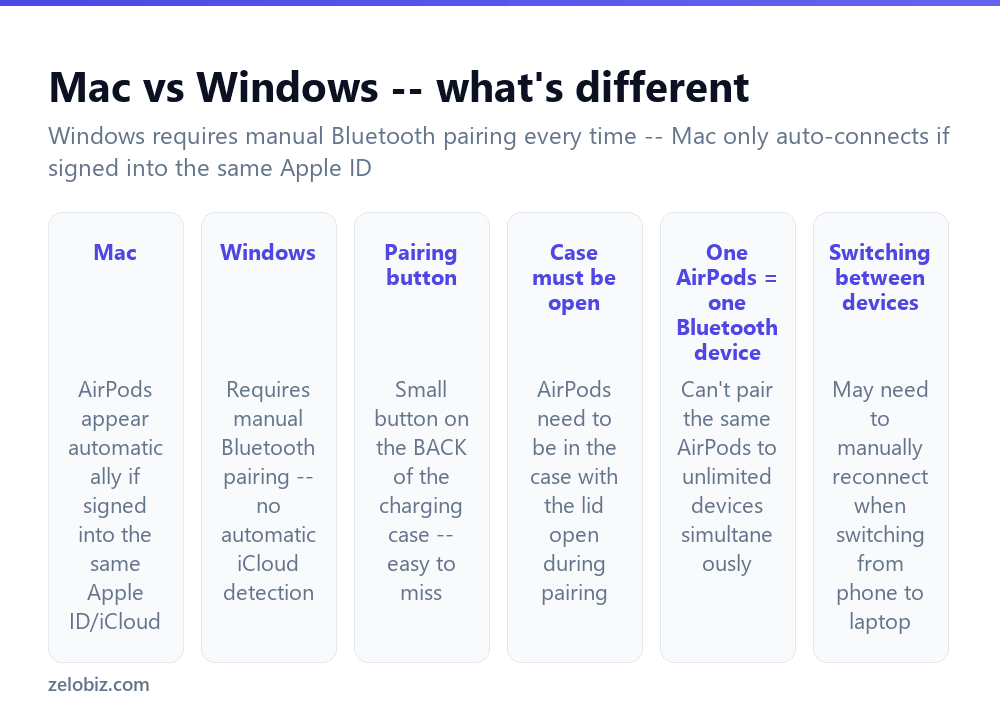
On a Mac signed into the same Apple ID that set up the AirPods originally, they frequently connect with minimal effort — opening the case near an unlocked Mac can trigger a setup prompt, or they simply appear as a one-click option in the Bluetooth menu (the small Bluetooth icon in the menu bar), leveraging the same iCloud account link that makes AirPods switch seamlessly between an iPhone and iPad.
On Windows, there’s no equivalent iCloud integration — AirPods connect exactly like any standard Bluetooth headphones, through Windows’ own Bluetooth pairing settings, requiring the manual pairing process every time they’re connected to a new Windows device for the first time.
The pairing button is easy to miss the first time — it’s a small, recessed button on the back of the charging case, not visible from the front where the case’s status light sits.
Connecting on Windows
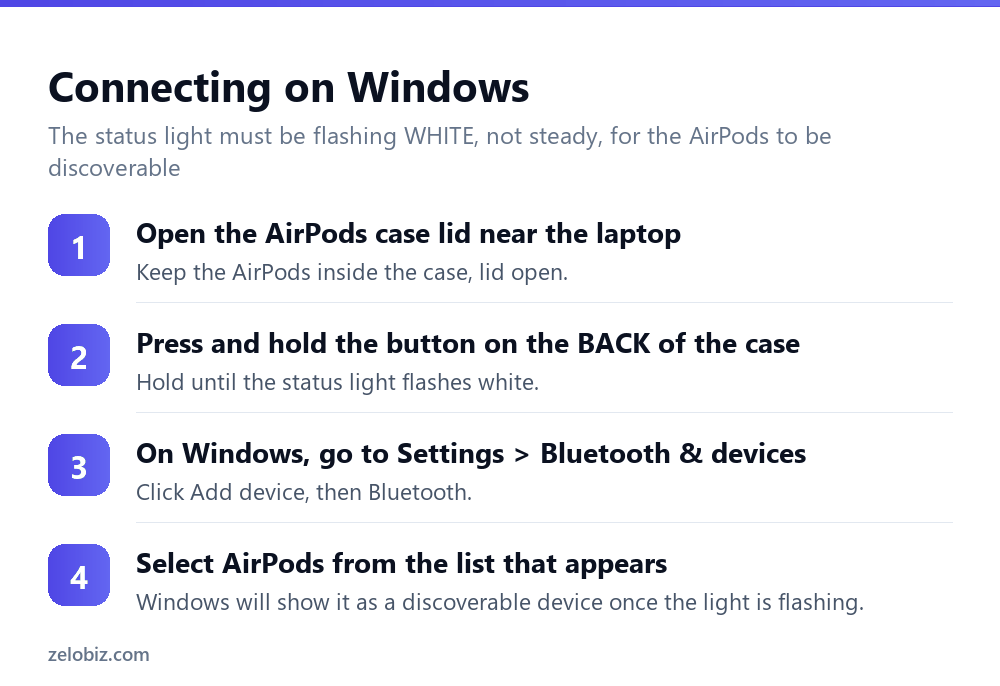
Open the AirPods case lid while near the laptop, keeping the AirPods themselves inside the case.
Press and hold the small button on the back of the case until the status light on the front flashes white — a steady light, or no light at all, means it isn’t in pairing mode yet.
On the Windows laptop, go to Settings › Bluetooth & devices, click Add device, then choose Bluetooth as the device type.
AirPods should appear in the resulting list of discoverable devices while the status light is still flashing — select it to complete pairing. Once paired the first time, Windows remembers the connection and reconnects automatically going forward whenever both the laptop’s Bluetooth and the AirPods (out of the case, in your ears or nearby) are active.
Connecting on a Mac
If AirPods don’t connect automatically, the manual route is nearly identical to Windows: open the case near the Mac, press and hold the back button until the light flashes white, then on the Mac go to System Settings › Bluetooth, and select AirPods from the list of nearby devices.
The main practical difference on a Mac is that this manual step is often unnecessary the first time if you’re signed into the same Apple ID used to originally set up the AirPods with an iPhone, since Apple’s ecosystem integration handles much of the handoff automatically.
Audio quality is genuinely different on Windows
It’s worth setting expectations here rather than assuming something is broken: AirPods on Windows generally sound noticeably less crisp than on an Apple device, and can show slightly more latency (a small delay between video and audio, for instance). This isn’t a connection problem — it’s because Windows doesn’t support Apple’s proprietary higher-quality audio codec that Apple devices use with AirPods, falling back instead to a more generic, lower-fidelity Bluetooth audio standard.
Similarly, microphone quality on any Bluetooth headset — AirPods included, on any platform — is typically noticeably worse than speaker/playback quality, a general limitation of how Bluetooth handles simultaneous audio input and output, not specific to AirPods or to Windows.
Switching between multiple devices
A single pair of AirPods can be paired to several devices’ Bluetooth settings, but actual audio only plays to one at a time. Switching from a phone to a laptop sometimes requires manually selecting AirPods again in the new device’s Bluetooth or audio output menu, particularly on Windows, since it lacks Apple’s automatic device-switching feature that shifts audio seamlessly between Apple devices signed into the same Apple ID.
A worked example: setting up a new work laptop
Say you’ve just received a new Windows work laptop and want your existing AirPods, already paired to your personal phone, working with it for calls and music.
Since the AirPods are already paired to the phone, that pairing doesn’t need to change or be removed — AirPods support being paired to several devices’ Bluetooth lists simultaneously, only audio playback is limited to one active connection at a time. Open the case near the new laptop, hold the back button until the light flashes white, then add them as a new Bluetooth device in Windows Settings exactly as with any first-time pairing.
Once paired to both, day-to-day switching works like this: if audio is currently playing through the phone and you want it on the laptop instead, open the laptop’s sound settings and manually select AirPods as the output device (or vice versa, muting/pausing on one before expecting the other to take over cleanly). This manual step is the tradeoff for not having Apple’s automatic cross-device handoff on a Windows machine.
Using AirPods for video calls on a laptop
For video conferencing specifically, AirPods generally work well as a combined microphone and speaker source once connected, and most conferencing software (Teams, Zoom, Google Meet) will list AirPods as a selectable audio device separately from the laptop’s built-in mic and speakers.
Double-check the conferencing app’s own audio settings specifically — it’s possible for a laptop’s operating system to correctly show AirPods as the active device while an individual application still defaults to the laptop’s built-in microphone instead, particularly on apps that cache audio device selection from before AirPods were connected. If a call sounds like it’s using the wrong microphone, check that specific app’s audio settings before assuming the Bluetooth connection itself is at fault, since the two are genuinely separate settings that don’t always stay in sync automatically.
When something’s not working
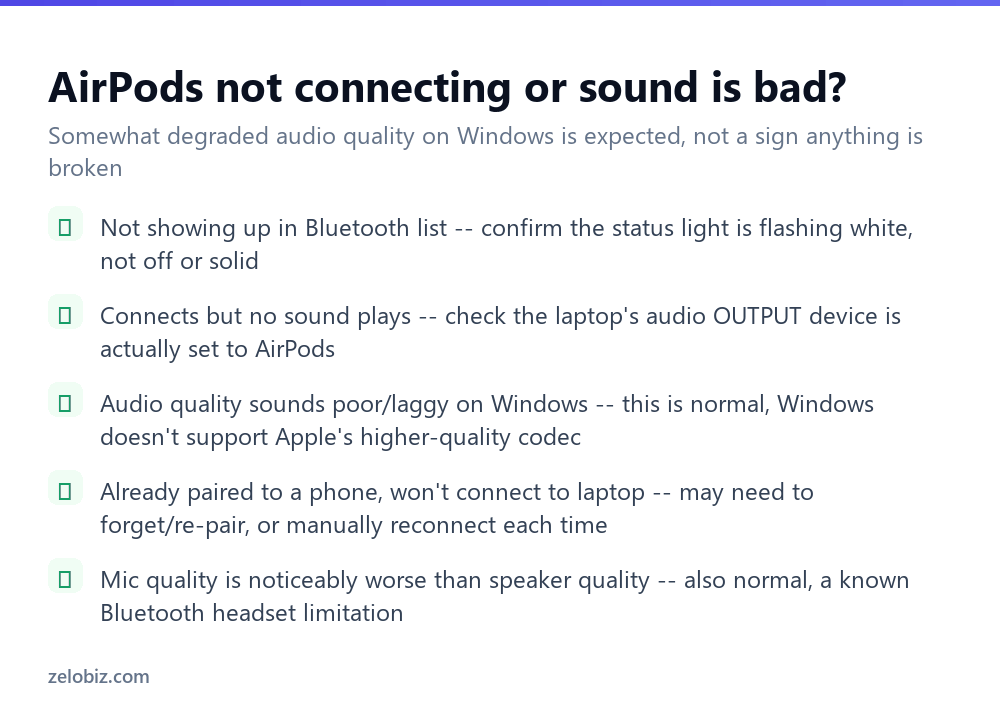
Not showing up in the Bluetooth device list — confirm the status light is genuinely flashing white during the search; a light that’s off or solid rather than flashing means pairing mode wasn’t actually triggered.
Connects but no sound plays — check the laptop’s audio output device specifically (in Windows sound settings, or the Mac’s sound menu) is actually set to AirPods, rather than defaulting back to built-in laptop speakers.
Already paired to a phone, won’t connect to the laptop — try removing (“forgetting”) the AirPods from the laptop’s Bluetooth list and re-pairing from scratch, or simply manually reselect AirPods as the active device each time you switch between the phone and the laptop.
Poor audio quality on Windows — this is a known platform limitation rather than a fault with your specific AirPods or laptop, as covered above.
A quick reference
Just bought a new laptop and want existing AirPods working on it: pair as normal, there’s no need to remove the existing pairing to a phone first. Audio randomly plays through the wrong device: manually reselect the intended output in that device’s sound settings rather than expecting automatic switching outside Apple’s own ecosystem.
- ✓Look for the pairing button specifically on the back of the case, not the front
- ✓Confirm the status light is flashing white, not solid, before searching on the laptop
- ✓Check the laptop’s audio output device is actually set to AirPods after connecting
- ✓Expect somewhat lower audio quality on Windows — it’s a platform limitation, not a fault
- ✓Manually reselect AirPods when switching between a phone and a Windows laptop
- ✕Searching for a pairing button on the front of the case where it doesn’t exist
- ✕Assuming a solid (non-flashing) status light means pairing mode is active
- ✕Troubleshooting Windows audio quality as if it’s a connection problem to fix
- ✕Expecting automatic device-switching on Windows the way Apple devices offer it
- ✕Assuming poor Bluetooth mic quality is specific to your AirPods rather than a general limitation
Frequently asked questions
How do I connect AirPods to a Windows laptop?
Open the case near the laptop, hold the button on the back until the light flashes white, then go to Settings, Bluetooth & devices, Add device, Bluetooth, and select AirPods.
Why won’t my AirPods connect to my laptop?
Most often the status light wasn’t actually flashing white when searching. Confirm it’s flashing, not solid or off, before looking for AirPods in the Bluetooth list.
Why do AirPods sound worse on Windows than on an iPhone?
Windows doesn’t support Apple’s proprietary higher-quality Bluetooth audio codec, so it falls back to a more generic standard — this is a platform limitation, not a fault.
Do AirPods connect automatically to a Mac?
Often yes, if signed into the same Apple ID used to originally set them up, thanks to iCloud integration. Otherwise, manual Bluetooth pairing works the same as on Windows.
Why is the microphone quality worse than the speaker quality on AirPods?
This is a general Bluetooth headset limitation affecting simultaneous audio input and output, not something specific to AirPods.
Can I connect the same AirPods to a phone and a laptop at the same time?
They can be paired to both, but audio only plays through one device at a time — you may need to manually switch the active device when moving between them.
- →Capture what you see on screen: how to screenshot on Mac
- →Handle an app that has frozen: how to force quit on Mac
- →Move files wirelessly between Apple devices: how to AirDrop
- →Get photos off your phone: how to transfer photos from iPhone to computer