
To force quit on Mac computers, press Cmd+Option+Esc to open the Force Quit Applications window, select the frozen or unresponsive app from the list, and click Force Quit. Alternatively, right-click the app’s icon in the Dock while holding the Option key, which changes the “Quit” option to “Force Quit” directly in that menu. Force quitting closes the app immediately without saving anything — it’s a last resort for an app that’s stopped responding, not a normal way to close software.
Three ways to reach it
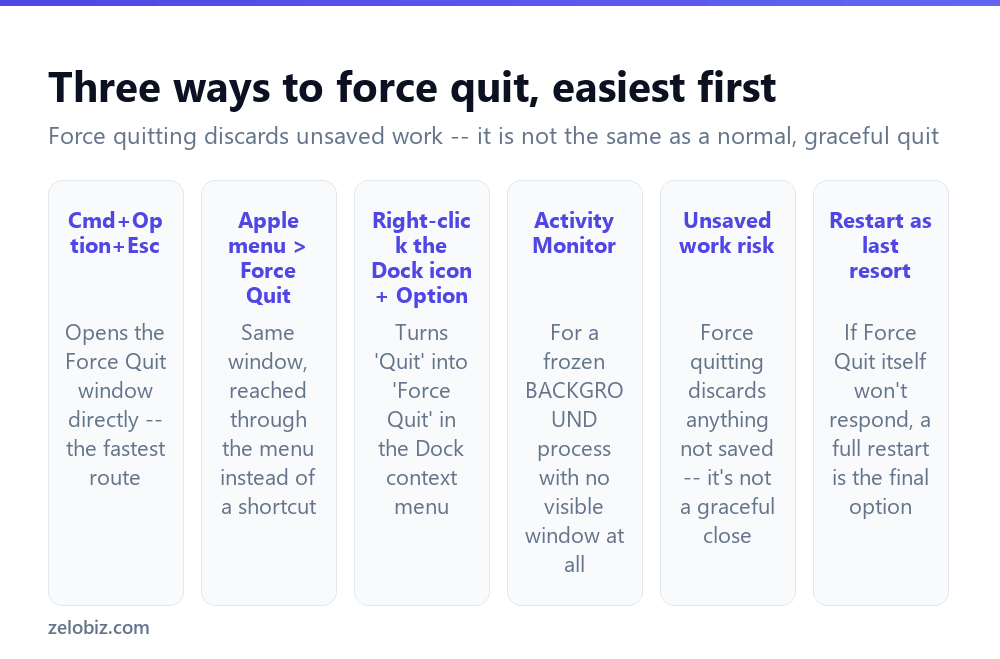
Cmd+Option+Esc is the fastest route — a dedicated keyboard shortcut that opens the Force Quit Applications window directly from anywhere, regardless of which app currently has focus.
Apple menu (top-left) › Force Quit opens the identical window through the menu instead, useful if the keyboard shortcut is hard to remember or the keyboard itself is behaving unreliably for some reason.
Right-click (or Control-click) the app’s icon in the Dock while holding Option changes the normal “Quit” menu item into “Force Quit” directly in that context menu — a quick option when the frozen app’s Dock icon is right there and opening a separate window feels like an extra step.
Force quitting is not the same as a normal quit. It closes the app immediately and discards anything unsaved — reach for it specifically when an app has genuinely stopped responding to normal input, not as a routine way to close software you’re simply finished using.
Using the keyboard shortcut
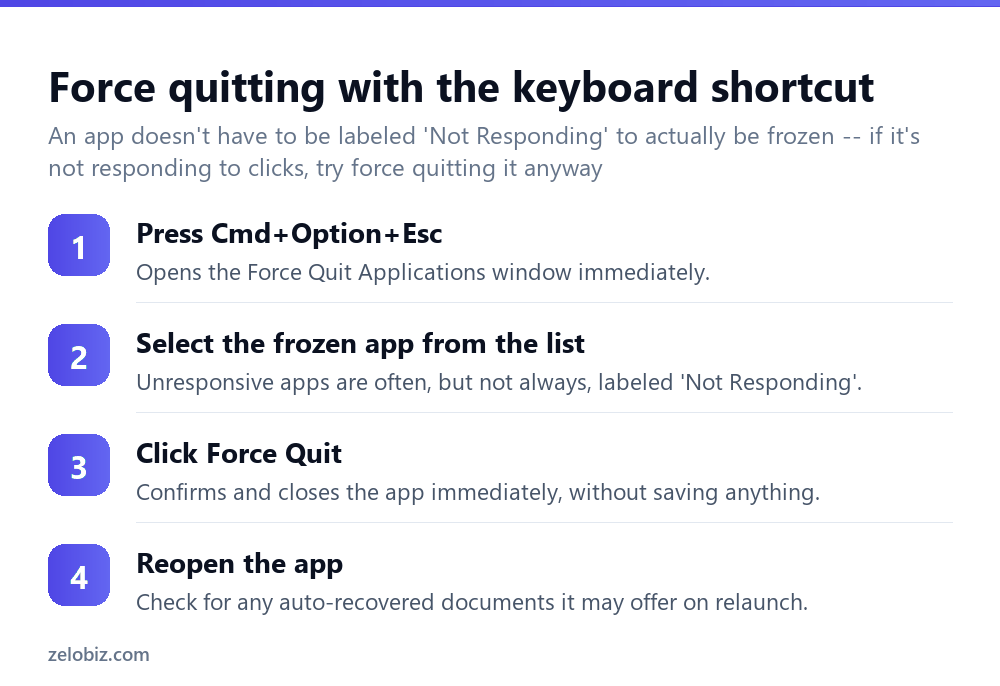
Press Cmd+Option+Esc — the Force Quit Applications window opens immediately, listing every currently open application.
Select the problem app from the list. It’s often, but not always, labeled “Not Responding” next to its name — an app can be genuinely frozen without macOS having detected and labeled it that way yet, so don’t rule out force quitting an app just because it lacks that specific label if it’s clearly not responding to clicks or input.
Click Force Quit, then confirm in the dialog that appears. The app closes immediately.
Reopen the app afterward — many modern Mac applications offer some form of auto-recovery for documents that were open when the app was force quit, though this isn’t guaranteed and depends entirely on that specific application’s own auto-save behavior.
When the Force Quit window itself won’t respond
Occasionally the Force Quit Applications window opens but the system is under enough strain that even it responds sluggishly or not at all. In that case, try the Option+right-click on the Dock icon method instead — it’s a separate system mechanism and sometimes succeeds when the Force Quit window itself is struggling.
If neither works, Activity Monitor (search for it via Spotlight, Cmd+Space) shows every running process, including background processes with no visible window at all, and lets you select and force-quit any of them directly — useful specifically for a frozen background process that wouldn’t even appear in the simpler Force Quit window, which only lists apps with an actual open window or Dock presence.
When nothing responds at all
If the entire system has become unresponsive — not just one app, but the whole interface refusing to react to clicks or keyboard input — a full restart is the genuine last resort. Hold the physical power button for several seconds until the Mac shuts down completely, then power it back on normally.
This should be treated as a true last resort specifically because it doesn’t give any running application the chance to save or recover anything — it’s a harder stop than even force quitting an individual app, and any unsaved work across every open application at that moment will be lost.
Diagnosing a repeatedly freezing app
If one specific application freezes regularly rather than as an isolated one-off event, it’s worth checking for a pending update to that app — freezing bugs are commonly identified and fixed in routine software updates, and an app that’s several versions behind is more likely to be hitting an already-known and already-fixed issue.
Persistent freezing that survives an update, or that affects multiple unrelated apps rather than just one, points more toward a broader system resource issue — checking Activity Monitor’s CPU and Memory tabs for what’s consuming unusually high resources can help identify whether something else running in the background is the actual root cause.
A worked example: a browser tab that’s frozen the whole app
Say a specific browser tab — a heavy web app or a page with a stuck script — has frozen the entire browser window, and clicking anywhere in it produces no response at all, including the tab bar and menu.
Most modern browsers have their own internal task manager separate from macOS’s — in Chrome, for instance, Window menu, Task Manager (or a dedicated shortcut) lists each open tab as its own process and lets you end just the frozen tab without closing the entire browser and losing every other open tab’s session. Trying this first, before reaching for a full force quit of the browser, can save the rest of your open tabs and their state.
If the whole browser truly won’t respond even to its own task manager, Cmd+Option+Esc and force quitting the browser itself is the next step — most browsers offer to restore previously open tabs on the next launch, though session state for a page that was mid-interaction (a partially filled form, for instance) is still genuinely lost.
Force quitting from Terminal, for anyone comfortable with it
For users familiar with Terminal, the killall command (e.g. killall Finder to force-restart a frozen Finder specifically) offers another route to force quitting, particularly useful for system processes like Finder that don’t always appear cleanly in the standard Force Quit window the same way a regular application does.
This isn’t necessary for most people and most situations — the graphical methods above cover the vast majority of real cases — but it’s worth knowing exists for a system process specifically, like a frozen Finder, that behaves a little differently from an ordinary frozen application and doesn’t always respond the same way to the standard graphical force quit tools.
Preventing data loss before it becomes necessary
Since force quitting discards unsaved work by definition, the most effective long-term fix for the risk it poses is relying on apps with reliable auto-save (many modern Mac apps, including Apple’s own Pages, Numbers, and Keynote, auto-save continuously) and getting in the habit of saving manually with Cmd+S at natural pauses in work, particularly in any older or third-party app where auto-save isn’t guaranteed to be built in at all.
When force quitting itself isn’t working
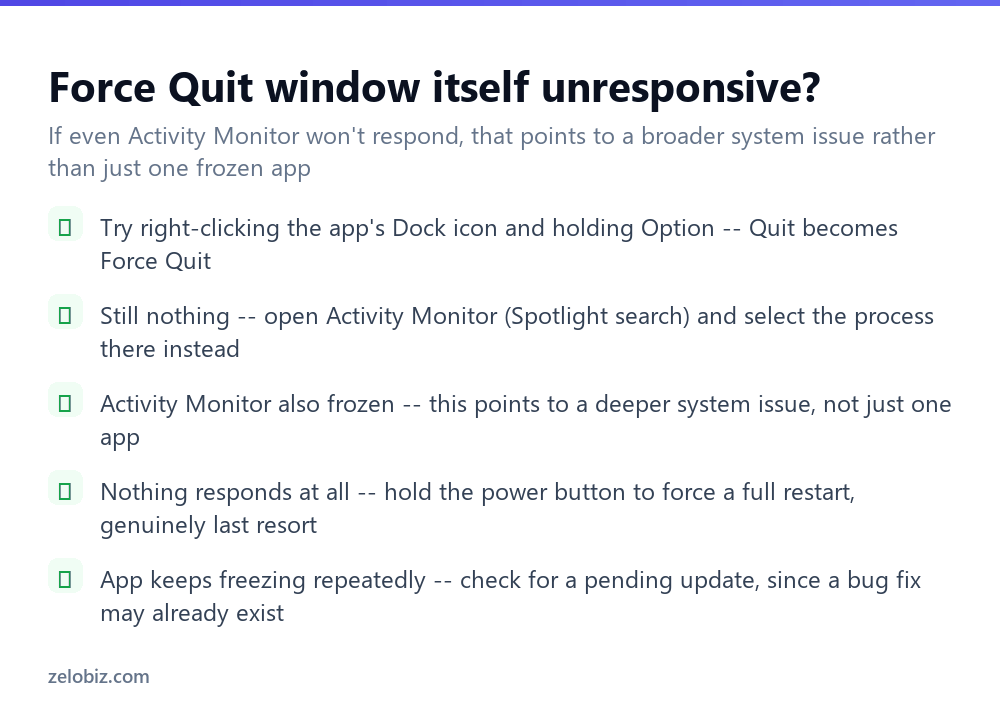
The Force Quit window is unresponsive — try the Option+right-click Dock icon method as a separate mechanism that sometimes succeeds independently.
Still nothing responds — open Activity Monitor via Spotlight and attempt to force quit the process from there instead, which can reach background processes the simpler window doesn’t show.
Activity Monitor is also frozen — this points toward a deeper system-level issue rather than a single misbehaving app, and a full restart via the power button becomes the reasonable next step.
The same app keeps freezing repeatedly — check for a pending software update for that specific app before assuming it’s an unfixable, ongoing problem.
A force quit is always a valid response to a genuinely frozen app — it’s simply worth reaching for the least destructive option available first when there’s a real choice between several.
- ✓Try Cmd+Option+Esc first — it’s the fastest route to force quit
- ✓Force quit an app that’s clearly unresponsive even without a ‘Not Responding’ label
- ✓Use Activity Monitor for a frozen background process with no visible window
- ✓Check for a pending app update if the same app freezes repeatedly
- ✓Treat a full power-button restart as a genuine last resort, not a routine fix
- ✕Assuming an app isn’t frozen just because it lacks the ‘Not Responding’ label
- ✕Reaching for force quit as a routine way to close apps you’re simply done using
- ✕Restarting the whole Mac before trying Activity Monitor for a background process
- ✕Ignoring a pattern of repeated freezing in one specific app without checking for updates
- ✕Expecting force quit to save any unsaved work — it discards it immediately
Frequently asked questions
What is the keyboard shortcut to force quit on a Mac?
Cmd+Option+Esc opens the Force Quit Applications window directly, letting you select and close any unresponsive app.
Does force quitting save my work first?
No. Force quit closes an app immediately and discards anything unsaved — it’s a last resort for a frozen app, not a normal way to close software.
How do I force quit an app from the Dock?
Right-click (or Control-click) the app’s Dock icon while holding the Option key, which changes ‘Quit’ to ‘Force Quit’ in that menu.
What if the Force Quit window itself won’t respond?
Try the Option+right-click Dock icon method instead, or open Activity Monitor via Spotlight to force quit the process from there.
How do I force quit a background process with no visible window?
Open Activity Monitor (search via Spotlight), which lists every running process, including background ones the simpler Force Quit window doesn’t show.
What should I do if nothing on my Mac responds at all?
As a genuine last resort, hold the physical power button for several seconds to force a full restart — this discards all unsaved work across every open app.
- →Capture the error before quitting: how to screenshot on Mac
- →Right-click for more troubleshooting options: how to right click on a Mac
- →Free up space if the system feels sluggish: how to free up storage on iPhone
- →Reconnect accessories after a restart: how to connect AirPods to a laptop