
To add page numbers in Word, go to the Insert tab, click Page Number in the Header & Footer group, choose a position (Top of Page, Bottom of Page, or Page Margins), and pick a style from the gallery. Numbers apply to the entire document automatically. For more advanced needs — skipping a title page, or starting numbering at 1 after an unnumbered cover and table of contents — Different First Page and Section Breaks handle those specific cases, covered below.
The basics and the common customizations

Insert › Page Number is the starting point for any document — choose Top of Page (header), Bottom of Page (footer), or Page Margins (sidebar), then a specific visual style from the gallery that appears.
Different First Page (a checkbox under Header & Footer Tools once you’re editing a header or footer) skips numbering specifically on the first page — useful for a cover or title page that shouldn’t display a number at all.
Starting numbering at a specific number — for a document where page 1 should be the first page of actual content, not the cover or table of contents before it, requires a bit more setup involving Section Breaks, covered in detail below.
Different odd/even pages — another Header & Footer Tools checkbox, letting numbers (or other header/footer content) alternate position or content between odd and even pages, useful for a document intended to be printed and bound like a book, where numbers often sit on the outer edge of each page.
Section Breaks are the one underlying concept that unlocks every advanced page-numbering scenario — different numbering styles in different parts of the same document, numbering that starts partway through, or numbering that restarts after a certain point. Without a section break, the whole document is treated as one continuous numbering sequence with no ability to vary it partway through.
Adding basic page numbers
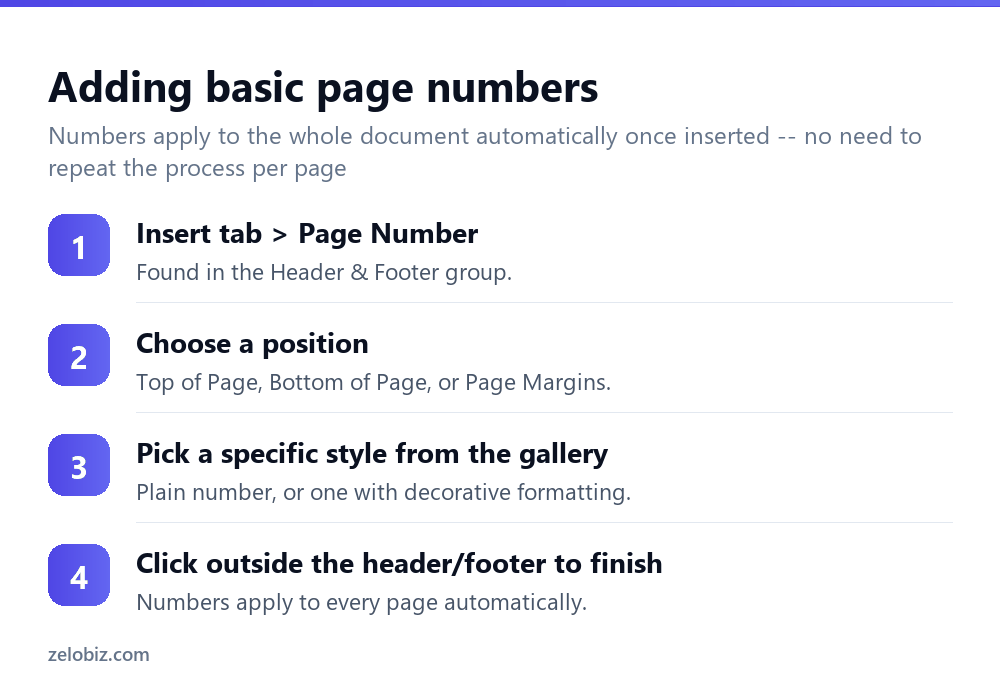
Insert tab, then Page Number in the Header & Footer group.
Choose a position: Top of Page, Bottom of Page, or Page Margins (which places it in the side margin rather than the header or footer area).
Pick a specific style from the gallery that appears — a plain number, or one with additional decorative formatting or positioning built in.
Click outside the header/footer area to finish editing. Numbers apply to every page of the document automatically from this point, with no need to repeat the process page by page.
Skipping the first page’s number
With the header or footer active for editing (double-click into it if not already there), a Header & Footer Tools tab appears in the ribbon. Check Different First Page, and the first page’s header/footer becomes independently editable and blank by default — delete any number that appears there if one still shows, and it stays permanently unnumbered while the rest of the document continues numbering normally.
Starting numbering at 1 after a title page and table of contents
This specific, common need — an unnumbered cover page and table of contents, followed by the main content starting fresh at page 1 — requires a Section Break, since Different First Page alone only skips one page, not several.
Place the cursor at the very end of the table of contents (or wherever the unnumbered front matter ends), then Layout › Breaks › Section Breaks › Next Page. This creates a new section starting from that point.
Click into the header/footer of the new section (the first page of actual content), and in Header & Footer Tools, click Link to Previous to un-link it from the earlier section — this is essential, since by default a new section still inherits the previous section’s numbering continuously.
With the sections unlinked, go to Insert › Page Number › Format Page Numbers, and under “Page numbering,” choose Start at and enter 1. The new section now begins its own numbering from 1, independent of anything in the unnumbered front matter before it.
Different numbering styles in different sections
The same Section Break and Link to Previous technique supports genuinely different numbering styles across a document, not just different starting numbers — for instance, front matter numbered in lowercase roman numerals (i, ii, iii) followed by main content in standard Arabic numerals (1, 2, 3), a common convention in longer formal documents and reports. Set the numbering format specifically for each unlinked section via the same Format Page Numbers dialog.
A worked example: a report with a cover, TOC, and appendix
Say a formal report has a cover page, a table of contents, main content that should start at page 1, and an appendix at the end that should be numbered separately using roman numerals (A-1, A-2, or similar isn’t native to Word’s numbering, so lowercase roman is the closer practical option for a distinctly-styled appendix section).
Insert a Section Break (Next Page) after the table of contents and again before the appendix — three sections total: front matter, main body, appendix. Unlink each new section’s header/footer from the one before it using Link to Previous, then set each section’s numbering independently through Format Page Numbers: no numbers (or Different First Page) for the cover, Start at 1 with Arabic numerals for the main body, and a distinct numbering style for the appendix if that’s the required convention.
Test the result by scrolling through the entire document afterward, confirming each section’s numbering genuinely starts and displays as intended — it’s easy for one section’s Link to Previous to be missed during setup, which causes that section to quietly inherit the previous section’s numbering instead of using its own independent setting.
Removing page numbers entirely
If page numbers need to be removed altogether rather than adjusted, double-click into the header or footer containing them, select the number itself, and press Delete — or use Insert › Page Number › Remove Page Numbers, which strips them from the entire document in one action rather than needing to delete them page by page, which isn’t necessary anyway since numbers are a single field applied document-wide, not individually placed on each page.
When numbering isn’t behaving as expected
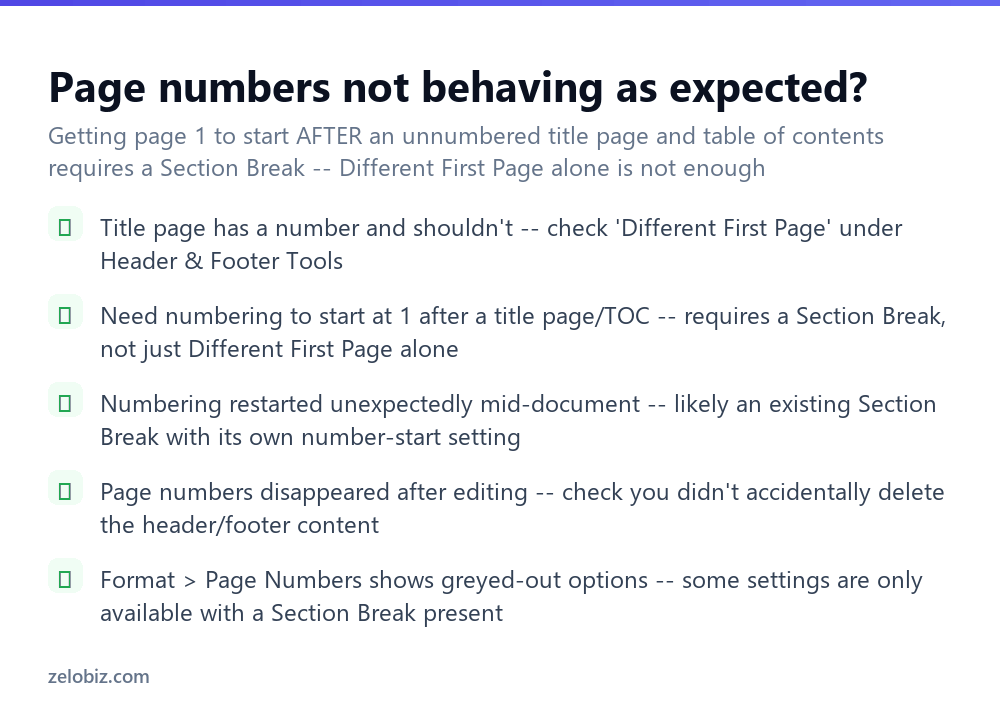
The title page has a number and shouldn’t — check whether “Different First Page” is actually enabled under Header & Footer Tools, and confirm no number remains manually left in that first page’s header or footer.
Need numbering to start at 1 after a title page and table of contents — Different First Page alone only skips a single page; a genuine Section Break with Link to Previous turned off is required for numbering to restart after several unnumbered front-matter pages.
Numbering restarted unexpectedly partway through the document — there’s likely an existing Section Break somewhere with its own “Start at” setting; check Format Page Numbers within that specific section to see and adjust its numbering configuration.
Format Page Numbers shows greyed-out options — some numbering options are only available once the cursor is actually positioned within a header or footer, or once a Section Break exists; click into the actual header/footer area first before trying to access advanced settings.
- ✓Use Insert, Page Number for straightforward, uniform numbering across a document
- ✓Use Different First Page specifically for an unnumbered cover or title page
- ✓Use a Section Break plus Link to Previous off for numbering that starts partway through
- ✓Set numbering format independently per section for roman numerals vs Arabic numbers
- ✓Check for existing Section Breaks if numbering behaves unexpectedly mid-document
- ✕Expecting Different First Page alone to skip several unnumbered front-matter pages
- ✕Forgetting to unlink Link to Previous when a new section needs independent numbering
- ✕Leaving a manually-typed number in a first page meant to stay unnumbered
- ✕Assuming greyed-out Format Page Numbers options mean the feature isn’t available at all
- ✕Overlooking an existing, forgotten Section Break as the cause of unexpected renumbering
Frequently asked questions
How do I add page numbers in Word?
Go to Insert, Page Number, choose a position like Top of Page or Bottom of Page, and pick a style — it applies to the whole document automatically.
How do I skip the page number on my title page?
With the header or footer active, check Different First Page under Header & Footer Tools, and remove any number left on that first page.
How do I start page numbering at 1 after a title page and table of contents?
Insert a Section Break after the front matter, unlink that section from the previous one (Link to Previous), then set Format Page Numbers, Start at, 1.
Why did my page numbers restart unexpectedly in the middle of my document?
There’s likely an existing Section Break with its own Start At setting. Check Format Page Numbers within that section to find and adjust it.
Can I use different numbering styles in different parts of the same document?
Yes, using Section Breaks with Link to Previous turned off, setting a different format (like roman numerals vs Arabic numbers) independently per section.
Why are some Format Page Numbers options greyed out?
The cursor needs to be positioned within an actual header or footer area, and some options require a Section Break to be present, before becoming available.
- →Format the body text first: how to double space in Word
- →Build navigation for a longer document: how to make a table of contents in Word
- →Fix an unwanted break affecting numbering: how to remove a page break in Word
- →Share the finished, numbered document: how to convert Word to PDF