

So a table of contents in Word never updates on its own. Everyone learns this fast. Edit a heading, and the table still shows the old text until you tell Word to refresh it.
So the fix looks simple. So right-click the table, choose Update Entire Table, and the numbers and headings snap into place. Problem solved, or so it seems.
But that fix only touches what is on your screen right now. The PDF you already exported, or the one you are about to export, can still carry the old numbers. Nothing in Word warns you this can happen.
A Word table of contents only updates when you manually refresh it, and refreshing it on screen does not guarantee the exported PDF matches. Word has a separate setting, Update fields before printing, found under File, Options, Display, and it is off by default in most installs. With it off, Save As PDF and Print can both use the print pipeline without refreshing the table first, so a document that looks perfectly correct in Word can still ship as a PDF with stale page numbers. Verified against Microsoft’s own documentation on 16 September 2026.
Why the Table Never Updates by Itself
So a table of contents in Word is a field, not live text. It works more like a formula in a spreadsheet than a paragraph you typed.
So it only recalculates when something tells it to. Opening the file does not do this reliably. Neither does scrolling past it. So without a manual refresh, it just sits there showing whatever was true the last time someone updated it.
Also, it only picks up headings that use a real Heading style. Text made to look like a heading with bold and a bigger font, but never actually set to Heading 1 or Heading 2, gets skipped entirely, no matter how many times you refresh.
The On-Screen Check That Does Not Prove Anything
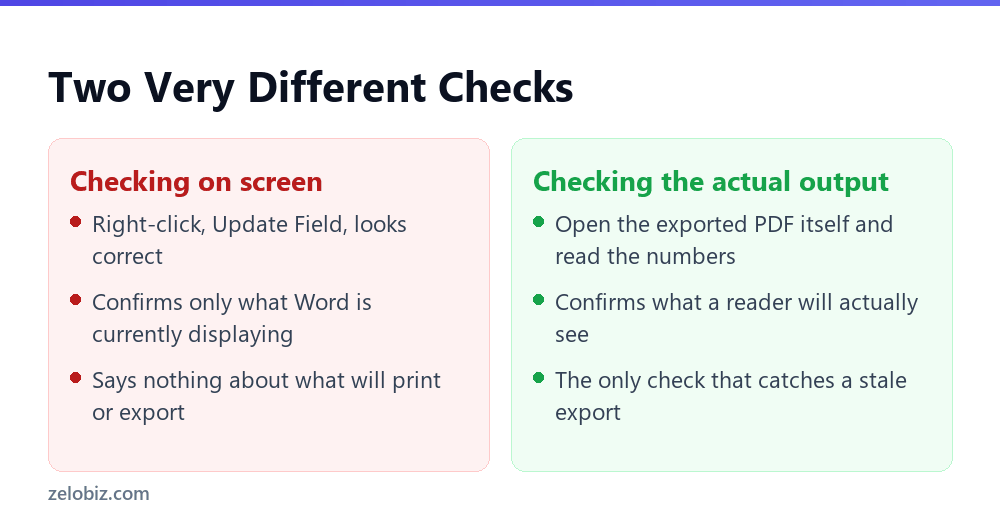
So right-clicking the table and choosing Update Entire Table is the correct move. So it genuinely fixes what Word is showing you at that moment.
So this gap catches careful people just as often as careless ones. So someone can update the table, proofread the whole document, and still ship a PDF with the wrong numbers, because the screen and the export do not automatically agree.
The Setting Almost Nobody Turns On
So Word has a specific option for this, buried under File, Options, Display, in a section called Printing options. It is called Update fields before printing.
📊 Note: For a similar case of a Word feature that only protects one specific action and not the ones around it, see how to add page numbers in Word, including starting later, where the same kind of narrow scope trips people up.
With this box checked, Word refreshes every field, including the table of contents, right before it sends the document to a printer or into the PDF export pipeline. With it unchecked, which is the default in most Word installs, that refresh never happens automatically.
⚠️ Watch out: Turning this setting on only helps going forward. It does nothing for a PDF you already sent out. Check that file directly if you are not sure whether it went out before or after you enabled this.
Turning It On

So the fix takes under a minute once you know where to look. Go to File, then Options, then Display.
Scroll down to Printing options, near the bottom of that screen. Check the box next to Update fields before printing. Click OK.
💡 Pro tip: This setting is per Word installation, not per document. So turning it on once covers every file you export from that computer afterward, not just the one you are working on right now.
Why Save As PDF Shares the Same Blind Spot
So Save As PDF in Word is not a separate export engine. So it runs through the same underlying print pipeline as an actual physical printer.
So that means whatever setting controls printing also controls PDF export. If Update fields before printing is off, Save As PDF skips the refresh too, silently, with no warning dialog telling you the table might be stale.
A Worked Example
So say a 40 page report gets a last minute edit. A section heading moves from page 12 to page 14, after someone adds two paragraphs earlier in the document.
Then the writer notices the table of contents still says page 12. So they right-click, choose Update Entire Table, and the number changes to 14 right there on screen.
Then, satisfied, they hit Save As PDF and email it out. But Update fields before printing was never turned on for that machine. So the PDF export skipped the refresh step, and the shipped file still shows page 12, the number from before the fix.
Nobody catches this until a reader clicks the table of contents entry in the PDF and lands two pages off. By then, the file has already gone to a client.
Fixing a PDF That Already Shipped Wrong
So there is no way to edit page numbers directly inside a finished PDF’s table of contents and have it stay reliable. So the real fix happens back in Word, not in the PDF itself.
Go back to the Word file. Update the table there. Turn on Update fields before printing. Then export again and confirm the new PDF shows the corrected numbers before resending it.
Manual Tables Have a Different, Bigger Problem
So everything above assumes an automatic table of contents, built from Heading styles. A manually typed table is a separate issue entirely.
So a manual table is just text and tab stops, not a field. Word cannot update it at all, on screen or in print, because there is nothing connecting it to the actual headings.
⚠️ Watch out: If your table of contents does not respond to Update Entire Table at all, it was likely built manually. The setting in this article will not help. Rebuilding it with Word’s built-in table of contents tool is the only real fix.
The Habit That Actually Prevents This
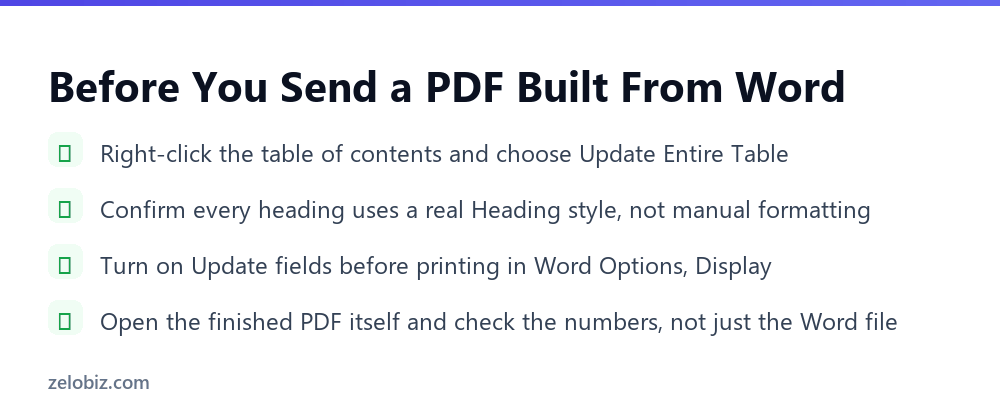
So one setting change removes most of this risk going forward. So a short habit removes the rest.
- →Turn on Update fields before printing once, under File, Options, Display.
- →Right-click the table and choose Update Entire Table before every export, out of habit.
- →Open the finished PDF itself and check the numbers, not just the Word file.
- →Confirm headings use real Heading styles, not manual bold text made to look like one.
- →Treat a manually typed table of contents as unfixable by this setting, and rebuild it instead.
Why This Matters More on Long or Shared Documents
So a two page memo rarely has this problem, since there is little room for page numbers to shift. A 60 page proposal edited by three people over two weeks is a different story.
So every edit anyone makes can shift page numbers elsewhere in the document. So the table of contents drifts further from reality with each pass, and the final export is the only point where that drift actually matters to a reader.
For a document like that, treat the pre-export check as mandatory, not optional. The cost of skipping it is a client or reviewer clicking a table of contents entry that lands in the wrong place.
Checking Whether Your Document Is Actually Safe
So a two minute test tells you whether this gap applies to your setup right now. So open any document with a table of contents.
Change a heading’s wording slightly. Do not update the table yet. Then go straight to File, Save As PDF, and open the result.
If the exported PDF shows the old heading text, Update fields before printing is off. So turn it on, and repeat the test to confirm the new PDF picks up the change automatically.
💡 Pro tip: Run this test once per computer you use for exporting Word documents, not once per document. The setting lives with the Word installation, so a laptop and a desktop can behave differently even on the exact same file.
What This Looks Like on a Shared Template
So a company proposal template gets reused by a dozen people, each on their own laptop. Some have the printing setting on. Some do not, often without knowing it either way.
The same template can export a correct PDF from one laptop and a stale one from another, even with identical content and identical steps taken by both people.
So a team relying on a shared template should treat this setting as part of onboarding, not an afterthought. One unchecked box, multiplied across a dozen laptops, becomes a dozen different chances for a client to receive the wrong page numbers.
📊 Note: For the header side of a shared template, where per-section settings cause a similar inconsistency across editors, see how to add a header in Word, and customize it per section.
What About the Headings and Page Numbers Themselves?
So this same field mechanism controls more than just the table of contents. Cross references, a Word feature that lets one part of a document point at a page number or heading elsewhere, work the exact same way.
So a sentence reading see page 12 for details is really a field, not typed text. It carries the same risk. It can look correct on screen and still print the wrong page number if the same setting is off.
Also, a document’s page numbers in the header or footer update more reliably than a table of contents does, since Word treats them differently. But cross references and the table of contents share this exact blind spot.
💡 Pro tip: If a document uses cross references alongside a table of contents, treat both the same way. One setting, Update fields before printing, covers every field type in the file at once.
Updating Every Field in One Move
So checking the table of contents alone misses cross references sitting elsewhere in a long document. There is a faster way than hunting for each one by hand.
Press Ctrl+A to select the whole document. Then press F9. So Word refreshes every field in the selection at once, table of contents, cross references, and anything else built the same way.
💡 Pro tip: Run Ctrl+A then F9 right before an export, even with Update fields before printing turned on. So it costs seconds, and it catches any field that setting alone might miss on an older or unusual document.
Common Questions
Why does my Word table of contents not update automatically?
Because it is a field, not live text. It only recalculates when you manually refresh it, by right-clicking and choosing Update Entire Table, or through a setting that refreshes fields before printing.
Why does my exported PDF show the wrong page numbers even after I updated the table?
Because updating the table on screen only fixes what Word displays. Exporting to PDF runs through a separate print pipeline that has its own setting for whether it refreshes fields first, and that setting is off by default.
How do I make Word update the table of contents before printing or exporting?
Go to File, Options, Display, scroll to Printing options, and check Update fields before printing. This applies to both physical printing and Save As PDF, since PDF export uses the same pipeline.
Does this setting fix a PDF I already sent out?
No. It only affects files exported after you turn it on. A PDF already sent needs the Word file corrected and exported again.
Why does my table of contents never update at all, even with Update Entire Table?
It was likely built manually, as typed text and tab stops instead of an automatic field. A manual table has no connection to the actual headings, so nothing can refresh it automatically.
Do all headings show up in the table of contents automatically?
Only ones formatted with a real Heading style. Text made to look like a heading with bold formatting alone, without the Heading style applied, is skipped.
Is this the same issue in Google Docs?
No. Google Docs refreshes its table of contents more aggressively on its own, though it is still good practice to check the final exported PDF there too before sending it out.
Does Update fields before printing slow down printing or exporting?
Not noticeably. It adds a brief recalculation step before the print or export job starts, so a large document might take an extra second or two, which is a fair trade for numbers that match.
Does this affect cross references too, not just the table of contents?
Yes. So any field, including a cross reference to a page number or heading elsewhere in the document, follows the same rule and needs the same setting turned on to stay accurate through export.
The Short Version
- →A Word table of contents is a field that only updates when refreshed, not live text.
- →Right-clicking Update Entire Table only fixes the on-screen copy.
- →Update fields before printing, under File, Options, Display, is off by default and controls both printing and PDF export.
- →A manually typed table of contents cannot be fixed by this setting at all.
- →Always open the finished PDF and check the actual numbers before sending it out.
So the table of contents was never the unreliable part. So the gap sits between what Word shows you and what actually leaves the building as a PDF, and one checkbox closes most of that gap for good.
So turn it on once. Then keep the habit of opening the finished file before sending it. After that, this specific mismatch stops being a surprise, on this document and every one that follows it.