
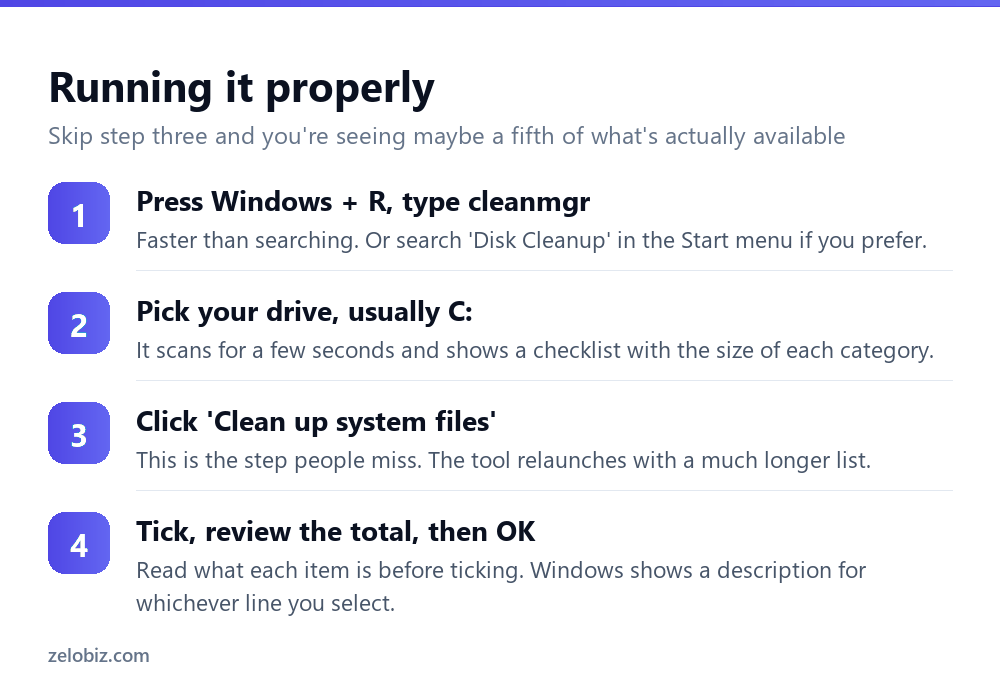
To run Disk Cleanup, press Windows + R, type cleanmgr and press Enter. Choose your drive, then — and this is the part that matters — click Clean up system files. The tool relaunches with a far longer list that includes previous Windows installations and update caches, often 20–40 GB rather than the few hundred megabytes the first screen offers.
Why Disk Cleanup seems useless
People run it, recover 300 MB, and conclude the tool doesn’t do much. That’s a reasonable conclusion from what they were shown, and it’s wrong.
Disk Cleanup opens in a restricted mode that only lists files your own user account owns. Everything genuinely large — the leftover copy of your previous Windows version, months of superseded update packages, cached installers — belongs to the system, and those need administrator rights to touch.
The Clean up system files button requests those rights and reopens the tool with everything visible. It’s an unremarkable-looking button at the bottom left of the window, and it’s the difference between the tool being pointless and being the fastest disk-space recovery on Windows.
Same tool, same drive, one button. Without it you’re seeing about a fifth of what Disk Cleanup can actually remove.
What appears after you click it
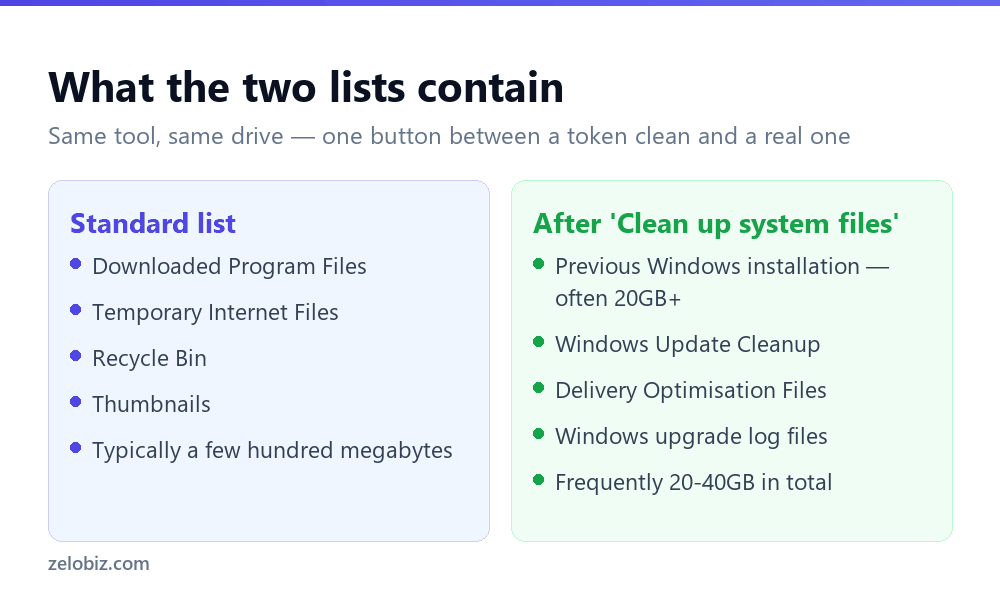
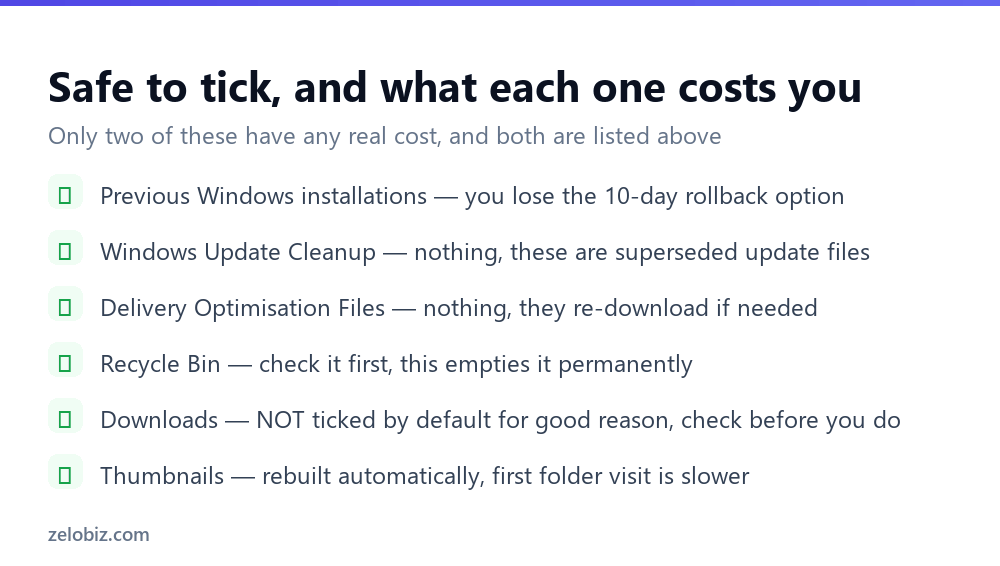
Previous Windows installation(s) is usually the largest single item and typically runs 20 to 30 GB. Windows keeps a complete copy of your old installation after a feature update so you can roll back, and deletes it automatically after ten days — but copies linger on machines where updates have failed partway.
Windows Update Cleanup holds superseded update packages Windows no longer needs. Delivery Optimisation Files are pieces of updates cached to share with other PCs on your network. Both are safe, both re-download if ever needed, and together they’re often several gigabytes.
⚠️ Watch out: Ticking ‘Previous Windows installations’ permanently removes your ability to roll back a feature update. If you updated in the last week and something is behaving oddly, resolve that before you clean.
The Downloads trap
Newer versions of Disk Cleanup list your Downloads folder as a cleanable category. It is not ticked by default, and there’s a good reason for that.
Downloads is where a great many people keep files they actually need — a contract they saved once, photos someone sent, a document they never moved. Disk Cleanup makes no distinction between an installer you finished with in 2023 and something important you downloaded this morning.
Open the folder, sort by size, and clear it by hand. It takes two minutes and you keep what matters.
Saving your selections with sageset
If you clean regularly, re-ticking the same boxes every time is tedious. Disk Cleanup has a preset system that almost nobody knows about.
Open Command Prompt as administrator and run cleanmgr /sageset:1. You get the full list — no need to click Clean up system files — and whatever you tick is saved as preset number 1. Nothing is deleted at this stage; you’re only recording choices.
From then on, cleanmgr /sagerun:1 runs that exact selection with no prompts. You can create up to 65,535 presets with different numbers, though two or three covers any realistic need — say one for a light monthly clean and one for a thorough clear-out.
💡 Pro tip: Pair cleanmgr /sagerun:1 with Task Scheduler to run it monthly and you never think about it again. Set it to run whether or not you’re signed in, with highest privileges.
Disk Cleanup versus Storage Sense
Windows now has two cleanup systems and they do overlap, which causes some confusion about which to use.
Use both. Turn Storage Sense on for the routine housekeeping, and run Disk Cleanup with system files after any feature update, which is when the big leftovers appear. Microsoft has been signalling Disk Cleanup’s retirement for years, but it’s still present and still finds things Storage Sense leaves behind.
Cleaning a drive that isn’t C:
Disk Cleanup works on any drive, but the results differ sharply depending on what that drive holds.
On a secondary data drive there are no system files, no update caches and no previous installations — so you’ll be offered little beyond the Recycle Bin and thumbnails. That’s not a fault; there genuinely isn’t anything else there. The tool is designed around the system drive.
External drives and USB sticks behave the same way. If you’re trying to reclaim space on one of those, you’re looking for large files rather than system leftovers, and File Explorer’s size:gigantic search filter is the better instrument.
Running it as a different user
On a shared PC, Disk Cleanup only sees temporary files belonging to the account running it. Each user’s browser cache, temp folder and Recycle Bin contents are separate.
Clicking Clean up system files covers the shared, system-owned categories for everyone. But if three people use the machine, each of their personal caches needs clearing from their own sign-in. On a family computer where one account has been used heavily for years, that account is usually where the space actually is.
When it hangs on ‘Windows Update Cleanup’
A well-known and alarming behaviour: the progress bar reaches Windows Update Cleanup and sits there, apparently frozen, sometimes for an hour.
It usually isn’t frozen. That step removes thousands of small files from the component store and genuinely can take a very long time, particularly on a mechanical hard drive or a machine that hasn’t been cleaned in years. Leave it running — check Task Manager and you’ll typically see real disk activity.
If it’s still there after two hours with no disk activity at all, cancel it, restart, and run DISM /Online /Cleanup-Image /StartComponentCleanup from an administrator Command Prompt instead. That does the same job with visible progress and is more robust on a large backlog.
The DISM alternative
Disk Cleanup’s component-store work is a friendly wrapper around a command-line tool you can run directly, with better feedback.
DISM /Online /Cleanup-Image /AnalyzeComponentStore reports how large the WinSxS folder is and whether Windows recommends cleaning it. Follow with /StartComponentCleanup to do it. Both need an administrator prompt, and both show real progress rather than a bar that appears to stall.
It’s also the answer when Disk Cleanup itself fails or hangs on that step. Same underlying operation, more visibility, and it won’t leave you guessing whether anything is happening.
What Disk Cleanup won’t touch
Worth knowing so you don’t expect more than it offers.
It won’t remove installed programs, personal files outside Downloads and the Recycle Bin, or anything in OneDrive. It won’t shrink the hibernation file or the page file, both of which can be several gigabytes — those need powercfg /hibernate off and the virtual memory settings respectively. And it won’t find that one enormous video file you forgot about.
For those, and for working out where your space has gone in the first place, the broader approach is in our guide to freeing up disk space on Windows. Disk Cleanup is one tool in that process rather than the whole of it.
- ✓Always click ‘Clean up system files’ — it’s the whole point
- ✓Run it after every feature update, when leftovers are largest
- ✓Use /sageset and /sagerun if you clean regularly
- ✓Read the description panel for anything unfamiliar
- ✓Let Windows Update Cleanup finish, even if it looks stuck
- ✕Ticking Downloads without checking the folder first
- ✕Removing previous Windows installations right after an update
- ✕Expecting it to find large personal files — it won’t
- ✕Cancelling during the component store step too early
- ✕Assuming it replaces Storage Sense, or the reverse
Frequently asked questions
How do I open Disk Cleanup in Windows 11?
Press Windows + R, type cleanmgr and press Enter. You can also search for Disk Cleanup in the Start menu. Both open the same tool.
What does ‘Clean up system files’ do?
It relaunches Disk Cleanup with administrator rights, revealing categories the standard view hides — previous Windows installations, Windows Update Cleanup and Delivery Optimisation files. This is usually where 20GB or more is waiting.
Is Disk Cleanup safe?
Yes. Everything it offers is either temporary, superseded or regenerable. The only two items with a real cost are previous Windows installations, which removes your rollback option, and the Recycle Bin, which is emptied permanently.
Why is Disk Cleanup stuck on Windows Update Cleanup?
It’s usually working, not frozen. That step deletes thousands of small files and can take an hour or more. Check Task Manager for disk activity. If there’s none after two hours, cancel and run DISM /Online /Cleanup-Image /StartComponentCleanup instead.
Should I use Disk Cleanup or Storage Sense?
Both. Storage Sense handles routine temporary files automatically on a schedule. Disk Cleanup with system files enabled is better for a deep clean, particularly after a Windows feature update.
Can I schedule Disk Cleanup to run automatically?
Yes. Run cleanmgr /sageset:1 as administrator to save your selections, then create a Task Scheduler task running cleanmgr /sagerun:1 on whatever schedule you want.
- →The full picture on storage — how to free up disk space on Windows
- →Remove software you no longer use: how to uninstall a program
- →Clear browser and DNS caches with how to clear cache on Windows
- →Check disk activity in how to open Task Manager